
Are you tired of your computer slowing down just when you need it most? High CPU usage can make your system feel sluggish and unresponsive, turning simple tasks into frustrating waits.
But what if you could easily take control and limit your CPU usage to keep things running smoothly? You’ll discover simple, effective ways to manage your CPU load, protect your device, and boost your computer’s performance. Keep reading to learn how to make your system faster and more reliable—starting right now.
Why Cpu Usage Matters
CPU usage shows how much of your computer’s processor power is in use. It matters because the CPU handles all tasks on your PC. High CPU use can slow down your system and cause problems. Understanding why CPU usage matters helps you keep your PC running smoothly.
Impact On Pc Performance
High CPU usage makes your computer slow. Programs take longer to open and run. Your system may freeze or lag during tasks. It also uses more power and can heat up your PC. This may shorten your computer’s lifespan.
Signs Of High Cpu Usage
Your PC may feel hot and noisy. Fans run loudly to cool the processor. The mouse and keyboard might respond slowly. Programs may stop working or crash. Task Manager shows CPU usage close to 100%.
Identifying Cpu Hogs
High CPU usage slows down your computer. It can cause apps to freeze or crash. Identifying which programs use most CPU helps solve this problem. You can find these CPU hogs using built-in tools or third-party apps. This section explains how to spot them easily.
Using Task Manager
Task Manager shows which programs use the most CPU in real time. Open it by pressing Ctrl + Shift + Esc. Click the “Processes” tab to see all running apps. Look under the “CPU” column. The higher the percentage, the more CPU the app uses.
Sort the list by CPU usage to find the top users quickly. You can right-click a program and choose “End task” to stop heavy CPU use. Be careful not to close system processes. These keep your computer stable.
Third-party Monitoring Tools
Third-party tools offer detailed CPU usage reports. They show usage trends over time. Some popular tools include Process Explorer and HWMonitor. These tools provide more info than Task Manager. You can see hidden processes and background services too.
Many tools alert you when CPU usage is too high. They help track down apps that slow your PC. Use these tools to manage CPU efficiently. They are easy to install and user-friendly.
Closing Unnecessary Applications
Closing unnecessary applications is one of the easiest ways to lower CPU usage. Many apps run in the background and use CPU power without your knowledge. Stopping these apps helps your computer run faster and cooler.
Not all apps you see on your screen need to stay open. Some keep working even if you do not use them. Closing these apps frees up CPU resources for important tasks.
Background Processes To Watch
Background processes often run without clear windows or icons. These can include update services, chat apps, or system tools. Some use a lot of CPU and slow down your computer.
Use the Task Manager (Windows) or Activity Monitor (Mac) to find heavy processes. Look for apps with high CPU percentages. End tasks that you do not need right now. Be careful not to stop essential system processes.
Startup Programs Management
Many programs start automatically when your computer boots up. These startup programs run in the background and use CPU power.
Manage startup apps to reduce CPU load. On Windows, use the Task Manager’s Startup tab. On Mac, go to System Preferences > Users & Groups > Login Items. Remove unnecessary apps from the list.
Fewer startup programs mean faster boot times and lower CPU usage. This keeps your system responsive and stable throughout the day.

Credit: superuser.com
Adjusting Power Settings
Adjusting power settings is a simple way to control CPU usage. It helps your computer run cooler and use less energy. Changing these settings can reduce how hard your CPU works. This keeps your device from slowing down or overheating.
Power settings affect how your computer manages energy and performance. Choosing the right mode can balance speed and power use. You can also create custom plans for your needs. These tweaks help limit CPU load effectively.
Choosing Balanced Or Power Saver Modes
The Balanced mode adjusts CPU speed based on your tasks. It uses power efficiently without losing performance. The Power Saver mode reduces CPU speed to save energy. It limits CPU usage more than Balanced mode. This mode is great for light tasks and longer battery life.
Custom Power Plans
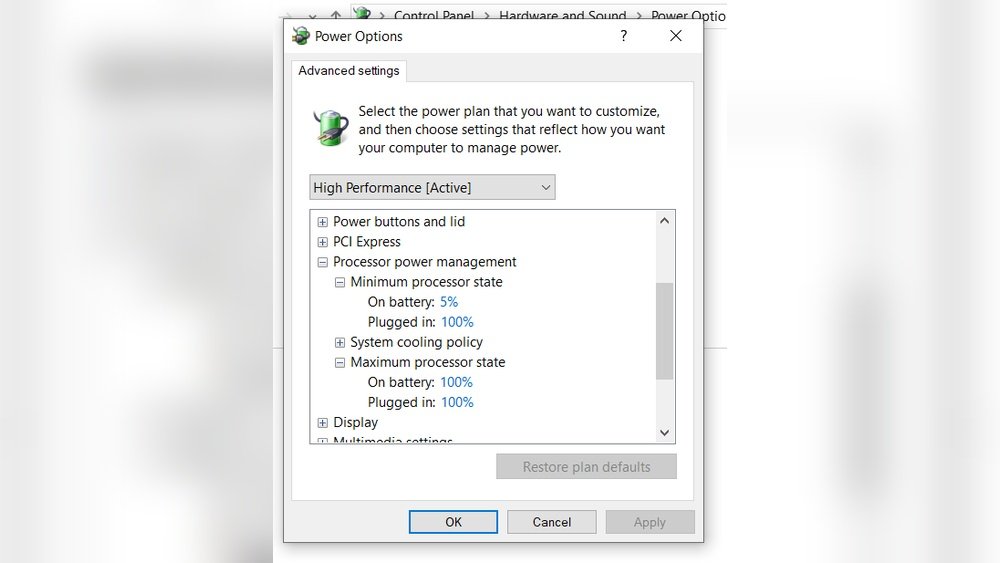
Custom power plans let you set CPU limits yourself. You can control the maximum processor state in settings. Lowering this value reduces CPU workload. You can also change sleep and display settings. Custom plans fit your exact needs and help save power. They give you more control over CPU usage.
Optimizing Software Settings
Optimizing software settings is a key step to reduce CPU usage. Many programs use more CPU than needed. Adjusting settings helps your computer run smoother. It also saves energy and extends device life.
Limiting Resource-heavy Features
Some software features consume a lot of CPU power. Turning off or lowering these features can help. For example, reduce video quality or disable animations. Close extra tabs or background tasks in apps. This lowers CPU load and improves speed.
Updating And Patching Software
Software updates often fix bugs that cause high CPU use. Developers improve performance and fix errors. Always keep your software up to date. Updates can make programs run faster and use less CPU. Check for updates regularly and install them promptly.
Managing System Services
Managing system services can help reduce high CPU usage. Services run in the background and support many Windows functions. Some services are not needed for daily use. Stopping or disabling these can free up CPU power. This process requires care to avoid stopping important services.
Disabling Unneeded Services
Start by identifying services that are not essential. Services like print spooler, if you do not use a printer, can be disabled. Also, services for apps you never use may run unnecessarily. Disabling them lowers CPU load and speeds up your computer. Use the Task Manager or Services app to find these services. Right-click and choose ‘Stop’ or ‘Disable’ to save resources. Always check what a service does before disabling it.
Using Services.msc Safely
Open Services.msc by typing it in the Start menu search. This tool lists all system services and their status. Changing settings here affects how Windows works. Avoid stopping services marked as ‘Windows’ or ‘System’. These keep your computer stable and secure. Create a system restore point before making changes. This lets you undo any mistakes easily. Change one service at a time and watch CPU usage. This method helps you keep control and avoid problems.
Controlling Cpu Usage Via Task Manager
Controlling CPU usage via Task Manager helps keep your computer running smoothly. Task Manager shows all running processes and their CPU consumption. You can adjust settings to limit how much CPU a process uses. This helps prevent slowdowns and overheating. It also lets you prioritize important tasks over less important ones.
Setting Process Priority
Task Manager allows you to change a process’s priority. Priority tells the system how much CPU time to give a program. Right-click the process name, then select “Set Priority.” Options range from Low to Real-time. Choose a lower priority to reduce CPU usage for that process. This frees CPU power for other tasks.
Use this carefully. Setting priority too low may slow down the program. Avoid Real-time priority unless you know what you are doing. This method works best for heavy programs that run in the background.
Using Affinity Settings
CPU affinity controls which CPU cores a process can use. Task Manager lets you assign specific cores to a program. Right-click the process, then click “Set Affinity.” You will see a list of CPU cores. Select fewer cores to limit CPU usage.
This method restricts the process to certain cores only. It helps balance CPU load among all running programs. Affinity settings are useful for multi-core processors. Use them to prevent one program from using all CPU power.

Credit: softwareg.com.au
Using Third-party Tools To Limit Cpu
Using third-party tools to limit CPU usage offers an effective way to control your computer’s performance. These tools help reduce overheating and extend hardware life. They also improve system stability by managing resource usage automatically.
Third-party software often provides more options than built-in system settings. You can set limits for specific programs or overall CPU use. This approach saves battery life on laptops and lowers fan noise.
Cpu Throttling Software
CPU throttling software controls how fast your processor runs. It slows down the CPU when it gets too hot or busy. This prevents damage and keeps your system cool.
Many throttling tools allow you to set temperature thresholds. When the CPU reaches this point, the software reduces speed. This helps avoid sudden crashes or freezes.
These programs are easy to use and often free. They work well for gamers and heavy software users. You can run them in the background without interrupting tasks.
Automated Cpu Management Apps
Automated CPU management apps monitor CPU usage constantly. They adjust the CPU power based on current needs. This keeps your system efficient without manual effort.
Some apps pause background tasks when CPU load is high. Others limit CPU use for certain programs automatically. This ensures smoother performance and better multitasking.
These apps usually come with user-friendly interfaces. You can customize settings or use default modes. They are ideal for users who want simple, smart CPU control.
Keeping Your Pc Cool
Keeping your PC cool helps reduce CPU usage and improves performance. Heat makes the CPU work harder and slows down your system. Cooling your PC keeps it running smoothly and extends its life.
Cleaning Dust And Fans
Dust builds up inside your PC over time. It blocks air and makes fans work harder. Turn off your PC and unplug it before cleaning. Use a soft brush or compressed air to remove dust. Clean the fans carefully to keep them spinning well. Regular cleaning helps your PC stay cool and quiet.
Improving Airflow And Cooling
Good airflow moves hot air out and brings cool air in. Make sure your PC case has enough space around it. Keep cables tidy to avoid blocking airflow inside the case. Use extra fans or upgrade to better cooling systems if needed. Cooling pads or stands can help laptops stay cooler too. Better airflow lowers CPU temperature and reduces its workload.

Credit: softwareg.com.au
Upgrading Hardware For Better Performance
Upgrading hardware can help limit high CPU usage and improve your computer’s overall speed. Sometimes software tweaks are not enough. A better CPU or more memory can handle more tasks at once. This reduces the stress on your system and keeps it running smoothly.
Choosing the right hardware upgrade depends on your current setup and needs. Knowing when to upgrade the CPU or add more RAM is important. These changes can extend your computer’s life and boost performance for everyday use.
When To Upgrade Your Cpu
Upgrade your CPU if programs run very slowly. If your computer freezes during tasks, the CPU might be too old. Newer processors handle multitasking better and use less power. Check your system’s age and speed to decide. A faster CPU lowers high usage and stops lagging.
Adding More Ram
More RAM helps when many programs run at once. If your system uses all its memory, it slows down. Adding RAM gives space for apps to work smoothly. This reduces the load on your CPU and speeds up your computer. RAM upgrades are often cheaper and easy to install.
Frequently Asked Questions
How Can I Limit Cpu Usage On Windows?
You can limit CPU usage on Windows using Task Manager or third-party apps. Adjust process priority or set affinity to control CPU allocation. This helps improve system stability and prevents overheating during heavy tasks.
What Tools Help Monitor Cpu Usage Effectively?
Tools like Task Manager, Resource Monitor, and third-party apps such as HWMonitor track CPU usage. They display real-time data, allowing you to identify high CPU-consuming processes and manage them efficiently.
Does Limiting Cpu Usage Improve Computer Performance?
Yes, limiting CPU usage prevents system overheating and throttling. It ensures stable performance by balancing resource allocation, reducing lag, and extending hardware lifespan during intensive tasks.
Can I Limit Cpu Usage For Specific Applications?
Yes, you can limit CPU usage for specific applications via Task Manager by setting process affinity or using software like Process Lasso. This controls how much CPU an app uses without affecting others.
Conclusion
Controlling CPU usage keeps your computer running smoothly. Simple steps can reduce slowdowns and overheating. Adjust settings to limit apps from using too much power. Monitor your system regularly to catch issues early. A well-maintained CPU helps your device last longer.
Small changes make a big difference in performance. Stay aware of what uses your CPU the most. This keeps your computer fast and responsive.
