
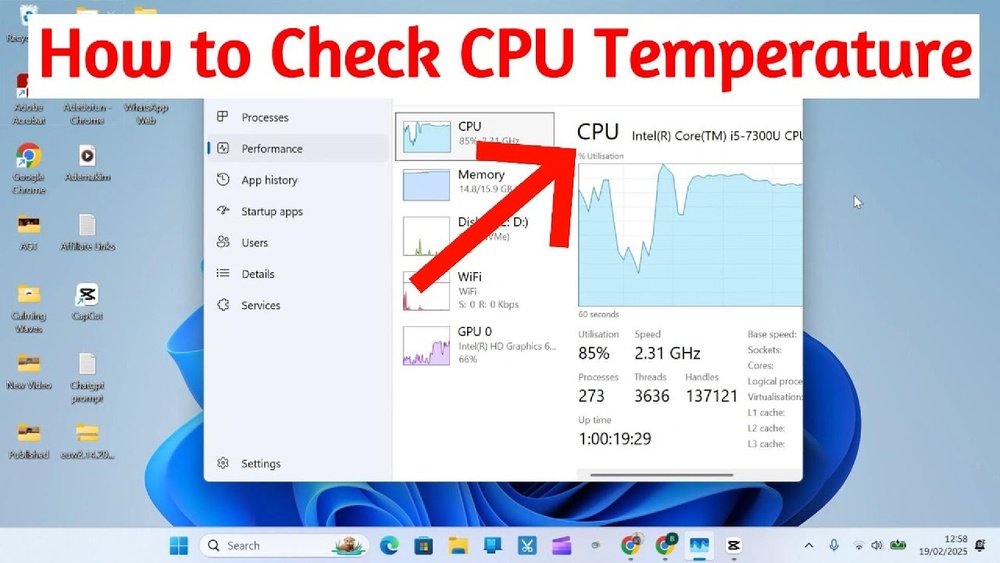
Have you ever wondered if your computer is running too hot? Knowing your CPU temperature is key to keeping your device safe and performing at its best.
If your CPU gets too warm, it can slow down, crash, or even get damaged. But don’t worry—you don’t need to be a tech expert to check it. You’ll learn simple and effective ways to monitor your CPU temperature. By the end, you’ll have the confidence to protect your computer and avoid costly repairs.
Ready to take control of your PC’s health? Let’s dive in.
Why Cpu Temperature Matters
CPU temperature affects your computer’s performance and health. High temperatures can cause slowdowns and crashes. Keeping the CPU cool helps your system run smoothly. It also extends the life of your computer parts.
Monitoring CPU temperature helps prevent damage and unexpected shutdowns. It shows if your cooling system works well. This information guides you to fix overheating before problems start.
Understanding Cpu Overheating Risks
Too much heat can harm the CPU permanently. It may cause errors or freeze your computer. Overheating can also shorten the CPU’s lifespan. Detecting high temperatures early avoids these risks.
Impact On Computer Performance
High CPU temperature reduces processing speed. The system slows down to cool itself. This causes lag in tasks and apps. Keeping the CPU cool keeps the speed steady.
Signs Of Poor Cooling
Frequent shutdowns or loud fan noise show cooling issues. The CPU may feel hot to touch. These signs warn that temperature is too high. Checking CPU temperature confirms if cooling is enough.
Signs Of Cpu Overheating
Knowing the signs of CPU overheating helps protect your computer. Overheating can cause serious problems. It reduces performance and may damage your hardware. Watch out for clear signals. They tell you when your CPU is too hot.
Unexpected Shutdowns Or Restarts
Your computer may shut down without warning. This happens to stop damage from heat. Restarting often is another sign. It means the CPU is struggling to cool down.
Slow Performance And Freezing
The system may run slower than normal. Programs take longer to open or respond. Freezing during tasks shows the CPU is stressed. Overheating forces the processor to slow down.
Unusual Fan Noise
Loud or constant fan noise is a warning. Fans work harder to cool the hot CPU. If the noise is louder than usual, check your temperature.
High Cpu Temperature Readings
Use software tools to check CPU temperature. Numbers above 80°C often mean overheating. Keeping an eye on these helps avoid damage.
Visual Artifacts Or Screen Flickering
Strange lines or flickers on the screen can appear. These happen when the CPU or GPU overheats. It affects your computer’s display quality.
Tools To Check Cpu Temperature
Knowing your CPU temperature is important for keeping your computer safe. Too much heat can cause damage or slow down performance. You can check the CPU temperature using different tools. These tools give real-time data and help you monitor your system’s health. Below are some common methods to check your CPU temperature easily.
Built-in Bios Options
The BIOS on your computer has basic tools to check CPU temperature. You can enter BIOS by pressing a key during startup, like F2 or Delete. Inside BIOS, look for the hardware monitor or system health section. It shows the current CPU temperature and fan speed. This method does not need any software. But it only shows temperature during startup, not while you use the computer.
Third-party Software
Many apps provide detailed CPU temperature data. Popular ones are HWMonitor, Core Temp, and SpeedFan. These programs run on Windows and show live temperature updates. They also track other hardware stats like voltage and fan speed. The software is easy to install and use. You can set alerts if the CPU gets too hot. This helps keep your system safe during heavy use.
Using Command Line
Advanced users can check CPU temperature using command line tools. On Linux, commands like “sensors” show temperature readings. Windows users can use PowerShell scripts or third-party CLI tools. This method needs basic knowledge of command line commands. It works well for quick checks or automated monitoring. Command line tools give fast, text-based temperature info.
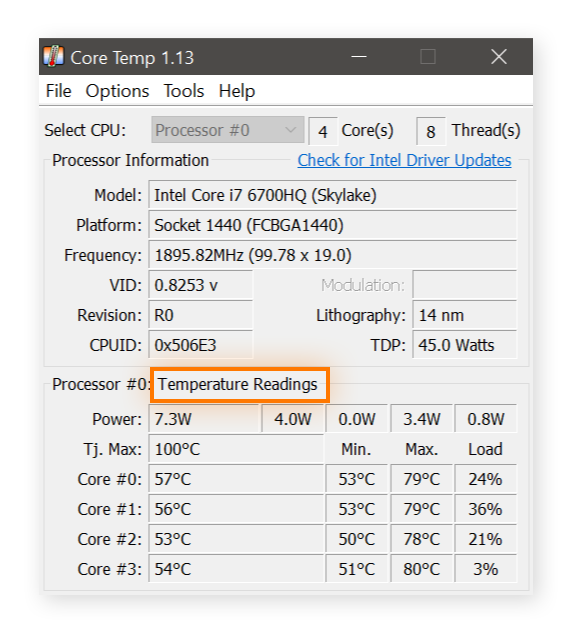
Credit: www.avast.com
Ideal Cpu Temperature Ranges
Knowing the ideal CPU temperature ranges helps keep your computer safe. It shows if your CPU works well or faces overheating risks. Temperatures vary by activity and CPU type. Monitoring these ranges can improve performance and extend your CPU’s life.
Idle Temperature
Idle temperature means the CPU temperature when the computer is not busy. This range is usually between 30°C and 50°C. A temperature higher than 50°C at idle may indicate cooling problems. Proper airflow and a clean fan help keep idle temperatures low.
Under Load Temperature
Under load temperature measures the CPU heat during heavy tasks. This includes gaming, video editing, or running multiple apps. Ideal load temperatures range from 60°C to 85°C. Temperatures above 85°C can cause damage or slow down the CPU. Good cooling systems reduce these high temperatures effectively.
Common Causes Of Overheating
CPU overheating happens for several common reasons. Knowing these can help you keep your computer cool and working well. Overheating can slow down your system or cause crashes. It might even damage your CPU over time. Below are the main causes of CPU overheating.
Dust And Dirt Buildup
Dust and dirt collect inside your computer case over time. They block fans and vents. This stops cool air from flowing freely. Dust on the CPU fan or heat sink reduces their ability to cool. Cleaning your computer regularly helps avoid this problem.
Poor Airflow
Good airflow is key to keeping your CPU cool. If cables or parts block air paths, heat builds up. Small cases or bad fan placement can reduce airflow. Make sure fans blow air in and out properly. Check that no objects block air vents.
Thermal Paste Issues
Thermal paste sits between the CPU and heat sink. It helps move heat away from the CPU. Old or dried-out paste loses its cooling power. Applying new thermal paste can improve heat transfer. This is a simple fix for overheating.
Credit: www.youtube.com
Simple Ways To Lower Cpu Temperature
Keeping your CPU cool is important for your computer’s health. High temperatures can slow down your PC or cause damage. Simple steps can lower CPU temperature and keep your system running smoothly. These easy fixes help avoid overheating problems.
Cleaning Your Pc
Dust and dirt block airflow inside your computer. Use compressed air to blow out dust from fans and vents. Clean the CPU fan carefully to remove buildup. A clean PC helps air move freely and cools the CPU better.
Improving Ventilation
Place your PC in a spot with good airflow. Avoid tight spaces or closed cabinets. Keep cables organized to stop air blockage. Open windows or use a fan nearby for fresh air flow. Better ventilation lowers CPU heat quickly.
Upgrading Cooling Systems
Stock coolers may not cool enough for powerful CPUs. Consider buying a better air cooler with larger fans. Liquid cooling systems offer excellent heat removal. Upgrading your cooler reduces CPU temperature and improves performance.
When To Seek Professional Help
Knowing your CPU temperature is important to keep your computer safe. Sometimes, the problem needs more than just checking or simple fixes. Professional help may be necessary to avoid damage to your device.
Here are signs that show it is time to seek expert assistance for your CPU temperature issues.
Unusual Noise Or Smells
Strange noises from your computer can mean fan problems. Burning smells may indicate overheating parts. These signs require a technician’s check.
Consistent Overheating
If your CPU temperature stays high despite cooling attempts, get professional help. Persistent heat can cause hardware damage.
Frequent Shutdowns Or Crashes
Your computer turning off suddenly or crashing often may mean serious CPU issues. Experts can diagnose and fix the root cause.
Difficulty Monitoring Temperature
Problems with temperature software or sensors may hide real CPU heat problems. A professional can test hardware accurately.
Physical Damage Or Dust Build-up
Visible damage or heavy dust inside your computer can block airflow. Cleaning and repairs by a technician will improve cooling.

Credit: softwareg.com.au
Frequently Asked Questions
How Can I Check My Cpu Temperature Easily?
You can check CPU temperature using software like HWMonitor, Core Temp, or SpeedFan. These tools display real-time temperatures and are user-friendly for all skill levels.
What Is A Safe Cpu Temperature Range?
A safe CPU temperature typically ranges between 30°C and 70°C during normal use. Temperatures above 85°C can risk hardware damage and reduce performance.
Why Does My Cpu Temperature Suddenly Rise?
CPU temperature rises due to heavy workloads, poor ventilation, or dust buildup. Overclocking and faulty cooling systems also cause sudden temperature spikes.
Can High Cpu Temperature Damage My Computer?
Yes, prolonged high CPU temperatures can cause hardware failure, system instability, and reduced lifespan. Proper cooling and monitoring help prevent damage.
Conclusion
Knowing your CPU temperature helps keep your computer safe. High temperatures can cause slow performance or damage. Use easy tools to check your CPU’s heat. Watch the numbers regularly to spot problems early. Keep your PC cool with good airflow and cleaning.
A healthy CPU means your computer runs smoother and lasts longer. Stay aware, and protect your device from overheating today.
