

Do you ever wonder what kind of RAM is inside your computer? Knowing your RAM type is key to boosting your device’s speed and performance.
But how do you find out exactly what you have? Don’t worry—it’s easier than you think. You’ll discover simple steps to identify your RAM quickly and accurately. By the end, you’ll have the confidence to upgrade or troubleshoot your system like a pro.
Keep reading, and unlock the secret to making your computer work better for you.
Check System Information
Knowing the type of RAM in your computer helps with upgrades and troubleshooting. Checking system information is the easiest way to find this data. Your computer stores RAM details in system tools that are simple to access. These tools show speed, size, and type of RAM installed. Below are ways to check RAM info on different operating systems.
Using Windows System Tools
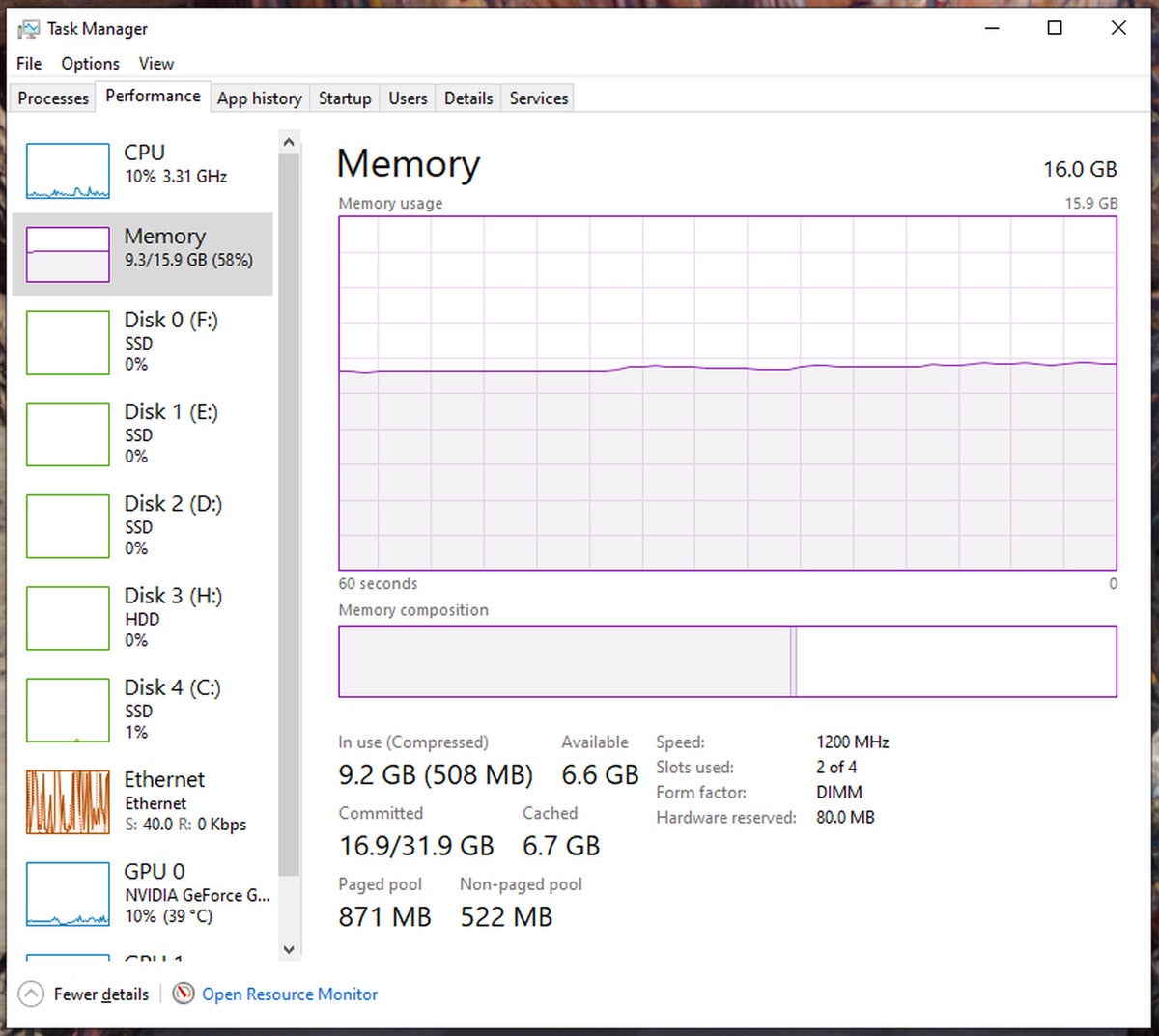
Press Windows + R keys to open the Run box. Type msinfo32 and hit Enter. The System Information window appears. Click on System Summary. Scroll down to find Installed Physical Memory (RAM). For detailed RAM type, open Task Manager by pressing Ctrl + Shift + Esc. Select the Performance tab, then click Memory. It shows speed, form factor, and slots used.
Finding Ram Details On Mac
Click the Apple icon in the top-left corner. Choose About This Mac. A window pops up displaying memory size and type. For more info, click System Report. Under Hardware, select Memory. It lists each RAM slot and its specifications. This helps identify RAM speed, size, and type quickly.
Accessing Linux Memory Info
Open the Terminal app on your Linux system. Type sudo dmidecode --type memory and press Enter. This command shows detailed RAM information. Look for Size, Type, and Speed fields. Another simple command is free -h, which shows total RAM available. These commands help you understand your RAM setup easily.

Credit: www.blizanovy.cz
Use Third-party Software
Using third-party software is a simple way to find out what type of RAM your computer has. These tools scan your system and show detailed information about your memory. No need to open your computer case or guess the specs. Just run the software and get instant results.
These programs provide clear, easy-to-understand reports. They tell you about the RAM’s size, speed, and type. This method works well for all skill levels. Even beginners can quickly learn what RAM is installed.
Popular Ram Identification Tools
Many free and trusted programs can help identify your RAM. CPU-Z is one of the most popular. It gives detailed info about your memory and other hardware parts. Another option is Speccy, which offers a user-friendly interface. It shows the RAM type, size, and usage at a glance.
HWiNFO is also a good choice. It provides in-depth system details, including RAM specifications. These tools run on most Windows computers and do not require installation in some cases. Just download, run, and see your RAM information instantly.
How To Read Software Reports
After running the software, look for the memory or RAM section. It usually lists the type, such as DDR3 or DDR4. The report also shows the size, like 8GB or 16GB. Speed is shown in MHz, like 2400 MHz. This number tells how fast your RAM works.
Some tools display the number of RAM slots used. This helps know if you can add more memory. Check the manufacturer and part number for exact RAM model details. Understanding these reports helps you buy the right RAM for upgrades or repairs.
Physical Inspection Of Ram Modules
Physical inspection of RAM modules helps identify the type of memory installed. It allows you to see the exact model, speed, and size. This method is simple and does not require special software. You just need to open your device and check the RAM sticks carefully.
Opening Your Pc Or Laptop
Turn off your computer and unplug it from power. For desktops, remove the side panel by unscrewing or sliding it off. Laptops usually have a small panel on the bottom secured with screws. Use a screwdriver to open it gently. Avoid touching other components inside. Find the RAM slots where the memory sticks are installed.
Reading Ram Labels And Stickers
Each RAM stick has a label with important information. Look for the brand, model number, and capacity. The speed is often shown in MHz, like 2400MHz or 3200MHz. Check for terms like DDR3, DDR4, or DDR5 to know the generation. These labels help you understand the exact type of RAM you have. Write down the details for future reference.

Credit: www.standardwool.uk
Identify Ram Type By Specifications
Identifying your RAM type by its specifications helps you understand your computer’s memory better. This knowledge guides you when upgrading or troubleshooting. Specifications show details like speed, size, and technology used in the RAM. These details are usually printed on the RAM stick or shown in software.
Ddr Versions And Their Differences
RAM comes in different DDR versions like DDR3, DDR4, and DDR5. Each version is faster and more efficient than the last. DDR3 is older and slower compared to DDR4 and DDR5. DDR4 is the most common in modern computers. DDR5 is the newest, offering higher speeds and better power use. The physical design of each DDR type is different, so they don’t fit into the wrong slots.
Checking Ram Speed And Capacity
RAM speed is measured in MHz and affects how fast data moves. Higher speed means better performance. Capacity shows how much data RAM can hold, usually in GB. More capacity helps when running many programs or big files. You can check speed and capacity on the RAM label or through system settings. Knowing these specs helps pick the right RAM for your needs.
Check Motherboard Compatibility
Checking motherboard compatibility is key to knowing your RAM type. The motherboard controls which RAM fits and runs well. Using the wrong RAM can cause errors or slow performance.
Start by identifying your motherboard model. This helps find the exact RAM it supports. Then match the RAM type to the motherboard specifications. This ensures smooth operation and avoids damage.
Finding Your Motherboard Model
Find your motherboard model by opening your computer case. Look for the model name printed on the board. It usually appears near the CPU or memory slots.
You can also find the model using system tools. On Windows, open Command Prompt and type wmic baseboard get product, manufacturer. This shows the motherboard brand and model.
Matching Ram Type With Motherboard
Check your motherboard manual or the manufacturer’s website. Look for supported RAM types like DDR3, DDR4, or DDR5. Note the maximum RAM speed and size allowed.
Match these details with your RAM sticks. Using RAM that matches your motherboard ensures better stability. Avoid mixing RAM types or speeds to prevent conflicts.
Common Ram Myths And Facts
Many people have wrong ideas about RAM. These myths can cause confusion when checking what type of RAM you have.
Knowing the truth helps you make better choices for your computer. It also helps avoid mistakes that slow down your system.
More Ram Always Means Faster Computer
More RAM can help your computer run better, but it is not the only factor. Speed and type of RAM matter too. Sometimes upgrading RAM does not fix slow performance.
All Ram Modules Are The Same
RAM comes in different types like DDR3, DDR4, and DDR5. Each type has different speeds and compatibility. Not all RAM fits every computer.
Ram Speed Does Not Affect Performance
Faster RAM can improve performance in some tasks. It helps with gaming and video editing. But for simple work, speed difference is less noticeable.
More Ram Slots Always Mean More Ram Capacity
More slots let you add more RAM, but only up to the motherboard’s limit. Each slot supports a certain maximum size. Check your motherboard specs first.
Removing Ram Modules Is Risky
Removing or adding RAM is simple and safe if done carefully. Turn off the computer and ground yourself to avoid static. RAM slots have clips to hold modules in place.
Credit: www.mantellritchie.com
Frequently Asked Questions
How Can I Identify My Computer’s Ram Type?
You can identify RAM type using system tools like CPU-Z or Task Manager. Check details such as DDR version, speed, and size. This helps you understand compatibility and upgrade options accurately.
What Tools Show Ram Specifications On Windows?
Windows Task Manager and CPU-Z reveal RAM details. Task Manager shows size and speed. CPU-Z provides detailed info like type, manufacturer, and timings. Both tools help verify your RAM specifications easily.
Can I Check Ram Type Without Opening My Pc?
Yes, software tools like CPU-Z or system info utilities show RAM type. These programs scan your hardware and display RAM details without physical access. This saves time and avoids hardware risks.
Why Is Knowing My Ram Type Important?
Knowing your RAM type ensures compatibility with your motherboard and CPU. It helps you buy the right upgrades and avoid performance issues. Correct RAM type also optimizes your system’s speed and stability.
Conclusion
Knowing your RAM type helps you choose the right upgrades. Check your computer’s settings or use simple tools to find out. This knowledge saves time and avoids compatibility problems. Remember to note the size, speed, and generation of your RAM.
With this info, your device can run smoother and faster. Keep your system’s needs in mind when buying new RAM. Understanding your RAM makes tech tasks easier and less stressful.
