
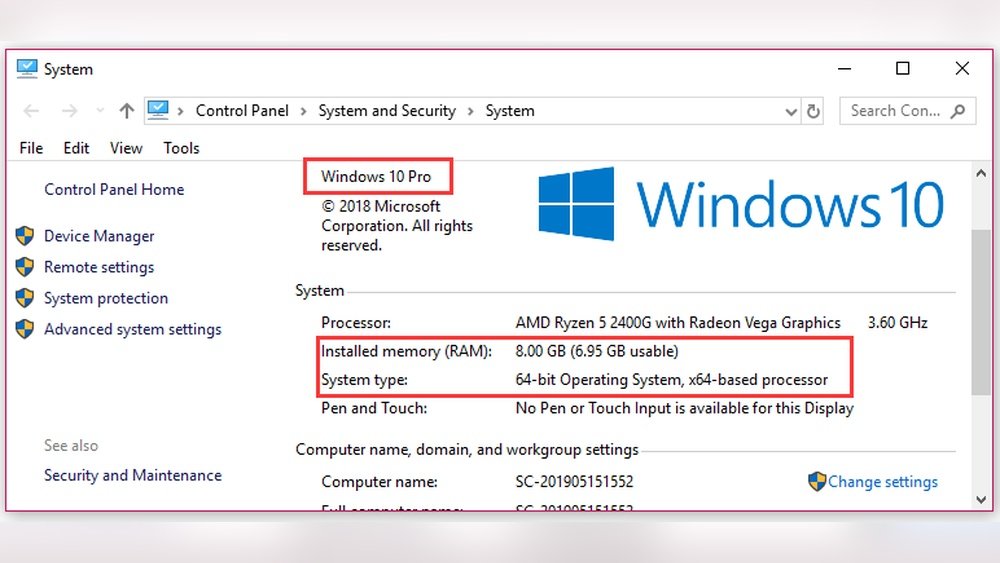
Are you confused about which RAM will work with your motherboard? Choosing the right RAM can feel tricky, but it doesn’t have to be.
Picking incompatible memory can slow down your computer or stop it from working altogether. But don’t worry—this guide will help you understand exactly how to find RAM that fits perfectly with your motherboard. By the end, you’ll be confident in making the best choice to boost your PC’s performance.
Keep reading to unlock the simple steps that save you time, money, and frustration.
Check Motherboard Specifications
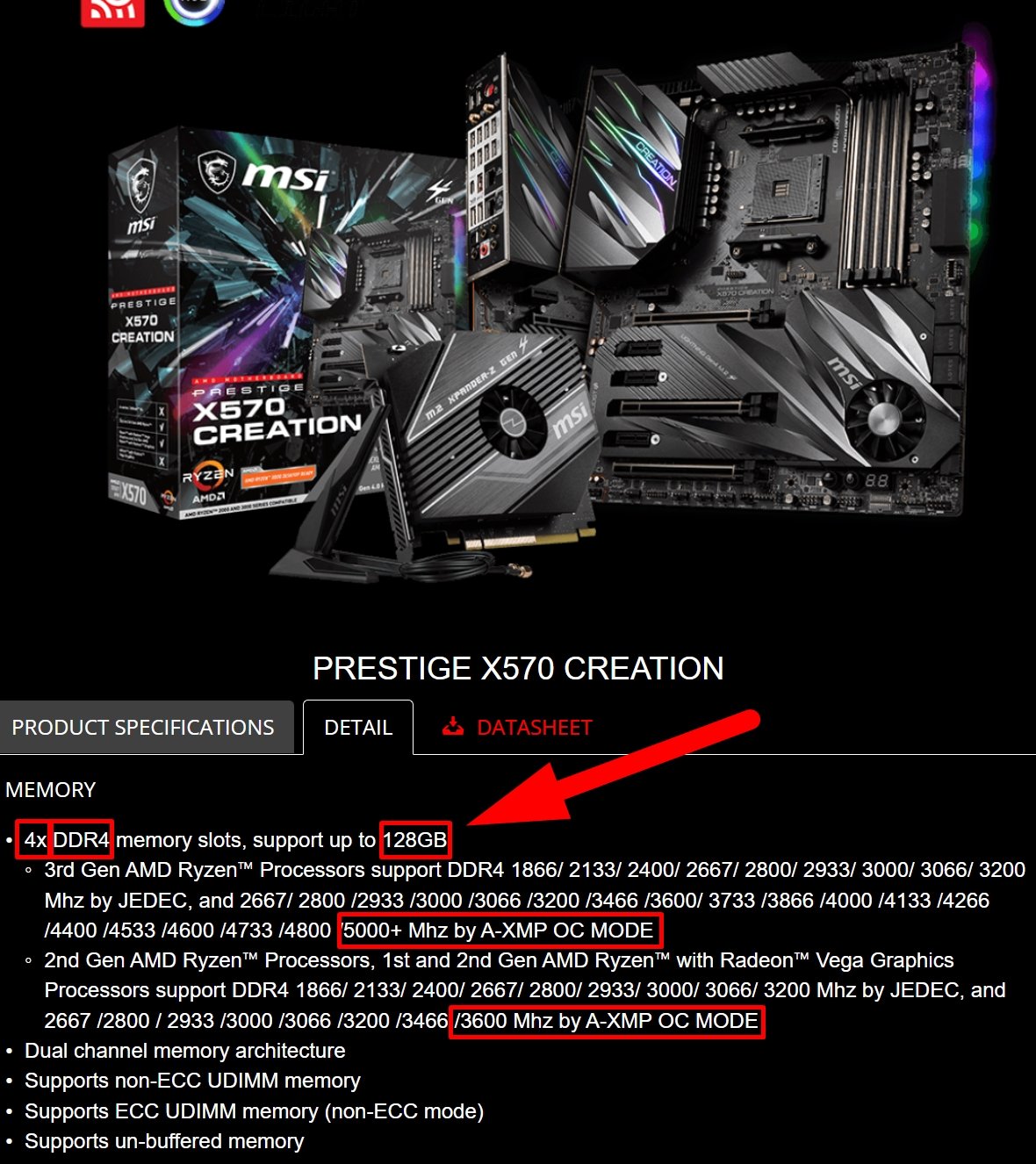
Checking your motherboard specifications is the first step to find compatible RAM. Motherboards have limits on the type and amount of RAM they support. Knowing these details helps avoid buying the wrong memory. This saves time, money, and frustration.
Each motherboard model has a unique set of specs. These include RAM type, speed, and maximum capacity. The specs also show the number of RAM slots available. This information guides your RAM choice for better performance.
Locate Motherboard Model
Identify your motherboard model to get accurate specifications. You can find this printed on the motherboard itself. It is usually near the RAM slots or CPU socket. Another way is to check system information on your computer. Use commands like “msinfo32” on Windows or tools like CPU-Z.
Consult Manufacturer’s Website
Visit the motherboard manufacturer’s website for detailed specs. Search for your motherboard model in their support or product section. The website provides official details on supported RAM types and speeds. It may also offer BIOS updates that improve RAM compatibility.
Identify Supported Ram Types
Check the motherboard specs for RAM type compatibility. Common types include DDR3, DDR4, and DDR5. The motherboard also lists supported RAM speeds like 2400 MHz or 3200 MHz. Confirm the maximum RAM capacity to avoid exceeding limits. Using the right RAM type ensures smooth operation and stability.
Understand Ram Types
Understanding RAM types is key to choosing the right memory for your motherboard. RAM varies in format, speed, and generation. Each type fits specific motherboards. Picking the wrong RAM can cause issues or prevent your PC from working.
Ddr Generations
RAM comes in different DDR generations like DDR3, DDR4, and DDR5. Each generation is not backward compatible. A DDR4 RAM will not fit into a DDR3 slot and vice versa. Motherboards support only certain DDR types. Check your motherboard’s manual to know the supported DDR generation.
Form Factors
RAM modules come in different shapes and sizes called form factors. Desktop computers use DIMM modules. Laptops use smaller SO-DIMM modules. Using the wrong form factor will not fit your motherboard slots. Confirm the form factor your motherboard supports before buying RAM.
Speed Ratings
RAM speed is measured in MHz, like 2400 MHz or 3200 MHz. Higher speed means faster data transfer. Motherboards support a range of RAM speeds. Installing RAM with speed higher than supported will run at the motherboard’s max speed. Choose RAM speed compatible with your motherboard for best performance.
Determine Maximum Ram Capacity
Determining the maximum RAM capacity of your motherboard is key to upgrading your computer. It sets the limit for how much memory your system can handle. Knowing this helps avoid compatibility problems and wasted money.
Motherboards have specific limits on total RAM, the size per slot, and the number of slots available. Understanding these limits guides you in choosing the right RAM modules. This section breaks down each factor to help you find the best match.
Total Ram Limit
The total RAM limit is the highest amount of memory your motherboard can support. This number depends on the motherboard’s design and chipset. You can usually find this information in the motherboard manual or on the manufacturer’s website.
Exceeding this limit can cause your system not to boot or fail to recognize extra memory. Always check this before buying new RAM sticks.
Per Slot Limit
Each RAM slot on your motherboard can only hold a certain maximum size of memory. For example, a slot might support up to 16GB or 32GB. This limit ensures stable performance and compatibility.
When buying RAM, make sure each module does not exceed the per slot capacity. Using larger modules than supported can lead to errors or failure to boot.
Number Of Slots
The number of RAM slots determines how many memory modules you can install. Most motherboards have between two and four slots. Some high-end boards offer even more.
Knowing the number of slots helps you plan your upgrade. You can choose to fill all slots or leave some free for future memory expansions.
Credit: www.cgdirector.com
Match Ram Speed And Timings
Matching RAM speed and timings is important for your computer’s performance. RAM speed affects how fast data moves between memory and the processor. Timings control the delay before RAM starts responding. Choosing the right speed and timings keeps your system stable and efficient. Knowing these details helps pick RAM that works well with your motherboard.
Supported Frequencies
Your motherboard supports specific RAM frequencies. These are the speeds at which RAM can run properly. Check your motherboard manual or website for supported frequencies. Common speeds include 2133 MHz, 2666 MHz, and 3200 MHz. Installing RAM with unsupported speeds may cause errors or slow performance. Always match RAM speed within your motherboard’s supported range.
Cas Latency
CAS latency is the delay before RAM responds to requests. It is shown as a number like CL16 or CL18. Lower CAS latency means faster response time. Choose RAM with a CAS latency your motherboard can handle. Balancing speed and CAS latency helps improve overall system speed. Avoid high latency RAM if your motherboard prefers low latency modules.
Overclocking Considerations
Some motherboards allow RAM overclocking to increase speed. Overclocking pushes RAM beyond standard limits for better performance. Make sure your motherboard supports overclocking before trying it. Use compatible RAM rated for higher speeds if overclocking. Overclocking can cause instability if not done carefully. Always test your system after changing RAM speed or timings.
Check Ram Voltage And Compatibility
Checking RAM voltage and compatibility is crucial before upgrading your motherboard. The wrong RAM voltage can cause system instability or failure to boot. Understanding different voltage levels and RAM types helps you pick the right memory for your system.
Standard Voltage Levels
Most desktop RAM uses a standard voltage of 1.5 volts. This voltage is common for DDR3 memory modules. DDR4 RAM typically runs at 1.2 volts, which is lower and more power-efficient. Your motherboard manual will list supported voltage levels. Using RAM with voltage outside this range can cause errors or damage.
Low Voltage Ram
Low voltage RAM usually operates at 1.35 volts or less. It consumes less power and generates less heat. This type of RAM is common in laptops and energy-efficient desktops. Some motherboards support both standard and low voltage RAM. Check your motherboard specifications carefully to ensure compatibility.
Ecc Vs Non-ecc
ECC (Error-Correcting Code) RAM detects and fixes memory errors. It is mostly used in servers and workstations. Non-ECC RAM is common in regular desktop computers. Most consumer motherboards only support non-ECC RAM. Installing ECC RAM in a non-ECC motherboard can cause system problems.
Use Compatibility Tools
Using compatibility tools is the easiest way to find the right RAM for your motherboard. These tools help you avoid mistakes and save time. They check your motherboard model and show which RAM sticks fit perfectly. This approach removes the guesswork and ensures your system runs smoothly.
Manufacturer Ram Configurators
Many motherboard makers offer RAM configurators on their websites. You just enter your motherboard model, and the tool lists compatible RAM options. These lists include details like speed, size, and type. This helps you pick RAM that works without issues. Manufacturer tools are reliable because they use tested data.
Third-party Compatibility Checkers
Besides manufacturer tools, third-party websites also provide RAM compatibility checkers. These tools cover many motherboard brands and RAM types. They often include user reviews and ratings. This extra info helps you choose good quality RAM. Third-party checkers are useful for comparing different RAM brands quickly.
Consider Dual And Quad Channel Configurations
Consider Dual and Quad Channel Configurations when choosing RAM for your motherboard. These configurations use multiple RAM sticks to increase data speed. They allow the processor to access memory faster. This improves overall system performance. Not all motherboards support these setups. Check your motherboard manual to see what it supports.
Benefits Of Multi-channel Ram
Multi-channel RAM improves computer speed. It allows more data to flow between RAM and CPU. This means faster loading times for apps and files. It also boosts performance in tasks like video editing and gaming. Dual channel uses two RAM sticks, while quad channel uses four. More channels mean better data handling and smoother multitasking.
Installation Tips
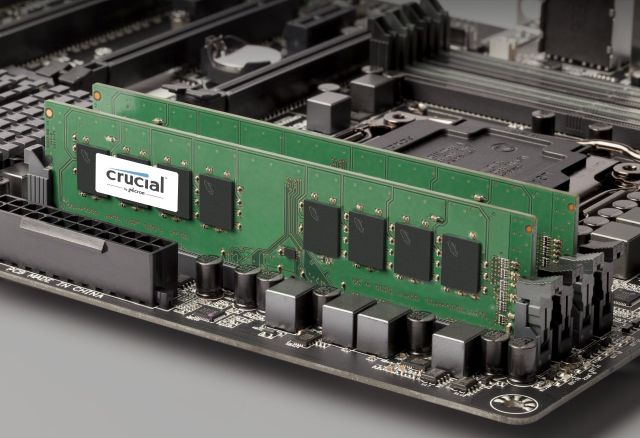
Install RAM sticks in the correct slots. Motherboards often color-code these slots for dual or quad channel use. Place sticks in matching slots to enable multi-channel mode. Use RAM sticks of the same size and speed for best results. Mixing different RAM can cause errors or slower speeds. Always power off your PC before installing RAM sticks.
Credit: www.crucial.com
Review User Experiences And Forums
Checking user experiences and forums helps find compatible RAM for your motherboard. Real users share what worked and what didn’t. This info saves time and avoids mistakes. Forums offer tips on brands, speeds, and sizes that fit well.
Users often post detailed reports about their setups. They mention specific motherboard models and RAM types. These posts reveal common problems and solutions. Reading multiple opinions gives a clearer picture of compatibility.
Common Compatibility Issues
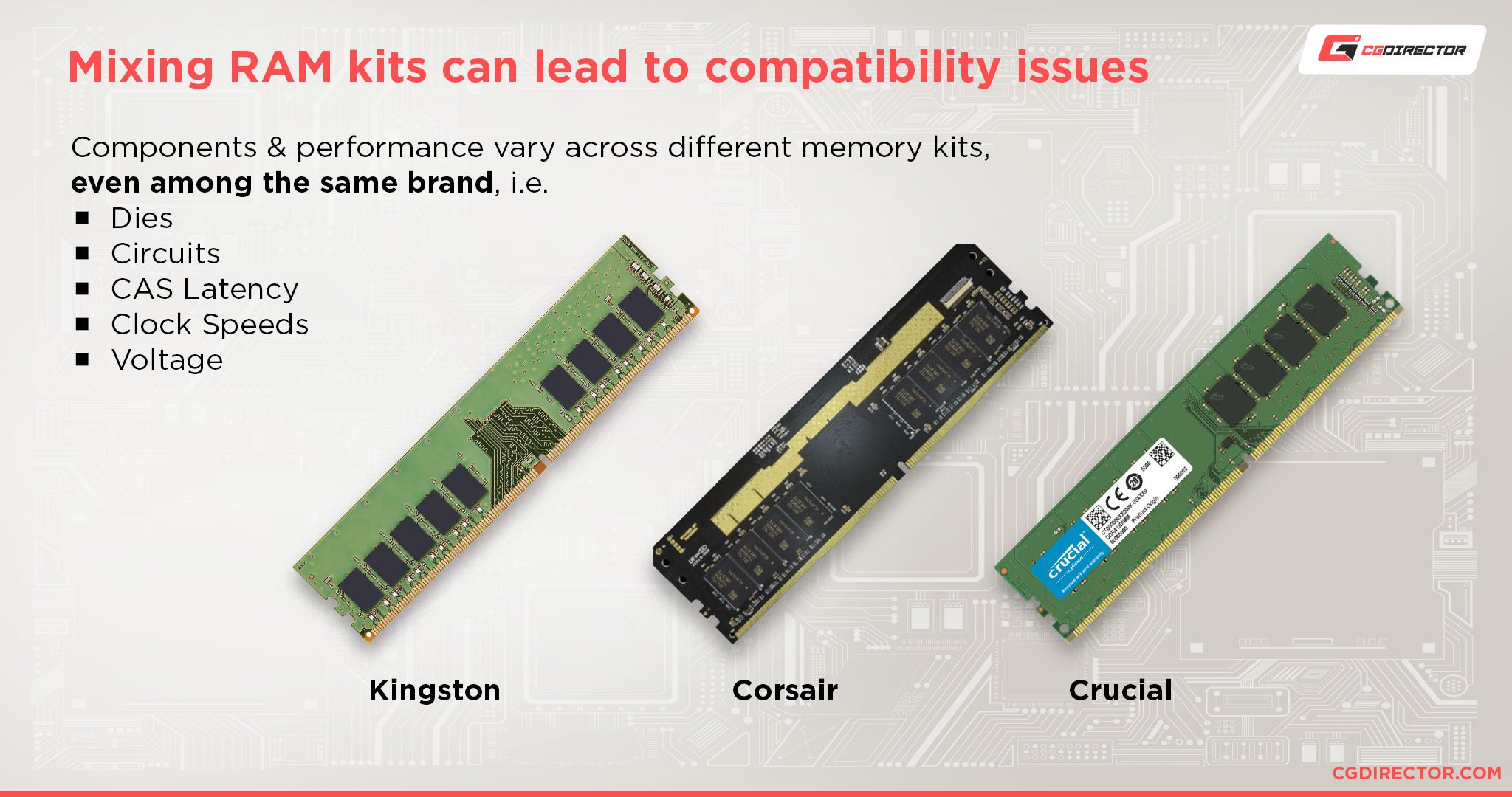
Many users report issues with RAM not fitting or working properly. Some RAM sticks cause boot failures or crashes. Others run at slower speeds than expected. Problems often come from mixing brands or using unsupported speeds.
Motherboards have limits on RAM size and speed. Exceeding these limits causes errors. Some users face BIOS update needs to support newer RAM. Voltage differences between RAM and motherboard also cause issues.
Trusted Ram Brands
Users often recommend brands with high reliability. Brands like Corsair, Kingston, Crucial, and G.Skill get good reviews. These brands often have better compatibility and support. They also provide clear product specs, making selection easier.
Choosing trusted brands reduces the risk of compatibility problems. Many users report smooth installation and stable performance. These brands offer warranties and customer support, adding extra security.
Final Tips Before Purchase
Before buying RAM for your motherboard, some final checks can save you trouble. These tips help ensure your purchase fits your needs and works well. Taking a moment to review these points can make your upgrade smoother and avoid costly mistakes.
Warranty And Return Policies
Check the warranty period for the RAM modules. A good warranty protects you from defects and early failures. Also, understand the return policy of the seller or store. This helps if the RAM does not work with your system or has problems. Keep receipts and packaging until you are sure everything works fine.
Future-proofing Your Setup
Think about future upgrades when buying RAM. Choose a speed and size that can support new software and tasks. Buying a bit more RAM than now needed can help your computer last longer. Also, check if your motherboard supports more RAM later. This way, your system stays ready for new demands.
Credit: vixencomposites.com
Frequently Asked Questions
How Do I Check My Motherboard’s Ram Type?
Look up your motherboard model online or in the manual. Check specifications for supported RAM types like DDR3 or DDR4.
Can I Mix Different Ram Brands On One Motherboard?
Yes, but mixing brands may cause compatibility issues or unstable performance. Matching specs is always better for stability.
What Ram Speed Is Compatible With My Motherboard?
Your motherboard’s specs list supported RAM speeds. Installing faster RAM will run at the motherboard’s maximum supported speed.
How Much Ram Can My Motherboard Support?
Check your motherboard’s maximum RAM capacity in its manual or official website. It varies by model and chipset.
Conclusion
Choosing the right RAM for your motherboard is simple with the right steps. Check the motherboard’s manual or website for supported RAM types. Match the RAM speed and size to your motherboard’s limits. Consider the number of slots available before buying.
Remember, proper RAM ensures your computer runs smoothly. Take time to verify compatibility before upgrading. This saves money and avoids frustration. Now, you can pick RAM confidently and improve your PC’s performance easily.
