
Are you wondering how to find out the RAM of your PC? Knowing your computer’s RAM is important because it affects how fast your system runs and how many tasks it can handle at once.
Whether you want to upgrade your PC or just understand its performance better, this guide will show you simple and quick ways to check your RAM. By the end, you’ll have a clear picture of your computer’s memory and feel confident making smart decisions about your device.
Keep reading—you’re just a few steps away from mastering your PC’s power!
Credit: www.shoshitamam.com
Check Ram On Windows
Checking the RAM on your Windows PC helps you know your system’s memory size. This info is useful before installing new software or upgrading hardware. Windows offers several simple ways to check RAM quickly.
Use System Properties
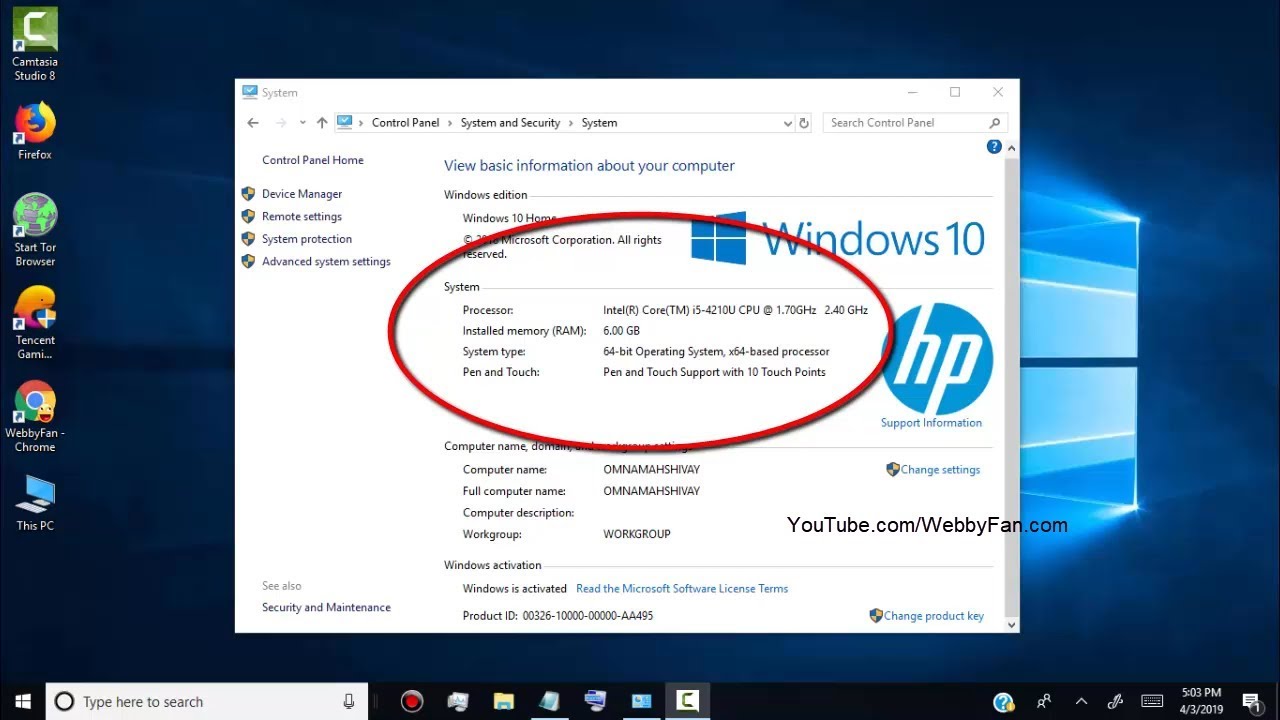
Right-click on the “This PC” icon on your desktop. Select “Properties” from the menu. A window will open showing your PC’s basic info. Look for “Installed RAM” to see your memory size. This method is quick and works on most Windows versions.
Task Manager Method
Press Ctrl + Shift + Esc to open Task Manager. Click the “Performance” tab at the top. Select “Memory” from the left side. You will see RAM details like total size, speed, and usage. This method also shows how much RAM is free.
Command Prompt Approach
Open the Start menu and type “cmd.” Click on “Command Prompt” to open it. Type wmic memorychip get capacity and press Enter. The sizes of each memory chip appear in bytes. Add these numbers for total RAM size.
Credit: www.avast.com
Check Ram On Mac
Checking the RAM on a Mac is simple. It helps you understand your computer’s memory capacity. Knowing your RAM helps with tasks like running apps or upgrading your device. Two easy ways to check RAM on a Mac are through “About This Mac” and “Activity Monitor.”
About This Mac
Click the Apple icon in the top-left corner of your screen. Select “About This Mac” from the dropdown menu. A window will open showing your Mac’s basic information. Look for the “Memory” section. It shows the total RAM installed on your Mac. This method gives a quick overview of your memory size.
Activity Monitor
Open “Activity Monitor” from the Applications folder or search it with Spotlight. Click the “Memory” tab at the top of the window. Here, you see real-time memory usage details. It shows memory pressure, used RAM, cached files, and free memory. This tool helps you monitor how your Mac uses RAM during work.
Check Ram On Linux
Checking the RAM on a Linux computer helps you know how much memory is available. It shows if your system can run more programs smoothly. Linux offers simple ways to find this information. You can use commands in the terminal or graphical tools. Both methods give clear details about your RAM.
Using Terminal Commands
Open the terminal to check RAM quickly. Type free -h and press Enter. It shows total, used, and free memory in a readable format.
Another command is cat /proc/meminfo. It displays detailed memory info. Look for lines starting with MemTotal and MemFree.
You can also use top or htop for real-time memory use. These tools update the memory stats continuously.
Graphical System Monitors
Linux desktops include system monitors with a GUI. Open the System Monitor app from your menu. It displays RAM usage in a simple chart or graph.
GNOME users can use “System Monitor” and KDE users have “KSysGuard.” Both show memory stats clearly. This method is easy for users who prefer clicking over typing.
These tools help track memory use and spot if your PC needs more RAM.

Credit: www.pcmag.com
Using Third-party Tools
Using third-party tools is a simple way to check your PC’s RAM. These apps give detailed information about your memory. They are easy to use and work on different Windows versions. Many tools offer extra features like performance monitoring and hardware tests.
These tools show RAM size, speed, and type. Some also display how much RAM is in use. This helps you understand your computer’s performance better. You do not need technical skills to use these apps.
Popular Ram Check Software
CPU-Z is a well-known free tool for checking RAM. It provides clear details about your memory and other hardware. Speccy is another popular option. It offers an easy overview of your PC’s RAM and system info. Another choice is HWiNFO. It gives in-depth data about memory and hardware components. These tools are trusted and widely used by many users.
Benefits Of Third-party Apps
Third-party apps give more detailed RAM data than built-in tools. They show memory speed, type, and usage in real-time. These apps are often free and lightweight. They help identify hardware problems early. Some apps also include testing features to check RAM health. This helps keep your PC running smoothly.
Tips To Improve Ram Performance
Improving your PC’s RAM performance can make your computer faster and more responsive. Simple steps can help you get the best out of your existing memory. These tips reduce the load on your RAM and help your PC run smoothly.
Follow these easy methods to boost your RAM’s efficiency without complex tools or software.
Close Unnecessary Applications
Running many programs at once uses more RAM. Close apps that you are not using. This frees memory for important tasks. Check your task manager to see which apps use the most RAM. Closing them helps your PC work faster.
Upgrade Physical Ram
Adding more RAM is a direct way to improve performance. More memory lets your PC handle more tasks at once. Check your computer’s manual to find the right type of RAM. Install the new RAM carefully or ask a technician for help.
Manage Startup Programs
Many programs start automatically when you turn on your PC. These use RAM right away. Disable unnecessary startup programs to save memory. Use system settings or task manager to manage startup apps. This helps your PC boot faster and run better.
Frequently Asked Questions
How Can I Check My Pc’s Ram Size Quickly?
You can check your PC’s RAM size using Task Manager. Press Ctrl + Shift + Esc, go to the Performance tab, and select Memory. Your total RAM size will be displayed there, showing both used and available memory.
Where To Find Ram Information On Windows 10?
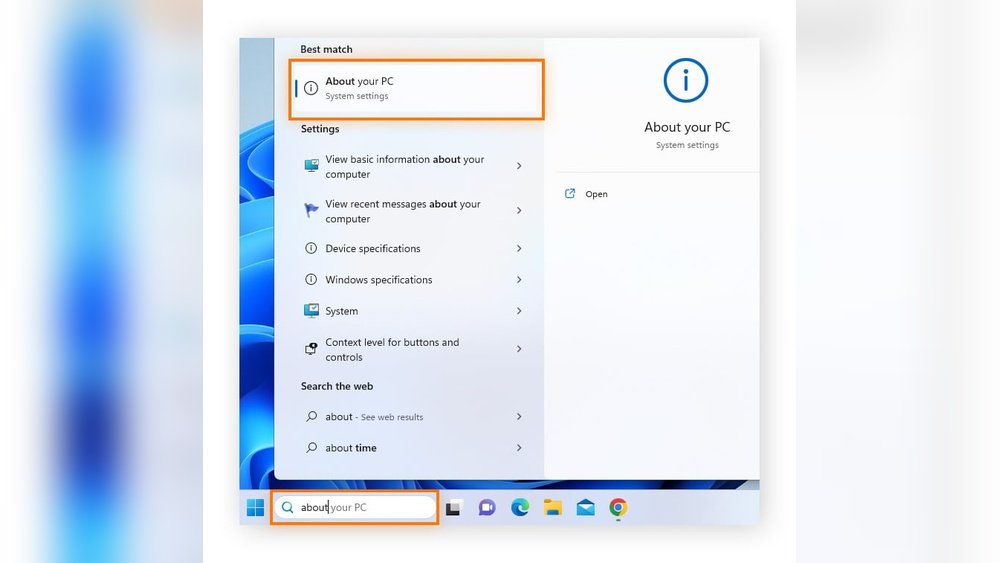
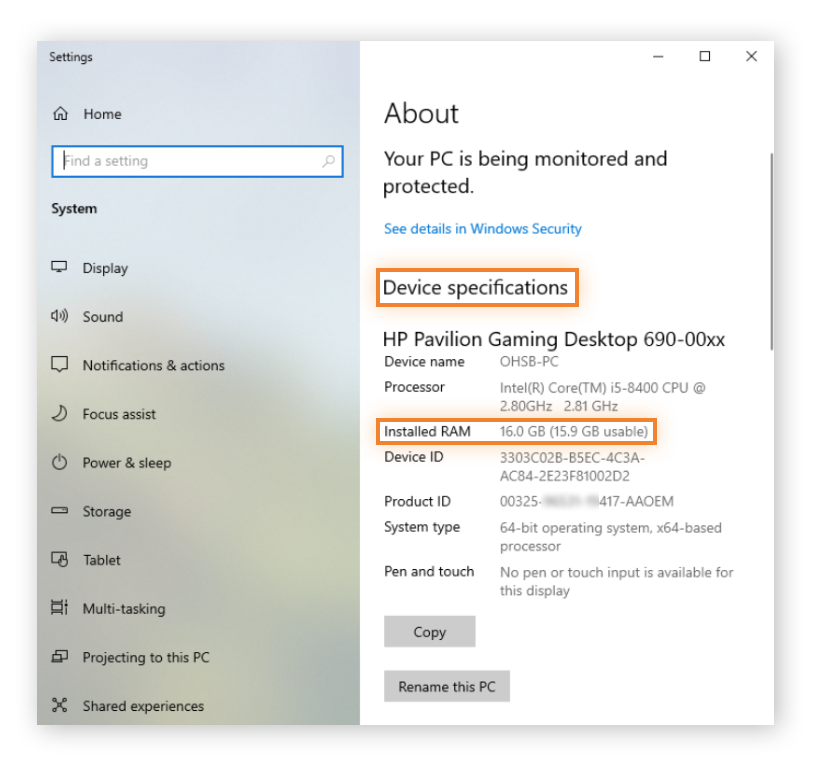
On Windows 10, open Settings, select System, then About. Under Device specifications, you’ll see Installed RAM, indicating the total memory installed on your PC.
What Command Shows Ram Details On A Pc?
Use the command “wmic MEMORYCHIP get Capacity” in Command Prompt. It displays the capacity of each RAM module installed on your computer in bytes.
Can I Check Ram Speed And Type On My Pc?
Yes, use tools like CPU-Z or Speccy. They provide detailed information about RAM type, speed, and manufacturer, helping you understand your memory specifications.
Conclusion
Knowing your PC’s RAM helps you understand its speed and performance. You can check RAM using simple tools built into your computer. This knowledge helps you decide if you need more memory for tasks or games. Always keep an eye on RAM to keep your PC running smoothly.
Remember, more RAM means your computer can handle more work at once. Now, you can easily find out your PC’s RAM without any hassle.
