

Are you curious about how much RAM your laptop has? Knowing your laptop’s RAM is important because it affects how fast your computer runs and how many tasks it can handle at once.
But finding this information isn’t always obvious if you don’t know where to look. You’ll discover simple, step-by-step ways to check your laptop’s RAM quickly. By the end, you’ll understand your laptop better and be able to make smarter choices about upgrades or troubleshooting.
Keep reading to unlock this useful knowledge!
Credit: www.youtube.com
Check Ram On Windows
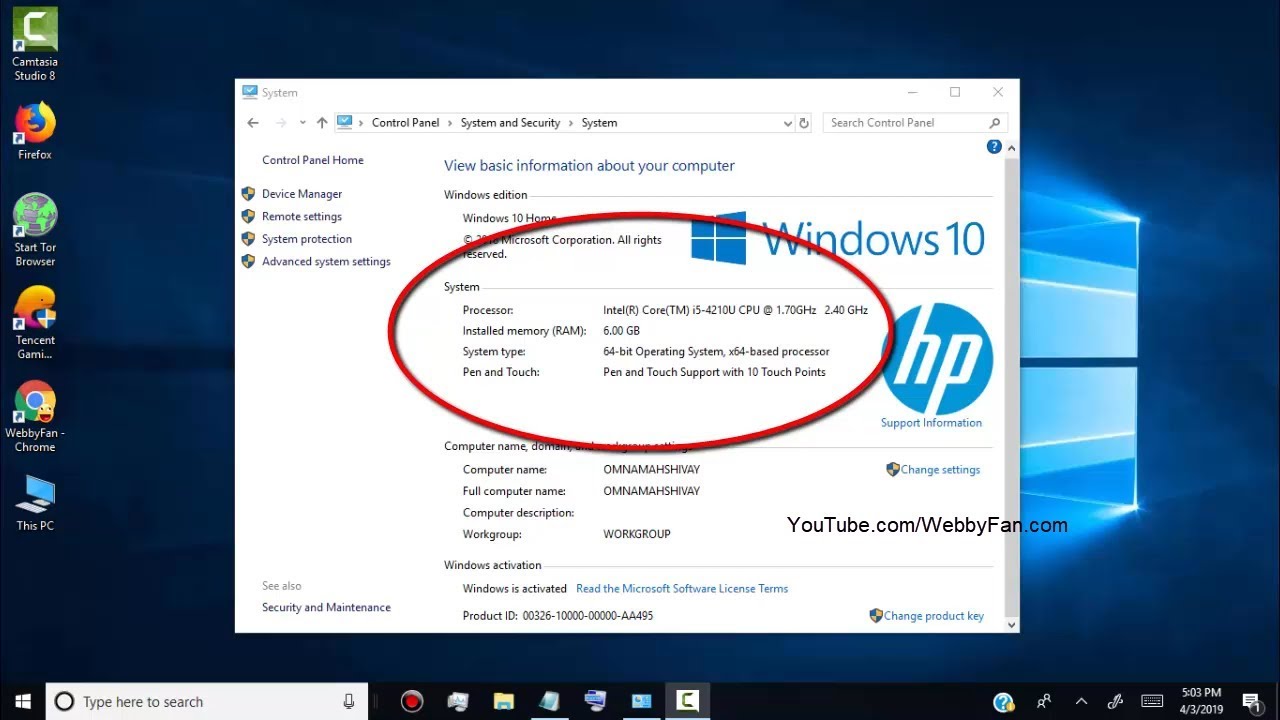
Checking the RAM on a Windows laptop is simple. Knowing your RAM helps you understand your laptop’s speed and performance. You can find this information in a few easy ways. Each method gives clear details about the total memory and how much is available.
Use System Settings
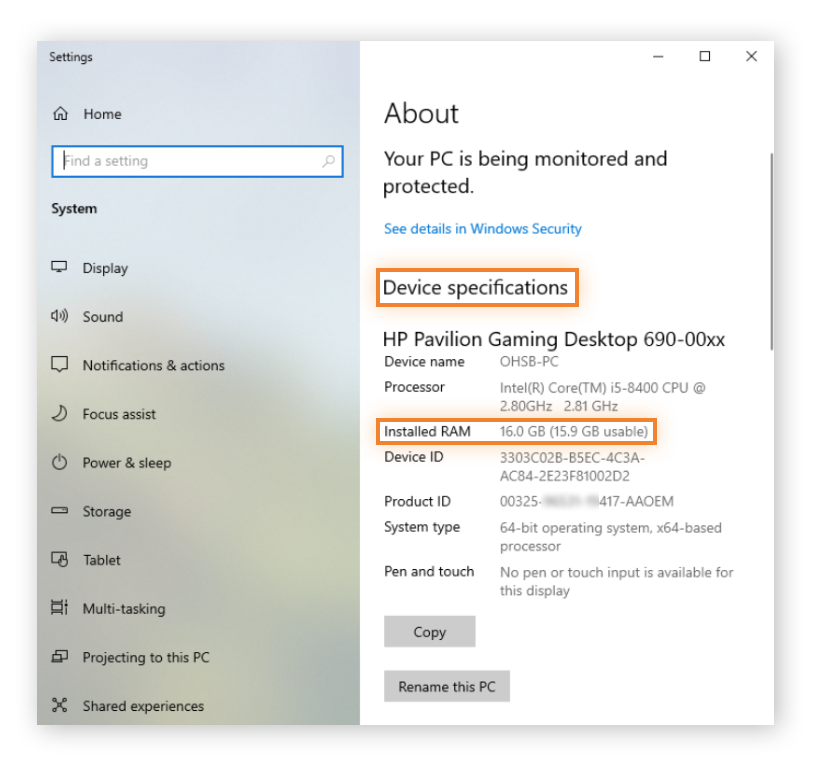
Open the Start menu and select Settings. Click on System, then choose About. Here, you see your installed RAM under Device specifications. This section shows the total RAM your laptop has. It also tells you if it is usable or reserved.
Use Task Manager
Press Ctrl + Shift + Esc to open Task Manager. Click on the Performance tab. Select Memory from the left menu. You will see the total RAM and how much is currently in use. This tool also shows speed and form factor details.
Use Command Prompt
Open the Start menu and type “cmd.” Click on Command Prompt to open it. Type the command wmic MEMORYCHIP get Capacity and press Enter. This shows the size of each RAM module in bytes. Add the numbers to get total RAM.

Credit: www.shoshitamam.com
Check Ram On Mac
Checking the RAM on your Mac is simple and fast. Knowing your RAM helps you understand your computer’s speed and performance. This guide shows two easy methods to check your Mac’s RAM.
Use About This Mac
Click the Apple icon at the top left of your screen. Select About This Mac from the menu. A window opens showing your Mac’s overview.
Look for the Memory section. It tells you the total RAM installed. You can see how much RAM your Mac has in gigabytes (GB).
This method works on all Mac models and macOS versions. It gives a quick snapshot of your Mac’s memory.
Use Activity Monitor
Open Finder and go to Applications. Then open the Utilities folder. Double-click Activity Monitor to launch it.
Click the Memory tab at the top of the window. It shows detailed information about RAM use. Look at the Memory Used and Cached Files.
This tool helps you see how your Mac uses RAM in real-time. It is useful for checking memory while running apps.
Check Ram On Linux
Checking your laptop’s RAM on Linux is simple. You can find out how much memory your system has using built-in tools. This helps you understand your laptop’s performance and plan upgrades.
Use Terminal Commands
The terminal is a quick way to check RAM details. Open the terminal and type free -h. This command shows total, used, and free memory in a readable format. Another command is cat /proc/meminfo. It displays detailed memory info. Use top or htop for real-time memory usage. These commands work on almost all Linux versions.
Use System Monitor
System Monitor is a graphical tool for checking RAM. Open it from your applications menu. Look for the “Resources” tab or section. It shows memory usage and total RAM. This method is easier for those who prefer visuals over text commands. System Monitor updates data live, so you see current memory use instantly.
Identify Ram Type And Speed
Knowing the type and speed of your laptop’s RAM helps you understand its performance. RAM type means the technology used, like DDR3 or DDR4. Speed shows how fast the memory works, measured in MHz. Both affect how smooth your laptop runs. You can find this info using built-in tools or third-party apps. Both ways are easy and quick.
Use System Information Tools
Most laptops have system tools that show RAM details. On Windows, open “Task Manager” by pressing Ctrl + Shift + Esc. Click the “Performance” tab and select “Memory.” You will see the RAM speed and how much is installed. For type, use “System Information” by typing it in the search bar. Look under “Installed Physical Memory (RAM)” or “Memory Device.”
Mac users can click the Apple icon and select “About This Mac.” The “Memory” section lists the RAM type and speed. This method uses software already on your laptop. No extra downloads needed. It is safe and reliable.
Use Third-party Software
Third-party software gives more detailed RAM info. Apps like CPU-Z or Speccy are free and easy to use. Download and install one of these tools. Open the app and go to the “Memory” tab. You will see RAM type, size, speed, and other specs. These apps also show extra details like manufacturer and timings.
These programs work on most Windows laptops. They help if system tools don’t show enough info. Always download software from official sites to avoid risks. Using third-party tools is a smart way to get full RAM details quickly.
Check Ram Physically
Checking the RAM physically helps you know the exact memory installed in your laptop. This method is simple and does not require software tools. You can see the RAM type, size, and speed directly from the module sticker.
Physical checking also confirms if the RAM matches your laptop’s specifications. It helps avoid confusion from incorrect system reports. Follow the steps below to check your laptop’s RAM physically.
Open Laptop Back Panel
Turn off your laptop and unplug all cables. Place it on a flat surface with the bottom side up. Use a small screwdriver to remove the screws holding the back panel. Keep the screws safe to avoid losing them.
Carefully lift the back panel. Some laptops may need a plastic tool to pry open gently. Do not force it to avoid damage. Once open, you can see the internal components clearly.
Locate And Read Ram Module
Look for a rectangular chip with a label on it. This is the RAM module. Most laptops have one or two RAM sticks near the center or side.
Read the sticker on the RAM module. It shows details like size (e.g., 8GB), speed (e.g., 3200MHz), and type (e.g., DDR4). Note these details for future reference or upgrades.
Be careful not to touch other components to avoid static damage. After checking, close the back panel and screw it back securely.
Tips To Optimize Ram Usage
Optimizing your laptop’s RAM usage helps your computer run faster and smoother. Managing how your RAM is used prevents slowdowns and crashes. Simple steps can improve performance without extra cost. Here are some easy tips to get the best from your laptop’s memory.
Close Unnecessary Programs
Running many programs at once uses more RAM. Close apps you do not need right now. Check the taskbar and system tray for open programs. This frees memory and speeds up your laptop. Use the Task Manager to see which apps use most RAM.
Manage Startup Items
Some programs start automatically when you turn on your laptop. Too many startup items slow down your system. Disable programs that do not need to run on startup. Open Task Manager and go to the Startup tab. Turn off unnecessary apps to save RAM and speed up boot time.
Upgrade Ram If Needed
If your laptop still runs slow, more RAM might help. Check your laptop’s RAM capacity and maximum limit. Adding RAM boosts your computer’s ability to handle multiple tasks. Visit a professional or follow your laptop manual to upgrade safely. More RAM means better performance for heavy tasks.
Credit: www.avast.com
Frequently Asked Questions
How Can I Check My Laptop’s Ram Size Easily?
You can check your laptop’s RAM size by opening the System Information or About section in your settings. On Windows, use Task Manager or System Properties. On Mac, click About This Mac. These methods show your RAM capacity quickly and accurately.
What Tools Help Identify Laptop Ram Details?
Tools like CPU-Z, Speccy, and HWInfo provide detailed RAM information. They show RAM type, speed, size, and slots used. These tools are free, easy to use, and give more in-depth RAM data than basic system settings.
How To Find Ram Type And Speed On Laptop?
To find RAM type and speed, use system tools or third-party apps. Windows users can check Task Manager’s Performance tab. For more details, use software like CPU-Z. Mac users find this info in System Report under Memory.
Can I Know The Maximum Ram My Laptop Supports?
Yes, you can find the maximum RAM by checking your laptop’s manual or manufacturer’s website. This info helps you upgrade RAM without compatibility issues. It ensures your laptop runs efficiently with the right memory capacity.
Conclusion
Knowing your laptop’s RAM helps improve its performance and speed. You can check RAM using simple steps on Windows or Mac. This helps decide if your laptop needs an upgrade. More RAM means smoother multitasking and faster programs. Keep your laptop running well by knowing its RAM size.
This small detail makes a big difference in daily use. Now you can easily find out your laptop’s RAM anytime.
