
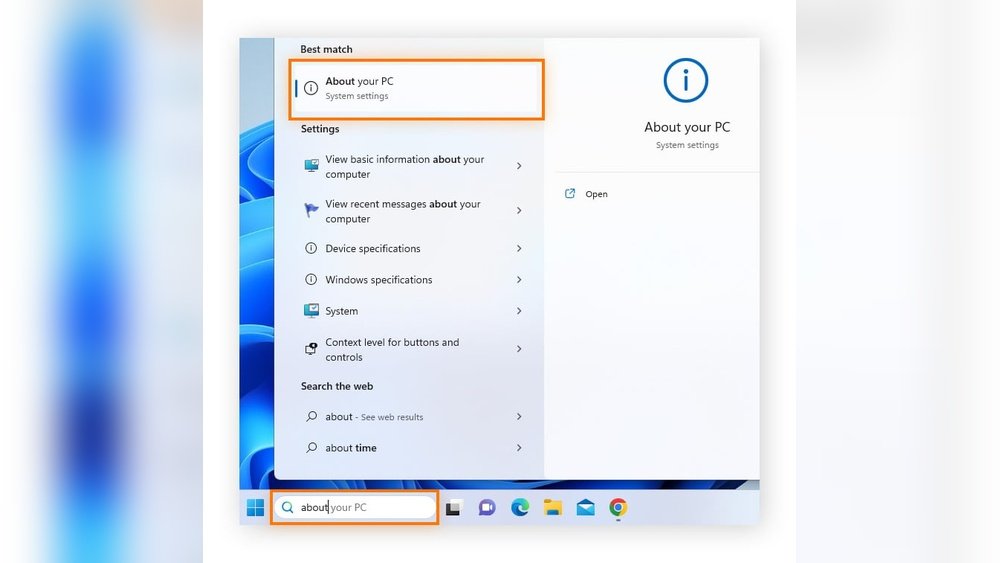
Do you ever wonder if your computer is running slow because it doesn’t have enough memory? Knowing how much RAM your computer has can make a big difference in how well it performs.
But how do you find out the RAM without confusing yourself with technical terms? This guide will show you simple steps to check your computer’s RAM quickly and easily. By the end, you’ll understand your computer’s memory better and know exactly what to do next to boost its speed.
Keep reading—you’re just a few clicks away from unlocking your computer’s true potential.
What Is Ram
RAM stands for Random Access Memory. It is a key part of your computer’s hardware. RAM helps your computer work faster by holding data that your processor needs right now.
Think of RAM as a desk where you do your work. The bigger the desk, the more papers and tools you can keep handy. More RAM means your computer can handle more tasks without slowing down.
What Does Ram Do?
RAM temporarily stores data for active programs and files. It lets the processor quickly access information without using the slower hard drive. This makes programs run smoother and faster.
How Ram Affects Performance
More RAM improves multitasking. Your computer can open more apps at once. It also helps with big files like videos or games. Without enough RAM, your computer may freeze or slow down.
Types Of Ram
There are different types of RAM such as DDR3, DDR4, and DDR5. Each type varies in speed and power use. Newer types are faster and more efficient. Your computer supports only certain types.
Credit: raquelpeixoto.com.br
Why Check Ram Size
Knowing the size of your computer’s RAM is important for many reasons. RAM affects how fast your computer runs and how many tasks it can handle at once. Checking RAM size helps you understand your computer’s limits.
It also guides you in choosing the right software and games. Some programs need more RAM to work well. Without enough RAM, your computer may slow down or freeze.
What Ram Size Means For Performance
RAM stores data your computer uses now. More RAM means your computer works faster with many apps open. Less RAM can cause delays and slow loading times.
How Ram Size Affects Multitasking
Running many programs needs enough RAM. If RAM is low, switching between apps becomes slow. Checking RAM size helps avoid this problem.
Why Ram Size Matters For Upgrades
Knowing your RAM size helps when upgrading your PC. You can buy the right amount of RAM to improve speed. It prevents spending on incompatible or unnecessary parts.
Check Ram On Windows
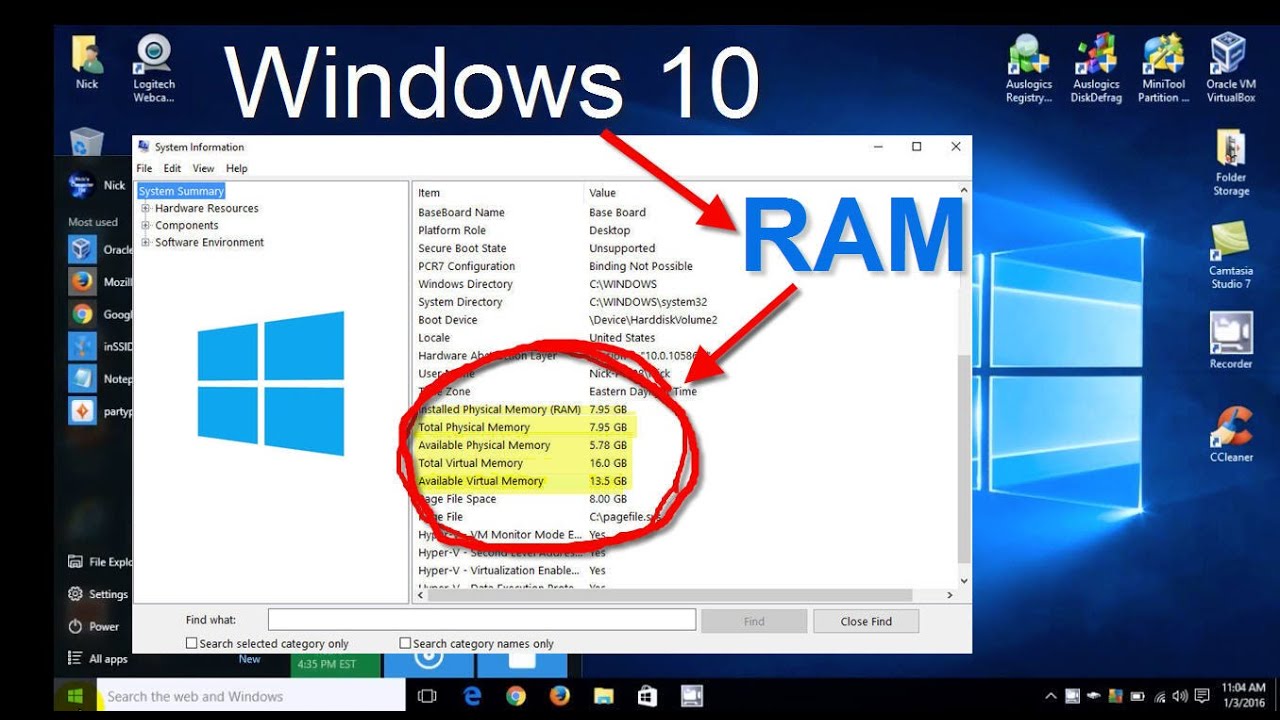
Knowing the amount of RAM in your Windows computer helps you understand its performance. RAM affects how fast your computer runs and how many programs you can open. Checking RAM is simple and quick. Use the built-in tools Windows offers to find this information.
Using System Settings
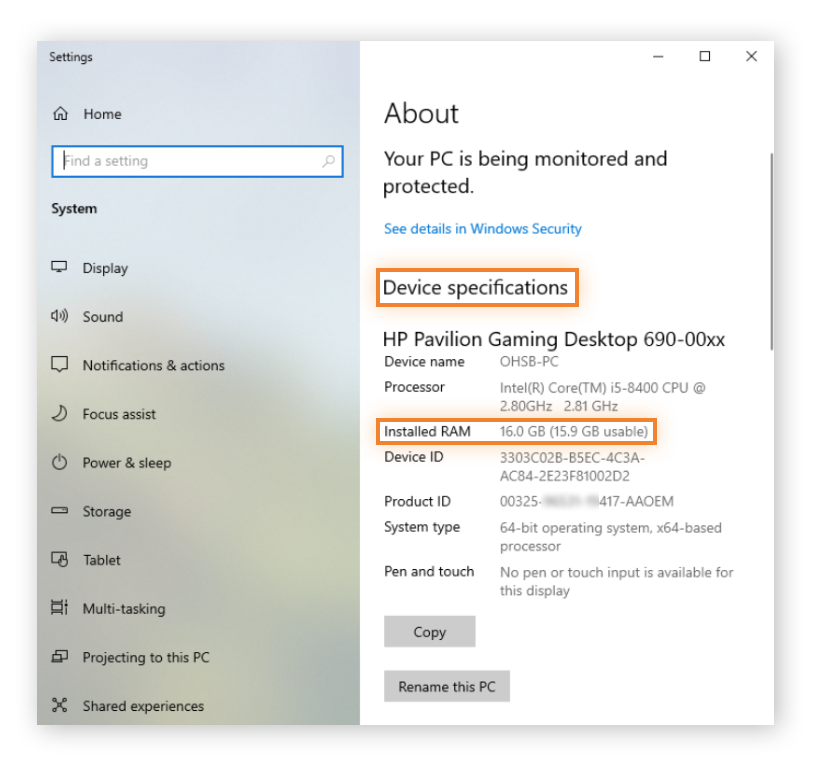
Open the Start menu and click on Settings. Select “System” and then “About” from the left menu. Scroll down to the “Device specifications” section. Look for “Installed RAM” to see your total memory. This shows your RAM size in gigabytes (GB).
Using Task Manager
Right-click the taskbar and choose “Task Manager.” Click the “Performance” tab at the top. Select “Memory” from the left sidebar. The window shows your total RAM and used memory. It also displays RAM speed and form factor.
Using Command Prompt
Press Windows key + R to open the Run box. Type “cmd” and press Enter to open Command Prompt. Enter the command: wmic MEMORYCHIP get Capacity. This shows RAM size in bytes for each chip. Add the numbers for total RAM size.
Credit: www.avast.com
Check Ram On Mac
Checking the RAM on a Mac helps you understand your computer’s memory capacity. RAM affects how fast your Mac runs and how many tasks it can handle at once. Knowing your RAM size helps you decide if you need an upgrade or not.
Using About This Mac
Click the Apple icon at the top-left corner of your screen. Select “About This Mac” from the dropdown menu. A window will open showing an overview of your Mac’s specs. Look for the “Memory” section. It shows the total RAM installed on your Mac. This method is quick and easy for a basic check.
Using System Report
Open “About This Mac” as before. Click the “System Report” button in the window. This opens a detailed report of your Mac’s hardware and software. Select “Memory” from the sidebar. Here, you see detailed info about each RAM slot. It shows size, type, and status of every memory module. This method suits those who want more details about their Mac’s RAM.
Check Ram On Linux
Checking the RAM on a Linux system is simple and quick. Knowing how much RAM your computer has helps you understand its performance. Linux offers easy ways to find this information using commands or graphical tools.
This guide shows two main methods to check RAM on Linux. Both work well on most Linux distributions.
Using Terminal Commands
Open the terminal to check RAM with commands. Type free -h and press Enter. This command shows total, used, and free RAM in a human-friendly format.
Another command is cat /proc/meminfo. It displays detailed memory information. Look for the line starting with MemTotal to see total RAM.
You can also use vmstat -s for a quick memory summary. These commands give clear details about your system’s RAM.
Using System Monitor
Most Linux desktops include a System Monitor tool. Open it from the application menu. The tool shows system resources like CPU and RAM usage.
Look for the memory or RAM tab inside the System Monitor. It displays total RAM and current usage with simple graphs. This method is easy for users who prefer visual information.
System Monitor updates in real-time, so you can watch RAM change as programs run. It helps understand how memory is used on your Linux system.

Credit: www.blizanovy.cz
Using Third-party Tools
Using third-party tools is a simple way to check your computer’s RAM. These tools give clear details about the memory installed and its usage. They work well for beginners and provide more info than built-in system settings.
Many third-party apps are free and easy to install. They display RAM size, type, speed, and how much is in use. This helps you understand your computer’s performance better.
Popular Third-party Ram Tools
Some well-known tools include CPU-Z, Speccy, and HWMonitor. These apps show detailed RAM info in a user-friendly way. They also offer other system details like CPU and motherboard data.
How To Use Third-party Tools
Download and install the tool from its official site. Open the app and navigate to the memory or RAM section. Read the information about your RAM easily on the screen.
Benefits Of Using Third-party Tools
These tools give more detailed data than system info. They show real-time RAM usage and help spot issues. Easy to understand, they suit users with little tech knowledge.
Tips To Optimize Ram Usage
Managing your computer’s RAM well can improve its speed and performance. Optimizing RAM use helps your system run smooth. It stops slowdowns and freezes during tasks.
Simple steps can make a big difference in how your RAM works. These tips are easy to follow and do not need special tools.
Close Unnecessary Programs
Running many programs at once uses more RAM. Close apps you do not need. This frees up memory for important tasks.
Limit Startup Programs
Some programs start automatically when you turn on your computer. These use RAM even if you do not use them. Disable unnecessary startup programs in your system settings.
Use Lighter Software Versions
Heavy software uses more RAM. Choose lighter versions or apps with fewer features. They work faster and save memory.
Clear Cache Regularly
Temporary files and cache take up RAM space. Clear your browser and system cache to free memory. This helps your computer run better.
Restart Your Computer Often
Restarting clears RAM and stops background tasks. It refreshes your system and improves performance.
Frequently Asked Questions
How Do I Check My Computer’s Ram Size?
To check your RAM size on Windows, open “Task Manager” and go to the “Performance” tab. On Mac, click “About This Mac” and select “Memory. ” This quickly shows your installed RAM and usage details for better understanding.
What Is The Difference Between Ram And Storage?
RAM is temporary memory used for running programs, while storage saves files permanently. RAM affects speed, storage holds data long-term. Knowing this helps you understand your computer’s performance and upgrade needs.
Can I Increase My Computer’s Ram Easily?
Yes, many desktops allow easy RAM upgrades by adding or replacing modules. Laptops may be limited or require professional help. Always check compatibility and maximum supported RAM before upgrading.
Why Is Knowing Ram Important For Computer Performance?
RAM size impacts multitasking and speed. More RAM allows smoother operation of multiple programs and faster data access. Knowing your RAM helps optimize usage and decide on upgrades.
Conclusion
Knowing your computer’s RAM helps you understand its speed and capacity. It lets you decide if your device needs an upgrade. Checking RAM is simple and takes just a few steps. You can find this information in your system settings or use a tool.
More RAM means better performance for tasks and apps. Keep an eye on it to keep your computer running smoothly. This small step can make a big difference in your daily use.
