
Are you curious about your computer’s RAM memory but don’t know where to start? Understanding your RAM is key to making your device faster and smoother.
Whether you want to upgrade or just check what you have, knowing how to find and read your RAM details can save you time and money. You’ll discover simple steps to quickly know your RAM memory without confusing tech jargon.
Keep reading, and you’ll gain the confidence to manage your device like a pro.
What Is Ram And Why It Matters
RAM stands for Random Access Memory. It is a key part of any computer or device. RAM stores data that the device uses right now. This helps the device work fast and smooth. Without enough RAM, devices slow down and programs lag.
Knowing about RAM helps you understand your device better. It also guides you when to upgrade your device. Let’s explore what RAM does and why it matters.
What Is Ram?
RAM is a type of computer memory. It holds data temporarily while the device is on. Unlike hard drives, RAM works very fast. It allows quick access to information needed by apps and the system.
RAM clears its data when the device turns off. It only keeps data during active use. This temporary storage speeds up tasks and multitasking.
Why Ram Matters
RAM affects how many programs run smoothly at once. More RAM means better performance for apps and games. It helps avoid slowdowns and freezes.
Having enough RAM improves overall user experience. It makes browsing, editing, and gaming faster. Devices with low RAM struggle to keep up with new software.
How Ram Impacts Your Device
RAM size limits the number of active tasks. Small RAM can cause crashes or slow loading times. Large RAM supports complex programs and multitasking.
Choosing the right RAM size depends on your needs. Basic use needs less RAM than gaming or video editing. Understanding RAM helps pick the best option for your device.
Credit: www.blizanovy.cz
Signs Your Pc Needs More Ram
Knowing when your PC needs more RAM is important for smooth performance. RAM helps your computer run programs quickly. Low RAM can cause slowdowns and frustration. Watch for clear signs that point to RAM issues. These signs show your PC struggles to keep up.
Slow Performance During Multitasking
Running many apps at once? Your PC may lag or freeze. This happens if RAM is too low. More RAM helps your computer handle many programs smoothly. If switching between apps feels slow, it’s a sign.
Programs Take Longer To Open
Opening files or software takes much time? This delay can mean your RAM is full. RAM stores data for quick access. When it’s full, your PC uses slower storage instead. This slows down app loading.
Frequent Freezing Or Crashing
Your PC freezes or crashes often? Lack of RAM can cause this problem. Without enough memory, programs cannot run properly. The system struggles and may stop working suddenly.
High Disk Usage During Normal Tasks
Check your Task Manager. If disk usage is always high, RAM may be low. The PC uses disk space as extra memory, which is slower. This slows down everything on your computer.
Browser Tabs Load Slowly Or Crash
Many open tabs make your browser slow or crash? Browsers use RAM for each tab. Not enough RAM causes slow loading and crashes. More memory keeps your browsing smooth and fast.
Checking Ram Size On Windows
Checking your RAM size on Windows is simple and quick. Knowing your RAM helps you understand how well your computer can handle tasks. This information is useful when installing new programs or troubleshooting performance issues.
Windows offers several ways to check RAM size. You can use system settings, Task Manager, or the Command Prompt. Each method shows the total memory installed on your computer.
Using System Settings
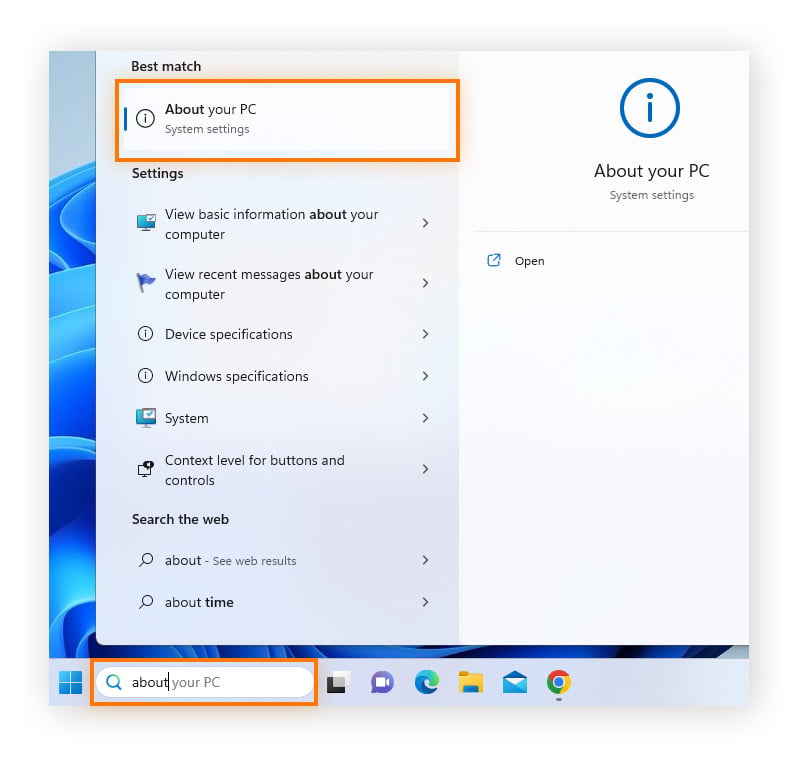
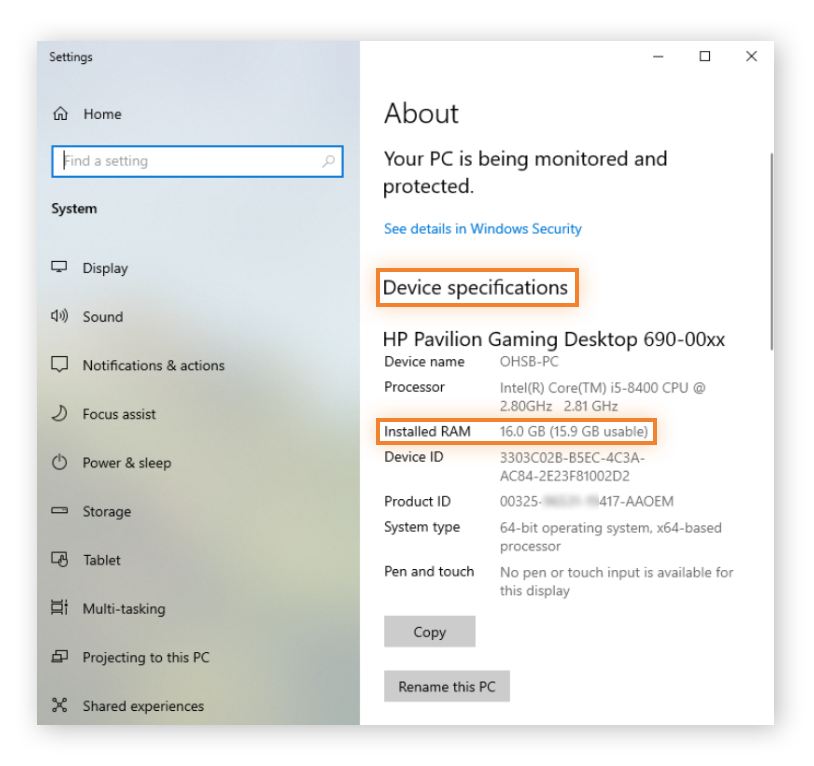
Open the Start menu and click on Settings. Select “System” and then go to “About.” Under the “Device specifications” section, find “Installed RAM.” This shows the total memory available on your PC.
Via Task Manager
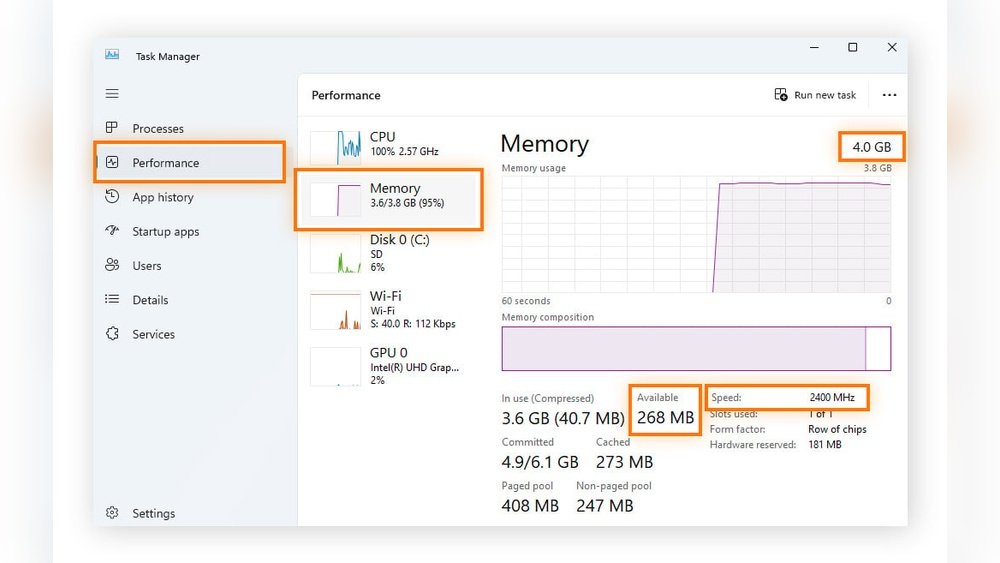
Right-click the taskbar and select “Task Manager.” Click the “Performance” tab. Choose “Memory” from the left menu. Here, you see the total RAM and how much is in use right now.
Through Command Prompt
Press Windows + R, type “cmd,” and hit Enter. In the Command Prompt window, type “wmic memorychip get capacity” and press Enter. The output displays the size of each memory chip in bytes. Add these numbers to find total RAM.
Credit: www.avast.com
Finding Ram Details On Mac
Finding out how much RAM your Mac has is simple and quick. Knowing your Mac’s RAM helps you understand its speed and performance. This knowledge assists in deciding if you need an upgrade or troubleshooting slowdowns.
About This Mac
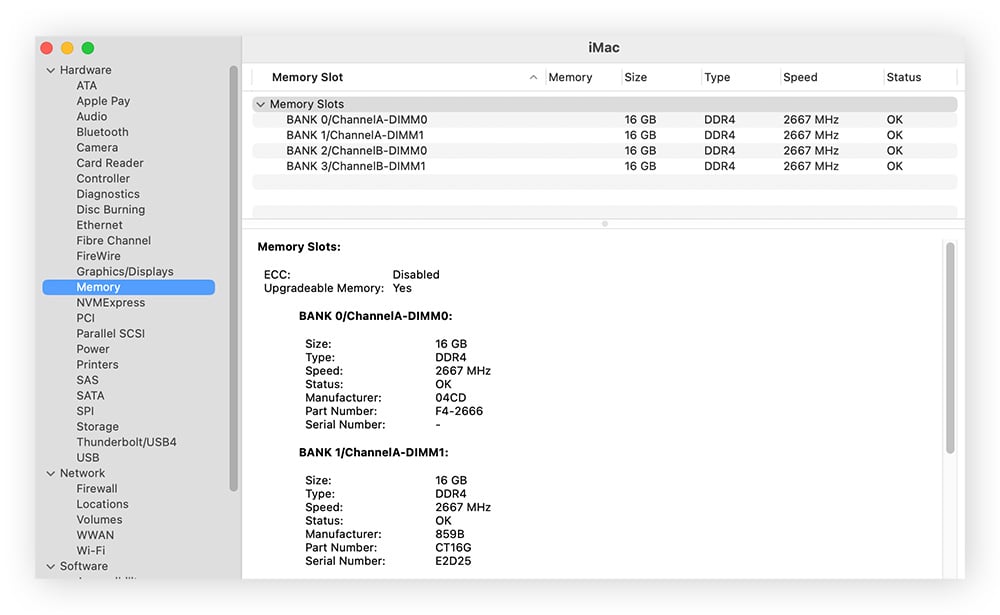
Click the Apple icon at the top-left corner of your screen. Select “About This Mac” from the dropdown menu. A window appears showing an overview of your Mac. Look for the “Memory” section to see your RAM size. It also shows the type of RAM installed. This method works for all Mac models and macOS versions.
Activity Monitor
Open the “Activity Monitor” app from the Utilities folder or Launchpad. Click the “Memory” tab at the top of the window. Here, you see detailed RAM usage by apps and system processes. The “Memory Pressure” graph shows your RAM health. This tool helps monitor real-time memory performance. It’s useful for managing memory and closing heavy apps.
Using Third-party Tools For Ram Info
Using third-party tools to check your RAM memory is a simple way to get detailed information. These tools show how much RAM your computer has, how much is used, and how much is free. They provide clear data that helps you understand your system better. You do not need to open complex settings or use command lines.
Many third-party programs are free and easy to install. They work on different versions of Windows and other operating systems. These tools help you keep an eye on your memory usage and improve your computer’s performance by showing what apps use the most RAM.
Popular Ram Monitoring Software
Task Manager is built into Windows and shows basic RAM info. It is easy to open with a simple shortcut (Ctrl + Shift + Esc).
CPU-Z gives detailed information about your RAM type, size, and speed.
Speccy is another tool that provides a full overview of your computer’s hardware, including RAM details.
HWMonitor tracks RAM usage and other system temperatures and voltages.
These tools are user-friendly and give you quick answers about your memory.
Benefits Of Using Tools
Third-party tools give more detailed RAM info than built-in utilities.
You can see real-time data on how your RAM is used.
They help identify apps that use too much memory, causing slowdowns.
These tools assist in planning upgrades by showing your current RAM specs.
They make managing your system easier and help keep your computer running smoothly.
Credit: vixencomposites.com
Interpreting Ram Speed And Type
Understanding RAM speed and type is key to choosing the right memory for your computer. These factors affect how fast your system runs and how well it handles tasks. Knowing what the numbers and terms mean helps you pick the best RAM for your needs.
What Ram Speed Means
RAM speed shows how fast your memory can read and write data. It is measured in megahertz (MHz). Higher numbers mean faster data transfer. Faster RAM helps your computer run programs smoothly and load files quickly. It also improves multitasking and overall system response.
Speed alone does not tell the whole story. Other features like latency also affect performance. Still, higher RAM speed is better for most users.
Ddr Versions Explained
DDR stands for Double Data Rate, a type of RAM technology. Different DDR versions have different speeds and power use. Common types include DDR3, DDR4, and DDR5. Each new version is faster and more efficient than the last.
DDR3 is older and slower. DDR4 is common in modern computers. DDR5 is the newest, offering the best speed and power savings. Your computer’s motherboard decides which DDR type it supports. Choose RAM that matches your system for best results.
Upgrading Ram For Better Performance
Upgrading RAM can improve your computer’s speed and efficiency. More RAM lets your system run more programs smoothly. It helps reduce slowdowns during multitasking. This upgrade is one of the easiest ways to boost performance without buying a new PC.
Before upgrading, know the right time and type of RAM to choose. Picking the wrong RAM can cause problems or no improvement. Understand your system’s needs and compatibility for the best results.
When To Upgrade
Notice slow performance during simple tasks? Running many apps at once? These signs mean your RAM might be too small. Also, if your computer freezes or programs crash often, consider more memory. New software often needs more RAM than older versions. Check your system’s RAM usage in settings. If it is often close to full, upgrade soon.
Choosing Compatible Ram
Not all RAM fits every computer. Check your motherboard’s specifications for supported RAM types and speed. DDR3 and DDR4 are common types, but they are not interchangeable. Match the RAM size and speed for best results. Consider the number of slots available on your motherboard. Use the same brand and model if adding to existing RAM. This helps avoid compatibility problems and keeps your system stable.
Frequently Asked Questions
What Is Ram Memory In A Computer?
RAM (Random Access Memory) is a computer’s short-term memory. It temporarily stores data for active programs, enabling fast access and smooth performance.
How To Check Ram Size On Windows?
Open Task Manager using Ctrl+Shift+Esc, go to the Performance tab, and select Memory. Your RAM size appears on the right.
Can I Increase My Computer’s Ram?
Yes, you can upgrade RAM by buying compatible modules. Check your motherboard specifications and install additional RAM sticks.
Why Is Ram Important For Computer Speed?
RAM stores data for running applications, reducing load times. More RAM allows better multitasking and faster program execution.
Conclusion
Knowing your RAM memory helps your computer run better. It shows how much space your device has for tasks. You can check RAM size easily on most devices. More RAM means smoother work and faster apps. Keep track of your RAM if your computer feels slow.
This simple step improves your overall computer experience. Take a moment to learn your RAM details today. It makes tech less confusing and your work easier.
