
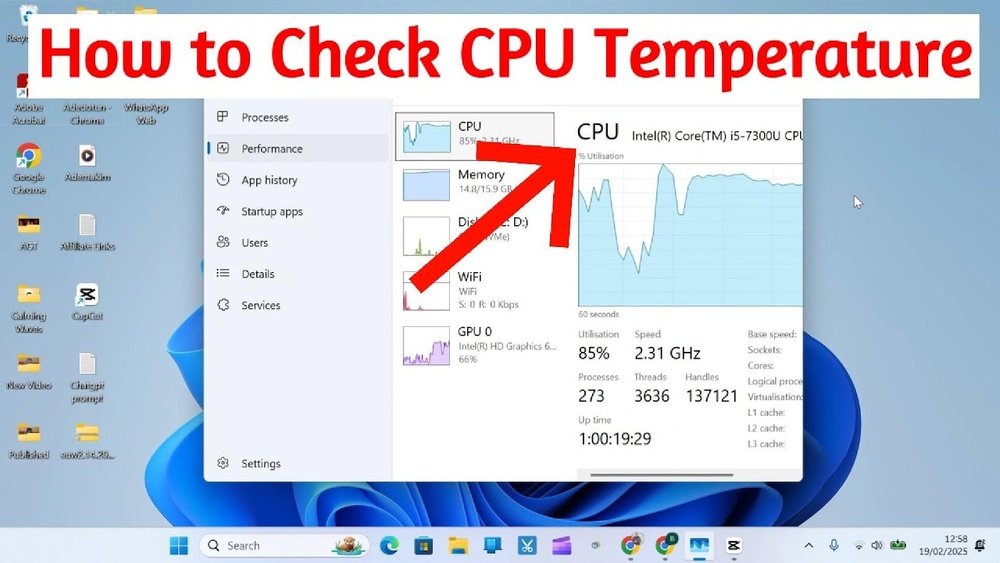
Are you worried that your computer might be overheating? Knowing your CPU temperature is one of the easiest ways to keep your PC running smoothly and avoid serious damage.
But how can you check it without complicated tools or tech jargon? You’ll discover simple, clear steps to find out your CPU temp quickly. By the end, you’ll have the confidence to monitor your computer’s health and keep it performing at its best.
Keep reading—you don’t want to miss these easy tips that could save your device!
Credit: www.avast.com
Why Cpu Temperature Matters
Knowing your CPU temperature is important for many reasons. It helps you keep your computer running well and safe. High temperatures can cause problems that slow down your work or damage parts. Checking your CPU temperature helps avoid these issues.
Impact On Performance
High CPU temperatures can slow down your computer. The CPU reduces its speed to cool down. This means your programs run slower. Keeping the CPU cool helps maintain fast performance. It ensures your computer works smoothly without lag.
Risks Of Overheating
Overheating can cause serious damage. The CPU may shut down suddenly to protect itself. This can make you lose your work. Prolonged overheating can harm the CPU permanently. It might need costly repairs or replacement. Watching the temperature helps prevent these risks.
Lifespan And Stability
High heat shortens the CPU’s life. Constant heat wears out the parts faster. Cooler CPUs last longer and run stably. Stable temperatures reduce crashes and errors. This keeps your computer reliable for everyday use.
Credit: www.youtube.com
Common Signs Of High Cpu Temperature
High CPU temperature can cause serious problems for your computer. It is important to recognize the common signs that show your CPU is overheating. These signs help you act quickly to protect your device and keep it running smoothly.
System Slowdowns
Your computer may become very slow. Programs take longer to open. Simple tasks get delayed. High CPU heat makes the processor work less efficiently. This slowdown is a warning that your CPU is too hot.
Unexpected Shutdowns
The computer might turn off without warning. This happens to protect the hardware from damage. Sudden shutdowns often mean the CPU temperature is dangerously high. It is a clear sign to check the cooling system.
Fan Noise Increase
You may hear the fans running louder than usual. Fans speed up to cool down the CPU. Constant loud noise means the CPU is working hard to stay cool. This noise is a common sign of high temperature.
Tools To Check Cpu Temperature
Knowing your CPU temperature helps keep your computer safe. It prevents overheating and hardware damage. Different tools exist to check this important data. Some come with your system, while others you must download. You can also find temperature info in BIOS or UEFI settings. Each tool suits different users and needs.
Built-in System Utilities
Many operating systems include basic tools to see CPU temperature. Windows users can check Task Manager or use Command Prompt commands. Mac users find this data in Activity Monitor or System Information. These utilities show simple temperature details without extra software.
Third-party Software Options
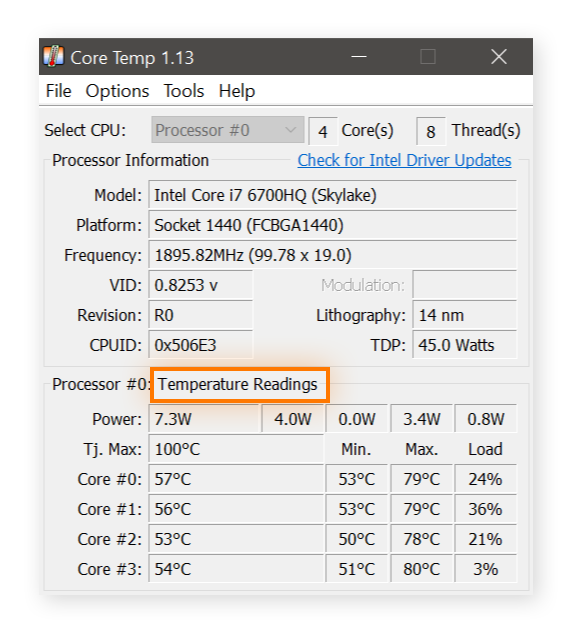
Third-party apps offer detailed and real-time CPU temperature readings. Programs like HWMonitor, Core Temp, and SpeedFan are popular. They display temperature trends and alert users about high heat levels. These tools work well for gamers and heavy computer users.
Using Bios And Uefi
BIOS and UEFI firmware provide CPU temperature readings during startup. Restart your computer and enter BIOS or UEFI by pressing a key. Look for hardware monitoring or PC health status sections. This method shows temperature before the operating system loads.
Steps To Monitor Cpu Temperature
Monitoring your CPU temperature is important to keep your computer running well. High temperatures can cause slowdowns or damage. Following clear steps helps you check your CPU temperature easily. This lets you act before problems start.
Here are simple steps to monitor your CPU temperature effectively. Each step helps you stay informed and protect your computer.
Installing Monitoring Software
First, choose software to read your CPU temperature. Some popular options include HWMonitor, Core Temp, and SpeedFan. Download and install the program on your computer. These tools show real-time temperature data for your CPU. They are easy to use and free to get.
Setting Temperature Alerts
Next, set alerts inside the monitoring software. Alerts notify you when the CPU gets too hot. You can set a safe temperature limit, like 75°C. If the CPU goes beyond this, the software will warn you. This helps you act quickly to cool down your system.
Regular Temperature Checks
Check your CPU temperature regularly, especially during heavy use. Open your monitoring software to view current readings. Make it a habit to look at temperatures daily or weekly. This keeps you aware of any unusual heat spikes. Regular checks help prevent hardware damage and improve performance.
Methods To Control Cpu Temperature
Controlling your CPU temperature is important to keep your computer running well. High temperatures can slow down your system or cause damage. There are simple ways to manage CPU heat and protect your hardware. These methods can help lower the temperature and improve performance.
Improving Airflow
Good airflow moves hot air out and brings cool air in. Arrange cables neatly to avoid blocking vents. Use fans to push air through the case. Place your computer in an open space. Avoid putting it inside a closed cabinet or near heat sources.
Cleaning Dust And Debris
Dust blocks air vents and fans, raising temperature. Turn off your computer and unplug it first. Use compressed air to blow dust from fans and vents. Clean inside the case carefully. Do this regularly to keep airflow smooth.
Upgrading Cooling Systems
Stock coolers may not be enough for heavy use. Consider buying better air coolers with bigger fans. Liquid cooling systems offer strong cooling for high-performance CPUs. Choose a cooling system that fits your computer case and CPU socket.
Applying Thermal Paste
Thermal paste helps heat move from the CPU to the cooler. Old or dried paste reduces cooling efficiency. Remove the old paste gently using isopropyl alcohol. Apply a small, pea-sized amount of new paste on the CPU. Spread it evenly before attaching the cooler.

Credit: softwareg.com.au
Advanced Tips For Cpu Cooling
Keeping your CPU cool is key to good computer performance. Advanced cooling methods help reduce high temperatures. These tips go beyond basic fans and heat sinks. They improve cooling efficiency and can extend your CPU’s life.
Using Liquid Cooling
Liquid cooling uses water or coolant to take heat away from the CPU. It works better than air cooling in many cases. Tubes carry the liquid to a radiator, where fans cool it down. This method keeps the CPU temperature low, even under heavy use.
Liquid cooling systems need careful installation and maintenance. They are quieter and can handle high-performance CPUs well. This cooling type suits users who want better temperature control and less noise.
Undervolting Techniques
Undervolting lowers the CPU’s voltage without reducing speed. This cuts heat output and power use. It helps keep the CPU cooler, especially during long tasks.
You can undervolt through BIOS settings or special software. Testing stability after undervolting is important. A stable undervolt keeps performance strong and temperature low.
Custom Fan Curves
Custom fan curves let you control fan speed based on temperature. Fans speed up when the CPU gets hot. They slow down when it cools, reducing noise.
This method improves cooling efficiency and comfort. You can set fan curves in your BIOS or with software from your motherboard maker. Custom fan curves balance noise and cooling well.
When To Seek Professional Help
Knowing your CPU temperature is important for keeping your computer safe. Sometimes, temperature problems need more than just simple fixes. You should know when to ask a professional for help. This can stop bigger problems from happening. Here are signs that show it is time to get expert advice.
Persistent Overheating Issues
Overheating that happens often can damage your CPU. If your computer gets very hot and shuts down many times, it is a serious problem. Cleaning dust and checking fans might not fix this. A professional can check deeper issues like thermal paste or cooling system problems.
Hardware Replacement Signs
Some CPU parts wear out and need replacement. Strange noises, error messages, or slow performance can mean hardware damage. If your computer heats up even after cleaning and checking software, parts may be broken. A technician can find which parts need to be replaced safely.
Frequently Asked Questions
How Can I Check My Cpu Temperature On Windows?
You can use built-in tools like Task Manager or third-party apps like HWMonitor. These tools display real-time CPU temperature accurately and help prevent overheating.
What Is A Safe Cpu Temperature Range?
A safe CPU temperature typically ranges between 30°C and 70°C. Temperatures above 80°C may cause performance issues and hardware damage.
Why Is Monitoring Cpu Temperature Important?
Monitoring CPU temperature prevents overheating, which can damage components. It also ensures optimal performance and extends your computer’s lifespan.
Can Bios Show My Cpu Temperature?
Yes, most BIOS setups display CPU temperature. Restart your PC, enter BIOS, and look for hardware monitoring or status sections to find it.
Conclusion
Knowing your CPU temperature helps keep your computer safe. You can check it using simple tools and apps. Watch for numbers that are too high. High heat can slow down or damage parts. Keep your PC cool by cleaning fans and improving airflow.
Regular checks help avoid problems before they start. Stay aware of your CPU’s health every time you use your computer. It’s easy and important for a longer-lasting device. Take a moment to check, and your PC will thank you.
