
Is your computer suddenly running slower or shutting down without warning? These could be signs that your CPU is overheating.
Knowing if your CPU is getting too hot is crucial because it affects your computer’s performance and lifespan. You’ll learn simple ways to check your CPU temperature and spot the warning signs before it’s too late. Keep reading to protect your device and keep it running smoothly.
Credit: www.reddit.com
Common Symptoms Of Cpu Overheating
CPU overheating can cause many issues in your computer. It affects how your system works and can lead to damage. Recognizing the common symptoms helps you act fast. Preventing serious problems starts with knowing the signs.
Frequent System Crashes
Your computer may crash often without warning. Overheating causes the CPU to stop working properly. Crashes happen because the CPU can’t handle the heat. This interrupts your work and can cause data loss.
Unexpected Shutdowns
The system may turn off suddenly. This protects the CPU from damage due to high temperatures. These shutdowns occur without any notice or chance to save. It is a clear sign your CPU is too hot.
Slow Performance
Your computer runs slower than usual. The CPU lowers its speed to cool down. This slows down apps and tasks. You may notice delays in opening files or programs.
Blue Screen Errors
The blue screen appears with error messages. It shows the system has a serious problem. Overheating can cause these errors to appear more often. The CPU struggles to keep the system stable.
Credit: www.hongkiat.com
Visual And Physical Indicators
Recognizing visual and physical signs helps detect CPU overheating early. These signs are easy to notice without special tools. Acting fast can prevent damage to your computer.
Hot Computer Case
Touch the computer case carefully. If it feels very hot, your CPU might be overheating. Heat from the CPU spreads inside the case. A warm case means poor airflow or a cooling problem.
Loud Fan Noise
Listen to your computer’s fans. Loud or fast-spinning fans show the CPU is working hard to cool down. Fans running constantly at high speed often mean the CPU is too hot.
Burning Smell
A burning smell near the computer is a serious warning. It can mean parts are overheating or melting. Turn off the computer immediately and check for issues.
Monitoring Cpu Temperature
Monitoring your CPU temperature is important to keep your computer safe. High temperatures can cause slowdowns or damage. Checking the temperature helps you act before problems start. You can use different methods to see how hot your CPU is running. Each method gives useful information for managing your computer’s health.
Using Bios/uefi
BIOS or UEFI is the basic system software in your computer. You can enter it by pressing a key like F2 or Delete during startup. Inside, you will find hardware information, including CPU temperature. This method shows the temperature before your operating system loads. It is useful to check if your CPU overheats even when the computer is idle.
Third-party Software Tools
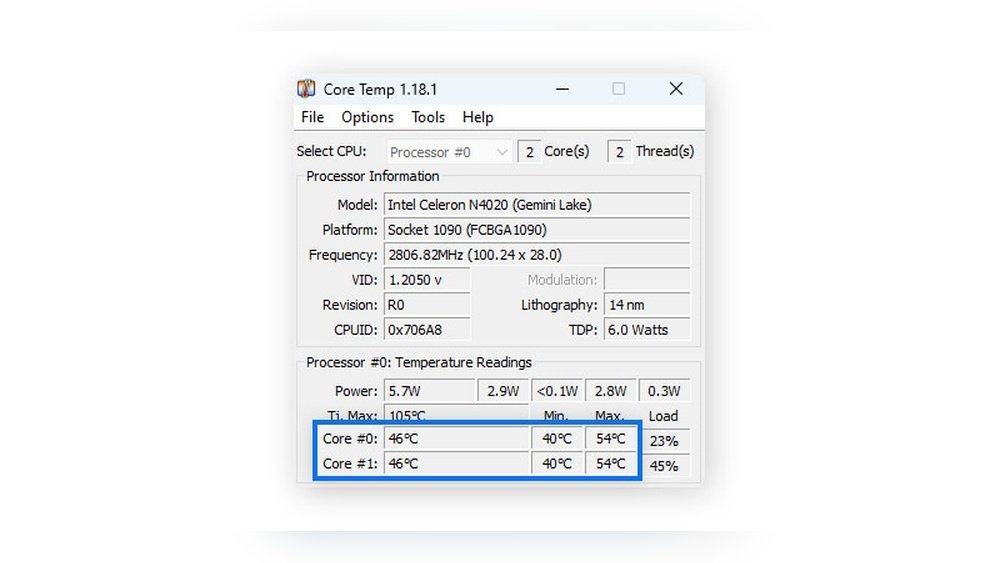
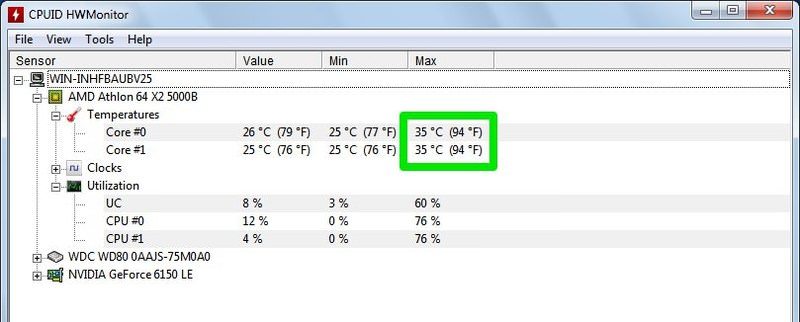
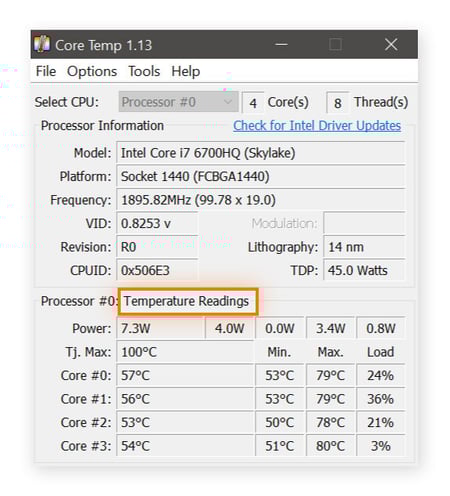
Software tools give real-time temperature readings inside Windows or other systems. Popular free tools include HWMonitor, Core Temp, and SpeedFan. These programs show temperature for each CPU core. They also display fan speed and voltage. You can use them to watch your CPU temperature during heavy tasks like gaming or video editing.
Setting Temperature Thresholds
Setting thresholds helps you avoid overheating. Most CPUs have a safe temperature range, often below 80°C (176°F). Some software allows alerts when temperature crosses this limit. You can set warnings or automatic shutdowns. This protects your CPU from damage and keeps your system stable.
Credit: www.avast.com
Causes Of Cpu Overheating
CPU overheating happens due to several common reasons. Knowing these causes helps keep your computer safe. Each cause affects the CPU’s temperature differently.
Dust Accumulation
Dust builds up inside your computer over time. It blocks airflow around the CPU. This makes the CPU hotter than normal. Cleaning dust regularly keeps your CPU cool and healthy.
Poor Ventilation
Computers need good airflow to stay cool. Poor ventilation traps heat inside the case. This causes the CPU temperature to rise. Place your computer in a spot with good air circulation.
Faulty Cooling System
The cooling system includes fans and heat sinks. If these parts fail, the CPU overheats quickly. Broken fans or dried thermal paste reduce cooling power. Check and fix cooling parts to avoid damage.
Overclocking Risks
Overclocking makes the CPU run faster than designed. This increases power use and heat output. Without proper cooling, the CPU can overheat fast. Overclock carefully and watch your CPU temperature closely.
Preventing Cpu Overheating
Preventing CPU overheating is key to keeping your computer safe and fast. Overheated CPUs can slow down or even stop working. Taking simple steps helps your CPU run cool and last longer. Here are some effective ways to prevent CPU overheating.
Regular Cleaning
Dust and dirt block air vents and fans. Clean your computer’s inside every few months. Use a soft brush or compressed air to remove dust. Keep the vents clear to allow smooth airflow. Clean fans spin better and cool your CPU well.
Improving Airflow
Good airflow moves hot air out and cool air in. Arrange cables neatly to avoid blocking vents. Place your computer in a cool, open space. Avoid placing it near heat sources. Use extra fans if needed to boost airflow inside the case.
Using Quality Thermal Paste
Thermal paste fills gaps between the CPU and cooler. It helps heat transfer from the CPU to the cooler. Replace old or dried thermal paste every 1-2 years. Use a high-quality thermal paste for better cooling. Apply it evenly for the best effect.
Upgrading Cooling Solutions
Stock coolers may not be enough for heavy use. Upgrade to a better air cooler or a liquid cooling system. Choose a cooler that fits your CPU and case. Better cooling solutions keep temperatures low and improve performance. Check your CPU temperature regularly to see the difference.
Frequently Asked Questions
How Can I Check If My Cpu Is Overheating?
You can check CPU temperature using software like HWMonitor or Core Temp. High temperatures above 80°C indicate overheating and need action.
What Are Common Signs Of An Overheating Cpu?
Signs include frequent shutdowns, slow performance, loud fan noise, and system crashes. These symptoms suggest your CPU needs cooling attention.
Can Overheating Damage My Cpu Permanently?
Yes, prolonged overheating can reduce CPU lifespan or cause permanent damage. Proper cooling and maintenance prevent such risks effectively.
How To Prevent Cpu Overheating Effectively?
Ensure good airflow, clean dust regularly, apply quality thermal paste, and use reliable cooling systems to maintain safe CPU temperatures.
Conclusion
Knowing your CPU’s temperature helps keep your computer safe. Watch for signs like slow speed or loud fans. Use simple tools to check the heat anytime. Clean dust and ensure good airflow inside your PC. Fixing overheating early saves you from big problems later.
Stay alert and protect your device every day. Your computer will run smoother and last longer this way. Keep these tips in mind to avoid CPU trouble.
