
Is your computer acting up, freezing, or shutting down unexpectedly? You might be wondering if your CPU is bad.
Knowing the signs early can save you from frustration and costly repairs. You’ll discover simple ways to check if your CPU is the problem. By the end, you’ll feel confident identifying issues and deciding what steps to take next. Keep reading to protect your device and avoid downtime.
Common Cpu Issues
Common CPU issues often cause many computer problems. These problems affect how your computer runs. Knowing the signs helps you find out if the CPU is bad.
Bad CPU issues can show in different ways. Some problems happen often and make the computer hard to use. Below are some common CPU problems to watch for.
Frequent Crashes And Freezes
Your computer may crash or freeze without reason. This happens during normal tasks or while running programs. A failing CPU can cause these sudden stops. The system might restart or show a blue screen.
Unexpected Shutdowns
The computer turns off by itself without warning. This problem can happen often or randomly. Overheating or damaged CPU parts lead to these shutdowns. It protects the CPU from more damage.
Overheating Problems
The CPU gets very hot even with light use. Fans may run loudly and constantly. Heat damages CPU parts and lowers performance. Poor cooling or thermal paste issues cause overheating.
Slow Performance
Programs take longer to open and run. The system feels sluggish and unresponsive. A bad CPU struggles to process tasks quickly. It can affect everything on your computer.
Credit: 3dinsider.com
Visual And Physical Signs
Visual and physical signs are the easiest way to check if your CPU is bad. These signs show damage that you can see or hear. It helps you decide if the CPU needs repair or replacement.
Burn Marks Or Discoloration
Burn marks or discoloration on the CPU surface show overheating. The CPU may have been too hot for a long time. Dark spots or melted areas are clear warning signs. Such damage can stop the CPU from working properly.
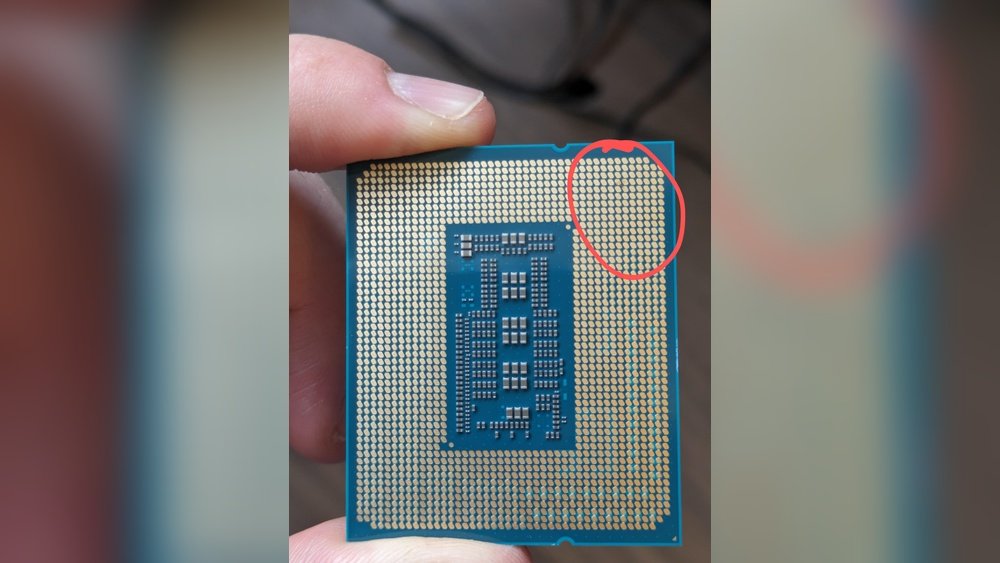
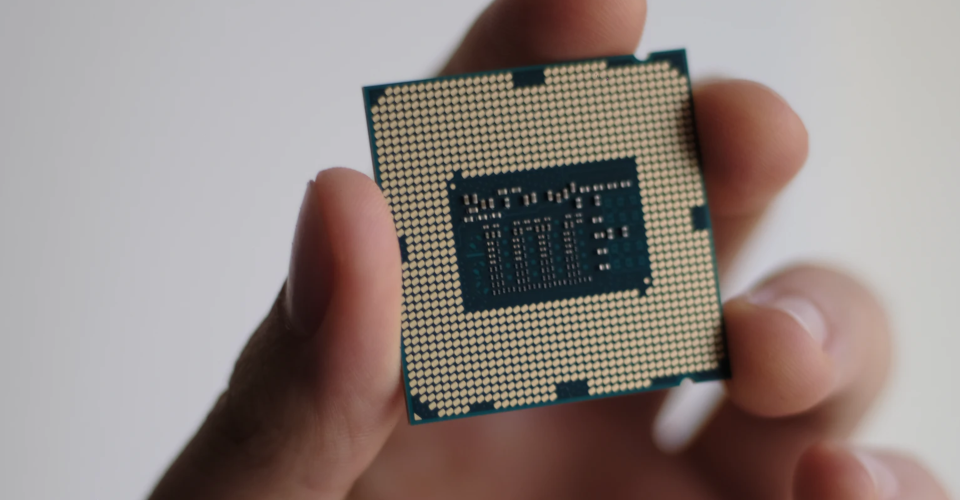
Damaged Pins Or Connectors
Check the CPU pins or connectors carefully. Bent or broken pins cause connection problems with the motherboard. This can prevent the computer from starting. Missing or damaged connectors also affect data flow and power supply.
Unusual Noises From The Fan
Listen to the CPU fan for strange sounds. Grinding, clicking, or rattling noises mean the fan may be failing. A bad fan cannot cool the CPU well. This leads to overheating and can damage the CPU over time.
Diagnostic Tools And Tests
Knowing if your CPU is bad can save time and money. Diagnostic tools and tests help check the health of your CPU. These tools show if the processor works well or has problems. Using them is often simple and quick.
Using Bios And Uefi Diagnostics
BIOS and UEFI have built-in tests for your CPU. Restart your computer and enter BIOS or UEFI setup. Look for a diagnostics or hardware test option. These tests check the CPU and other parts. They give basic results showing if the CPU is fine or faulty.
Stress Testing Software
Stress tests push your CPU to its limits. They reveal errors or crashes under heavy use. Programs like Prime95 or AIDA64 are popular choices. Run the test for at least 15 minutes. If your computer crashes or shows errors, the CPU might be bad.
Monitoring Cpu Temperature
High temperature can harm your CPU and cause problems. Use software like HWMonitor or Core Temp to check temperatures. Normal CPU temps usually stay below 80°C during use. If temps are very high, your CPU may overheat and fail. Cooling issues can also cause CPU damage.
Performance Troubleshooting
Performance Troubleshooting helps identify if your CPU is causing slowdowns or errors. It involves simple checks and fixes you can do yourself. Understanding these steps saves time and money before replacing parts.
Checking For Bottlenecks
Start by checking if other parts limit your CPU’s performance. Look at your RAM and hard drive speed. Use task manager or performance monitoring tools to see CPU usage. High CPU use with slow response may mean a bottleneck. Also, check background programs that use CPU power.
Updating Drivers And Bios
Outdated drivers or BIOS can cause CPU problems. Visit your motherboard or PC maker’s website for updates. Install the latest chipset drivers and BIOS versions carefully. Updated software can fix bugs and improve CPU stability. Always follow update instructions to avoid errors.
Reapplying Thermal Paste
Thermal paste helps keep the CPU cool. Old or dried paste can cause overheating and slow speed. Remove the CPU cooler gently and clean the old paste off. Apply a small amount of new thermal paste evenly on the CPU. Reattach the cooler and check temperatures again.
When To Replace Your Cpu
Knowing when to replace your CPU is important for your computer’s health and performance. A CPU that no longer works well can slow down your system and cause frequent crashes. It is not always easy to tell if your CPU is bad or just outdated. This section helps you understand the signs of a failing CPU and when a replacement makes sense.
Signs Beyond Repair
Frequent crashes and blue screens are strong signs your CPU may be failing. Overheating despite good cooling can mean the CPU is damaged. Strange noises or error codes during startup can also point to CPU issues. If your computer cannot finish tasks or freezes often, the CPU might be beyond repair.
Compatibility With New Hardware
New software and hardware need faster and newer CPUs. Old CPUs may not support recent motherboards or memory types. Upgrading other parts can be useless if the CPU does not fit or work well. Check if your CPU matches the hardware you want before deciding to keep or replace it.
Cost Vs. Benefit Analysis
Replacing a CPU costs money and time. Sometimes, upgrading the whole system is better than just the CPU. Compare the price of a new CPU with the performance gain you will get. If a new CPU does not improve your experience much, consider a full upgrade instead.

Credit: acemagic.com

Credit: www.youtube.com
Frequently Asked Questions
How Can I Tell If My Cpu Is Failing?
A failing CPU often causes frequent crashes, freezes, and blue screens. Overheating and poor performance are common signs. Use diagnostic tools to check CPU health and temperature. If issues persist after cleaning and cooling, the CPU might be faulty.
What Symptoms Indicate A Bad Cpu?
Common symptoms include random shutdowns, system errors, slow processing, and unusual fan noise. If your PC won’t boot or shows error codes, the CPU could be damaged. Monitor system stability and performance to identify CPU problems early.
Can A Bad Cpu Cause Overheating Issues?
Yes, a faulty CPU can overheat due to internal damage or poor heat dissipation. Overheating may trigger automatic shutdowns to protect hardware. Ensure proper cooling and thermal paste application to prevent CPU temperature problems.
How Do I Test My Cpu For Problems?
Use stress-testing software like Prime95 or IntelBurnTest to check CPU stability. Monitor temperatures with tools like HWMonitor. Sudden crashes or errors during tests indicate possible CPU issues. Always test in a well-cooled environment for accurate results.
Conclusion
A bad CPU can cause many computer problems. Watch for slow speed, crashes, or error messages. Test your CPU with simple tools to check its health. Fixing or replacing a bad CPU can improve your computer’s performance. Stay patient and follow clear steps to find the issue.
Knowing the signs helps you avoid bigger troubles later. Keep your PC running smoothly by acting early. Don’t ignore unusual behavior—it often points to CPU trouble.
