
Have you ever noticed your computer slowing down just when you need it most? Maybe apps take longer to open, or your system freezes during simple tasks.
These frustrating moments could mean your computer needs more RAM. But how can you be sure? Understanding when your device needs an upgrade can save you time and boost your productivity. Keep reading to discover the clear signs that your computer’s memory is holding you back—and what you can do about it.

Credit: www.centromedicoloira.com
Signs Of Slow Performance
Slow computer performance often signals a need for more RAM. Knowing these signs helps you decide when to upgrade. Watch for delays and interruptions during daily tasks. These issues usually mean your system struggles to keep up with memory demands.
Frequent Freezing And Crashes
Your computer stops responding and freezes often. Programs close unexpectedly without warning. This happens because the RAM is full and cannot handle active processes. More memory helps keep everything running smoothly and prevents crashes.
Long Loading Times
Applications and files take too long to open. Even simple tasks slow down noticeably. This lag shows that your RAM is overwhelmed by the workload. Increasing RAM reduces wait times and speeds up loading.
Lag During Multitasking
Switching between apps causes delays and stutters. Running several programs at once slows the system down. Limited RAM struggles to manage multiple tasks simultaneously. Adding more RAM allows better multitasking without lag.
Credit: totalplumbingfl.com
High Memory Usage Alerts
High memory usage alerts tell you when your computer uses too much RAM. These alerts help avoid slowdowns and crashes. They show if your system needs more memory for smooth performance.
Task Manager And Activity Monitor Insights
Task Manager on Windows and Activity Monitor on Mac show memory use. They list programs using the most RAM. Watch for high percentages near 80% or more. This means your RAM is almost full.
Look for apps that use too much memory. Sometimes, closing or restarting them frees RAM. These tools help spot heavy memory users fast. Check them often to keep your system healthy.
Memory Warnings From The System
Your computer may show memory warnings. These pop up when RAM runs low. Messages like “Low Memory” or “Your computer is running out of memory” appear. They warn you to close apps or add more RAM.
Ignoring these warnings can slow your computer. It may freeze or crash. Take these alerts seriously to maintain good speed and stability.
Impact On Specific Applications
Different applications use RAM in different ways. Some apps need a lot of memory to work well. When your computer runs low on RAM, these apps slow down or crash. Knowing which apps struggle with low RAM helps you decide if you need more.
Issues With Gaming Performance
Games often use a lot of RAM to load textures and details fast. Low RAM causes games to lag or freeze. You might see long loading times or stuttering gameplay. This happens because the game can’t store enough data in memory. More RAM can help games run smoother.
Problems Running Creative Software
Creative apps like Photoshop and video editors need lots of RAM. These programs handle big files and many layers. If RAM is low, the software becomes slow or stops responding. Tasks like editing photos or videos take longer. Adding RAM improves speed and prevents crashes.
Web Browsers Using Excessive Ram
Modern browsers use RAM to keep tabs and extensions active. Opening many tabs can use more memory than available. The browser may freeze or slow down. This affects your browsing speed and productivity. Increasing RAM lets you open more tabs without issues.
Credit: www.liftingitalia.com
Signs During Startup And Boot
Signs during startup and boot can reveal if your computer needs more RAM. This stage is crucial because the system loads essential files and programs. Slowdowns here often point to memory issues. Observing these signs helps decide if upgrading RAM is necessary.
Slow Boot Times
Slow boot times happen when the system takes too long to start. Your computer might show a blank screen or a loading circle for several minutes. This delay means the RAM cannot keep up with the data being processed. More RAM allows the system to handle tasks faster and start quickly.
Delays In Loading Startup Programs
Startup programs load automatically when the computer boots. Delays in this process cause frustration and waste time. If programs open one by one very slowly, RAM might be the problem. Increasing RAM helps these programs load together smoothly and fast.
Effects On Battery And Heat
When your computer runs low on RAM, it affects battery life and heat levels. The system works harder to manage tasks, using more power. This extra effort can drain the battery faster and make your device hotter. Watch for signs of battery drain and overheating to know if you need more RAM.
Increased Battery Drain
Low RAM makes your device use the hard drive more. This process consumes more battery power than normal. You may notice the battery percentage drops quickly. Apps and programs take longer to respond. This slows your work and wastes energy. More RAM helps reduce this extra battery use.
Overheating And Fan Noise
Your computer heats up when RAM is low. The processor works harder to swap data between RAM and storage. This causes higher temperatures inside the device. Fans spin faster to cool down the system. You hear loud fan noise, which can be annoying. Adding RAM lowers heat and reduces fan activity.
Checking Current Ram Usage
Checking your current RAM usage is the first step to know if your computer needs more memory. It helps you see how much RAM your system uses during daily tasks. This way, you can avoid slowdowns and crashes. You can monitor RAM with tools built into your system or with third-party apps.
Using Built-in System Tools
Most operating systems have tools to check RAM use. On Windows, open Task Manager by pressing Ctrl + Shift + Esc. Click on the Performance tab and select Memory. This shows how much RAM is used and available. On macOS, open Activity Monitor from the Utilities folder. Click the Memory tab to see RAM usage details. Linux users can use commands like free -m or top in the terminal to check memory.
Third-party Monitoring Applications
Third-party apps offer detailed RAM monitoring features. Tools like CPU-Z, Speccy, or HWMonitor provide real-time data. These apps show memory speed, type, and usage per app. They help spot which programs use too much RAM. Most are free and easy to install. Use these apps for more insight beyond built-in tools.
When Upgrading Ram Helps
More RAM can make your computer faster and smoother. It helps your system handle tasks without delays. Not every slow computer needs more RAM, but many do.
Knowing when to add RAM saves money and improves your experience. It depends on how you use your computer and what slows it down.
Benefits Of More Ram
More RAM lets your computer run many programs at once. It stops your computer from using slow hard drive space as memory. This makes apps open faster and work better.
With extra RAM, your computer rarely freezes or lags. It helps especially with large files, videos, and games. You get smoother browsing and quicker switching between apps.
Signs Ram Upgrade Will Improve Performance
Your computer feels slow when opening many tabs or apps. Programs crash or freeze during use. You see messages about low memory or warnings from the system.
Loading times increase when running software or games. The fan runs loudly because the system works hard to manage memory. Your device uses a lot of virtual memory on the hard drive.
Frequently Asked Questions
How Can I Check My Current Ram Usage?
You can check RAM usage via Task Manager on Windows or Activity Monitor on Mac. Look for high memory usage or frequent swapping, which indicates insufficient RAM.
What Are Common Signs I Need More Ram?
Common signs include slow performance, frequent crashes, and long loading times. If your computer struggles with multitasking or modern apps, you likely need more RAM.
How Much Ram Do I Need For Smooth Multitasking?
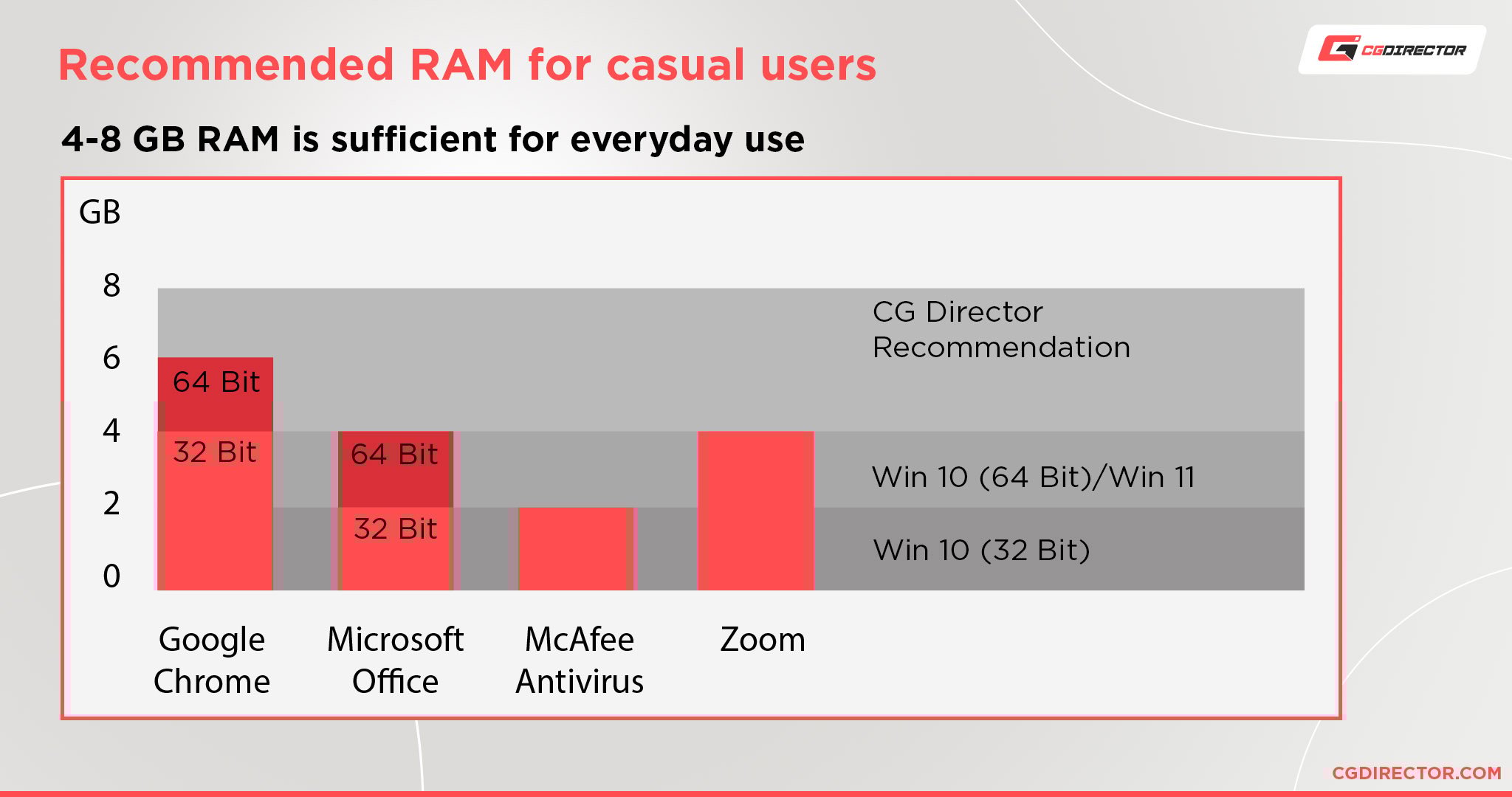
For smooth multitasking, 8GB is the minimum recommended. For heavy tasks like video editing or gaming, 16GB or more is ideal.
Will Adding More Ram Speed Up My Computer?
Yes, adding more RAM can improve speed by reducing reliance on slow disk swapping. It helps especially if your system currently has low memory.
Conclusion
Running slow or apps freezing? That might mean you need more RAM. Check your computer’s performance and notice any delays. More RAM helps your system handle tasks better and faster. Upgrading is simple and often affordable. Your device will run smoother with the right amount of memory.
Keep an eye on how your computer feels during daily use. Small changes can make a big difference in speed. Don’t wait until problems get worse. Consider adding RAM for a better experience today.
