
Is your computer suddenly slowing down or shutting off without warning? These could be signs that your CPU is overheating.
You might not realize how important keeping your CPU cool is until it starts causing problems. But how can you tell if your CPU is really getting too hot? You’ll discover simple ways to check your CPU temperature and learn what steps to take to protect your computer.
Keep reading to make sure your device stays safe and runs smoothly.
Signs Of Cpu Overheating
Knowing the signs of CPU overheating helps protect your computer. Overheating can cause damage and reduce your PC’s life. Watch for these clear symptoms to catch problems early.
Unexpected Shutdowns
The computer may turn off without warning. This happens to stop damage from heat. Sudden shutdowns often mean the CPU is too hot.
System Slowdowns
Your PC might start working very slowly. High CPU temperature can lower its speed. This slowdown is the system’s way to cool down.
Frequent Freezes
The screen may freeze or stop responding. Overheating causes the CPU to struggle with tasks. This leads to frequent freezes and hangs.
High Fan Noise
The computer’s fan may run loudly and fast. Fans work harder to cool down a hot CPU. Loud fan noise often shows overheating issues.
Error Messages And Warnings
Look for alerts about CPU temperature on screen. Some systems show warnings before shutting down. These messages warn about overheating risks.
Checking Cpu Temperature
Checking your CPU temperature helps you know if your computer is too hot. High temperatures can cause slow performance or damage. It is important to check your CPU temperature regularly. This way, you can keep your computer safe and working well.
Using Built-in Bios Tools
You can check CPU temperature using your computer’s BIOS. Restart your PC and press the BIOS key (usually F2, DEL, or ESC). Look for the “Hardware Monitor” or “PC Health” section. Here, you will find the CPU temperature reading. This method does not need extra software and works on most computers.
Third-party Monitoring Software
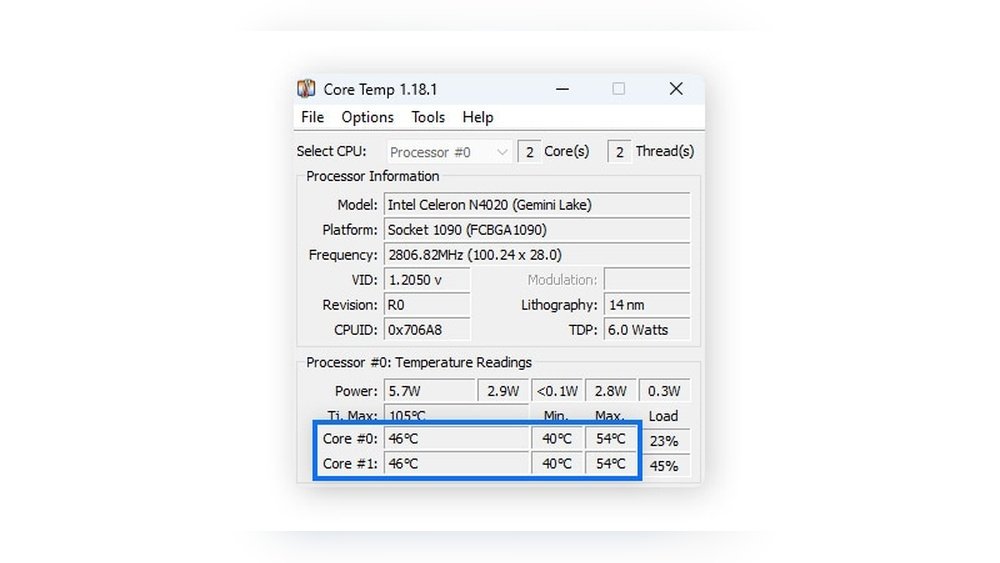
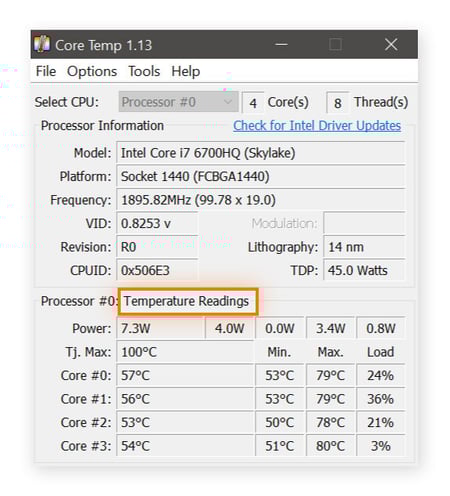
Third-party software shows CPU temperature inside your operating system. Programs like HWMonitor, Core Temp, or SpeedFan are popular. Download and install one of these apps. Open the program to see real-time CPU temperature. These tools often show more details about your hardware too.
Interpreting Temperature Readings
Normal CPU temperature ranges from 30°C to 50°C when idle. Temperatures above 70°C under load may cause problems. If the CPU reaches 90°C or higher, it is overheating. High temperature can reduce CPU life and cause crashes. Keep your CPU cool by cleaning fans and improving airflow.
Common Causes Of Overheating
CPU overheating happens due to several common reasons. Understanding these causes helps keep your computer safe. Overheating can slow down your system or cause damage. Knowing what triggers it allows quick fixes and better care.
Dust And Debris Build-up
Dust collects inside your computer over time. It blocks vents and fans. This stops cool air from flowing properly. Dust also sticks to the CPU cooler. This reduces its ability to cool the processor. Cleaning dust regularly keeps your CPU cooler working well.
Poor Airflow
Good airflow inside the case is very important. If air cannot move freely, heat stays trapped. Cables or parts placed badly can block air paths. Small or weak fans may fail to push enough air. Make sure your computer case has space and fans to allow fresh air.
Faulty Cooling Systems
Cooling systems include fans and liquid coolers. If these stop working, heat rises quickly. Fans might get noisy or stop spinning. Liquid coolers can leak or lose coolant. Check your cooling system often. Replace broken parts to keep your CPU cool.
Overclocking Risks
Overclocking means running the CPU faster than its normal speed. This creates extra heat. Without better cooling, the CPU can overheat fast. Overclocking also risks hardware damage. Use overclocking carefully and monitor your CPU temperature closely.
Credit: www.drivereasy.com
Quick Fixes To Cool Your Cpu
Quick fixes can help cool your CPU fast. These steps prevent damage and improve computer speed. Most fixes are simple and need few tools. Follow these easy tips to lower your CPU temperature.
Cleaning Dust From Components
Dust blocks air flow and traps heat inside your PC. Use a soft brush or canned air to remove dust. Focus on fans, heat sinks, and vents. Clean parts carefully to avoid damage. Regular cleaning helps your CPU stay cool.
Improving Case Ventilation
Good airflow moves hot air out and brings cool air in. Check if your PC case has enough fans. Open side panels or move cables to clear air paths. Keep your PC in a cool, open place. Better ventilation lowers CPU temperature quickly.
Reapplying Thermal Paste
Thermal paste helps heat move from the CPU to the cooler. Over time, paste can dry out or wear off. Remove old paste with rubbing alcohol and apply a fresh layer. Use a small amount for the best contact. Fresh thermal paste improves cooling efficiency.
Upgrading Cooling Solutions
Stock coolers may not be enough for high temperatures. Consider upgrading to a better air cooler or liquid cooling system. These options remove heat more effectively. Choose a cooler that fits your CPU and case. Better cooling keeps your CPU safe and fast.
Preventive Measures
Preventive measures help keep your CPU cool and working well. Taking steps early stops overheating problems. This keeps your computer fast and safe.
Regular Maintenance
Clean dust from fans and vents often. Dust blocks airflow and traps heat inside. Use a soft brush or compressed air. Check your computer’s cooling system regularly. Replace old thermal paste to improve heat transfer.
Monitoring Temperatures
Use software to check CPU temperature. Many free programs show real-time heat levels. Watch for temperatures above 80°C during use. Set alerts to warn you if it gets too hot. Early detection helps prevent damage.
Avoiding Excessive Overclocking
Overclocking makes your CPU run faster than normal. It also creates more heat. Keep overclocking to a safe limit or avoid it. High overclocking needs better cooling systems. Too much can shorten CPU life.
Ensuring Proper Hardware Compatibility
Use compatible parts in your computer build. Wrong hardware can cause poor cooling. Choose cases with good airflow and enough fans. Make sure your power supply matches CPU needs. Good hardware fit helps keep temperatures low.
Credit: www.avast.com
Credit: www.reddit.com
Frequently Asked Questions
How Can I Check If My Cpu Is Overheating?
You can check CPU temperature using software like HWMonitor or Core Temp. High temperatures above 80°C often indicate overheating.
What Are Common Signs Of Cpu Overheating?
Signs include frequent crashes, slow performance, unexpected shutdowns, and loud fan noises. These symptoms suggest your CPU is running too hot.
How Do I Monitor Cpu Temperature On Windows?
Use built-in tools like Task Manager or third-party apps like SpeedFan. These show real-time CPU temperature and help detect overheating.
Can Overheating Damage My Cpu Permanently?
Yes, excessive heat can reduce CPU lifespan and cause permanent damage. Proper cooling is essential to protect your processor.
Conclusion
Knowing if your CPU overheats helps protect your computer’s life. Watch for high temperatures or sudden slowdowns. Use simple tools to check CPU heat easily. Keep your system clean and cool to avoid damage. Act quickly if you notice any warning signs.
Staying alert saves time and money on repairs. Your computer works best when it stays cool. Don’t ignore overheating—it can cause bigger problems. Keep checking regularly to ensure smooth performance.
