
Is your computer acting strange or refusing to start? You might be wondering if your CPU is dead.
Knowing how to tell if your CPU has failed can save you time, money, and frustration. In this guide, you’ll learn clear, simple signs to watch for and easy steps to check if your CPU is really the problem. Keep reading to find out how to protect your device and get it back up and running fast.

Credit: www.youtube.com
Common Symptoms Of A Dead Cpu
Detecting a dead CPU is crucial for fixing your computer. The CPU is the brain of your system. If it fails, your computer may stop working properly. Some signs clearly show that the CPU might be dead. Recognizing these symptoms helps save time and effort.
No Power Or Boot Failure
Your computer may not turn on at all. Pressing the power button does nothing. No lights or sounds come from the case. Sometimes, the fans do not spin. This often means the CPU is not working.
No Display On Monitor
The screen stays black after turning on the PC. No logos or loading screens appear. The monitor might be fine, but the CPU is not sending signals. This problem points to a possible dead CPU.
Unusual Beep Codes
Motherboards use beep sounds to show errors. Different beeps mean different problems. Repeated or strange beep patterns often signal CPU issues. Listening to these codes helps identify the problem fast.
Overheating Issues
The CPU gets too hot quickly. Fans run loud but can’t cool it down. The system shuts off suddenly to avoid damage. Overheating can damage the CPU beyond repair. Check this symptom to protect your PC.
Initial Checks Before Diagnosis
Before concluding that a CPU is dead, perform some basic checks. These steps help avoid false diagnosis and save time. A CPU may seem dead due to other hardware problems.
Start by verifying power and connections. Then look at the cooling system. These simple checks often reveal the actual issue.
Inspect Power Supply
Check if the power supply is working correctly. A faulty power supply can stop the CPU from turning on. Ensure the power cable is firmly plugged in. Test the power outlet with another device. Use a power supply tester if available. A stable power supply is essential for CPU function.
Check Motherboard Connections
Look at all motherboard cables and connections. Loose or disconnected wires can cause boot failure. Confirm the CPU power connector is fully seated. Inspect RAM and GPU slots for proper installation. Clean any dust or debris around the motherboard. Secure all screws and connectors tightly.
Examine Cooling System
Check the CPU cooler and fan. Overheating can cause the CPU to shut down immediately. Make sure the fan spins freely and is connected to the motherboard. Look for thermal paste between CPU and cooler. Replace old or dried thermal paste. Proper cooling helps maintain CPU health and performance.
Using Diagnostic Tools
Using diagnostic tools helps check if the CPU is working or dead. These tools give clear signs about the CPU’s health. They make the process faster and easier. You do not need to guess what is wrong.
Some tools show error codes or sounds that tell what part fails. Others monitor hardware performance while the computer runs. These methods catch problems early and prevent bigger damage.
Post Test Cards
POST test cards fit into the motherboard slots. They read error codes during the Power-On Self-Test. This test runs every time the PC starts. The card shows a code if the CPU or other parts fail.
Each code means a specific problem. Check the card’s manual to understand the code. POST cards are useful for spotting CPU issues fast. They work even if the screen stays black.
Bios Beep Code Interpretation
The BIOS makes beep sounds during startup. Different beep patterns mean different errors. A dead CPU often causes no beep or continuous beeps. Listen closely to these sounds before the PC boots.
Look up your motherboard’s beep codes. The manual or website has the list. This method is simple and needs no extra tools. Beep codes give quick clues about CPU problems.
Hardware Monitoring Software
Hardware monitoring software runs inside the operating system. It checks CPU temperature, speed, and voltage. Unusual readings can mean the CPU is failing. Some programs alert you about overheating or crashes.
Use trusted software like HWMonitor or Core Temp. These apps show live data and history logs. Watching CPU stats helps catch issues early. It is an easy way to test CPU health during use.

Credit: softwareg.com.au
Testing With Alternative Components
Testing with alternative components helps identify if the CPU is dead. It isolates the problem by checking other parts of the system. This method saves time and money by avoiding unnecessary replacements. Use known good parts to test your setup. This approach narrows down which component causes the issue.
Swap Cpu With A Compatible One
Remove your current CPU carefully. Insert a compatible CPU that works with your motherboard. Turn on the computer and observe the behavior. If the system boots, your original CPU likely has a problem. If it still fails, the issue may lie elsewhere.
Test Ram And Gpu Separately
Remove all RAM sticks except one and test the system. Try each RAM stick one by one in different slots. Check if the computer boots or shows signs of life. Also, test the GPU by swapping it with a working one. This helps rule out memory or graphics card faults.
Try Different Power Supply
Use a known good power supply unit (PSU) to power your system. Connect it properly to the motherboard and other components. A faulty PSU can prevent the CPU from receiving power. Changing the PSU can clarify if the CPU is dead or if power is the problem.
Advanced Troubleshooting Steps
Advanced troubleshooting steps help find CPU problems beyond basic checks. These steps require care and some technical tools. They can confirm if the CPU is truly dead or if another part causes the issue.
Careful testing and resetting can save time and money. Follow each step slowly and carefully for the best results.
Check For Physical Damage
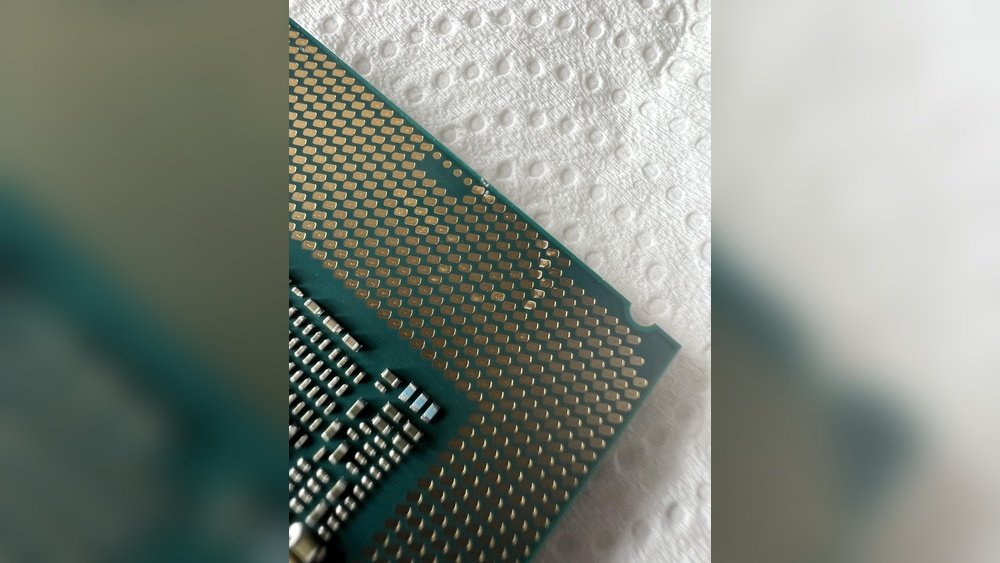
Open the computer case and look closely at the CPU. Check for cracks, burns, or bent pins. Any visible damage could stop the CPU from working. Clean dust and dirt gently with a soft brush. Avoid touching the pins directly. Physical damage often means the CPU needs replacement.
Use Multimeter For Voltage Testing
Use a multimeter to test the voltage on the CPU socket. Check if the motherboard sends power correctly. No power or wrong voltage can cause CPU failure. Set the multimeter to the correct voltage range. Carefully touch the probes to the socket pins. Compare the readings to the motherboard manual. Incorrect voltages can mean a motherboard or power supply issue, not always the CPU.
Reset Cmos Settings
Resetting the CMOS clears motherboard settings and can fix boot problems. Turn off the computer and unplug it. Find the CMOS battery on the motherboard. Remove it for about five minutes. Put the battery back in and restart the computer. This step resets BIOS settings to default. Sometimes, wrong settings cause the system to fail to detect the CPU.

Credit: www.reddit.com
When To Seek Professional Help
Knowing when to seek professional help is important if your CPU might be dead. Some problems are easy to fix on your own. Others need a skilled technician to check the hardware carefully. Calling a professional can save time and avoid more damage.
Complex Hardware Failures
Some CPU issues are hard to diagnose. Faulty motherboards, power supply problems, or damaged pins require expert tools. A technician can test each part safely. They can spot hidden damage you might miss. Complex failures need special skills and experience.
Warranty And Replacement Options
Check your CPU warranty before trying repairs. Professionals can guide you through the replacement process. They know how to handle warranty claims properly. Using a service center keeps your warranty valid. This can save money on repairs or new parts.
Data Recovery Considerations
A dead CPU might stop your computer from working, but your data could still be safe. Experts can help recover files from your hard drive. Attempting data recovery without experience may cause data loss. Professionals use special tools to protect your important information.
Frequently Asked Questions
How Can I Test If My Cpu Is Dead?
You can test by checking if the computer powers on and beeps. Use a spare CPU or motherboard to verify. Monitor for any POST errors or no display issues, which often indicate a dead CPU.
What Are Common Signs Of A Dead Cpu?
Common signs include no power, no BIOS beep, system not booting, and no display output. Overheating or physical damage can also indicate CPU failure. These symptoms suggest the CPU may be dead or faulty.
Can A Dead Cpu Cause No Display On Monitor?
Yes, a dead CPU can cause no display on your monitor. The CPU controls system boot and output signals. Without a functioning CPU, the computer fails to initialize graphics or display anything.
How To Differentiate Between Dead Cpu And Motherboard?
If the CPU fan spins but no POST or beep occurs, the CPU may be dead. Test with a known good CPU or motherboard to identify the faulty component. Motherboard issues usually show different error codes or symptoms.
Conclusion
A dead CPU can stop your computer from working. Check for signs like no power or no display. Simple tests help you find the problem fast. Replacing a bad CPU can save your device. Knowing these steps keeps you ready for tech issues.
Stay calm and follow the guide carefully. Your computer will thank you for it.
