
Are you about to build or upgrade your PC and wondering if your CPU will work with your motherboard? Choosing the right combination can be tricky, but getting it wrong could mean wasted time and money.
You don’t want to buy a powerful processor only to find it doesn’t fit or function properly with your current setup. You’ll discover simple steps to quickly check if your CPU and motherboard are a perfect match. Keep reading, and you’ll gain the confidence to make the right choice for a smooth, hassle-free build.
Credit: www.przewozcm.eu
Check Cpu Socket Type
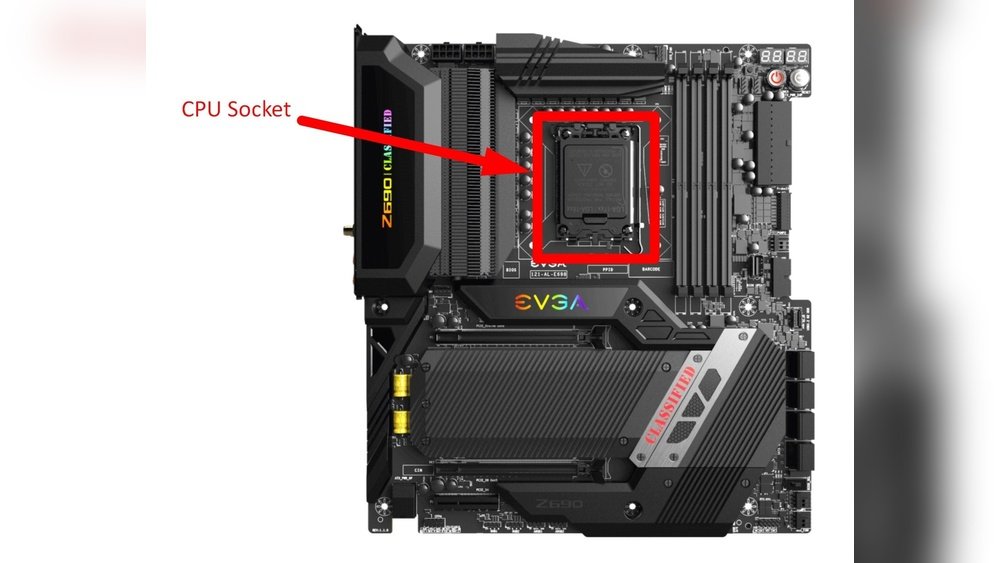
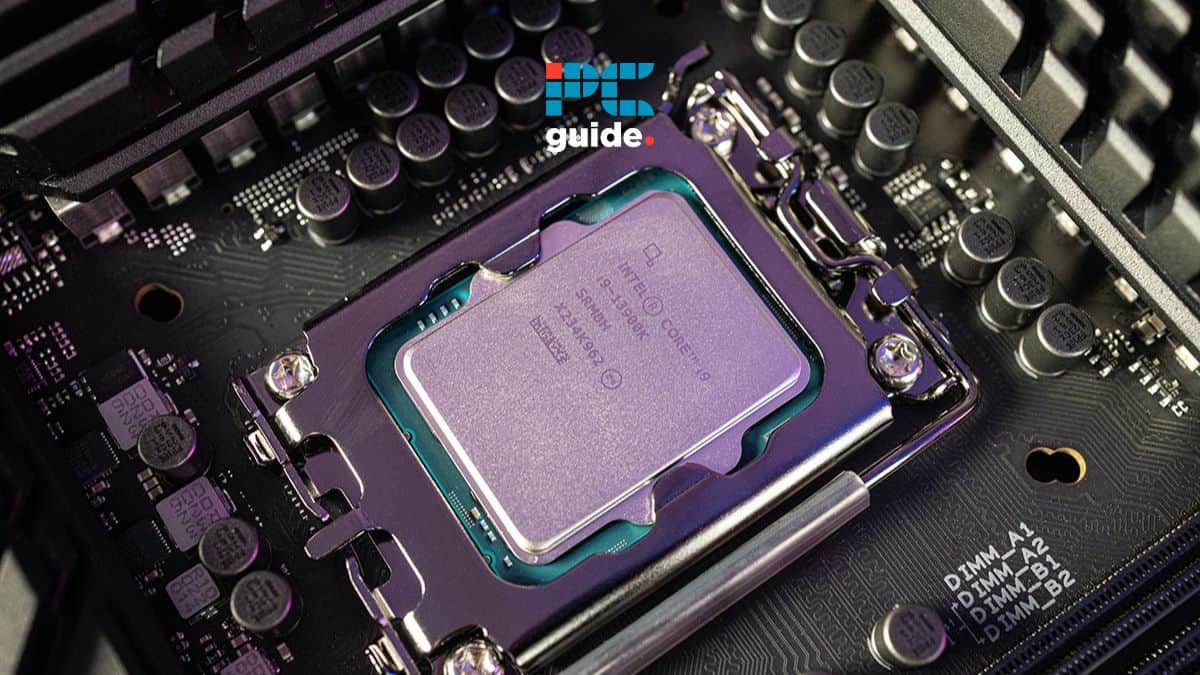
Checking the CPU socket type is essential before buying or installing a processor. The socket is the physical part on the motherboard where the CPU fits. If the CPU and motherboard sockets do not match, the CPU will not work.
This step ensures compatibility and prevents damage. It saves time and money by avoiding wrong purchases. Understanding the socket type helps you find the right CPU for your system.
Identify Motherboard Socket
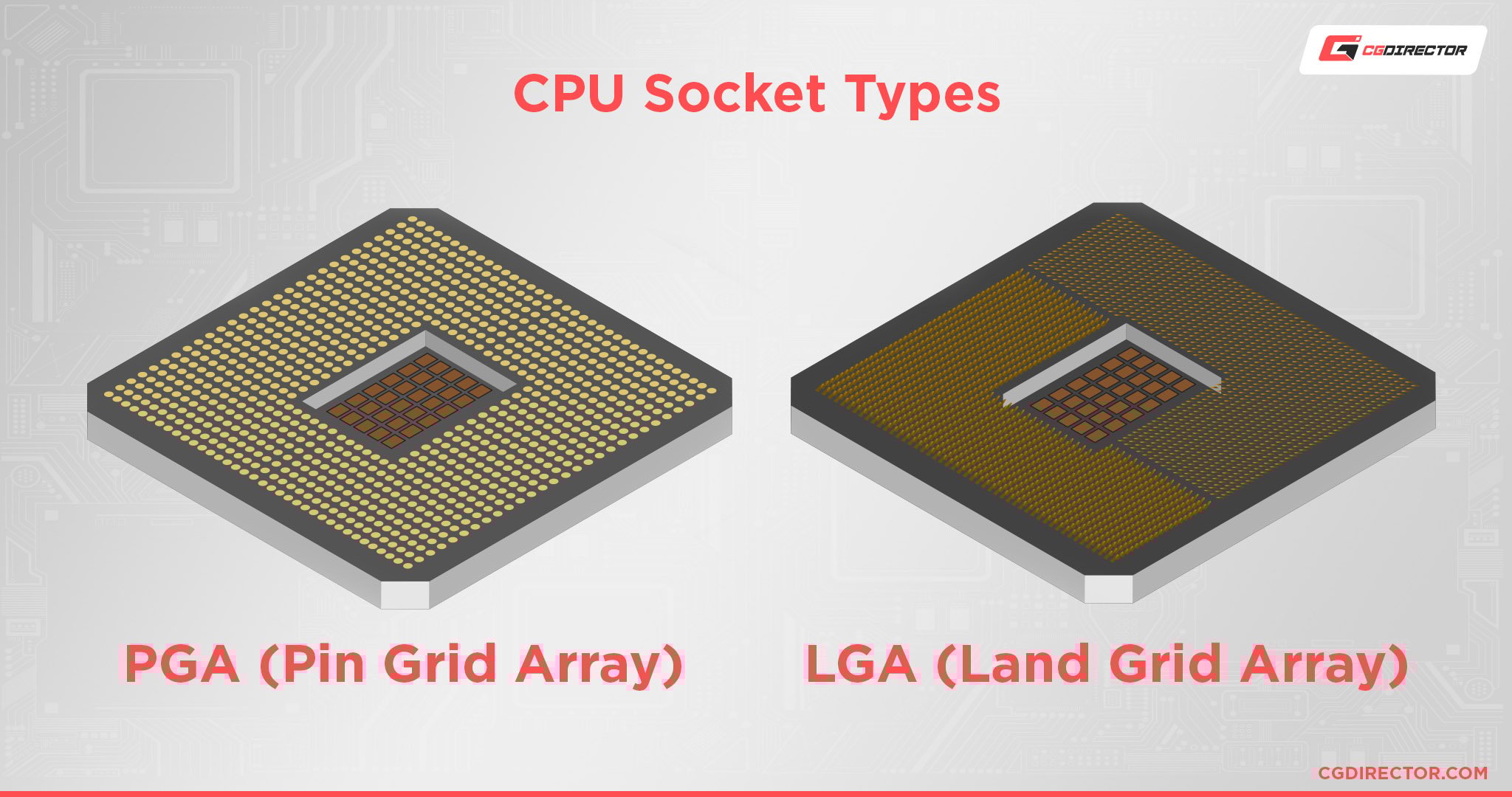
First, find the socket type on your motherboard. Check the motherboard box or manual for the socket name. It usually looks like “LGA 1151” or “AM4.” You can also use software tools that show hardware details.
Look directly at the motherboard if you can. The socket is a square or rectangular area with many small holes or pins. A label near the socket often shows the socket type.
Match Cpu Socket
Next, check the CPU’s socket type on its box or product page. The CPU must have the same socket type as the motherboard. A CPU with socket AM4 fits only on AM4 motherboards.
Do not try to force a CPU into a different socket. Even if the CPU fits physically, it may not work or can cause damage. Matching the socket type is the first step for CPU and motherboard compatibility.
Credit: www.pcguide.com
Verify Chipset Compatibility
Verifying chipset compatibility is a key step in choosing the right CPU and motherboard. The chipset acts as the communication hub between the CPU and other parts. It controls data flow and ensures the CPU works well with the motherboard. Knowing your motherboard’s chipset helps avoid buying parts that do not fit together.
Check this early to save time and money. A compatible chipset means better performance and fewer issues during setup.
Understand Motherboard Chipset
The chipset is a set of chips on the motherboard. It manages data between the CPU, RAM, storage, and other devices. Different chipsets support different CPU features and speeds. Knowing the chipset model helps you know what CPUs it supports.
Chipsets come from manufacturers like Intel or AMD. Each has unique models for various uses. For example, Intel’s Z-series chipsets support high-end CPUs and overclocking. Budget chipsets may only support basic features.
Confirm Cpu Support
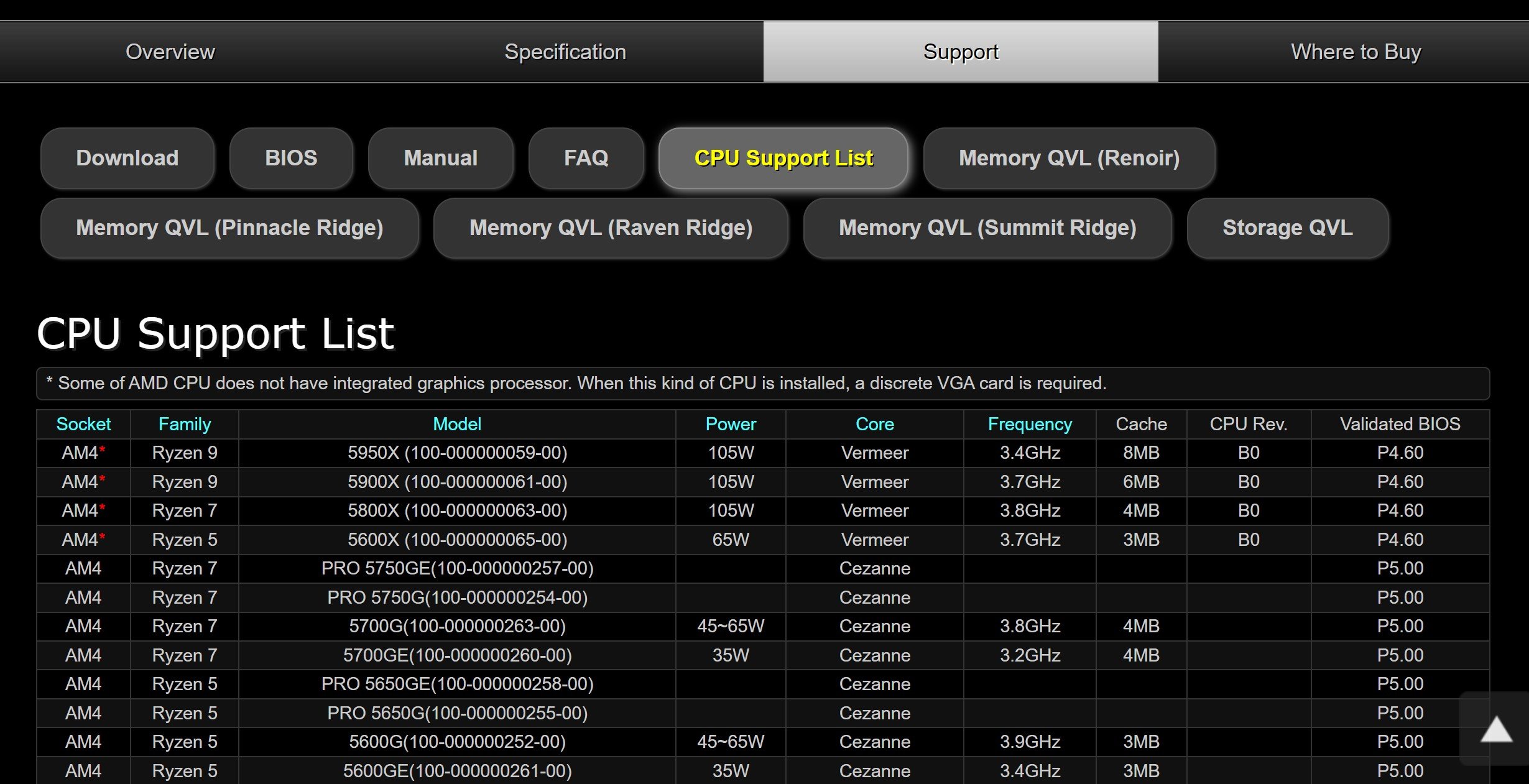
After identifying the chipset, check which CPUs it supports. Visit the motherboard maker’s website. Find the CPU support list for your specific motherboard model. This list shows compatible CPUs and their details.
Make sure the CPU socket matches the motherboard’s socket type. Even if the chipset supports a CPU, the socket must fit. For example, an LGA 1200 CPU will not fit an LGA 1151 socket. Checking this prevents buying incompatible parts.
Also, check the BIOS version. Sometimes, a BIOS update is needed to support newer CPUs. Confirm this to avoid boot problems after installation.
Review Bios Requirements
Reviewing BIOS requirements is a key step to check CPU and motherboard compatibility. BIOS controls how the CPU and motherboard work together. Sometimes, a motherboard needs a BIOS update to support a new CPU model.
Ignoring BIOS details can cause boot failures or poor performance. Knowing your BIOS version helps avoid these issues. It ensures the CPU runs smoothly on your motherboard.
Check Bios Version
Turn on your computer and enter BIOS setup. Usually, press Delete, F2, or F10 during startup. Look for BIOS version information on the main screen or system summary. Write down the version number for reference.
You can also find BIOS version in Windows. Press Windows key + R, type “msinfo32”, and press Enter. Check the BIOS Version/Date field in the System Information window.
Update Bios If Needed
Compare your BIOS version with the motherboard maker’s website. Find your motherboard model and check CPU support list. Look for BIOS versions that add support for your CPU.
Download the latest BIOS file if your version is old. Follow the manufacturer’s instructions carefully to update BIOS. Use a stable power source to avoid interruptions. After updating, reboot and verify the BIOS version again.
Consider Power And Cooling
Choosing the right CPU and motherboard means thinking about power and cooling. These two factors keep your computer running well and safe. A CPU needs enough power. It also needs proper cooling to avoid overheating. Without the right support, your system might slow down or stop working.
Understanding power and cooling helps you pick parts that work well together. It keeps your computer stable and extends its life.
Assess Power Delivery
Power delivery is how the motherboard sends electricity to the CPU. The CPU needs a steady and clean power supply. Check the motherboard’s VRM (Voltage Regulator Module). Good VRMs give stable power, especially for strong CPUs.
Look at the number of power phases. More phases mean better power flow and less heat. Make sure the motherboard supports your CPU’s power needs. This helps prevent crashes and damage.
Check Cooling Solutions
Cooling stops the CPU from getting too hot. Most CPUs come with a cooler. Check if it fits your motherboard and case. Some motherboards have heatsinks on key parts. These help lower temperatures.
Consider extra cooling options like fans or liquid coolers. Good airflow inside the case improves cooling. Keep space around the CPU for better heat removal. Proper cooling keeps your system fast and safe.
Examine Ram Compatibility
Examining RAM compatibility is crucial when checking if your CPU matches your motherboard. RAM works closely with the CPU and motherboard to run your computer smoothly. Using the wrong RAM type or speed can cause errors or reduce performance. Matching RAM properly ensures your system runs fast and stable.
Match Ram Type And Speed
Start by identifying the RAM type your motherboard supports. Common types include DDR4 and DDR5. Using the wrong type will prevent your system from booting. Check the motherboard manual or product page for the supported RAM types. Also, look at the speed rating in megahertz (MHz). Your RAM speed should match or be lower than the motherboard’s maximum speed. Faster RAM might not work or will run at lower speeds.
Check Cpu Memory Support
Your CPU has limits on the type and speed of RAM it supports. This information is often found on the CPU manufacturer’s website. Using RAM beyond these limits can cause instability or failure to start. The CPU also affects how much RAM your system can use. Make sure the RAM size fits within the CPU’s maximum memory capacity. Combining CPU and motherboard RAM specs helps avoid compatibility issues.
Look Into Physical Size And Form Factor
Checking the physical size and form factor is crucial when matching a CPU with a motherboard. Both parts need to fit well together to work properly. The CPU must physically fit into the motherboard socket without any problems. Also, the motherboard size and layout must support the CPU’s design.
This step helps avoid hardware damage and ensures good performance. It’s a basic but important check in building or upgrading a computer.
Assess Cpu Dimensions
CPUs come in different sizes and shapes. The most important part is the socket type. The socket is where the CPU connects to the motherboard. Each CPU model fits only certain socket types.
Measure or check the CPU’s length, width, and height if possible. Make sure it matches the motherboard socket size. The CPU pins or contacts must align perfectly with the socket holes.
Also, some CPUs have integrated heat spreaders that add to the size. This can affect cooler compatibility too.
Confirm Motherboard Layout
Motherboards have specific layouts called form factors. Common sizes include ATX, Micro-ATX, and Mini-ITX. Each form factor has different dimensions and mounting points.
The motherboard form factor affects the number of slots, ports, and expansion options. It also influences the CPU socket position.
Check the motherboard specifications to confirm the socket type and form factor. This ensures the CPU will fit and the case can hold the motherboard properly.
Use Manufacturer Resources
Use manufacturer resources to check CPU and motherboard compatibility. These resources provide accurate and up-to-date information. They help avoid buying parts that do not work well together. This step saves time and money.
Consult Compatibility Lists
Manufacturers publish compatibility lists on their websites. These lists show which CPUs work with specific motherboards. You can find supported CPU models and required BIOS versions. Check these lists before making a purchase. This ensures your CPU will fit and function properly.
Reach Out To Support
Contact the manufacturer’s customer support for extra help. Support teams can answer detailed questions about compatibility. They provide advice if your CPU is not on the list. This service helps clear doubts and confirms your choice.
Test Compatibility With Tools
Testing CPU and motherboard compatibility is important before buying parts. Tools make this process simple and fast. They help avoid mistakes and save money. Using digital tools can give clear answers about compatibility. These tools check socket type, chipset, and BIOS support. They provide easy-to-understand results for everyone.
Use Online Compatibility Checkers
Online checkers are websites that match CPUs with motherboards. Enter your CPU model or motherboard name. The tool shows if they work well together. Some sites also list supported RAM and features. These checkers update often with new models. They save time and reduce guesswork. Anyone can use them without technical knowledge.
Leverage System Scanners
System scanners are apps that scan your current hardware. They detect your CPU and motherboard details automatically. After scanning, they suggest compatible parts. These apps work on Windows or Mac. They help identify your system’s limits quickly. Using scanners avoids wrong purchases. They offer a clear compatibility report in minutes.
Credit: www.shoshitamam.com
Frequently Asked Questions
How To Check Cpu Socket Compatibility With Motherboard?
Check your CPU’s socket type and compare it with the motherboard’s socket. They must match exactly for compatibility.
Can Motherboard Bios Affect Cpu Compatibility?
Yes, an outdated BIOS can prevent CPU recognition. Update the BIOS for better compatibility with newer CPUs.
Does Motherboard Chipset Impact Cpu Compatibility?
Yes, motherboard chipsets support specific CPU generations. Confirm your chipset supports your CPU’s model and generation.
How To Verify Cpu Power Requirements Match Motherboard?
Ensure the motherboard VRM supports the CPU’s power needs. Insufficient power delivery can cause instability or failure.
Conclusion
Choosing the right CPU and motherboard matters a lot. Check the socket type and chipset first. Make sure the BIOS supports your CPU model. Look at power requirements and cooling needs too. Double-check RAM compatibility for best results. Taking these steps helps avoid problems later.
It saves time and money in the long run. A good match means better computer performance. Keep this guide handy for your next build. Simple checks can make a big difference.
