
Choosing the right CPU for your motherboard can feel confusing, especially with so many options and technical details. But what if there was a simple way to know if your CPU and motherboard will work perfectly together?
Getting this right means better performance, fewer headaches, and saving money. You’ll learn exactly how to check compatibility step-by-step, so you can build or upgrade your PC with confidence. Keep reading, and you’ll never worry about mismatched parts again.
Credit: www.cgdirector.com
Check Cpu Socket Type
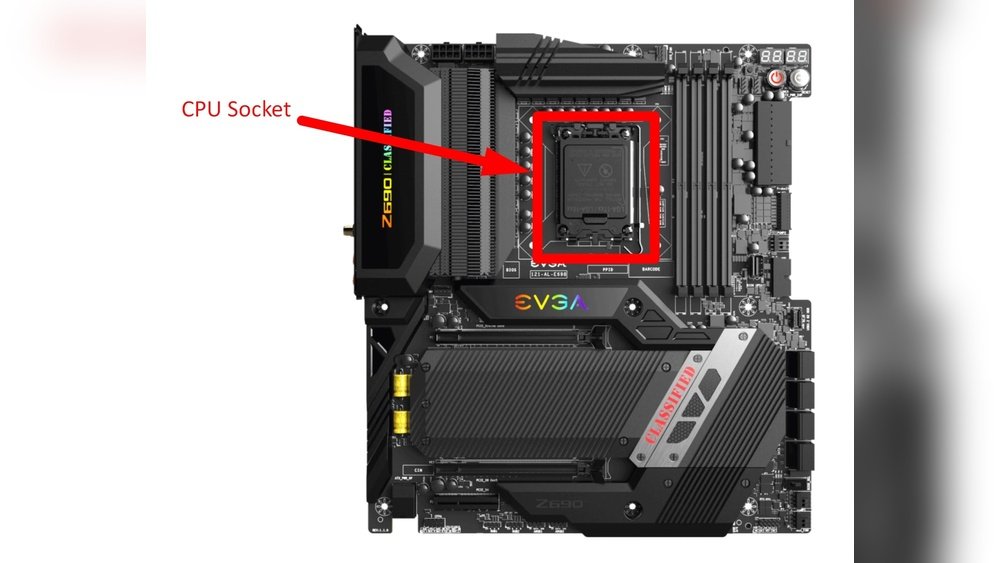
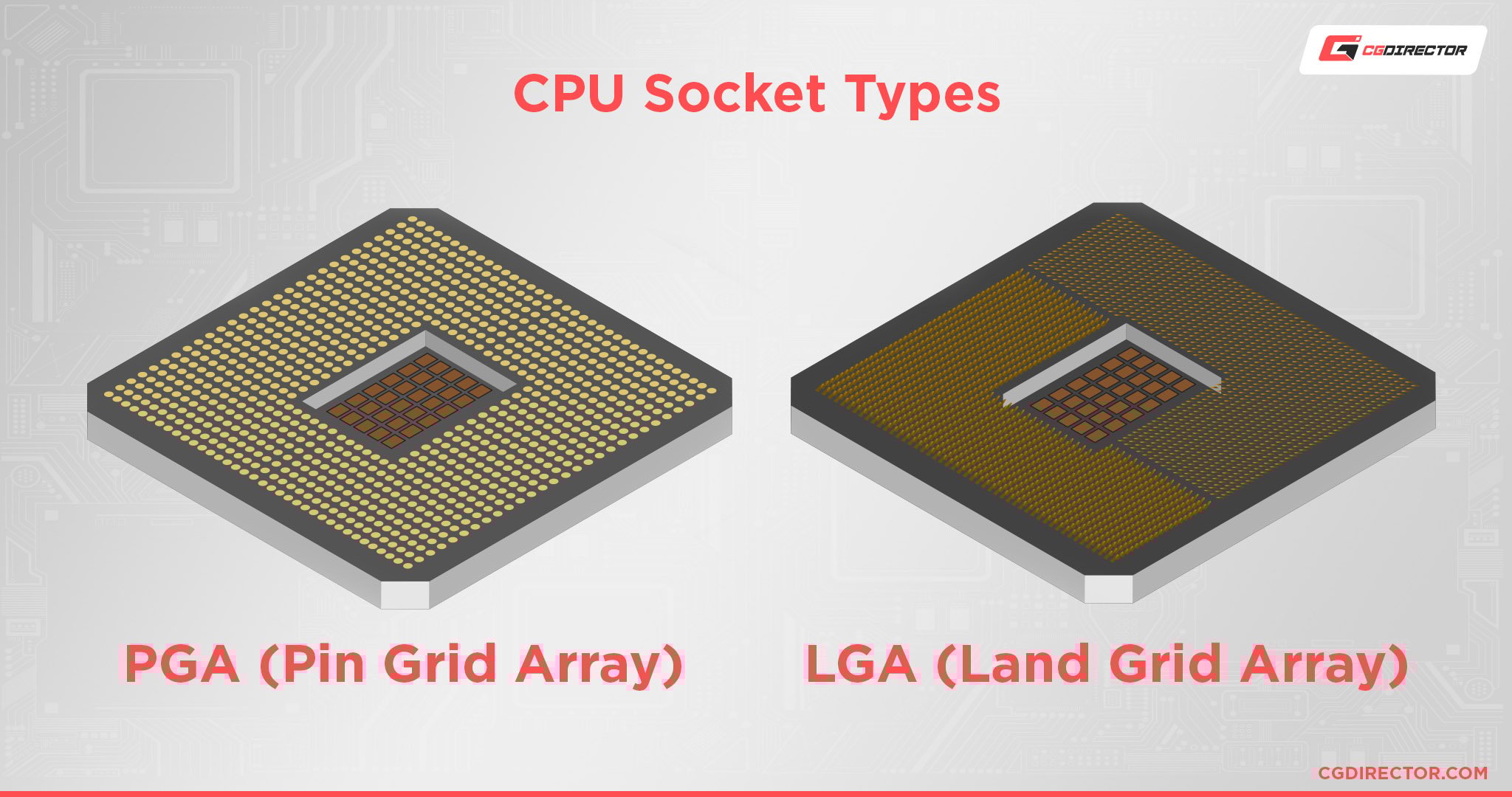
Checking the CPU socket type is the first step to ensure compatibility with your motherboard. The socket is the physical and electrical interface that connects the CPU to the motherboard. If the socket types do not match, the CPU will not fit or work properly. This step saves time, money, and frustration when building or upgrading a computer.
Match Cpu And Motherboard Sockets
Each CPU fits a specific socket type on the motherboard. You must know the exact socket type of both parts. For example, an Intel CPU with an LGA 1200 socket will only work with motherboards that support LGA 1200 sockets. A mismatch means the CPU cannot be installed.
Check the CPU specifications on the manufacturer’s website or product box. Do the same for the motherboard. Compare both socket types carefully before buying or installing the CPU. This simple check avoids many compatibility problems.
Common Socket Types Explained
There are many CPU socket types, but some are very common. Intel uses sockets like LGA 1151, LGA 1200, and LGA 1700. AMD uses AM4, AM5, and TR4 sockets. Each socket type supports different CPU models and features.
Understanding these common sockets helps you pick the right CPU and motherboard combo. Most motherboard product pages list the supported socket types. Use this information to match your CPU correctly. Knowing socket types ensures a smooth build and better performance.
Verify Chipset Compatibility
Verifying chipset compatibility is a key step in choosing the right CPU and motherboard. The chipset acts as the communication center between the CPU and other parts of the computer. Knowing if the chipset supports your CPU ensures smooth performance and prevents hardware issues.
Role Of The Chipset
The chipset controls data flow between the CPU, memory, and devices. It manages features like USB ports, SATA connections, and PCIe lanes. Different chipsets offer different capabilities and limits. A compatible chipset allows the CPU to operate at full speed. It also enables support for newer technologies and better power management.
Supported Cpu Generations
Each chipset supports specific CPU generations. Newer CPUs often need newer chipsets. Older chipsets might not recognize the latest processors. Check the motherboard’s chipset specifications to see which CPU models it supports. This info is usually found on the manufacturer’s website or product manual. Using a chipset that matches your CPU generation avoids compatibility problems and system instability.
Consider Bios And Firmware
BIOS and firmware play a key role in CPU and motherboard compatibility. They control how hardware parts talk to each other. Sometimes, a motherboard needs a BIOS update to support a new CPU model. Without the right BIOS version, the system may not start or may run poorly. Checking BIOS and firmware is a must before buying a new processor.
Bios Updates For New Cpus
New CPUs often require the latest BIOS updates for full support. Motherboard makers release these updates to add compatibility. These updates can fix bugs and improve performance too. Older BIOS versions might not recognize new CPUs. This causes errors or stops the system from booting. Make sure your motherboard’s BIOS supports your CPU model.
How To Update Bios Safely
Updating BIOS needs caution. Download the update only from the motherboard maker’s official website. Follow the instructions exactly to avoid problems. Use a stable power source to prevent shutdown during update. Create a backup of current BIOS if possible. Do not turn off the computer while updating. A failed update can damage the motherboard.
Credit: www.youtube.com
Assess Power Requirements
Assessing power requirements is a key step in choosing a compatible CPU and motherboard. Power needs affect system stability and performance. Ignoring power compatibility can cause crashes or hardware damage. Understand how much power the CPU uses and if the motherboard can supply it. This ensures smooth operation and longer hardware life.
Cpu Power Consumption
CPUs have a power rating called TDP, or Thermal Design Power. It shows the maximum heat the CPU produces under normal use. TDP also relates to the power the CPU draws. A higher TDP means the CPU needs more power. Check the CPU’s TDP before buying. Make sure the motherboard can handle this power level.
Some CPUs consume less power but still deliver good performance. Others use more power for faster speeds. Know the CPU’s TDP to match it with the right motherboard. Do not guess or assume power needs. Check official CPU specs for accurate details.
Motherboard Vrm Quality
The motherboard’s VRM, or Voltage Regulator Module, controls power delivery to the CPU. Good VRMs provide stable and clean power. Poor VRMs can cause voltage drops and system instability. High-quality VRMs are important for CPUs with high power needs.
Look for motherboards with strong VRM designs. More power phases often mean better power stability. Check reviews and specifications to confirm VRM quality. A good VRM protects your CPU and improves overall system reliability.
Check Ram Compatibility
Checking RAM compatibility is a key step when matching a CPU with a motherboard. RAM affects the system’s speed and performance. Using the wrong type or speed can cause errors or slowdowns. Always verify the RAM types and limits the motherboard and CPU support.
Supported Ram Types
Motherboards and CPUs support specific RAM types like DDR4 or DDR5. Each type has different physical and electrical features. The motherboard manual lists which RAM types it accepts. The CPU datasheet also shows compatible RAM types. Use RAM that matches both for best results.
Max Ram Speed And Capacity
Both motherboard and CPU set limits on RAM speed and size. Speed is measured in MHz and affects data flow rate. Capacity means the total memory the system can use. Check the motherboard’s maximum RAM slots and capacity per slot. Confirm the CPU can handle the same or higher speeds and total memory.
Review Physical Size And Clearance
Reviewing the physical size and clearance is a key step before pairing a CPU with a motherboard. It ensures all parts fit well without blocking each other. This step helps avoid installation problems or damage to components.
Checking size and space saves time and money. It also keeps the system cool and running smoothly. Let’s look at two main points: CPU cooler compatibility and motherboard form factor.
Cpu Cooler Compatibility
CPU coolers come in many shapes and sizes. Some coolers are tall, while others are compact. The cooler must fit inside the case and not touch other parts.
Motherboards have limits on cooler height. Check the maximum cooler height your motherboard supports. Also, the cooler should match the CPU socket type exactly.
Clearance around RAM and VRM heatsinks is important. Large coolers may block RAM slots or power components. Measure space carefully before choosing a cooler.
Motherboard Form Factor
Motherboards come in standard sizes called form factors. Common types include ATX, Micro-ATX, and Mini-ITX. Each form factor has a specific layout and mounting points.
The motherboard size affects how it fits in the case. It also impacts how much space is around the CPU socket. Smaller boards may have less room for large coolers.
Check your case supports the motherboard form factor. Confirm the CPU socket matches the CPU. This ensures physical and electrical compatibility.
Use Compatibility Tools
Using compatibility tools is the easiest way to check if a CPU works with a motherboard. These tools save time and prevent costly mistakes. They help you find matching parts quickly and clearly. Two main types of tools are online compatibility checkers and manufacturer resources. Both provide reliable information for your build.
Online Compatibility Checkers
Online compatibility checkers let you enter your CPU and motherboard models. The tool then shows if they match or not. Some tools suggest alternative parts that fit better. They update regularly to include new hardware. This keeps the information accurate and useful. Using these checkers helps avoid guesswork and confusion.
Manufacturer Resources
Motherboard and CPU makers often provide compatibility lists. You can find these on their official websites. These lists show supported CPUs for each motherboard model. They also include BIOS version requirements. Following these lists ensures your parts work together smoothly. Manufacturer resources are the most trusted source for compatibility details.
Credit: www.pcguide.com
Frequently Asked Questions
How Do I Check Cpu Socket Compatibility?
Check your motherboard’s CPU socket type and compare it with your CPU’s socket. Both must match exactly for compatibility.
Can Bios Updates Affect Cpu Compatibility?
Yes, BIOS updates can add support for newer CPUs. Always check the motherboard manufacturer’s site for update details.
Does Motherboard Chipset Impact Cpu Compatibility?
Yes, the motherboard chipset determines which CPUs it supports. Verify your motherboard chipset is compatible with your CPU model.
How Important Is Motherboard Ram Support For Cpu?
Motherboards must support the RAM type and speed compatible with your CPU for optimal performance and stability.
Conclusion
Checking CPU and motherboard compatibility is simple with the right steps. Match the CPU socket type to the motherboard’s socket. Confirm the chipset supports your CPU model. Look at the BIOS version for updates. Pay attention to power requirements and cooling options.
These checks prevent costly mistakes. A compatible setup ensures smooth performance. Take time to research before buying. Your computer will run better and last longer. Simple checks save time and money. Ready to build a reliable PC?
