
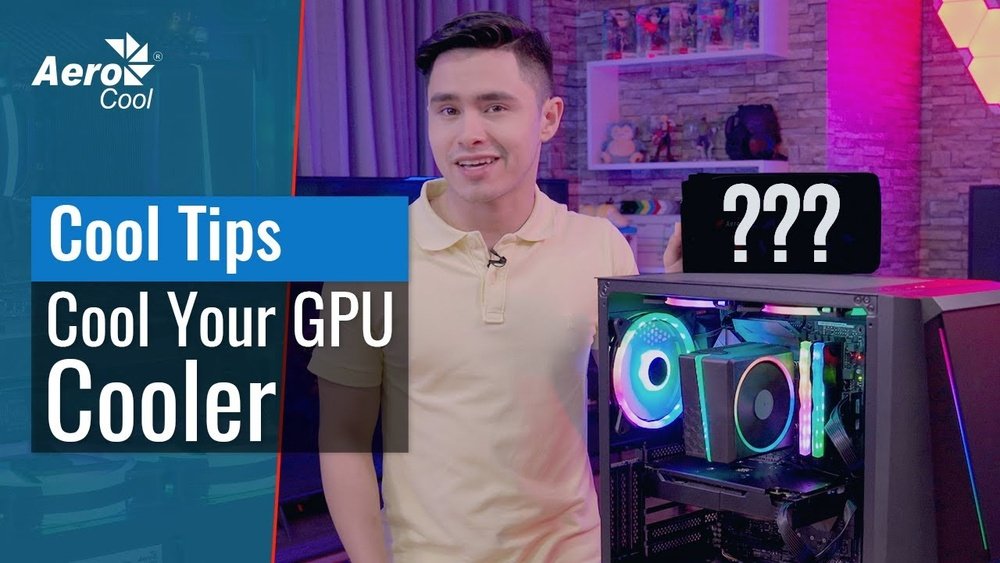
Your GPU works hard every time you play games, edit videos, or run complex programs. But if it gets too hot, its performance can drop, and it might even get damaged.
Keeping your GPU cool isn’t just about comfort—it’s about protecting your investment and getting the best results. You’ll discover simple, effective ways to keep your GPU running smoothly and at the right temperature. Ready to make your system cooler and faster?
Let’s dive in.
Credit: www.overclock.net
Importance Of Gpu Cooling
Keeping a GPU cool is very important for your computer’s health. A GPU works hard to process images and videos. This work creates a lot of heat. If the heat is not managed, it can cause many problems. Overheating can slow down your computer. It can also cause the GPU to break faster. Proper cooling helps the GPU run smoothly and last longer.
Improves Performance
A cool GPU performs better. High temperatures can make it slow. Cooling keeps the GPU fast and stable. This is important for gaming and video editing. It helps avoid sudden drops in speed.
Extends Hardware Life
Heat wears out parts inside the GPU. Keeping it cool reduces damage. This means your GPU will work longer. It saves money on repairs and replacements.
Prevents Crashes And Errors
Too much heat can cause your computer to crash. Cooling stops these crashes. It keeps your programs running without errors. This is important for work and play.
Reduces Noise
A hot GPU makes fans run faster and louder. Good cooling helps fans work quietly. This makes your computer more pleasant to use.
Signs Of Overheating
Keeping your GPU cool is important for your computer’s health. Overheating can cause serious problems. Knowing the signs of overheating helps you act fast. Catching these signs early protects your GPU and improves performance.
High Fan Noise
The GPU fan runs loudly when the card gets hot. The fan tries to cool down the chip. Loud, constant fan noise means the GPU is working hard to stay cool.
Screen Flickering Or Artifacts
Overheating can cause strange lines or colors on your screen. Flickering or strange shapes appear during games or video playback. These are signs your GPU is too hot.
System Crashes Or Freezes
Your computer may suddenly crash or freeze. Overheating causes the GPU to fail temporarily. This leads to unexpected shutdowns or blue screens.
Performance Drops
The GPU slows down to prevent damage. You might notice lower frame rates in games. Slower performance is a clear sign of overheating.
High Temperature Readings
Use software to check your GPU temperature. Readings above 85°C show overheating risk. Regularly monitoring temperature helps you avoid damage.
Choosing The Right Cooling System
Choosing the right cooling system is important to keep your GPU running well. A good cooling system stops the GPU from getting too hot. It helps your computer work faster and last longer. Different systems cool the GPU in different ways. Understanding these options helps you pick the best one for your needs.
Air Cooling Solutions
Air cooling uses fans and heat sinks to move heat away from the GPU. Fans push cool air over the metal parts that get hot. Heat sinks help spread the heat so it cools faster. Air cooling is easy to install and cost-effective. It works well for most everyday users and moderate gaming.
Liquid Cooling Options
Liquid cooling moves heat using water or special liquids. A pump moves the liquid through tubes to cool the GPU. This method is quieter than air cooling and can cool better. It suits high-performance computers and heavy gaming. Liquid cooling needs more care and costs more than air cooling.
Hybrid Cooling Systems
Hybrid systems combine air and liquid cooling methods. They use liquid cooling for the GPU core and fans for other parts. This balance keeps the GPU very cool and quiet. Hybrids work well for users who want strong cooling without noise. They are more complex but offer excellent temperature control.

Credit: www.youtube.com
Improving Airflow In Your Pc Case
Improving airflow in your PC case is a key way to keep your GPU cool. Good airflow moves hot air out and brings cool air in. This helps your GPU work better and last longer. Simple changes inside your case can make a big difference.
Optimal Fan Placement
Place intake fans at the front or bottom of the case. They bring fresh air inside. Exhaust fans should be at the top or back. They push hot air out. This creates a steady air path inside your PC. Avoid blocking airflow with parts or cables.
Cable Management Tips
Tidy cables improve airflow inside your case. Use zip ties or Velcro straps to bundle cables. Keep them away from fans and vents. This stops air from getting trapped. A clean inside means cooler temperatures for your GPU.
Choosing The Right Case
Pick a case with good ventilation and fan support. Look for cases with mesh panels or vents. Bigger cases often have better airflow options. Check for multiple fan mounts. A well-ventilated case helps keep your GPU cool all day.
Using Thermal Paste Effectively
Using thermal paste properly helps keep your GPU cool. It fills tiny gaps between the GPU chip and the cooler. This improves heat transfer and lowers temperature. Applying thermal paste the right way prevents overheating and extends GPU life.
Too much or too little thermal paste can cause problems. A thin, even layer works best. Knowing when and how to apply thermal paste makes a big difference in cooling performance.
When To Apply Thermal Paste
Apply thermal paste when you install a new GPU cooler. Also, reapply it if you remove the cooler for cleaning or repair. Over time, thermal paste dries out and loses effectiveness. Check your GPU temperature regularly. High temperatures may mean it is time to reapply thermal paste.
Best Thermal Pastes Available
Choose thermal paste with good heat conductivity. Popular choices include Arctic Silver 5, Noctua NT-H1, and Thermal Grizzly Kryonaut. These pastes spread easily and last long. Avoid cheap pastes that dry out quickly or do not conduct heat well. A quality thermal paste helps your GPU run cooler and safer.
Adjusting Gpu Fan Settings
Adjusting GPU fan settings helps control the temperature of your graphics card. It prevents overheating and keeps your GPU running smoothly. By managing fan speeds, you can balance noise and cooling. Lower speeds reduce noise but may increase temperature. Higher speeds cool better but make more noise. Understanding how to adjust fan settings improves your PC’s performance and lifespan.
Manual Fan Speed Control
Manual fan speed control allows you to set the fan speed yourself. You can increase the speed during heavy use to cool the GPU faster. Lower the speed when the GPU is idle to reduce noise. Most GPUs let you change fan speeds in the BIOS or using software. Start with small speed changes to avoid sudden noise spikes. Monitor your GPU temperature to find the best fan speed.
Software Tools For Fan Management
Software tools help manage your GPU fans easily. Many free and paid programs let you set fan curves. Fan curves change fan speed based on GPU temperature automatically. Popular tools include MSI Afterburner, EVGA Precision X1, and SpeedFan. These tools show GPU temperature and fan speed in real time. You can create custom profiles for different tasks. Software control keeps your GPU cool without constant manual changes.
Keeping Your Environment Cool
Keeping the area around your GPU cool helps it run better and last longer. A cool environment lowers the temperature of the graphics card. This stops it from slowing down or getting damaged.
Small changes in the room can make a big difference. Let’s see how to keep your space clean and cool for your GPU.
Room Temperature Considerations
Keep the room temperature between 20 to 25 degrees Celsius. Cooler air helps the GPU fans work faster and cool the card better. Avoid placing your computer near heat sources like heaters or direct sunlight.
Use a fan or air conditioner if the room gets too hot. Good air flow around your PC case is important. Keep the computer away from walls or closed spaces to let air move freely.
Avoiding Dust And Debris
Dust blocks air vents and fan blades. It makes the GPU hotter and can cause damage. Clean your computer case every few weeks with a soft cloth or air blower.
Keep the room tidy and dust-free. Avoid eating or drinking near your computer. Use dust filters on your PC case fans to stop dust from entering. A clean environment helps your GPU stay cool and work well.
Monitoring Gpu Temperature
Monitoring GPU temperature is key to keeping your graphics card safe and working well. High temperatures can cause damage or slow down your GPU. Checking the temperature helps you catch problems early. It also lets you control cooling better.
Regular monitoring helps maintain your PC’s performance. It also extends the life of your GPU. You can spot overheating issues before they get worse. This saves money on repairs or replacements.
Recommended Monitoring Software
Several tools can show your GPU temperature clearly. MSI Afterburner is popular and easy to use. It works with most graphics cards. HWMonitor gives detailed info on all hardware parts. GPU-Z is simple and focuses only on your GPU. These tools update temperature in real-time. They also show other stats like fan speed and usage.
Setting Temperature Alerts
Setting alerts helps you act fast if temperature rises. You can set a limit, like 80°C. The software will warn you when temperature hits this. Alerts can be sound, message, or pop-up. This lets you cool your GPU before damage happens. Many monitoring apps have easy alert settings. Use them to keep your system safe and stable.
Overclocking And Heat Management
Overclocking a GPU boosts its speed beyond factory settings. This improves gaming and rendering tasks. But overclocking also raises the GPU’s temperature. Managing heat is key to keeping the GPU safe and stable. Proper heat control helps the GPU last longer and work better.
Balancing Performance And Temperature
Increasing GPU speed creates more heat. This can cause crashes or damage parts. Cooling systems must handle this extra heat well. Fans, heatsinks, and thermal paste play important roles. A balance between speed and heat keeps the GPU stable. Avoid pushing the GPU too far past its limits. Find the highest speed that still keeps temperatures safe.
Safe Overclocking Practices
Start with small speed increases. Test the GPU after each change. Watch the temperature and performance closely. Use software tools to monitor GPU health. Do not exceed the maximum safe temperature. Keep the PC case clean and well-ventilated. Replace old thermal paste if needed. Stop overclocking if the GPU becomes unstable or too hot.
Credit: www.reddit.com
Frequently Asked Questions
How Can I Improve Gpu Cooling Performance?
To improve GPU cooling, clean dust regularly and ensure proper airflow. Use quality thermal paste and add extra fans if needed. Adjust fan curves via software for optimal cooling.
What Is The Ideal Gpu Temperature For Gaming?
Ideal GPU temperatures during gaming range between 65°C and 85°C. Temperatures above 90°C can cause throttling and damage. Proper cooling helps maintain safe temperatures and performance.
Does Liquid Cooling Benefit Gpu Temperature Control?
Yes, liquid cooling offers better heat dissipation than air cooling. It reduces GPU temperatures significantly, allowing quieter operation and improved performance. However, it requires more maintenance and upfront cost.
How Often Should I Clean My Gpu Fans?
Clean GPU fans every 3 to 6 months to prevent dust buildup. Dust reduces airflow, causing higher temperatures. Use compressed air or a soft brush for safe cleaning.
Conclusion
Keeping your GPU cool is important for its performance and life. Clean fans and good airflow help a lot. Use extra cooling tools if needed. Watch the temperature often to avoid problems. Small steps make a big difference over time.
Stay careful and keep your system healthy. Your GPU will thank you with better speed and less heat. Easy to do, and worth the effort.
