
Thinking about upgrading your computer with a new GPU? You’re in the right place.
Installing a new graphics card might sound tricky, but with the right steps, you can do it yourself quickly and safely. Imagine how amazing your games, videos, and work will look with improved graphics power. This guide will walk you through every step, making sure you avoid common mistakes and get the best performance from your new GPU.
Ready to boost your PC’s power? Let’s dive in!

Credit: www.sietesetenta.com.ar
Preparing Your Workspace
Preparing your workspace is the first step to install a new GPU safely and easily. A clean and organized area helps avoid mistakes and damage. It also makes the process faster and less stressful.
Take time to set up the right environment before you start. This way, you can focus on the installation without interruptions or risks.
Gathering Necessary Tools
Collect all tools needed for the installation. Common tools include a screwdriver, an anti-static wrist strap, and a clean cloth.
Having everything ready prevents delays and stops you from searching for tools mid-installation. Check the GPU manual for any special tools required.
Ensuring Safety Precautions
Turn off your PC and unplug it from the power source. This stops electric shocks and hardware damage.
Wear an anti-static wrist strap or touch a grounded metal object. This removes static electricity that can harm sensitive components.
Work in a dry area and avoid touching metal parts inside the computer without protection.
Clearing The Area
Clear your workspace of clutter and dust. A clean space reduces the chance of losing screws or parts.
Use a flat surface with good lighting. This helps you see small components and work comfortably.
Keep drinks and food away to avoid spills. Organize parts and screws in small containers.
Checking Compatibility
Checking compatibility is the first step before installing a new GPU. This step helps avoid hardware conflicts and ensures smooth operation. It saves time and prevents damage to your components. Focus on three main areas: your motherboard, power supply, and case size.
Verifying Motherboard Support
Check if your motherboard has the right slot for the GPU. Most modern GPUs use a PCIe x16 slot. Look at your motherboard’s manual or product page. Confirm the PCIe version to match the GPU’s requirements. Older motherboards might limit GPU performance. Make sure the BIOS is updated for better compatibility.
Power Supply Requirements
GPUs need enough power to work properly. Find the GPU’s recommended wattage online or on the box. Check your power supply’s total wattage output. Look for the right power connectors on your PSU. Some GPUs need one or two 6-pin or 8-pin connectors. Using a PSU below the required wattage can cause crashes or damage.
Physical Space In The Case
Measure the available space inside your PC case. GPUs vary in length, height, and width. Check the GPU’s size on the manufacturer’s website. Consider other components like cooling systems and cables. Leave room for airflow to avoid overheating. A tight fit can block airflow and cause heat issues.
Removing The Old Gpu
Removing the old GPU is the first step before installing a new one. This process requires care to avoid damage to your computer parts. Follow these steps to remove the old GPU safely and easily.
Powering Down And Unplugging
Turn off your computer completely. Do not just put it to sleep. Unplug the power cable from the wall socket. Also, disconnect any other cables connected to your PC. This prevents electric shock and hardware damage.
Opening The Computer Case
Find the screws holding the side panel of your case. Use a screwdriver to remove them. Slide or lift the panel off carefully. This exposes the inside of your computer. Keep the screws in a safe place for later.
Disconnecting Cables And Screws
Look for any power cables attached to the GPU. Gently unplug these cables. Next, find the screws securing the GPU to the case. Remove all these screws carefully. This frees the GPU for removal.
Safely Extracting The Gpu
Locate the small clip or latch on the PCIe slot holding the GPU. Press or pull this clip to unlock the GPU. Hold the GPU firmly and pull it straight out. Avoid bending or twisting the card.
.JPG?width=1920&height=1920&fit=bounds&quality=80&format=jpg&auto=webp)
Credit: www.esseg.eu
Installing The New Gpu
Installing the new GPU is a key step in upgrading your computer. It involves careful handling and precise placement. Follow the steps below to ensure a smooth installation.
Aligning The Gpu With The Slot
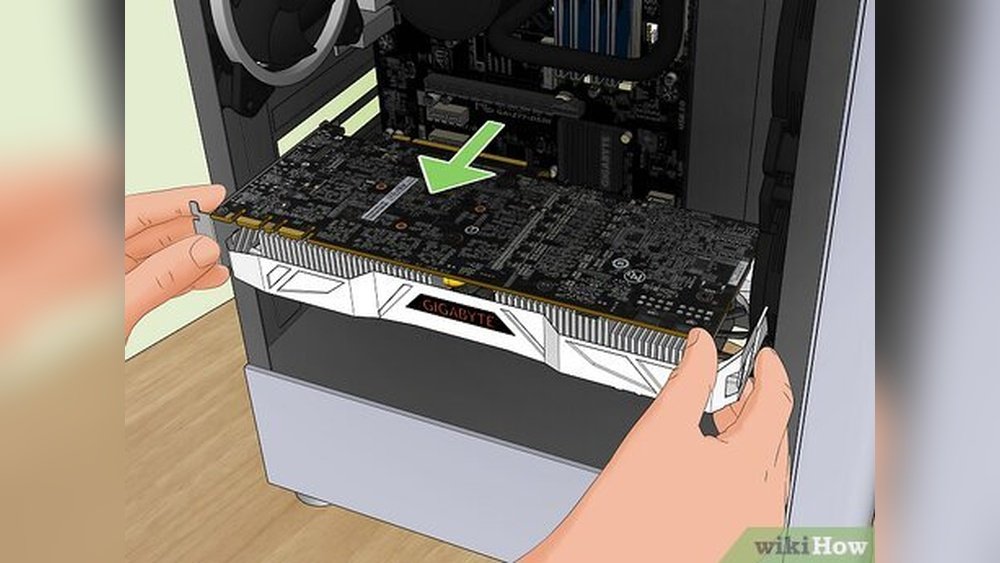
First, hold the GPU by its edges. Find the PCIe slot on your motherboard. The GPU connector matches this slot. Gently line up the GPU’s gold contacts with the slot. Make sure the metal bracket fits the case’s rear panel. Avoid forcing the card into place. A proper alignment prevents damage and ensures a good connection.
Securing The Gpu In Place
Once aligned, press the GPU down firmly but gently. You should hear a click as it locks into the slot. Check the case’s bracket holes. Use screws to fasten the GPU to the case. Tighten the screws just enough to hold the card steady. This step stops the GPU from moving during use. A secure GPU improves stability and performance.
Connecting Power Cables
Modern GPUs need extra power from the power supply. Locate the power connectors on your GPU. Find matching cables from your power supply. Plug the cables into the GPU’s connectors carefully. Ensure a snug fit without forcing. Proper power connection is vital for GPU function. Double-check all cables before closing your case.
Closing Up And Powering On
After installing your new GPU, the final steps are crucial. Closing your computer case and powering it on carefully ensures your new hardware works well. This part of the process requires patience and attention to detail. Follow the steps below to finish your GPU installation safely and correctly.
Reassembling The Case
Start by placing the side panel back on your PC case. Align it carefully with the edges. Do not force the panel. Use screws you removed earlier to secure it firmly. Tighten each screw just enough to hold the panel in place. Too tight can damage the case. Check if the panel fits snugly without gaps. This helps protect your components and keeps dust out.
Plugging In And Starting The Pc
Reconnect the power cable to your PC. Make sure your monitor cable is plugged into the new GPU port. Double-check all connections before turning on your computer. Press the power button and watch for any lights or sounds. Your PC should start normally. If you see no display, turn off and check connections again. Once the PC boots, install the latest GPU drivers for best performance.
Installing Drivers And Software
Installing the right drivers and software is important for your new GPU. Drivers help your computer talk to the graphics card. Without them, your GPU may not work well or at all. Software can also help you control and optimize your GPU’s performance.
This section guides you through downloading, installing, and setting up the necessary drivers and software. Follow each step carefully to ensure your GPU runs smoothly.
Downloading Latest Drivers
Start by visiting the official website of your GPU maker. Look for the support or drivers section. Choose your GPU model and operating system. Download the latest driver version available. Avoid third-party sites to prevent corrupted files.
Running The Installation
Open the downloaded file to begin the installation. Follow the instructions on the screen step by step. Close other programs before installing to avoid errors. Restart your computer after installation completes. This helps the new driver take full effect.
Configuring Settings
Open the GPU software after your system restarts. Explore options like resolution, refresh rate, and performance modes. Adjust settings to match your needs and display. Save any changes to ensure they apply correctly. Regularly check for driver updates to keep performance steady.
Testing And Troubleshooting
Testing and troubleshooting your new GPU is vital after installation. This step confirms the hardware works correctly. It helps catch errors early before they cause bigger problems.
This section guides you through verifying your GPU, running simple tests, and fixing common issues. Clear steps make the process easy and effective.
Verifying Gpu Detection
First, check if your computer detects the new GPU. Open the device manager on Windows or system information on Mac. Look for the GPU under display adapters.
You can also use software like GPU-Z or CPU-Z. These tools show detailed information about your graphics card. If the GPU is not listed, recheck the installation and connections.
Running Performance Tests
Run basic performance tests to see if the GPU works well. Use benchmarking tools such as 3DMark or FurMark. These tests stress the GPU to check stability and speed.
Watch for any crashes or unusual behavior during tests. Smooth performance indicates your GPU is functioning properly. Save test results for future reference.
Common Issues And Fixes
Some problems might occur after installing a new GPU. The screen may stay black or flicker. The driver might not install correctly.
Try reseating the GPU if the screen shows no image. Update or reinstall the graphics driver from the official website. Check power connections to the GPU and ensure the PSU meets requirements.
If overheating happens, clean dust and improve case ventilation. Troubleshoot step-by-step to find the exact cause. Patience helps solve most problems efficiently.
.JPG?width=1920&height=1920&fit=bounds&quality=80&format=jpg&auto=webp)
Credit: www.esseg.eu
Frequently Asked Questions
What Tools Do I Need To Install A New Gpu?
You need a screwdriver, thermal paste (if necessary), and an anti-static wrist strap. These tools ensure safe and secure installation without damaging components.
How Do I Prepare My Pc For A New Gpu Installation?
Turn off your PC and unplug all cables. Ground yourself to prevent static damage. Remove the old GPU carefully before installing the new one.
Can I Install Any Gpu In My Pc?
Check your motherboard’s compatibility, power supply wattage, and case size. Not all GPUs fit or work with every system. Verify specs before purchase.
How Do I Connect Power Cables To A New Gpu?
Locate the PCIe power connectors from your power supply. Plug them firmly into the GPU’s power ports. Ensure a secure connection for proper GPU function.
Conclusion
Installing a new GPU can improve your computer’s performance a lot. Follow each step carefully to avoid mistakes. Take your time and be gentle with the parts. Double-check connections before closing your computer case. After installation, update your drivers for best results.
Enjoy smoother graphics and faster speeds. A new GPU can make your system feel fresh and powerful. Simple steps lead to great upgrades.
