
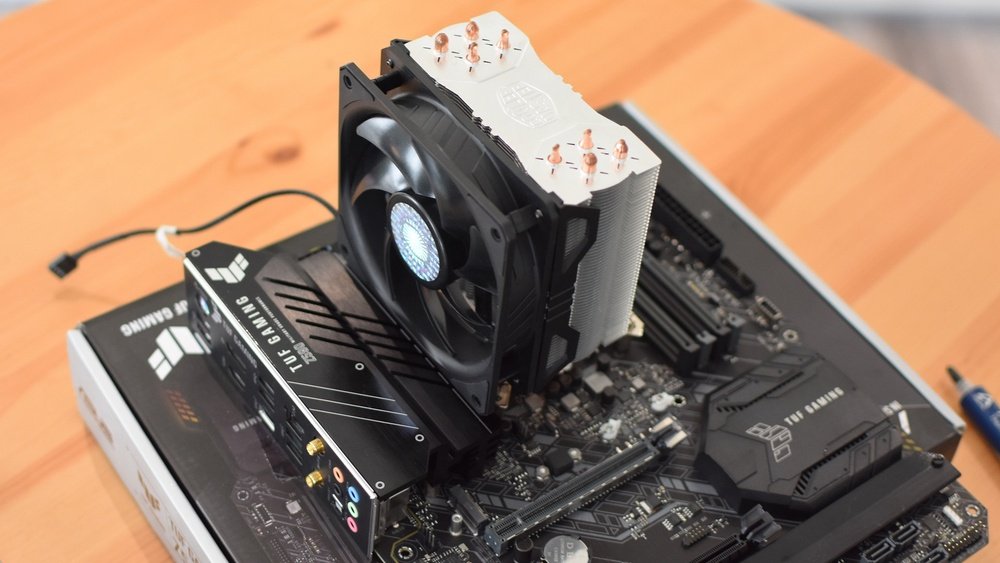
Are you ready to keep your computer running cool and fast? Installing a CPU heatsink might sound tricky, but it’s easier than you think.
Your CPU works hard, and without the right cooling, it can overheat and slow down or even get damaged. In this guide, you’ll learn simple, step-by-step instructions to install a heatsink correctly. By the end, you’ll feel confident in protecting your CPU and boosting your computer’s performance.
Let’s dive in and make sure your system stays cool and reliable!
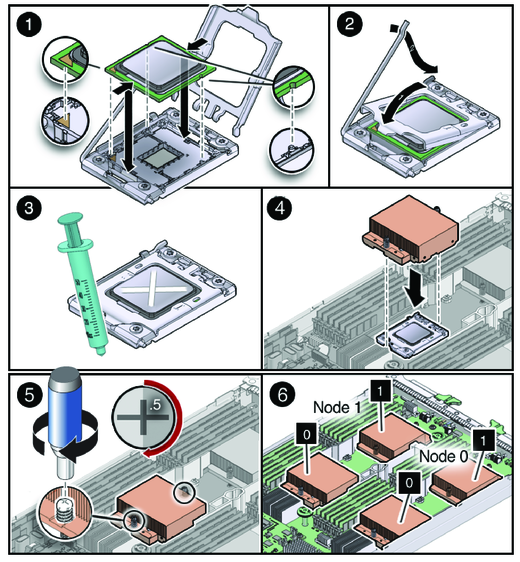
Credit: docs.oracle.com
Choosing The Right Heatsink
Choosing the right CPU heatsink is important for your computer’s performance. The heatsink keeps the CPU cool and prevents overheating. Picking the right one depends on several factors. This guide helps you understand the basics and make a good choice.
Types Of Cpu Heatsinks
There are two main types of CPU heatsinks: air and liquid. Air heatsinks use metal fins and a fan. They push hot air away from the CPU. Liquid heatsinks use tubes filled with liquid. The liquid moves heat away from the CPU to a radiator. Each type has its own benefits and costs.
Compatibility With Your Cpu
Check your CPU socket type before buying a heatsink. The heatsink must fit your CPU socket perfectly. Also, consider your computer case size. Some heatsinks are tall or wide and may not fit inside small cases. Confirm the compatibility to avoid installation problems.
Air Cooling Vs Liquid Cooling
Air cooling is simple and usually cheaper. It works well for most users and normal tasks. Liquid cooling offers better cooling for high-performance CPUs. It is quieter but more expensive and complex to install. Choose based on your budget and cooling needs.
Preparing Your Workspace
Preparing your workspace is the first step to a smooth CPU heatsink installation. A clean and organized area helps prevent mistakes. It also protects your computer parts from damage. Take time to set up everything before you start.
Gathering Necessary Tools
Collect all tools before beginning the installation. You will need a screwdriver, thermal paste, and cleaning materials. Have a soft cloth or lint-free wipes ready. Keep everything close to avoid interruptions. This saves time and reduces stress.
Ensuring Static Safety
Static electricity can harm computer parts. Use an anti-static wrist strap to protect your CPU and motherboard. Attach the strap to a metal part of your desk or case. Work on a non-carpeted surface to reduce static build-up. Grounding yourself prevents costly damage.
Cleaning The Cpu Surface
Remove old thermal paste carefully with a lint-free cloth. Use isopropyl alcohol for better cleaning. Let the surface dry completely before applying new paste. A clean CPU surface ensures better heat transfer. This step improves your computer’s cooling performance.
Applying Thermal Paste
Applying thermal paste is an essential step when installing a CPU heatsink. It helps fill tiny gaps between the CPU and heatsink. This improves heat transfer and keeps your CPU cool. Without thermal paste, the CPU can overheat and cause problems. The right amount and proper technique matter a lot.
Selecting The Thermal Paste
Choose thermal paste that matches your needs and budget. Most users find standard thermal paste works well. Look for pastes with good thermal conductivity ratings. Avoid cheap or old pastes that dry out quickly. Silicone-based or metal-based pastes are common types. Pick a paste that is easy to apply and clean.
Proper Application Techniques
Clean the CPU surface before applying thermal paste. Use a lint-free cloth and isopropyl alcohol. Apply a small pea-sized dot in the center of the CPU. The pressure from the heatsink will spread the paste evenly. Avoid spreading the paste by hand or with tools. Just let the heatsink do the work.
Avoiding Common Mistakes
Do not use too much thermal paste. Excess paste can cause poor heat transfer. Avoid using too little paste, which leaves gaps. Do not let paste spill over the CPU edges. Spilled paste can cause short circuits. Replace old paste before reinstalling a heatsink. Always handle the CPU and paste with clean hands.

Credit: www.wikihow.com
Installing The Heatsink
Installing the heatsink is a critical step in keeping your CPU cool and safe. The process requires care and attention to detail to ensure proper contact with the CPU surface. This helps maintain optimal performance and prevents overheating. Follow these steps carefully for a smooth installation.
Aligning The Heatsink Correctly
Place the heatsink gently over the CPU. Check for the alignment marks or notches on the heatsink and motherboard. These guides help position the heatsink perfectly over the CPU. Make sure the base of the heatsink touches the thermal paste evenly.
Do not force the heatsink. It should fit smoothly without pressure. Correct alignment ensures efficient heat transfer and prevents damage.
Securing The Mounting Mechanism
Use the mounting clips, screws, or brackets that came with your heatsink. Tighten them evenly and firmly, but do not overtighten. Uneven pressure can damage the CPU or motherboard.
Follow the pattern recommended by the manufacturer, usually diagonal or cross pattern. Check the stability of the heatsink by gently trying to move it. It should stay firmly in place.
Connecting The Fan Power Cable
Locate the CPU fan header on your motherboard. It is usually labeled “CPU_FAN.”
Plug the fan’s power cable into this header carefully. Ensure the connector fits securely without bending the pins. This connection allows the fan to receive power and spin correctly.
After connecting, tidy up the cable to avoid blocking airflow inside the case. Proper cable management helps keep your system cool and organized.
Testing And Monitoring
Testing and monitoring your CPU heatsink after installation ensures your system runs cool and stable. This step helps catch any issues early. Proper checks protect your computer from overheating and damage. Follow these steps carefully for best results.
Booting Up The System
Turn on your computer and watch for any unusual sounds or smells. Listen for the fan spinning smoothly. Check if the system boots without error messages. A successful startup shows the heatsink and fan are working properly.
Checking Cpu Temperatures
Use a temperature monitoring tool like HWMonitor or Core Temp. Look at the CPU temperature in the software. Ideal temperatures are below 70°C under normal load. High temperatures may mean poor contact or insufficient cooling.
Adjusting Fan Speeds If Needed
Access your BIOS or use fan control software to adjust speeds. Increase fan speed if temperatures are too high. Lower speeds can reduce noise if temperatures are safe. Find a balance between cooling and quiet operation.

Credit: www.youtube.com
Frequently Asked Questions
How Do I Prepare The Cpu For Heatsink Installation?
Clean the CPU surface with isopropyl alcohol. Remove old thermal paste completely. Apply a small amount of new thermal paste before mounting the heatsink.
What Tools Do I Need To Install A Cpu Heatsink?
Usually, a screwdriver is enough. Some heatsinks come with mounting brackets. Check your heatsink manual for specific tools required.
How Tight Should I Secure The Heatsink Screws?
Tighten screws evenly in a diagonal pattern. Avoid over-tightening to prevent damage. Secure screws firmly, but do not force them.
Can I Install A Heatsink Without Thermal Paste?
No, thermal paste is essential. It fills microscopic gaps for better heat transfer. Installing without paste risks CPU overheating and damage.
Conclusion
Installing a CPU heatsink helps keep your computer cool and safe. Follow each step with care and patience. Tighten screws just right to avoid damage. Clean the CPU surface before applying thermal paste. Check that the heatsink sits firmly on the CPU.
Good cooling improves your PC’s speed and life. Take your time; rushing can cause mistakes. Now, your computer should run quieter and cooler. Simple steps lead to better performance every day.
