

Are you noticing that your GPU isn’t working as hard as it should? Maybe your games lag or your rendering takes forever.
Increasing your GPU utilization can unlock faster speeds and smoother performance. Imagine getting more power from your existing hardware without spending extra money. You’ll discover simple, effective ways to boost your GPU’s efficiency and make every frame count. Ready to get the most out of your graphics card?
Let’s dive in.
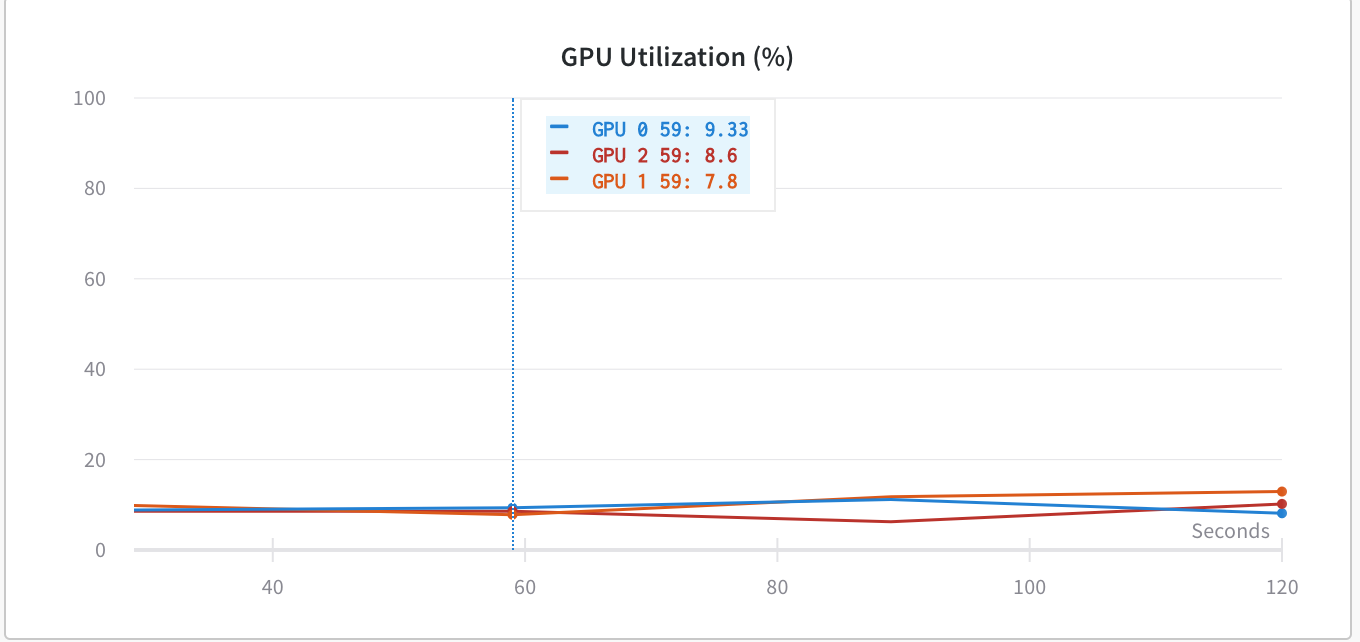
Credit: discuss.pytorch.org
Common Causes Of Low Gpu Utilization
Low GPU utilization means your graphics card is not working at full capacity. This can slow down games, videos, and other graphics tasks. Many factors cause this problem. Knowing these causes helps you fix the issue and get better performance.
Cpu Bottlenecks
The CPU controls many tasks before sending work to the GPU. If the CPU is slow, the GPU waits for data. This delay lowers GPU usage. Older or weaker CPUs often cause this bottleneck. Upgrading the CPU or optimizing software can reduce this problem.
Insufficient Power Supply
GPUs need enough power to run well. If the power supply unit (PSU) cannot deliver enough watts, the GPU slows down. This limits its performance and lowers utilization. Check the PSU rating and use one that meets or exceeds GPU requirements.
Thermal Throttling
When a GPU gets too hot, it reduces speed to cool down. This is thermal throttling. Dusty fans or poor airflow can cause overheating. Clean your PC and improve cooling to keep the GPU running at full speed.
Driver Issues
Outdated or incorrect drivers can stop a GPU from working well. Drivers help the system use the GPU properly. Always install the latest drivers from the GPU maker’s website. This ensures better compatibility and performance.
Software Limitations
Some programs do not use the GPU fully. Older games or apps may rely more on the CPU. Others may not support advanced GPU features. Using updated software and settings that support your GPU helps increase utilization.

Credit: www.youtube.com
Optimizing System Settings
Optimizing system settings plays a key role in increasing GPU utilization. It helps the GPU work efficiently and deliver better performance. Simple changes in your system can make a big difference in how your GPU performs.
Adjusting power settings ensures the GPU has enough energy to run at full speed. Graphics settings control how the GPU processes images and videos. Keeping GPU drivers up to date fixes bugs and improves compatibility. Enabling high-performance mode makes sure your system prioritizes GPU power.
Adjusting Power Management
Power management settings can limit GPU speed to save energy. Change these settings to allow maximum power usage. On Windows, go to Power Options and select High Performance. This setting lets the GPU run without power limits. It prevents the system from slowing down your GPU during tasks.
Configuring Graphics Settings
Graphics settings affect how the GPU handles games and apps. Set these to prioritize performance over quality. Lowering resolution and turning off shadows can increase GPU use. Use the GPU control panel to tweak these settings. This ensures the GPU works harder and boosts utilization.
Updating Gpu Drivers
GPU drivers link the hardware with your software. Old drivers can cause poor performance or errors. Check the manufacturer’s website for the latest driver updates. Installing new drivers can improve stability and speed. It also helps the GPU run better with new games and apps.
Enabling High-performance Mode
High-performance mode forces the system to use full GPU power. It stops the system from reducing GPU speed to save battery. On laptops, switch to high-performance in the power settings menu. This mode improves GPU workload and increases utilization during heavy tasks.
Enhancing Software And Application Performance
Enhancing software and application performance can boost GPU utilization significantly. It helps your system run tasks faster and smoother. Better performance means you get more from your hardware. Small changes in software settings and usage can make a big difference. This section explains practical ways to improve GPU use through software and application tweaks.
Using Gpu-accelerated Applications
Some programs use the GPU to speed up tasks. These are called GPU-accelerated applications. Video editors, 3D software, and AI tools often use GPU power. Choosing such software increases GPU usage. It helps the GPU handle more work instead of the CPU. This leads to faster processing and less lag.
Optimizing Game Settings
Games can be set to use the GPU more effectively. Adjust settings like resolution, texture quality, and shadows. Higher settings demand more from the GPU. Lower settings reduce GPU use but improve frame rates. Find a balance where the GPU works hard but the game runs smoothly. This helps get the best performance without crashes or slowdowns.
Managing Background Processes
Background tasks use system resources even when not needed. They can reduce GPU power available for main applications. Close unused programs and stop unnecessary services. Use task manager to check what runs in the background. Freeing resources lets the GPU focus on active tasks. This simple step improves overall system speed.
Utilizing Overclocking Tools
Overclocking raises the GPU’s clock speed for better performance. Use reliable overclocking software made for your GPU brand. Increase speeds gradually and test stability to avoid crashes. Overclocking can boost GPU output but creates more heat. Ensure good cooling to keep the system safe. This method helps push the GPU beyond default limits.
Credit: www.youtube.com
Hardware Upgrades And Maintenance
Hardware upgrades and proper maintenance play a key role in increasing GPU utilization. A well-maintained GPU runs efficiently and handles tasks better. Upgrading certain components can also boost performance and stability.
Simple steps like improving cooling, ensuring good power supply, and cleaning dust help the GPU work at its best. These actions reduce thermal throttling and power issues that limit GPU usage.
Improving Cooling Solutions
Cooling is essential for better GPU performance. High temperatures cause the GPU to slow down to avoid damage. Installing extra fans or a liquid cooling system keeps the GPU cool. Good airflow inside the case helps heat escape quickly. Cooler GPUs maintain higher speeds and deliver more power to tasks.
Upgrading Power Supply Unit
A strong power supply unit (PSU) supports the GPU well. Insufficient power makes the GPU unstable and lowers utilization. Choose a PSU with enough wattage for your GPU and system. Quality PSUs provide clean, steady power. This improves GPU stability and allows it to run at full capacity.
Ensuring Proper Gpu Seating
Check if the GPU is firmly seated in the PCIe slot. Loose connections cause unstable performance and low utilization. Turn off the PC, remove the GPU, and reinstall it carefully. Make sure it clicks into place and the locking mechanism is secure. Proper seating helps maintain a steady connection for the best performance.
Cleaning Dust And Debris
Dust blocks airflow and causes the GPU to overheat. Clean dust from fans, heat sinks, and vents regularly. Use compressed air or a soft brush for cleaning. Keep the PC case clean inside to improve ventilation. A dust-free environment helps the GPU run cooler and maintain high utilization.
Monitoring And Benchmarking Tools
Monitoring and benchmarking tools help you understand your GPU’s performance. They show how much your GPU works and where it can improve. Using these tools helps keep your system stable and efficient.
Real-time Gpu Usage Monitoring
Real-time monitoring shows GPU activity as it happens. Tools like MSI Afterburner or GPU-Z display usage percentages. These tools help spot if your GPU is underused or maxed out. Watching real-time data aids quick adjustments.
Benchmarking For Performance Gains
Benchmarking tests GPU power using specific tasks or games. It provides scores to compare different setups or settings. Repeating benchmarks after changes shows if performance improves. Use programs like 3DMark or Unigine Heaven for testing.
Identifying Bottlenecks
Bottlenecks slow down GPU performance. Monitoring tools reveal if the CPU or memory limits the GPU. Identifying these stops wasted effort on GPU tweaks alone. Fixing bottlenecks raises overall system speed and GPU use.
Tracking Temperature And Clock Speeds
Temperature and clock speeds affect GPU efficiency. High heat can reduce performance or cause crashes. Monitoring tools track these values to avoid damage. Adjusting cooling or power settings helps keep GPU stable.
Frequently Asked Questions
How Can I Monitor Gpu Utilization Effectively?
Use tools like NVIDIA’s nvidia-smi or MSI Afterburner to track GPU usage in real-time. These tools show memory, temperature, and load percentages. Monitoring helps identify bottlenecks and optimize GPU performance efficiently.
What Software Settings Improve Gpu Utilization?
Adjusting graphics settings like resolution, texture quality, and enabling GPU acceleration boosts utilization. Updating drivers and using optimized software versions also enhance GPU efficiency and stability during tasks.
Can Upgrading Drivers Increase Gpu Utilization?
Yes, updating GPU drivers ensures compatibility with new software and optimizes performance. Latest drivers often include bug fixes and enhancements that improve GPU workload handling and utilization rates.
Does Overclocking Increase Gpu Utilization Safely?
Overclocking can boost GPU utilization by raising clock speeds, but it must be done cautiously. Ensure proper cooling and monitor temperatures to prevent hardware damage while improving performance.
Conclusion
Increasing GPU utilization helps your computer run tasks faster. Keep your drivers updated and close unnecessary programs. Adjust settings in your software to use the GPU better. Monitor your system to find and fix bottlenecks. Small changes can make a big difference in performance.
Try these steps one at a time to see what works best. With patience and care, your GPU will work harder and smarter. This leads to smoother graphics and faster processing for your needs.
