
Is your GPU running hotter than you’d like? When your graphics card gets too warm, it can slow down or even cause damage over time.
Increasing your GPU fan speed is a simple and effective way to keep things cool and boost performance. In this guide, you’ll learn easy steps to take control of your GPU’s fan speed and protect your investment. Keep reading to discover how you can make your system run smoother and cooler right now.
Why Increase Gpu Fan Speed
Increasing the GPU fan speed helps keep the graphics card cool. It stops the GPU from getting too hot during heavy tasks. Cooler hardware lasts longer and works better. Knowing why to raise the fan speed can help you decide if it’s needed.
Benefits Of Higher Fan Speed
Higher fan speed moves more air over the GPU. This cools down the chip quickly. It prevents overheating and reduces the risk of damage. A cooler GPU can run for longer times without slowing down. It keeps the system stable during gaming or video editing.
Risks Of Overheating
Overheating can cause serious problems. The GPU may shut down to protect itself. Heat can damage the internal parts permanently. It can also reduce the life of the graphics card. High temperature leads to system crashes and errors.
Impact On Performance
When the GPU gets too hot, it slows down. This is called thermal throttling. Increasing fan speed lowers the temperature. Lower heat allows the GPU to run at full power. It improves frame rates and smooths gameplay. Cooler GPUs keep performance steady for longer periods.

Credit: www.liftingitalia.com
Tools To Control Gpu Fan Speed
Adjusting your GPU fan speed helps keep your graphics card cool and running well. Several tools let you control fan speed easily. These tools give you control over temperature and noise levels. You can choose the best option for your needs and skill level.
Manufacturer Software
Many GPU makers provide their own software for fan control. Examples include NVIDIA’s GeForce Experience and AMD’s Radeon Software. These tools offer easy fan speed adjustment with a simple interface. They also monitor temperature and performance. Using manufacturer software ensures compatibility and safety.
Third-party Applications
Third-party apps offer more detailed fan speed control. MSI Afterburner and SpeedFan are popular choices. These tools allow custom fan curves and real-time monitoring. They work with most GPU brands. Third-party software gives advanced options for users who want more control.
Bios Settings
Some users change fan speeds through the GPU BIOS. This method is more technical and risky. It involves flashing the BIOS to set new fan profiles. BIOS changes are permanent until reversed. Use this only if you understand the process well.
Steps To Adjust Fan Speed
Adjusting your GPU fan speed can help keep your graphics card cool. It also improves performance and prevents overheating. Follow these steps to change your fan speed safely and effectively.
Each step guides you through the process, from opening the controls to testing the new settings.
Accessing Fan Controls
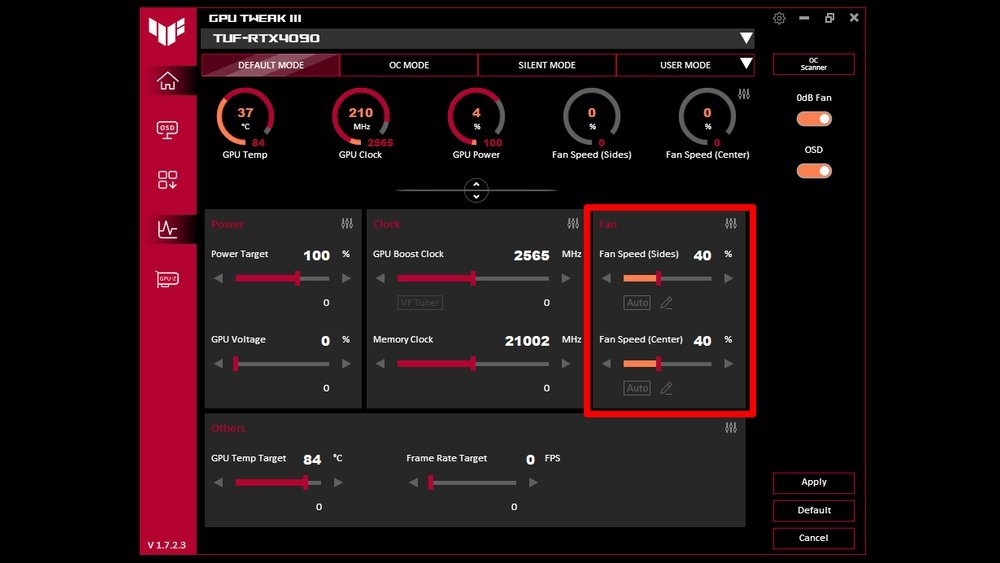
First, open the software that controls your GPU. Most GPUs come with apps like MSI Afterburner or EVGA Precision X1. These apps let you change fan speed settings easily.
Download and install the correct software for your GPU model. Launch the app and find the fan control section. This area shows current fan speed and temperature.
Setting Custom Fan Curves
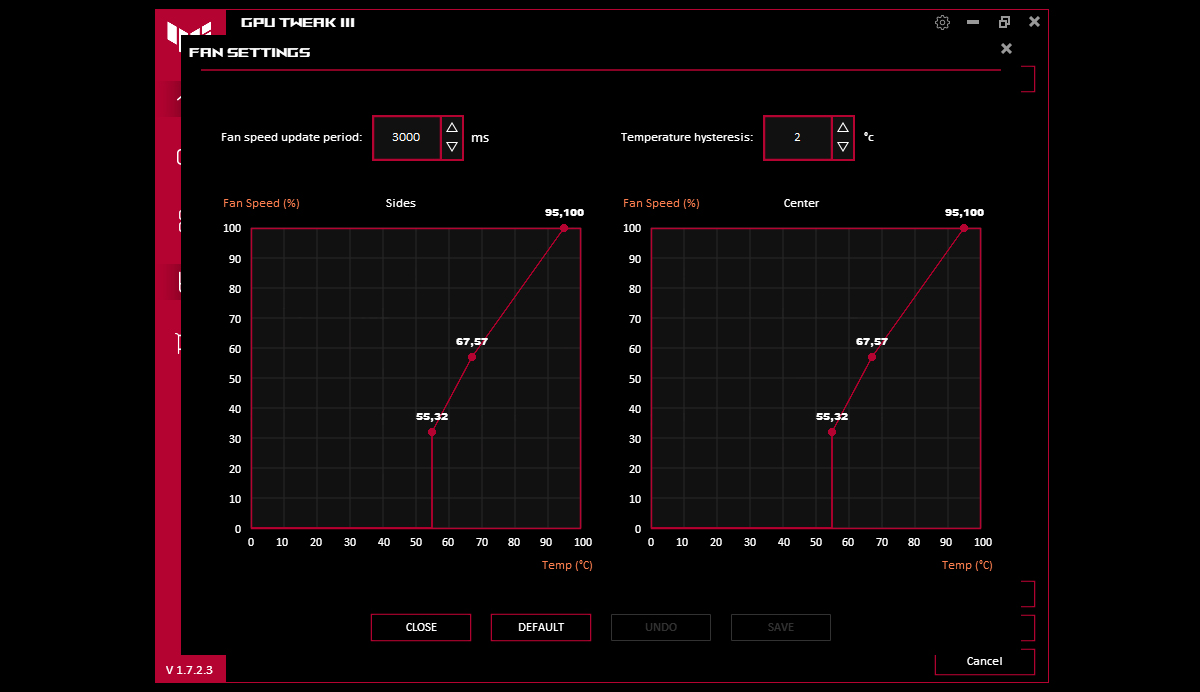
Custom fan curves adjust speed based on temperature. You can set the fan to run faster as the GPU gets hotter. This keeps the GPU cool without making too much noise.
In the fan control section, look for an option to create a fan curve. Drag points on the graph to match fan speed with temperature. Save your changes once satisfied.
Testing Fan Speed Changes
After setting the fan curve, test the new speed. Run a game or GPU stress test. Watch the fan speed and temperature during the test.
If the GPU stays cool and the noise is acceptable, your settings work well. Adjust further if needed to find the best balance.

Credit: softwareg.com.au
Automating Fan Speed Adjustments
Automating fan speed adjustments helps keep your GPU cool without manual work. It changes fan speed based on GPU temperature. This keeps your system quiet and safe. Automation also prevents overheating and extends GPU life. Many tools and settings make this easy for all users.
Temperature-based Fan Profiles
Temperature-based fan profiles adjust fan speed as the GPU heats up. You set temperature points and fan speeds for each point. Fans spin slowly at low temperatures and faster as it gets hotter. This method keeps noise low while protecting the GPU from heat damage. Many GPUs support custom fan curves to match your needs.
Using Monitoring Software
Monitoring software tracks GPU temperature and controls fan speed automatically. Programs like MSI Afterburner and SpeedFan offer easy fan speed control. These tools let you create or use preset fan curves. The software runs in the background and adjusts fans in real time. It keeps your GPU cool during heavy tasks without you lifting a finger.
Advantages Of Automation
Automating fan speed saves time and effort. It avoids constant manual adjustments and guesswork. Your GPU stays cooler and quieter without constant monitoring. Automation helps prevent sudden overheating and possible damage. It also reduces fan wear by running only when needed. Overall, it improves your PC’s performance and lifespan.
Troubleshooting Fan Speed Issues
Troubleshooting fan speed issues is important for maintaining your GPU’s health. Fans control temperature and prevent damage. Problems with fan speed can cause your GPU to overheat or work inefficiently. Identifying the problem quickly helps you fix it and avoid bigger issues.
This section covers common fan speed problems and how to solve them. Each issue has clear steps to check and fix the problem.
Fan Not Responding
Check if the fan is physically connected to the GPU. Loose cables can stop the fan from spinning. Restart your computer and see if the fan starts moving. Use GPU software to manually control the fan speed. If the fan still does not respond, the fan or sensor may be faulty. Consider replacing the fan or contacting support.
Unusual Fan Noise
Noises like grinding or rattling often mean dust or debris inside the fan. Clean the fan blades and surrounding area carefully. Worn-out bearings can also cause noise. If cleaning does not help, the fan might need replacement. Running a noisy fan can cause further damage to your GPU.
Overheating Despite Fan Speed
Fans running fast but GPU still overheating signals other issues. Check if the thermal paste between the GPU and heatsink is dried out. Poor airflow inside the computer case can cause heat build-up. Clean dust filters and improve case ventilation. Lower GPU workload or adjust fan curves with software to help cooling.
Maintaining Gpu Cooling Efficiency
Maintaining GPU cooling efficiency is key to keeping your graphics card running well. Good cooling helps avoid overheating and slows down fan wear. It also improves the card’s performance and lifespan.
Simple steps can boost cooling without complex tools. These focus on cleaning, airflow, and thermal paste. Each step supports your GPU’s fan speed and overall health.
Cleaning Dust And Debris
Dust blocks airflow and traps heat inside the GPU. Use a soft brush or compressed air to clean fan blades gently. Remove dust from vents and heatsinks too. Regular cleaning keeps fans running smoothly and cools better.
Improving Case Airflow
Good airflow inside the PC case helps carry heat away. Arrange cables neatly to avoid blocking air paths. Add extra case fans if needed to push hot air out. Keep intake and exhaust fans balanced for steady airflow.
Replacing Thermal Paste
Thermal paste transfers heat from the GPU chip to the cooler. Over time, it dries and loses effectiveness. Remove old paste carefully and apply a new, thin layer. Fresh paste improves heat transfer and lowers GPU temperatures.
When To Consider Hardware Upgrades
Sometimes increasing your GPU fan speed is not enough to keep your graphics card cool. The GPU might still run hot or make loud noises. At this point, hardware upgrades become necessary. Upgrading hardware can improve cooling and extend your GPU’s life.
Upgrading Gpu Cooling Solutions
Stock coolers often struggle with high heat levels. Upgrading to a better cooling system can lower temperatures. Options include better air coolers or liquid cooling kits. These systems remove heat more efficiently. This reduces fan noise and improves performance.
Adding Additional Fans
Extra fans inside your computer case can help airflow. More air moving through the case lowers overall temperature. Place fans to create a good flow of air. Intake fans bring cool air in. Exhaust fans push hot air out. This simple step can reduce GPU heat significantly.
Choosing Aftermarket Cooling
Aftermarket cooling parts are designed for better performance. They often offer bigger heatsinks and quieter fans. Some come with advanced features like RGB lighting or software control. Choose parts that fit your GPU model. Ensure compatibility to avoid installation problems. Aftermarket cooling can give your GPU better cooling and quieter operation.
Credit: www.shoshitamam.com
Frequently Asked Questions
How Can I Manually Increase My Gpu Fan Speed?
You can increase GPU fan speed using software like MSI Afterburner. Adjust the fan curve or set a fixed speed to improve cooling. Ensure you monitor temperatures to avoid overheating while increasing fan speed for optimal performance.
Does Increasing Gpu Fan Speed Improve Gaming Performance?
Increasing GPU fan speed helps maintain lower temperatures. Cooler GPUs can sustain higher clock speeds longer. This can indirectly improve gaming performance by preventing thermal throttling and ensuring stable frame rates during extended gaming sessions.
Will Increasing Gpu Fan Speed Cause More Noise?
Yes, increasing GPU fan speed usually results in more noise. Fans spin faster to cool the GPU, which produces louder sound. You should balance fan speed and noise level to maintain comfort while keeping your GPU cool.
Can I Set Gpu Fan Speed Automatically?
Most modern GPUs and software support automatic fan speed control. The GPU adjusts fan speed based on temperature thresholds. This feature helps maintain optimal cooling while minimizing noise without manual intervention.
Conclusion
Increasing your GPU fan speed helps keep your graphics card cool. Cooler temperatures improve performance and extend hardware life. Use software tools or BIOS settings to adjust fan speed safely. Monitor your GPU’s temperature to avoid overheating. Remember to balance noise and cooling for a better experience.
Small changes can make a big difference in your system’s health. Stay patient and adjust settings step by step. Your GPU will run smoother and last longer with proper cooling.
