
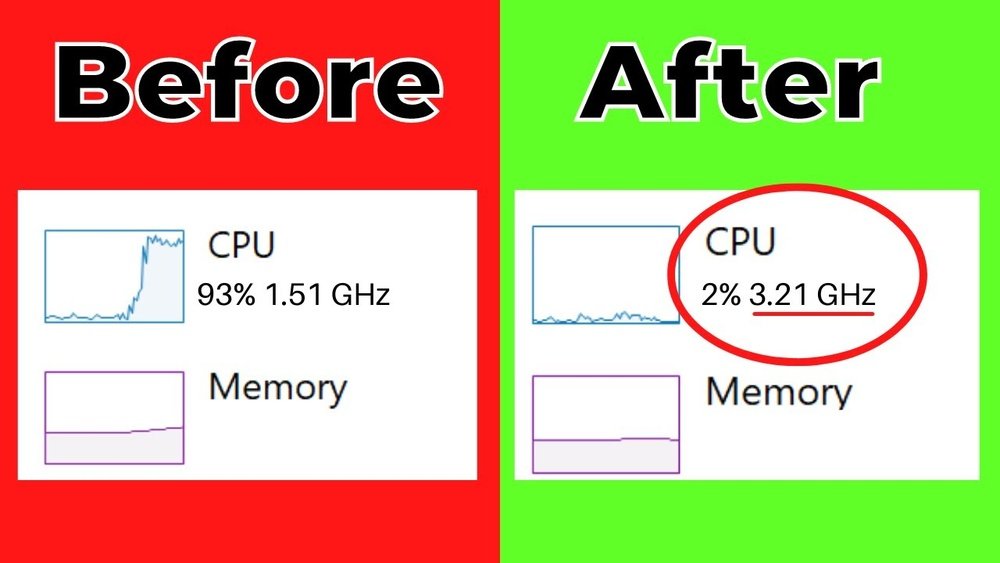
Are you frustrated with your computer running slow or struggling to handle tasks? Increasing your CPU performance can make a huge difference in speed and efficiency.
Imagine running your favorite programs without lag or delays. You’ll discover simple, effective ways to boost your CPU power and get the most out of your computer. Keep reading, and you’ll learn how to speed things up quickly and easily—no tech jargon, just practical tips you can use right now.
Signs Of Cpu Bottleneck
CPU bottleneck happens when the processor cannot keep up with other parts of your computer. It slows down your system and reduces performance. Knowing the signs helps you fix the problem early. Watch for these key symptoms to spot a CPU bottleneck.
Slow Application Response
Applications take longer to open and work. Programs freeze or lag during use. Tasks like browsing, editing, or gaming feel sluggish. This delay means the CPU struggles to handle the workload fast enough.
High Cpu Usage
The CPU runs at or near 100% most of the time. Task Manager shows the processor is busy all the time. High usage means the CPU is the system’s bottleneck. It cannot process data quickly enough for other parts.
System Overheating
The CPU gets very hot during regular use. Fans run loudly and often. Overheating causes the system to slow down or shut off. It happens because the CPU works too hard without enough cooling.

Credit: www.youtube.com
Optimizing Software Settings
Optimizing software settings helps your CPU run more smoothly and faster. It reduces the load on your processor. This lets your computer focus on important tasks. Small changes can improve CPU performance without extra hardware.
Manage Startup Programs
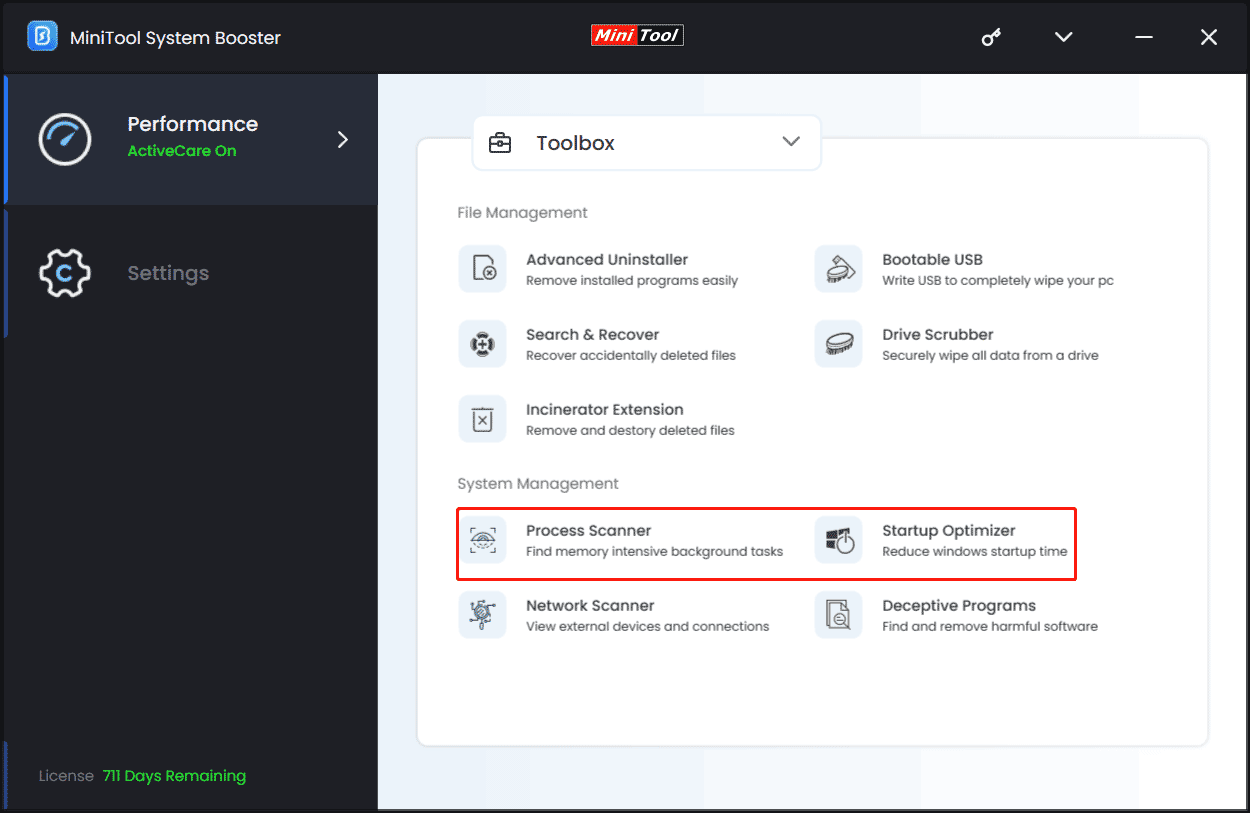
Many programs start automatically when your computer boots. These programs use CPU power even if you don’t need them. Disable unnecessary startup programs to free CPU resources. Use the Task Manager on Windows or System Preferences on Mac. This makes your computer faster and reduces CPU strain.
Update Drivers And Software
Outdated drivers and software slow down your CPU. Developers release updates to fix bugs and improve performance. Regularly check for updates on your device and apps. Updated software works better with your CPU and reduces crashes. This keeps your system stable and efficient.
Adjust Power Settings
Your power plan controls how your CPU uses energy. Some settings limit CPU speed to save battery or power. Choose a high-performance power plan for better CPU output. On Windows, access Power Options and select “High Performance.” This lets your CPU run at full speed when needed.
Hardware Upgrades For Cpu Boost
Improving your computer’s CPU speed can make a big difference in performance. Hardware upgrades offer a direct way to boost your CPU and overall system speed. These upgrades help your computer run smoother and handle tasks faster.
Simple changes to your computer parts can lead to noticeable improvements. Focus on upgrading the CPU itself, increasing RAM, and using faster storage. Each step supports better performance and efficiency.
Upgrading The Cpu
Replacing your current CPU with a faster model is the most direct upgrade. A newer CPU can process tasks quicker and handle more operations at once. Check your motherboard’s compatibility before buying a new CPU. Installing a better CPU improves speed in all applications.
Adding More Ram
RAM helps the CPU access data quickly. More RAM means your computer can work with larger files without slowing down. This upgrade reduces delays and stops programs from freezing. Aim for at least 8GB of RAM for everyday use.
Using Faster Storage
Storage speed affects how fast your CPU gets data. Using an SSD instead of a traditional hard drive makes loading times shorter. SSDs speed up the whole system and reduce waiting time. Faster storage keeps your CPU busy with important tasks.
Credit: learn.microsoft.com
Cpu Overclocking Basics
CPU overclocking basics help you understand how to boost your processor’s speed. It involves changing settings to run the CPU faster than its default speed. Overclocking can improve computer performance for tasks like gaming or video editing.
It is important to follow safe steps and monitor your CPU closely. Learning the basics helps avoid damage and keeps your system stable.
What Is Overclocking?
Overclocking means increasing the CPU’s clock speed beyond the factory setting. This makes the processor run faster and handle more tasks per second. Users do this to get better performance from their computer without buying new hardware.
The CPU speed is measured in gigahertz (GHz). Overclocking pushes this number higher, giving you a speed boost. It requires changing settings in your computer’s BIOS or using special software.
Safe Overclocking Practices
Safe overclocking protects your CPU from damage and crashes. Start by increasing the speed slowly in small steps. Test the system after each change to check for stability.
Use the right cooling system, like a good fan or liquid cooling. Avoid pushing the CPU to its limit too quickly. Keep track of voltage settings and do not exceed recommended levels.
Monitoring Temperatures
Temperature monitoring is key during overclocking. A CPU running too hot can cause crashes or permanent damage. Use software tools to check CPU temperature in real time.
Keep the temperature below the maximum safe limit for your processor. Good airflow in the computer case also helps control heat. Watch the temperatures often while testing your overclock settings.
Cooling Solutions To Enhance Performance
Keeping your CPU cool is key to better performance. High temperatures slow down your processor and can cause crashes. Good cooling solutions help your CPU run faster and last longer. They remove heat efficiently, allowing your system to stay stable during heavy tasks.
Air Cooling Options
Air coolers use fans and heat sinks to move heat away from the CPU. They are easy to install and cost less. Quality air coolers have big fans and metal fins to increase airflow. These coolers are quiet and work well for most users. Regular cleaning keeps air coolers effective.
Liquid Cooling Benefits
Liquid cooling uses water or coolant to absorb heat from the CPU. It transfers heat faster than air cooling. This type keeps your CPU cooler under heavy loads. Liquid cooling is quieter because it uses fewer fans. It also looks sleek inside your PC case.
Thermal Paste Application
Thermal paste fills tiny gaps between the CPU and cooler. It improves heat transfer and helps cooling. Applying the right amount of paste is important. Too much or too little reduces its effect. Clean the old paste before adding a new layer. This simple step boosts your CPU’s cooling.
Credit: systembooster.minitool.com
Regular Maintenance Tips
Regular maintenance keeps your CPU running smooth and fast. Small steps can stop slowdowns and crashes. Proper care helps your computer last longer and work better.
Cleaning Dust From Components
Dust blocks air and makes your CPU hot. Hot CPUs run slower and can break. Open your computer case carefully. Use a soft brush or canned air to remove dust. Clean fans and vents well. Do this every few months to keep airflow good.
Checking For Malware
Malware uses CPU power without permission. This slows your computer a lot. Run a trusted antivirus program regularly. Scan your whole system for viruses and malware. Remove any threats found. This frees up CPU resources and speeds up your PC.
System Updates
Updates fix bugs and improve speed. They also protect your CPU from new threats. Check for updates on your operating system often. Install updates for drivers and software too. Updated systems use CPU power more efficiently. Stay current to keep your CPU fast and safe.
Frequently Asked Questions
How Can I Increase Cpu Speed Safely?
To increase CPU speed safely, adjust your computer’s power settings and update drivers. Avoid extreme overclocking and ensure proper cooling to prevent damage.
What Software Helps Monitor Cpu Performance?
CPU monitoring tools like HWMonitor and CPU-Z track temperature and usage. These apps help optimize performance and prevent overheating effectively.
Does Upgrading Cpu Improve Computer Speed?
Upgrading the CPU enhances processing power and overall speed. Ensure compatibility with your motherboard and other components for best results.
How To Reduce Cpu Usage On Windows?
Close unnecessary programs and disable startup apps. Regularly update software and run antivirus scans to keep CPU usage low and stable.
Conclusion
Boosting your CPU performance can improve your computer’s speed. Simple steps like cleaning your system and closing unused apps help a lot. Upgrading hardware parts also makes a big difference. Regular maintenance keeps your CPU running smoothly over time. Try these tips to get better results from your device.
Stay patient and consistent with your efforts. Your computer will thank you with faster and smoother work.
