
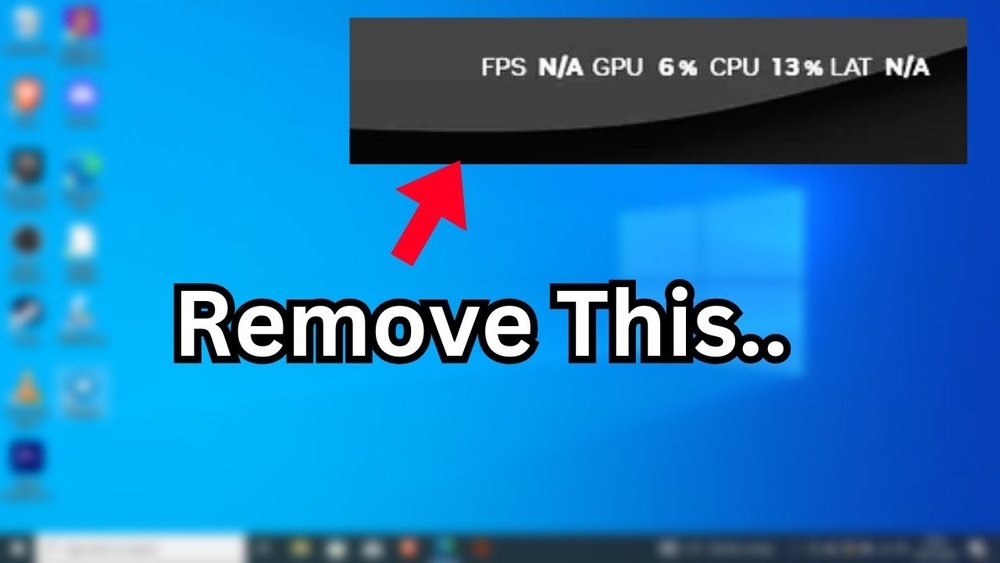
Are you tired of cluttered screens showing FPS, GPU, CPU, and latency stats while you’re gaming or working? These numbers can distract you and take away from your experience.
But what if you could hide them quickly and easily whenever you want? You’ll learn simple, effective ways to hide those on-screen stats without affecting your system’s performance. Keep reading, and you’ll discover how to enjoy a cleaner display and focus fully on what matters most to you.

Credit: www.reddit.com
Reasons To Hide Fps, Gpu, Cpu, And Latency
Hiding FPS, GPU, CPU, and latency data can improve the overall user experience. Many users prefer a clean and simple screen without extra numbers. Displaying all this info can distract from the main content, like games or videos. Choosing to hide these stats helps focus on what matters most.
Improving Visual Appeal
Too many numbers on the screen make it look busy. Hiding FPS and hardware data creates a cleaner view. This makes visuals more attractive and pleasant to watch. A simple screen keeps attention on the game or app itself. It also makes screenshots and videos look better.
Reducing Screen Clutter
Screen clutter can confuse users and reduce enjoyment. Removing FPS, GPU, CPU, and latency info clears space. This helps users see the main content without distractions. Less clutter means easier navigation and a smoother experience. It also helps reduce eye strain during long sessions.
Enhancing Streaming Experience
Streamers want viewers to focus on gameplay or content. Hiding performance stats prevents viewers from being distracted. It makes streams look more professional and polished. Viewers appreciate a clean screen without extra technical data. This helps streamers keep audience attention on the entertainment.
Common Tools Showing Fps And System Stats
Many gamers and PC users want to see how well their system runs. They use tools that show FPS (frames per second), GPU, CPU, and latency. These tools help check performance and find issues. They appear as small overlays or separate windows during gameplay or use.
Knowing the common tools that show system stats helps you manage or hide them. Some tools come with games, others need to be installed. These tools are easy to use and give real-time data.
Game Overlays
Game overlays are built-in features in many games or platforms. They show FPS, CPU, and GPU data while playing. Steam, for example, has a simple overlay to display FPS. Overlays do not slow down the game much. You can usually turn them on or off in game settings.
Third-party Monitoring Software
Third-party software provides more detailed system information. Programs like MSI Afterburner or HWMonitor track GPU temperature, CPU use, and FPS. They offer customization for display style and position. These tools run alongside your game and update data fast. Some users prefer these for in-depth monitoring.
Streaming Applications
Streaming apps like OBS or XSplit also show system stats. Streamers use these to ensure smooth broadcast quality. These apps can display FPS and latency on the stream or on-screen. You can choose to hide these stats for a clean view. They help monitor performance without leaving the game.
Methods To Disable Or Hide Stats
Hiding or disabling FPS, GPU, CPU, and latency stats can make your screen cleaner. These numbers may distract or clutter the view. Many games and software provide ways to turn off these displays. Some methods involve changing settings inside the game. Others require adjusting external software or using custom files. Explore these simple steps to hide your performance stats quickly.
In-game Settings Adjustments
Most games show FPS and other stats by default. You can usually turn them off in the settings menu. Look for sections like “Display,” “Graphics,” or “HUD.” Find options named “Show FPS,” “Performance Stats,” or similar. Turn these options off to hide the numbers. Restart the game if needed to apply changes. This method is the easiest and safest.
Disabling Overlays In Software
Many software tools show FPS and hardware stats through overlays. Examples are Discord, Steam, or NVIDIA GeForce Experience. These overlays can be turned off in the software settings. Open the software and find the overlay or in-game settings. Disable the feature that shows FPS or hardware info. Disabling overlays helps keep your screen clean during play.
Using Custom Configurations
Some advanced users use custom config files to hide stats. These files change game or software behavior beyond default settings. Locate config files in the game folder or user directory. Edit these files with a text editor. Look for lines related to “fps,” “stats,” or “hud.” Change values from “1” or “true” to “0” or “false.” Save the file and launch the game. Always backup files before editing to avoid issues.
Tips For A Clean Display Setup
A clean display setup makes your screen look neat and easy to use. It helps focus on what matters most. Hiding FPS, GPU, CPU, and latency info can reduce clutter. Follow these tips to create a simple and clear display.
Optimizing Screen Layout
Place important information where you see it easily. Avoid putting too many stats in one corner. Spread them out to reduce crowding. Use screen edges or corners for small, useful data. Keep the center clear for games or work.
Choosing Minimalist Widgets
Pick widgets that show only key details. Simple designs work best for a clean look. Avoid big or bright widgets that distract you. Use transparent or small overlays to blend with your screen. Less is more in a tidy setup.
Balancing Performance And Cleanliness
Check if your widgets affect system speed. Some tools use extra CPU or GPU power. Use lightweight apps that do not slow your device. Turn off updates or animations in monitoring tools. Keep your setup both clean and fast.
Troubleshooting Hidden Stats Issues
Sometimes, the FPS, GPU, CPU, and latency stats can disappear from your screen. This can confuse users who want to monitor their system’s performance. Troubleshooting these hidden stats issues is important to keep track of your hardware’s health. Knowing how to fix these problems helps you stay informed about your device’s performance.
Common Problems And Fixes
Stats may hide due to software glitches or incorrect settings. Restart your system or the monitoring tool first. Check if the overlay feature is enabled in your app. Sometimes, updates can reset preferences. Re-enable the stats display manually in settings. Also, close other programs that might block the overlay.
Ensuring Accurate Performance Tracking
Hidden stats can lead to wrong data or missed alerts. Always confirm the monitoring tool runs with proper permissions. Keep your drivers and software up to date. Use reliable tools for tracking FPS, GPU, CPU, and latency. Regular checks ensure you get real-time and accurate information.
Re-enabling Stats When Needed
To bring back hidden stats, open your monitoring software’s settings. Find the option for on-screen display or overlay and switch it on. Some apps let you customize which stats to show. Save changes and restart the app if required. This process restores the visibility of performance data quickly.

Credit: www.youtube.com
Advanced Hacks And Scripts
Advanced hacks and scripts offer powerful ways to hide FPS, GPU, CPU, and latency stats. These methods go beyond basic settings and provide more control. They help create a clean and distraction-free screen.
Using scripts or config files lets you customize exactly what appears. Automation saves time by toggling overlays quickly. Community mods add unique options shared by other users.
Using Config Files To Hide Stats
Many games and apps have config files controlling on-screen stats. You can edit these files to turn off FPS, GPU, CPU, or latency displays. Look for lines mentioning “show stats” or “display performance.” Change the value from “true” to “false.”
Backup the file before editing. Small mistakes can cause errors. After saving, restart the app to apply changes. This method hides stats without extra software.
Automating Overlay Toggles
Scripting tools like AutoHotkey help automate overlay toggles. Create simple scripts to turn stats on or off with one key press. This way, you control when to see performance data.
Set scripts to run at startup or bind keys for quick access. Automation saves time and avoids manual menu navigation. Scripts can also hide stats during recording or streaming.
Community Mods And Plugins
Many gaming communities create mods and plugins to manage performance overlays. These tools often add options to hide stats easily. Some mods allow selective hiding of FPS, GPU, CPU, or latency separately.
Check trusted sources and forums for popular mods. Read user reviews and installation guides carefully. Community tools often update to support new game versions and improve stability.

Credit: www.downloadsource.net
Frequently Asked Questions
How Can I Hide Fps Display On My Pc?
You can hide the FPS display by disabling it in your game settings or software overlay. Check tools like MSI Afterburner, Steam, or NVIDIA GeForce Experience for toggles to turn off FPS counters easily.
Why Hide Gpu And Cpu Usage Overlays?
Hiding GPU and CPU overlays improves screen visibility and reduces distractions. It also helps when recording or streaming gameplay for a cleaner, professional look without performance stats cluttering the screen.
What Software Allows Hiding Cpu And Gpu Stats?
Popular software like MSI Afterburner, RivaTuner, and NVIDIA GeForce Experience allow toggling performance overlays. You can customize or disable GPU and CPU usage displays directly in these apps’ settings.
Does Hiding Latency Stats Affect System Performance?
No, hiding latency stats only removes the on-screen display. It does not impact actual system performance or hardware monitoring. The data continues to be collected in the background if enabled.
Conclusion
Hiding your FPS, GPU, CPU, and latency info helps keep your screen clean. It also stops others from seeing your system details while playing. Use simple tools or in-game options to do this. Test your settings to make sure the info is hidden properly.
Keep your gaming focus without distractions. This way, you enjoy a smoother experience. Try these steps and see the difference yourself.
