
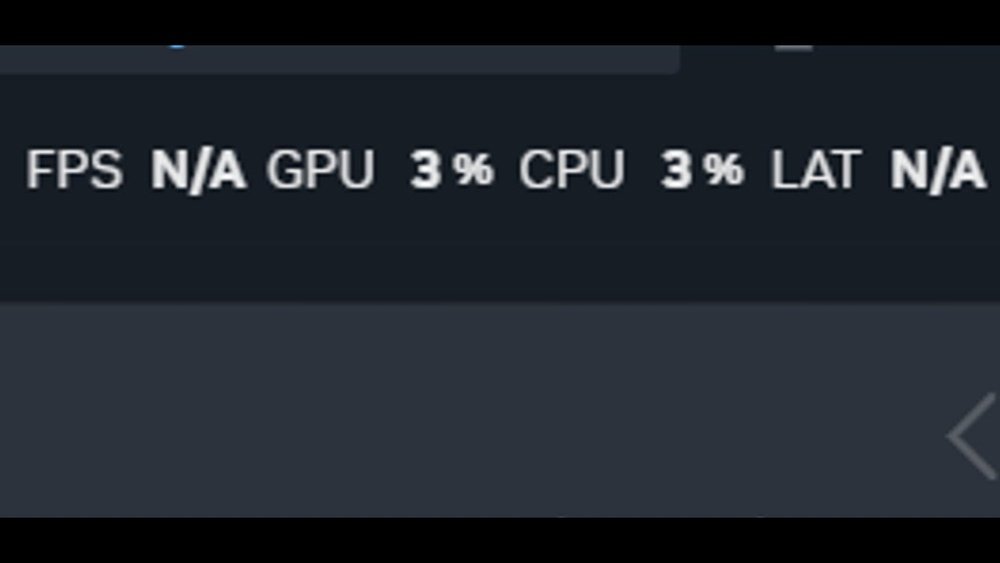
Are you tired of seeing your FPS, GPU, or CPU stats stuck in that annoying top right corner of your screen? It can be distracting and take away from your gaming or work experience.
You’re not alone, and the good news is, there’s a simple way to fix it. You’ll discover easy steps to remove or relocate those on-screen displays so you can focus fully on what matters most—your game or your task. Keep reading, and you’ll have a cleaner, distraction-free screen in no time.
Common Causes Of Fps And Cpu/gpu Overlay
FPS and CPU/GPU overlays are common in many games and apps. They show real-time data about your system’s performance. These overlays help players track frame rates and hardware usage. But sometimes, they appear when you don’t want them. Understanding their causes can help you remove or control them easily.
Built-in Game Features
Some games include overlays by default. Developers add these tools to help players check game performance. These features show FPS, CPU, and GPU stats in the top right corner. They are usually part of the game’s settings menu. You can turn them off from there if they disturb your view.
Third-party Software
Many players use extra programs for overlays. Apps like Discord, Steam, and NVIDIA GeForce Experience add this feature. They help track game stats outside the game. These tools run in the background and display information automatically. You may not notice them until they appear in your screen corner.
Hardware Monitoring Tools
Some users install hardware monitors to check system health. These tools show CPU temperature, usage, and GPU load. They often include overlay options to display data during gameplay. Popular software includes MSI Afterburner and RivaTuner. These overlays can be turned off in the tool’s settings.

Credit: www.youtube.com
Disabling Overlays In Popular Platforms
Overlays can cause the FPS GPU CPU display to stick on the top right corner. These overlays show extra information during gameplay. Disabling them can clear the screen and improve your gaming experience. Many popular platforms use overlays, so turning them off can help solve this issue.
Steam Overlay
Steam overlay shows friends, achievements, and browser options. To disable it, open Steam settings. Click on the “In-Game” tab. Uncheck the box that says “Enable the Steam Overlay while in-game.” Restart your game after this change.
Nvidia Geforce Experience
NVIDIA’s overlay displays FPS and other stats. Open GeForce Experience and go to settings. Find the “In-Game Overlay” option and turn it off. This stops the overlay from appearing during gameplay. Restart your PC to apply changes fully.
Amd Radeon Software
AMD overlay shows performance and recording tools. Open Radeon Software and click the gear icon for settings. Find the “General” tab and disable the “In-Game Overlay.” Close the software and restart your game to see the effect.
Discord Overlay
Discord overlay shows chat and voice info on screen. Open Discord and go to User Settings. Select “Overlay” under App Settings. Toggle off the “Enable in-game overlay” option. Restart Discord and your game to remove it.
Xbox Game Bar
Xbox Game Bar overlay can show FPS and other widgets. Press Windows + G to open it. Go to Settings and find the “General” tab. Uncheck “Open Xbox Game Bar using this button on a controller.” Also, disable “Show FPS” from the performance widget. Close it and restart your game.
Turning Off Hardware Monitoring Tools
Seeing FPS, GPU, or CPU data in the top right corner can distract you during gaming or work. These numbers often come from hardware monitoring tools running in the background. Turning off these tools can remove the overlay and clear your screen. Let’s explore how to disable popular monitoring apps.
Msi Afterburner
MSI Afterburner shows real-time GPU and CPU stats on your screen. To turn off the overlay, open MSI Afterburner. Click the gear icon to open settings. Go to the “Monitoring” tab. Find the items with “Show in On-Screen Display” checked. Uncheck these boxes to stop showing stats. Click “OK” to save changes. The overlay will no longer appear.
Rivatuner Statistics Server
RivaTuner Statistics Server works with MSI Afterburner for on-screen displays. To disable it, open RivaTuner. Look for the option “Show On-Screen Display” and turn it off. You can also close RivaTuner from the system tray. This stops the stats from appearing on your screen.
Hwmonitor And Other Utilities
HWMonitor and similar tools track your hardware but usually do not show overlays. Check if these apps have an option to display data on screen. If yes, disable the overlay in their settings. Otherwise, exit the program to remove any data displays. Closing these utilities can help clear your screen.
Credit: hognerdobrasil.com.br
Adjusting In-game Settings
Adjusting in-game settings helps remove the FPS, GPU, and CPU stats from the top right corner. These settings control what information the game shows on your screen. Changing them can clear your view and improve focus. It also makes the gameplay feel cleaner and less distracting.
Many games have built-in options to hide performance details. Some display FPS counters or hardware stats by default. Turning these off is often the easiest way to remove the clutter. This section explains how to adjust these options step by step.
Disabling Fps Counters
FPS counters show the frames per second on your screen. They often appear in the top right corner. To disable them, open the game’s settings menu. Look for the “Display” or “Graphics” tab. Find the option labeled “Show FPS” or similar. Switch it off or set it to “Hide.”
Some games use hotkeys to toggle the FPS counter. Check the control settings to learn the key combination. Pressing the key again will remove the FPS number from the screen. This method is quick and works without restarting the game.
Turning Off Performance Stats
Performance stats include CPU, GPU usage, and other technical data. These stats can also show in the top right corner. To turn them off, explore the game’s advanced or developer settings. Look for options like “Performance Overlay” or “Debug Info.”
Disabling these stats stops the game from showing hardware details. This cleans the screen and reduces distractions. If you cannot find these options, check the game’s support pages. Some titles require command-line commands or config file edits.
Using System Settings To Remove Overlays
Overlays showing FPS, GPU, or CPU stats can distract during gaming or work. Many of these overlays come from system settings or built-in tools. Turning them off through system settings helps clear the screen. This section explains how to use system settings to remove these overlays easily.
Windows Game Mode Settings
Windows has a Game Mode that can show overlays like FPS counters. To turn these off, open Settings from the Start menu. Select “Gaming” and then “Game Mode.” Here, switch off any options showing performance stats on screen. This stops Windows from displaying FPS or CPU info during games.
Also, check the “Xbox Game Bar” settings inside the Gaming menu. Disable the FPS counter toggle to remove it from the top right corner. This action clears the screen and improves focus without any distracting numbers.
Graphics Settings Tweaks
Graphics card software often adds overlays for performance monitoring. Open your GPU control panel, such as NVIDIA GeForce Experience or AMD Radeon Settings. Look for options related to in-game overlays or performance monitoring.
Turn off the FPS and hardware usage overlays within these apps. This stops the GPU or CPU stats from showing on the screen. These tweaks help keep your display clean and free from extra info while playing or working.

Credit: www.reddit.com
Advanced Troubleshooting Steps
Advanced troubleshooting steps help solve stubborn FPS, GPU, and CPU display issues. These steps dive deeper than basic fixes. They target hidden problems that simple solutions miss. Follow each step carefully to improve your system’s performance.
Checking For Conflicting Software
Some programs run in the background and cause conflicts. They use CPU or GPU power, affecting FPS display. Close unnecessary apps before gaming or running heavy software. Use Task Manager to spot and end high-resource tasks. Look for overlays or recording software that might interfere. Disable or uninstall these if needed.
Updating Drivers And Software
Outdated drivers cause performance and display issues. Visit your GPU manufacturer’s website to download the latest drivers. Update your CPU drivers from your motherboard’s support page. Also, update the game or application you use. New updates fix bugs and improve compatibility. Restart your system after updates to apply changes.
Resetting Game And Application Settings
Incorrect settings can cause FPS or CPU/GPU display problems. Reset game graphics settings to default. This removes any wrong configurations affecting performance. In apps, look for options to reset preferences or settings. Reconfigure them slowly to find the best setup. This helps identify if settings caused the problem.
Frequently Asked Questions
What Causes Fps, Gpu, And Cpu Display In Top Right Corner?
These displays are often enabled by default in game or software settings. They help monitor performance but can be distracting if unwanted.
How To Disable Fps, Gpu, And Cpu Overlay In Games?
Access the game’s settings or use software like Steam or Nvidia GeForce Experience. Locate the overlay or performance display option and turn it off.
Can Third-party Software Show Fps And Cpu Info Top Right?
Yes, tools like MSI Afterburner or RivaTuner display these stats. They can be customized or disabled through their settings.
Does Disabling Fps And Cpu Overlay Improve Game Performance?
No, disabling overlays does not affect game performance. It only hides the information from the screen for a cleaner view.
Conclusion
Fixing the FPS, GPU, and CPU issues on the top right improves your game. Keep your drivers updated and close unnecessary apps. Adjust game settings to lower the load on your hardware. Monitor your system’s temperature to avoid overheating. Small changes make a big difference in performance.
Play smoother, enjoy more, and avoid distractions. Stay patient and test different fixes to find what works best. Your gaming experience will get better step by step.
