
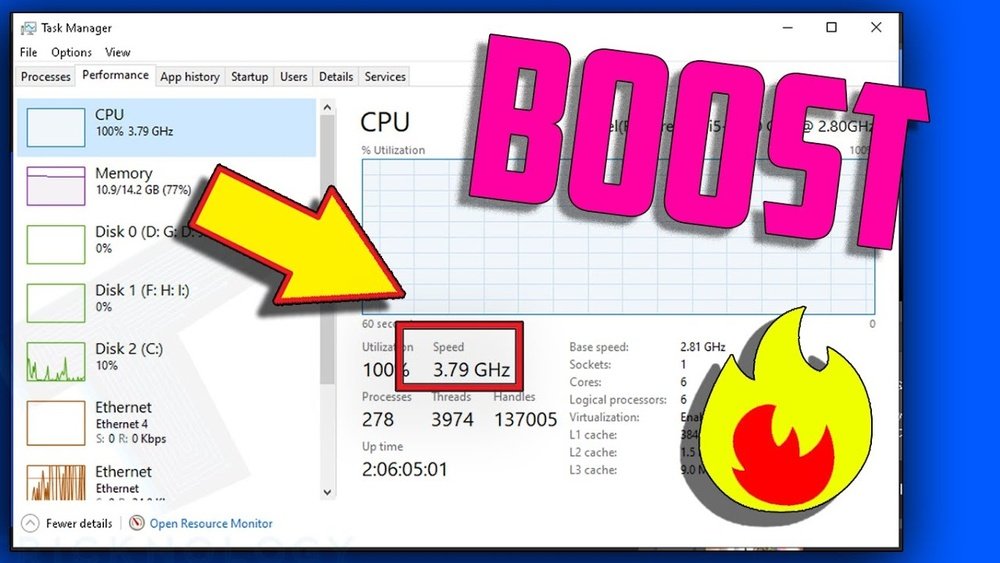
Are you tired of your computer slowing down when you need it most? Want to boost your CPU’s performance without breaking the bank?
You’re in the right place. Improving your CPU can make your computer faster, smoother, and more reliable. You’ll discover simple, effective ways to get better CPU performance that anyone can follow. Keep reading to unlock the secrets that will make your computer feel like new again.

Credit: www.youtube.com
Choosing The Right Cpu
Choosing the right CPU is key to improving your computer’s performance. The CPU acts as the brain of your system. It handles all the tasks and processes your computer runs. Picking a better CPU can make your computer faster and more efficient.
Many factors influence which CPU fits best. Your choice depends on what you want to do with your computer. Gaming, video editing, or simple browsing all need different CPU strengths. Understanding your needs helps narrow down the options.
Assessing Your Needs
Start by thinking about your daily tasks. Do you play games or use heavy software? Or do you only browse the internet and write documents? High-performance CPUs suit gaming and editing. Basic CPUs work fine for simple tasks. Knowing this helps avoid overspending on power you don’t need.
Comparing Cpu Models
Look at popular CPU models from Intel and AMD. Check their speed, cores, and threads. More cores mean better multitasking. Higher speed means faster processing. Compare prices and features side by side. Reviews and benchmarks give useful insights. Choose a model that fits your budget and needs.
Considering Compatibility
Make sure the new CPU fits your motherboard. Check the socket type and chipset support. Your RAM type and speed matter too. Some CPUs need specific cooling systems. Confirm your power supply can handle the upgrade. Compatibility ensures smooth installation and use.
Optimizing Cpu Settings
Optimizing CPU settings can help your computer run faster and more efficiently. Small changes inside your system can improve performance without extra cost. This process involves tweaking different options that control how your CPU works.
These adjustments make your CPU use power better and handle tasks more smoothly. Understanding simple steps can help you get the most out of your processor. Let’s explore some key ways to optimize your CPU settings.
Bios And Uefi Tweaks
BIOS and UEFI are firmware interfaces that start your computer. You can access these settings during startup to change CPU options. Adjusting settings like CPU frequency and voltage can improve speed and stability.
Disabling unused features, such as hyper-threading or virtualization, may boost performance in some cases. Be careful with changes here; wrong settings can cause system issues. Always save your original settings before making adjustments.
Adjusting Power Plans
Power plans control how your CPU uses energy. Choosing a high-performance power plan lets your CPU run at full speed all the time. This reduces lag and speeds up demanding tasks.
Balanced or power-saving plans limit CPU speed to save energy. For better performance, set your power plan to high performance in your operating system’s control panel. This simple change helps your CPU work harder when needed.
Managing Cpu Cores
Modern CPUs have multiple cores to handle tasks faster. You can manage these cores to improve performance. Some programs benefit from using all cores, while others run better on fewer cores.
Use your system’s task manager or settings to assign cores to specific programs. This ensures important tasks get enough processing power. Managing cores carefully helps your CPU work smarter, not harder.
Enhancing Cooling Solutions
Keeping your CPU cool is key to better performance. A cooler CPU runs faster and lasts longer. Enhancing cooling solutions helps reduce heat and keeps your computer stable. Simple steps can make a big difference in CPU temperatures.
Upgrading Cpu Coolers
The stock cooler may not be enough for heavy tasks. Consider buying a better air cooler or a liquid cooler. A larger cooler removes heat faster and keeps the CPU temperature low. Choose a cooler that fits your CPU socket and case size.
Improving Case Airflow
Good airflow inside the case is crucial for cooling. Arrange fans to bring cool air in and push hot air out. Clean dust filters and vents regularly to avoid blockages. Remove cables or objects that block air paths inside the case.
Using Thermal Paste Effectively
Thermal paste helps transfer heat from the CPU to the cooler. Apply a small, pea-sized amount in the center of the CPU. Spread it evenly when you attach the cooler for better contact. Replace old or dried paste every year for best results.

Credit: www.youtube.com
Overclocking For Performance
Overclocking is a popular way to boost your CPU’s speed beyond its factory settings. This process makes your computer run faster and handle tasks better. It can improve gaming, video editing, and other heavy tasks. Overclocking requires care to avoid damage and keep your system stable.
Safe Overclocking Practices
Start by increasing your CPU speed slowly. Change settings in small steps. Use your motherboard’s BIOS or software tools made for overclocking. Keep voltage increases low to reduce risk. Avoid pushing your CPU to extreme limits. Always check your hardware specs first. This approach helps prevent hardware failure.
Monitoring Temperatures
High temperatures can damage your CPU. Use software like HWMonitor or Core Temp to watch heat levels. Keep CPU temperature below 85°C during overclocking. Good cooling is essential. Use quality fans or liquid cooling systems. Cool your PC case well to keep airflow strong.
Stress Testing Stability
Test your CPU to ensure it works well under load. Use programs like Prime95 or AIDA64 for stress testing. Run tests for a few hours to check stability. Watch for crashes or freezes. If problems occur, lower your overclock settings. Stable performance means your overclock is safe.
Maintaining System Health
Maintaining your system’s health plays a key role in improving CPU performance. A clean and updated system runs smoothly and avoids slowdowns. Small habits can keep your CPU working at its best for a long time.
Regular Cleaning
Dust and dirt block air vents and fans. This causes the CPU to overheat. Overheating slows down the CPU and can damage it. Use a soft brush or compressed air to clean the inside of your PC. Clean the vents and fans at least once every few months.
Updating Drivers And Firmware
Drivers help your CPU communicate with hardware. Firmware controls device functions. Outdated drivers and firmware cause slow performance and errors. Check your device manager or manufacturer’s website for updates. Install updates regularly to keep your CPU running well.
Managing Background Processes
Many programs run in the background without your notice. These use CPU power and slow down your system. Open the task manager to see running processes. Close unnecessary programs to free up CPU resources. This helps your CPU focus on important tasks and run faster.
Upgrading Supporting Hardware
Upgrading your CPU is important, but supporting hardware also plays a big role. The right components can help your CPU work faster and smoother. Small changes in your system can improve overall speed and performance. Focus on parts that directly affect how your CPU handles tasks.
Faster Ram Benefits
RAM speed affects how quickly your CPU accesses data. Faster RAM reduces waiting time for your processor. This means programs open faster and run better. Upgrading to higher speed RAM can improve multitasking. Your CPU spends less time idle, boosting efficiency.
Ssd Impact On Cpu Performance
Switching from a hard drive to an SSD helps CPU tasks run quicker. SSDs load files and programs much faster. This reduces CPU load when accessing data. Your system boots faster and responds better. Faster storage lets your CPU spend more time processing tasks.
Power Supply Considerations
A strong power supply keeps your CPU stable under load. Insufficient power can cause crashes and slowdowns. Choose a power supply with enough wattage for your CPU and parts. Reliable power helps maintain consistent CPU speed. Avoid cheap units that may harm your system.

Credit: softwareg.com.au
Frequently Asked Questions
What Are Simple Ways To Improve Cpu Performance?
To improve CPU performance, close unnecessary programs and update software regularly. Clean your PC to avoid overheating. Adjust power settings to high performance mode for better speed.
How Can I Prevent Cpu Overheating Effectively?
Prevent CPU overheating by cleaning dust from fans and vents. Use quality thermal paste between CPU and cooler. Ensure proper airflow in your computer case and avoid blocking vents.
Does Upgrading My Cpu Improve Overall Computer Speed?
Yes, upgrading your CPU can significantly boost computer speed. A faster CPU processes tasks more efficiently, improving performance in games, applications, and multitasking.
Can Software Optimization Help Enhance Cpu Speed?
Software optimization, like updating drivers and disabling startup programs, helps reduce CPU load. Regular system maintenance improves responsiveness and overall CPU efficiency.
Conclusion
Getting a better CPU can improve your computer’s speed and performance. Choose a CPU that fits your needs and budget. Check compatibility with your motherboard before buying. Keep your system clean and cool to help the CPU work well. Regular updates and good software also make a difference.
Small steps add up to a faster, smoother computer experience. Take your time and make smart choices. Your computer will thank you.
