
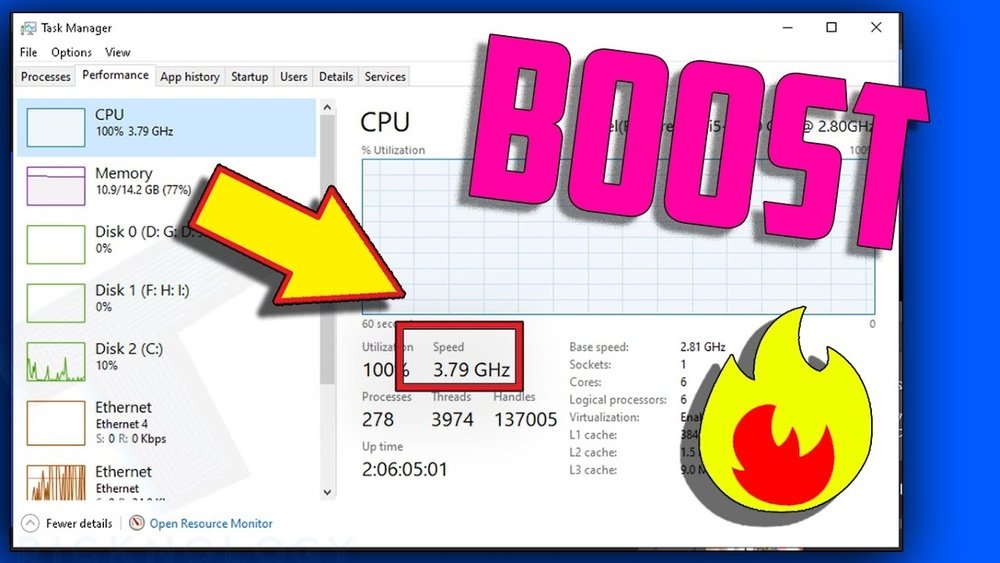
Looking to boost your computer’s speed and power? Getting a better CPU can make a huge difference in how smoothly your device runs.
Whether you use your PC for gaming, work, or everyday tasks, the right processor helps everything feel faster and more responsive. You’ll discover simple, effective ways to choose and upgrade your CPU without confusion or overspending. Keep reading to find out how to get the best performance for your money—and enjoy a smoother, faster computer experience starting today.

Credit: www.youtube.com
Choosing The Right Cpu
Choosing the right CPU is a key step to improve your computer’s speed and performance. The CPU acts as the brain of your PC, handling all the tasks and processes. Picking the best one depends on what you want your computer to do. This guide will help you find the right CPU by understanding your needs, comparing brands, and balancing core count with clock speed.
Assessing Your Needs
Think about what you use your computer for most. Simple tasks like browsing or writing need less power. More demanding jobs like video editing or gaming require a stronger CPU. Identify your main uses first. This helps to avoid overspending on features you do not need. Also, consider future needs. A CPU that handles today’s tasks might struggle later.
Comparing Cpu Brands
Two main CPU brands lead the market: Intel and AMD. Both offer good options at different price points. Intel CPUs often excel in single-thread tasks. AMD CPUs provide more cores for multitasking. Study reviews and benchmarks to see which fits your use. Brand choice affects compatibility with other parts too. Pick a brand that matches your motherboard and budget.
Core Count Vs Clock Speed
The number of cores and the clock speed matter a lot. More cores mean better multitasking and handling many apps at once. Higher clock speed means faster performance for tasks using one or two cores. Choose a CPU with enough cores for your software. Balance it with a clock speed that suits your daily tasks. This balance leads to smooth and efficient computing.
Optimizing Cpu Cooling
Optimizing CPU cooling is key to better performance and longer lifespan. A cooler CPU runs faster and stays stable under pressure. Poor cooling can cause slowdowns and damage. Simple steps can improve your CPU cooling effectively.
Types Of Cooling Solutions
Air cooling uses fans and heatsinks to remove heat. It is affordable and easy to install. Liquid cooling uses water or coolant to carry heat away. It cools better but costs more and needs maintenance. Passive cooling has no fans and relies on heat dissipation. It is quiet but less effective for heavy use.
Thermal Paste Importance
Thermal paste fills gaps between the CPU and cooler. It helps heat move from the CPU to the cooler. Without good thermal paste, heat builds up quickly. Applying a thin, even layer improves cooling performance. Replace thermal paste every few years for best results.
Maintaining Airflow
Good airflow moves hot air out and brings cool air in. Keep cables tidy to avoid blocking airflow paths. Use case fans to create a steady air flow inside. Clean dust from fans and vents regularly. Dust buildup reduces airflow and causes overheating.
Overclocking For Extra Power
Overclocking lets you increase your CPU’s speed beyond its default settings. This can boost your computer’s performance for tasks like gaming and video editing. Overclocking needs care and the right steps to avoid damage.
Follow safe methods and monitor your CPU closely. Small changes can lead to big improvements. Understanding BIOS settings and temperature control is important for safe overclocking.
Safe Overclocking Practices
Start by increasing the clock speed in small steps. Avoid big jumps that can cause crashes. Always test your system for stability after each change. Use stress-testing software to check performance. Stop if your computer shows errors or restarts.
Keep your CPU cool with good cooling systems. Clean dust from fans and heatsinks regularly. Use quality thermal paste between the CPU and cooler. These steps help prevent overheating and damage.
Bios Settings To Adjust
Enter the BIOS by pressing a key during startup, like Delete or F2. Find the CPU settings section. Change the CPU multiplier to raise the clock speed. Adjust the CPU voltage carefully to maintain stability. Avoid too much voltage; it can harm your CPU.
Save your changes and restart your computer. If it doesn’t start, reset the BIOS to default. Learn your motherboard’s limits and supported features before changing settings.
Monitoring Temperatures
Use software tools to check CPU temperature in real time. Keep CPU temperature below 85°C for safety. Watch for sudden temperature spikes during heavy use. If temperatures get too high, reduce the clock speed or improve cooling.
Monitoring helps you avoid overheating, which shortens CPU life. Regular checks keep your system running smoothly and safely during overclocking.

Credit: softwareg.com.au
Upgrading Your System
Upgrading your system is key to getting a better CPU. It ensures your new processor works well and delivers top speed. Careful planning helps avoid compatibility issues and extra costs. Focus on the main parts that support your CPU. These parts include the motherboard, RAM, storage, and power supply. Each one affects how well your CPU performs.
Compatible Motherboards
Choose a motherboard that fits your new CPU. Check the socket type first. The socket must match your CPU model exactly. Also, look at the chipset. It controls features and supports your processor’s power. A wrong motherboard can stop your CPU from working. Updating the BIOS may be needed for new CPUs on old boards.
Ram And Storage Impact
Faster RAM improves your CPU’s performance. Match the RAM speed with your motherboard’s capability. More RAM helps run multiple programs smoothly. Storage speed affects how fast data loads. Solid State Drives (SSD) are much quicker than traditional hard drives. Better storage makes your system feel faster overall.
Power Supply Considerations
Your power supply must support the new CPU’s energy needs. Check the wattage rating carefully. A low wattage PSU can cause crashes or damage. Look for good quality power supplies with stable output. Proper power delivery keeps your system safe and stable. Don’t forget to check power connectors for your motherboard and CPU.
Keeping Drivers And Software Updated
Keeping your CPU drivers and software updated helps your computer run smoothly. Updates fix bugs and improve how your CPU works. They also protect your system from security problems.
Regular updates can make your CPU faster and more reliable. They ensure your hardware and software work well together. Staying updated is a simple way to get better CPU performance without buying new parts.
Cpu Drivers And Firmware
CPU drivers control how your processor communicates with the system. Outdated drivers can cause slowdowns and errors. Check your motherboard or CPU maker’s website for the latest drivers.
Firmware updates improve the CPU’s basic functions. These updates come from the CPU manufacturer. Installing them can fix bugs and improve efficiency.
Performance-enhancing Software
Some software helps optimize CPU usage. These programs manage background tasks and free up CPU resources. They keep your processor focused on important tasks.
Look for trusted tools that monitor CPU temperature and speed. Proper management prevents overheating and slowdowns. Use software that is easy to understand and safe to install.
Regular System Maintenance
Cleaning temporary files and uninstalling unused programs helps CPU performance. These tasks free up space and reduce CPU load. Run disk cleanup tools and check your system regularly.
Keep your operating system updated. Updates fix security holes and improve speed. Regular maintenance keeps your CPU running at its best.

Credit: www.youtube.com
Troubleshooting Cpu Issues
Troubleshooting CPU issues helps improve your computer’s speed and performance. A slow or unresponsive CPU affects your work and fun. Understanding common problems makes fixing easier. This guide breaks down how to spot issues and know when to get help.
Identifying Bottlenecks
Bottlenecks happen when one part limits the whole system. The CPU might be waiting for data from slow memory or storage. Check CPU usage with simple tools. High CPU use with slow response means a bottleneck. Watch for apps using too much power. Fixing bottlenecks often boosts performance a lot.
Common Performance Problems
Overheating causes the CPU to slow down. Dust or poor cooling can raise temperatures. Viruses and malware also affect CPU speed. Too many background programs use CPU power without you knowing. Outdated drivers and software cause conflicts. Regular updates and cleaning help keep the CPU running well.
When To Seek Professional Help
Sometimes problems are too complex to fix alone. If your PC crashes or freezes often, get expert help. Hardware issues like damaged CPU or motherboard need a technician. Professionals can test parts and replace broken ones safely. Don’t wait too long. Early help prevents bigger damage and cost.
Frequently Asked Questions
What Factors Determine A Better Cpu Performance?
CPU performance depends on clock speed, core count, cache size, and architecture efficiency. Higher clock speeds and more cores usually improve multitasking and processing power.
How To Choose The Best Cpu For Gaming?
For gaming, prioritize CPUs with high clock speeds and strong single-core performance. Look for at least four cores and modern architecture for smooth gameplay.
Can Upgrading My Cpu Improve Overall Pc Speed?
Yes, upgrading your CPU can significantly boost your PC’s speed, especially for demanding tasks like gaming, video editing, and multitasking.
What Is The Difference Between Cpu Cores And Threads?
Cores are physical processors in a CPU, while threads are virtual units that help manage tasks. More cores and threads improve multitasking and performance.
Conclusion
Choosing a better CPU can greatly improve your computer’s speed. Focus on what fits your needs and budget. Remember to check compatibility with your motherboard. Don’t rush; compare different models carefully. A good CPU helps with work, games, and daily tasks.
Take your time and make a smart choice. Your computer will thank you with better performance.
