
Is your computer feeling slow or lagging? High CPU usage can be the hidden culprit behind this frustrating experience.
When your CPU is overloaded, everything from simple tasks to important work gets delayed. But don’t worry—you can take control and free up your CPU usage right now. You’ll discover easy and effective ways to boost your computer’s speed and performance.
Keep reading, and you’ll learn how to make your device run smoother, faster, and without those annoying delays.
Identify High Cpu Processes
High CPU usage slows down your computer. It causes lag and poor performance. Identifying which processes use the most CPU helps solve this problem. You can stop or limit these processes to free up CPU power. This section explains easy ways to find high CPU processes on your PC.
Use Task Manager
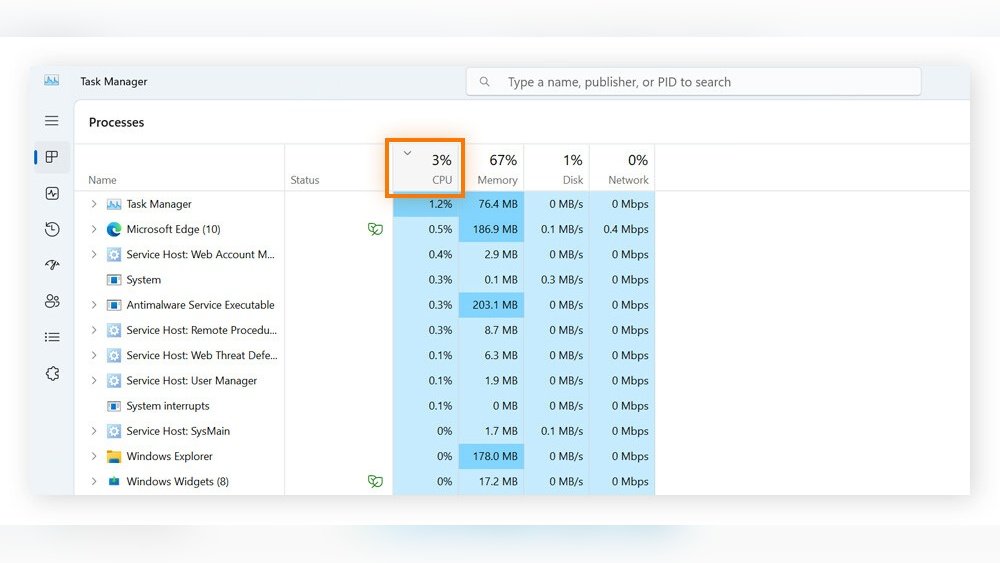
Task Manager shows all running programs and their CPU use. Press Ctrl + Shift + Esc to open it quickly. Click the “Processes” tab to see CPU usage per app. Sort by CPU to find the top users. End tasks that use too much CPU but do not close important system processes.
Monitor Resource Monitor
Resource Monitor offers detailed CPU usage info. Open it by typing “Resource Monitor” in the Start menu search. Go to the “CPU” tab to view active processes and services. It shows CPU usage history and threads per process. Use it to spot apps with spikes or constant high CPU use.
Third-party Tools
Third-party tools provide advanced CPU monitoring features. Programs like Process Explorer and HWMonitor show detailed stats. These tools help track CPU use over time. They can alert you to unusual CPU activity. Choose trusted software to avoid security risks.
Credit: helpdeskgeek.com
Close Unnecessary Programs
Closing unnecessary programs helps reduce CPU load and speeds up your computer. Many apps run quietly in the background, using valuable resources. Stopping these can free up CPU power for tasks you want to do.
Focus on apps that you do not need right now. This simple step can improve your PC’s performance a lot.
End Background Apps
Background apps often use CPU without your knowledge. Open the Task Manager by pressing Ctrl + Shift + Esc. Look for apps using high CPU in the Processes tab. Select the app and click “End Task” to close it. Do this for apps you do not need at the moment. This frees CPU and makes your system faster.
Limit Startup Programs
Many programs start automatically when you turn on your computer. These use CPU even if you do not use them. Open Task Manager and go to the Startup tab. Disable programs that you do not need right away. This stops them from running in the background. Your CPU will have fewer tasks to handle at startup.
Optimize System Settings
Optimizing system settings helps reduce CPU usage and improves computer speed. It ensures your system runs smoothly without unnecessary load. Adjusting these settings can free up resources for important tasks. This section shows simple steps to optimize your system for better CPU performance.
Adjust Power Options
Power options control how your computer uses energy and CPU power. Choosing the right plan can lower CPU usage. Select the “Balanced” or “Power Saver” mode to reduce power consumption.
Open Control Panel and go to Power Options. Pick a plan that limits CPU performance during low activity. This setting prevents the CPU from running at full speed all the time.
Adjust the advanced power settings to fine-tune CPU usage. Set the maximum processor state to 80-90 percent for balance. This helps keep the CPU cool and saves energy.
Manage Visual Effects
Visual effects like animations and shadows use extra CPU power. Turning off or reducing these effects can lower CPU load. This makes your system faster and less busy.
Right-click on “This PC” and select Properties. Click on “Advanced system settings” and then “Settings” under Performance. Choose “Adjust for best performance” or customize which effects to disable.
Disable effects like fading, shadows, and animations. Keep only basic effects that you need. This simple change frees CPU resources for other tasks.

Credit: softwareg.com.au
Update Software And Drivers
Updating software and drivers is a key step to reduce high CPU usage. Old software or drivers can cause your computer to work harder than it should. Updates fix bugs and improve how your system runs. Keeping everything current helps your CPU run smoothly and efficiently.
Windows Updates
Windows updates include important patches and improvements. They often fix errors that use extra CPU power. Regularly check for Windows updates in your system settings. Installing these updates can make your computer faster and more stable. It also improves security and prevents crashes caused by outdated files.
Driver Updates
Drivers control hardware like your graphics card and network adapter. Outdated drivers may cause your CPU to overwork. Visit your device manufacturer’s website for the latest drivers. Use device manager to check for driver updates automatically. Updated drivers help your hardware work well with your software, lowering CPU load.
Scan For Malware
Malware can use your CPU without you knowing. It slows down your computer and causes problems. Scanning for malware helps find and remove harmful software. This frees up your CPU and improves performance.
Run Antivirus Scan
Antivirus software detects many types of malware. Open your antivirus program and start a full system scan. This checks all files and programs for threats. Wait until the scan finishes. Follow the instructions to remove any detected malware. Regular scans keep your CPU free from hidden threats.
Use Malware Removal Tools
Specialized tools target hard-to-find malware. Download a trusted malware removal tool and run it. These tools clean areas antivirus might miss. Use them alongside your antivirus for better results. Remove any malware found to reduce CPU usage effectively.
Manage Browser Usage
Browser activity often causes high CPU usage. Managing how you use your browser can help lower this. Simple actions in your browser reduce the load on your CPU. This makes your computer faster and more responsive.
Focus on two key areas: the number of open tabs and the extensions you use. Both can impact CPU performance significantly. Managing these well keeps your system healthy.
Limit Open Tabs
Every open tab uses some CPU power. Too many tabs slow down your computer. Close tabs you don’t need right now. Use bookmarks to save important pages for later. Keep only a few tabs open at once. This reduces CPU strain and improves speed.
Disable Unnecessary Extensions
Browser extensions add extra features but use CPU resources. Many extensions run in the background without you noticing. Review your extensions list regularly. Turn off or remove extensions you rarely use. This frees up CPU power and keeps your browser fast. Only keep essential extensions active.
Upgrade Hardware
Upgrading hardware is one of the best ways to reduce high CPU usage. New hardware can handle tasks faster and smoother. This lowers the load on your CPU and improves overall computer speed. Simple upgrades can make a big difference in performance.
Add More Ram
Adding more RAM helps your computer run more programs at once. When RAM is low, the CPU works harder to use the hard drive for extra memory. This slows down your system. More RAM lets your CPU focus on important tasks, reducing its workload.
Check your computer’s maximum RAM capacity before buying. Choose RAM that matches your system for best results.
Consider A Faster Cpu
A faster CPU processes data more quickly. It can handle more tasks without slowing down. Upgrading to a newer, faster processor can lower CPU usage significantly.
Look at your motherboard’s compatibility before upgrading your CPU. A better CPU improves performance in demanding programs and multitasking.

Credit: superuser.com
Use Performance-boosting Software
Using performance-boosting software helps reduce CPU usage effectively. These tools identify and fix issues that slow down your computer. They make your system run smoother and faster. You can save time and avoid frustration by using the right software.
Cpu Optimizers
CPU optimizers manage how your processor works. They stop unnecessary programs from using too much CPU power. These tools balance your system’s load to prevent overheating. They can also prioritize important tasks for better speed. Using a CPU optimizer keeps your computer responsive.
System Cleaners
System cleaners remove junk files and temporary data from your device. This frees up space and reduces CPU strain. They clear cache, cookies, and old files that slow your system. Regular cleaning helps maintain steady CPU performance. Clean systems run faster and use less energy.
Frequently Asked Questions
How Can I Check Which Apps Use High Cpu?
Use Task Manager on Windows or Activity Monitor on Mac. These tools show apps using the most CPU. Identify and close or manage high-usage applications to free CPU resources.
What Simple Steps Reduce Cpu Usage Instantly?
Close unnecessary programs, disable startup apps, and restart your computer. Also, update software and scan for malware to improve CPU performance quickly.
Does Updating Software Help Lower Cpu Usage?
Yes, updates fix bugs and optimize performance. Keeping your OS and apps updated reduces CPU workload and prevents slowdowns.
How Does Malware Affect Cpu Usage?
Malware consumes CPU power by running hidden tasks. Removing malware with antivirus tools frees up CPU and improves system speed.
Conclusion
Freeing up CPU usage helps your computer run smoother and faster. Close unused programs and background tasks to save power. Regularly update your software to avoid bugs that slow down your system. Check for malware, as it can use CPU without your knowledge.
Simple steps like adjusting startup apps make a big difference. Keep your system clean and organized for better performance. Small actions add up, making your device work better every day.
