

If you want to unlock the full potential of your graphics card, flashing your GPU BIOS can be a game-changer. But the idea of changing something as critical as your BIOS might feel risky or complicated.
Don’t worry—this guide will walk you through each step clearly and safely. By the end, you’ll know exactly how to flash your GPU BIOS with confidence and avoid common mistakes. Ready to take control of your GPU’s performance? Let’s dive in.
Credit: myminingrig.com
Preparing For A Bios Flash
Preparing for a BIOS flash is an important step before updating your GPU. It helps avoid problems and keeps your graphics card safe. Taking time to prepare ensures the process goes smoothly and reduces risks of errors. Follow these simple steps carefully to get ready for the BIOS flash.
Checking Gpu Model And Bios Version
Start by finding your GPU model. This information shows which BIOS version fits your card. Use tools like GPU-Z or your system’s device manager. Next, check the current BIOS version. This helps confirm if an update is needed. Note down the details to compare with the new BIOS files.
Backing Up Current Bios
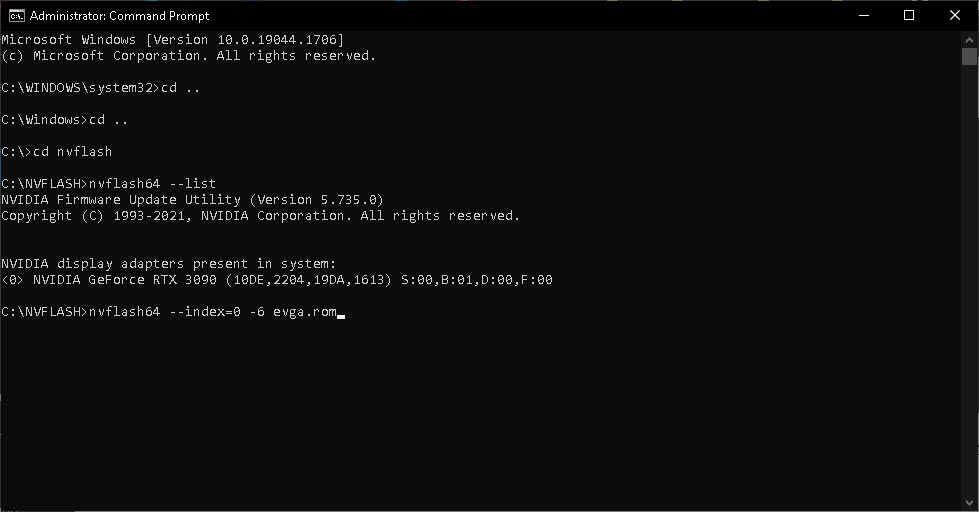
Always save a copy of your current BIOS. This backup protects you if the flash fails or causes issues. Use reliable software like GPU-Z or NVFlash to create the backup. Store the file on a safe drive or USB stick. Having a backup lets you restore your original BIOS quickly.
Gathering Necessary Tools And Software
Collect all tools and software needed before starting. Download the correct BIOS file from your GPU manufacturer’s website. Get flashing software such as NVFlash for Nvidia or ATIFlash for AMD cards. Prepare a USB drive or folder to keep these files organized. Having everything ready saves time and avoids interruptions.
Credit: www.youtube.com
Downloading The Correct Bios
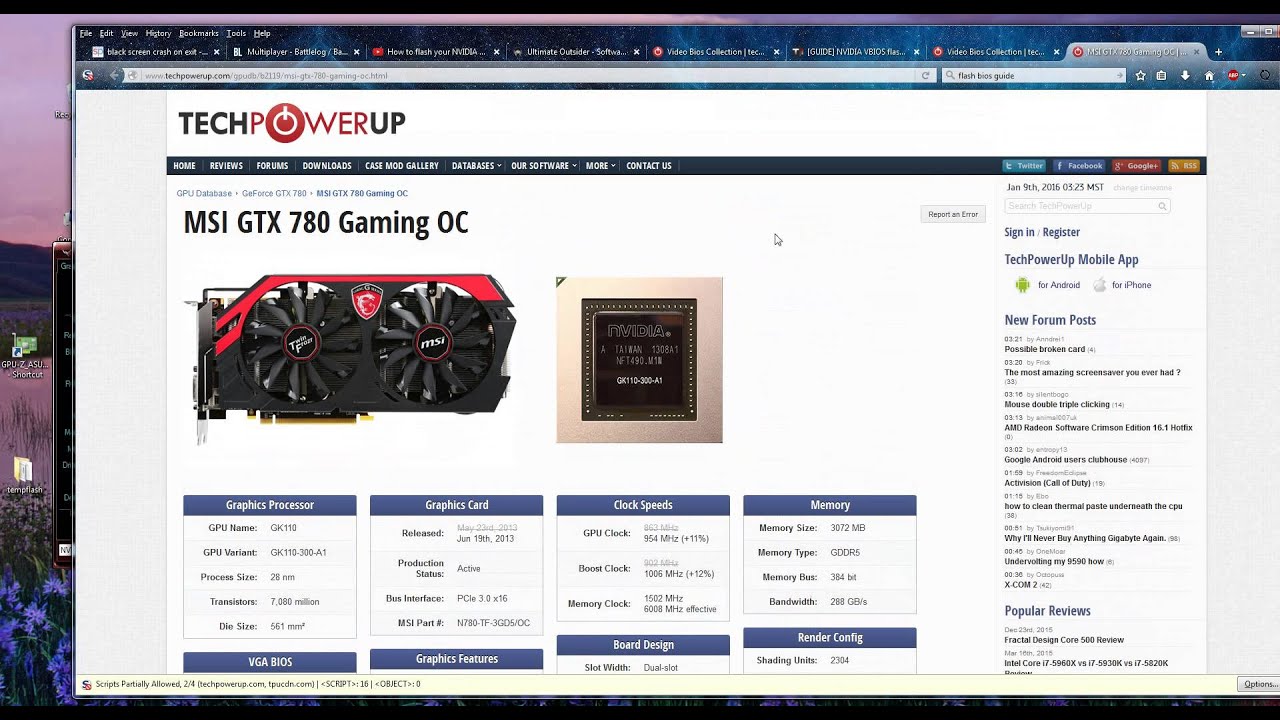
Downloading the correct BIOS is a crucial step before flashing your GPU. The right BIOS ensures your graphics card works safely and smoothly. Using the wrong BIOS can cause serious damage. Take time to find and verify the correct version carefully.
Finding Trusted Sources
Choose official websites or well-known forums for BIOS files. Avoid random or unknown sites. Trusted sources reduce the risk of corrupted or fake BIOS. Check for user reviews or community feedback on the download page. This helps confirm the file’s reliability.
Verifying Bios Compatibility
Match the BIOS version exactly with your GPU model and revision. Look for detailed specifications like device ID and board version. Downloading the wrong BIOS leads to hardware failure. Use tools or software that show your GPU details. Confirm compatibility before starting the flash process.
Avoiding Common Pitfalls
Do not rush the download and verification steps. Avoid interrupting the download or flashing process. Always back up your current BIOS before flashing. Double-check file names and sizes to spot errors. Taking these precautions prevents costly mistakes and keeps your GPU safe.
Creating A Bootable Usb Drive
Creating a bootable USB drive is the first step to flash your GPU BIOS safely. This drive will allow your computer to start with the tools needed for the update. Making it correctly prevents errors during flashing. Follow these steps carefully to build a reliable bootable USB drive.
Selecting The Right Usb Tool
Choose a tool that is simple and trusted. Rufus and UNetbootin are popular choices. They work well for creating bootable drives. Make sure the tool supports your USB drive and the file system you need. Avoid complex software that may confuse you.
Setting Up The Boot Environment
Format your USB drive to FAT32 for best compatibility. Open your USB tool and select the BIOS file or bootable image. Set the partition scheme to MBR for older systems or GPT for newer ones. Double-check all settings before starting the process.
Testing The Bootable Drive
After creating the drive, test it on your computer. Restart and enter the BIOS or boot menu. Choose your USB drive as the boot device. If it loads the flashing tool or command prompt, the drive works. If not, recreate the USB drive carefully.
Flashing The Gpu Bios Safely
Flashing the GPU BIOS needs careful steps to avoid damage. This process can improve performance or fix issues. A wrong move may cause hardware problems. Follow these steps to flash safely.
Entering Bios Flash Mode
Start by turning off your computer. Connect the GPU to the system. Use a special tool or key to enter flash mode. This mode lets you rewrite the BIOS safely. Do not interrupt this step.
Executing The Flash Command
Run the flash command from the software or BIOS interface. Make sure the BIOS file is correct and compatible. Double-check the file name and location. The command will begin rewriting the BIOS chip.
Monitoring The Flash Process
Watch the progress bar or log messages. Do not turn off the PC or close the program. The flash may take a few minutes to complete. Wait patiently until you see a success message. This confirms a safe flash.
Troubleshooting Common Issues
Troubleshooting is a key step in flashing your GPU BIOS. Problems can happen even with careful steps. Knowing common fixes saves time and stress.
This guide covers simple ways to handle flash failures, recover corrupted BIOS, and solve compatibility problems. Clear steps help you fix issues quickly.
Handling Flash Failures
Flash failures occur when the BIOS does not update correctly. Check your power supply first. A sudden shutdown can cause failure.
Use the official BIOS tool from your GPU maker. Avoid third-party software for flashing. Double-check the BIOS file matches your GPU model.
Try running the flash tool as an administrator. Disable antivirus software temporarily to prevent interference. Restart your computer and retry if the first attempt fails.
Recovering From A Corrupted Bios
A corrupted BIOS can stop your GPU from working. Most modern GPUs have a backup BIOS. Switch to the backup BIOS with the hardware switch if available.
If no switch exists, use a recovery tool from your GPU maker. Create a bootable USB drive with the correct BIOS file. Follow the recovery instructions carefully.
Be patient during recovery. Do not turn off your computer until the process finishes. A successful recovery restores your GPU’s normal function.
Dealing With Compatibility Problems
Compatibility problems arise when the BIOS version does not fit your GPU or system. Check your GPU model and BIOS version before flashing.
Use only BIOS files from the official website. Avoid BIOS versions meant for other GPU models. Read user forums for advice about specific BIOS versions.
Update your motherboard BIOS if needed. Sometimes system BIOS affects GPU BIOS flashing. Confirm your operating system supports the flash tool.
Optimizing Performance After Flash
Flashing your GPU BIOS can improve your graphics card’s performance and stability. After flashing, it is important to optimize the settings to get the best results. This ensures your system runs smoothly and safely with the new BIOS. Follow these steps to fine-tune your GPU after flashing.
Updating Drivers And Software
Update your GPU drivers immediately after flashing the BIOS. New drivers support the updated firmware and fix bugs. Visit the official website to download the latest drivers. Also, update related software like GPU management tools. This keeps everything compatible and stable.
Adjusting Gpu Settings
Check your GPU settings in the control panel or software. Adjust core clock speeds and memory timings for better performance. Do small changes and monitor results carefully. Avoid pushing settings too high to prevent overheating or crashes. Set fan speeds to maintain good cooling.
Running Stability Tests
Test your GPU after flashing and adjusting settings. Use stress test programs to check stability under load. Watch for crashes, freezes, or artifacts during the tests. Run tests for at least 30 minutes to be sure. If problems occur, reduce clock speeds or restore default settings.
Safety Tips And Best Practices
Flashing your GPU BIOS can improve performance or fix issues. It carries risks that require careful steps. Following safety tips and best practices helps avoid problems and protects your hardware. Take time to prepare and follow these guidelines.
Avoiding Power Interruptions
Power loss during flashing can damage your GPU permanently. Use a reliable power source to keep your computer on. Avoid flashing during storms or unstable power periods. A laptop with a fully charged battery is safer. Consider using an uninterruptible power supply (UPS) for extra protection.
Keeping Backup Bios Accessible
Backup your current BIOS before flashing. Save it on a USB drive or external storage. This backup helps restore your GPU if the new BIOS fails. Some GPUs have a dual BIOS feature. Learn how to switch to the backup BIOS if needed. Keep the backup file safe and easy to find.
Documenting Changes Made
Write down the BIOS version you start with. Note the new BIOS version you flash. Record any settings or modifications you apply. This information helps track changes and solve issues later. Keep the notes in a simple text file or notebook. Clear records make troubleshooting easier.
Credit: www.techpowerup.com
Frequently Asked Questions
What Is Gpu Bios Flashing And Why Is It Important?
GPU BIOS flashing updates or modifies your graphics card firmware. It enhances performance, fixes bugs, and unlocks new features. Proper flashing can improve stability and compatibility with games or software. However, incorrect flashing risks hardware damage, so follow instructions carefully.
How Do I Safely Flash My Gpu Bios?
First, back up your current BIOS using tools like GPU-Z. Download the correct BIOS version from the manufacturer’s site. Use reliable flashing software such as ATIFlash or NVFlash. Follow step-by-step guides and avoid interruptions during flashing to prevent bricking your GPU.
Can Flashing Gpu Bios Improve Gaming Performance?
Yes, flashing GPU BIOS can boost gaming performance by increasing clock speeds or optimizing power limits. It can unlock hidden features or improve cooling profiles. However, gains depend on your GPU model and BIOS version. Always flash with caution to avoid hardware issues.
What Are The Risks Of Flashing A Gpu Bios?
Flashing GPU BIOS carries risks like permanent hardware damage or voided warranty. An incorrect or interrupted flash can brick your graphics card. It may cause system instability or overheating. Always double-check BIOS compatibility and follow instructions to minimize risks.
Conclusion
Flashing your GPU BIOS can improve performance and fix issues. Always back up your current BIOS before starting. Follow each step carefully to avoid problems. Use trusted tools and official BIOS files only. Stay patient and double-check your work throughout the process.
This guide helps you do it safely and clearly. Your GPU will be ready for better use soon. Keep learning and stay safe with your hardware upgrades.
