
Is your computer suddenly shutting down or running slow? Your CPU might be overheating, and if you don’t fix it soon, it can cause serious damage.
But don’t worry—you don’t need to be a tech expert to solve this. In this guide, you’ll learn simple, effective steps to cool down your CPU and keep your computer running smoothly. Keep reading, and you’ll find out exactly what’s causing the heat and how to stop it for good.
Your PC’s health depends on it!
Causes Of Cpu Overheating
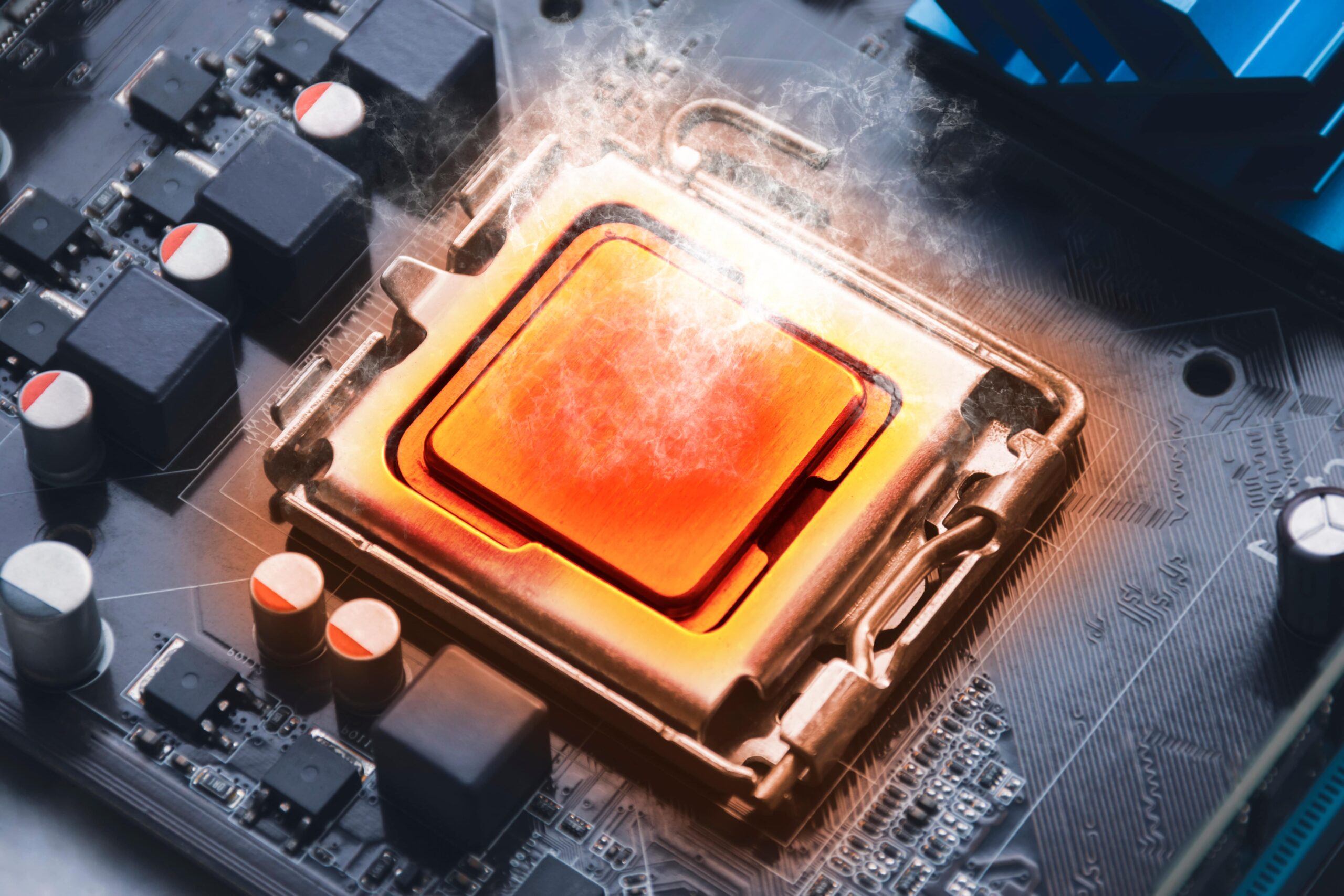
CPU overheating happens when the processor gets too hot and cannot cool down properly. This can cause slow performance or even damage the computer. Several common reasons cause this problem. Knowing these causes helps to fix the issue and keep the CPU healthy.
Dust And Dirt Accumulation
Dust and dirt can build up inside the computer case and on the CPU fan. This blocks airflow and stops heat from escaping. Dust makes the fan work harder and less effective. Regular cleaning keeps the CPU cool and prevents overheating.
Faulty Cooling System
The cooling system includes fans and heat sinks. If a fan stops working or the heat sink is loose, the CPU cannot cool down. Faulty cooling parts cause the temperature to rise quickly. Checking these parts helps maintain proper cooling.
High Ambient Temperature
High room temperature adds extra heat to the CPU. Warm air reduces the cooling system’s efficiency. Computers in hot rooms or near heat sources face more overheating problems. Cooling the room or moving the PC helps lower the CPU temperature.
Overclocking Risks
Overclocking means running the CPU faster than its design speed. This creates more heat than usual. Without better cooling, the CPU can quickly overheat. Overclocking needs careful cooling upgrades to avoid damage.
Poor Airflow In Case
A computer case with bad airflow traps heat inside. Cables or components blocking vents reduce air movement. Without fresh air, the CPU gets hotter. Organizing cables and adding case fans improve airflow and keep the CPU cool.
Quick Fixes To Cool Cpu
Overheating CPUs can slow down your computer or cause it to shut off suddenly. Quick fixes can help cool your CPU fast. These easy steps improve your computer’s health and keep it running smoothly.
Shut Down And Rest
Turn off your computer and let it cool down for 15 to 30 minutes. This pause helps lower the temperature inside the case. Avoid using the computer during this break to prevent further heat build-up.
Improve Air Circulation
Check your computer’s vents and fans. Remove any objects blocking airflow. Place the computer in a cool, open space. Good air circulation helps heat escape and cools down the CPU.
Clean Dust From Components
Dust can block fans and vents, trapping heat. Use compressed air or a soft brush to clean dust from fans, vents, and inside the case. Regular cleaning keeps your CPU cooler and your computer running longer.
Reapply Thermal Paste
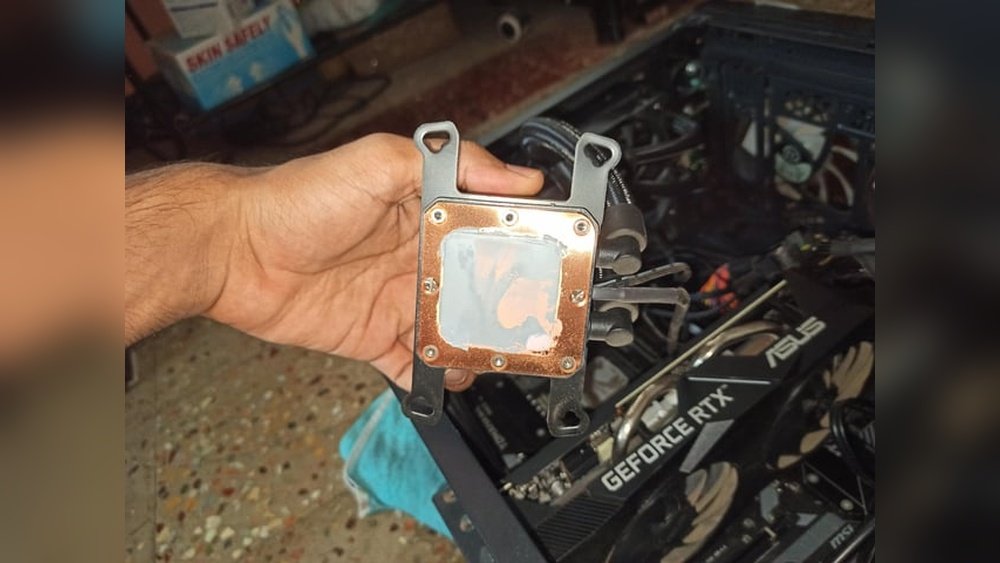
Thermal paste helps transfer heat from the CPU to the cooler. Over time, it can dry out and lose effectiveness. Remove the old paste gently with rubbing alcohol. Then, apply a small, fresh amount of thermal paste evenly on the CPU before reattaching the cooler.
Upgrading Cooling Solutions
Upgrading your CPU cooling system can solve overheating problems effectively. Better cooling lowers the CPU temperature and improves performance. It also extends the life of your computer. This section covers simple steps to improve your cooling setup.
Choosing The Right Cpu Cooler
Select a CPU cooler that matches your processor’s needs. Air coolers are common and easy to install. Look for models with bigger heatsinks and strong fans. They remove heat fast and keep the CPU cool. Check the size to fit your computer case.
Some CPUs need more powerful coolers. High-performance air coolers or liquid coolers work best here. Always pick coolers compatible with your CPU socket type.
Installing Additional Case Fans
Adding more fans inside your PC case improves airflow. Good airflow pushes hot air out and pulls cool air in. Place fans at the front to bring in fresh air. Put fans at the back or top to remove hot air.
Use fans with good airflow ratings. Keep cables tidy to avoid blocking air paths. More fans help the CPU cooler work better.
Liquid Cooling Options
Liquid cooling uses water to move heat away from the CPU. It cools more efficiently than air coolers. There are two main types: all-in-one (AIO) and custom loops.
AIO coolers come pre-assembled and easy to install. Custom loops offer better cooling but need more work. Liquid cooling suits high-end or overclocked CPUs. It keeps temperatures low and noise levels down.

Credit: www.avira.com
Optimizing System Settings
Optimizing system settings helps reduce CPU overheating. It controls how your computer uses power and cools itself. Small changes in settings can lower the temperature. This keeps the CPU safe and the system stable.
Adjusting Fan Speeds
Fans cool the CPU by moving air inside the case. Increasing fan speed helps remove heat faster. Use software like SpeedFan or your motherboard’s utility to change speeds. Set a balance between noise and cooling. Higher speeds cool better but can be louder.
Managing Cpu Performance
Lowering CPU performance reduces heat output. Change power settings in your operating system to limit CPU speed. Use “Power Saver” or create a custom plan. This helps the CPU run cooler under light tasks. Avoid running heavy apps at full speed all the time.
Updating Bios And Drivers
BIOS and driver updates improve hardware control. Updates often fix bugs and enhance cooling management. Check your motherboard or laptop manufacturer’s website for updates. Follow instructions carefully to avoid errors. Updated software keeps your CPU working efficiently and cooler.
Preventive Measures
Preventive measures help keep your CPU cool and avoid damage. Taking steps early can save time and money. A well-maintained CPU lasts longer and runs better. Use simple habits to reduce overheating risks daily.
Regular Maintenance Tips
Clean dust from fans and vents often. Dust blocks airflow and traps heat. Replace old thermal paste between the CPU and cooler yearly. Check if all fans spin freely and fast enough. Keep your PC in a cool, dry place.
Monitoring Temperature Tools
Use software to check CPU temperature regularly. Programs like HWMonitor or Core Temp show real-time heat levels. Set alerts for high temperatures. Watch your CPU temperature during heavy tasks. Early warnings prevent serious overheating.
Safe Overclocking Practices
Overclock slowly and test stability at each step. Increase clock speed in small amounts only. Watch temperature closely after each change. Use better cooling solutions for overclocked CPUs. Stop if temperatures get too high or unstable.
Credit: mycomputerworks.com

Credit: www.reddit.com
Frequently Asked Questions
What Causes A Cpu To Overheat Frequently?
A CPU overheats due to dust buildup, poor ventilation, or malfunctioning cooling systems. Overclocking and high workloads also increase heat. Regular cleaning and proper cooling can prevent frequent overheating.
How Can I Check My Cpu Temperature Safely?
Use software like HWMonitor or Core Temp to monitor CPU temperature. These tools provide real-time readings and alerts, helping prevent damage from overheating.
What Is The Best Way To Cool An Overheating Cpu?
Improving airflow, applying fresh thermal paste, and upgrading your CPU cooler are effective. Ensure case fans work properly and consider liquid cooling for high-performance setups.
Can Overheating Damage My Cpu Permanently?
Yes, prolonged overheating can cause permanent CPU damage. It reduces lifespan and may cause system crashes or hardware failure. Proper cooling is essential to protect your CPU.
Conclusion
Fixing an overheating CPU helps your computer run smoothly. Clean dust from fans and vents often. Use good thermal paste and check your cooler. Keep your room cool and avoid blocking airflow. Regularly update your software to prevent heavy CPU use.
Small steps can stop your CPU from getting too hot. Stay patient and follow these tips carefully. Your computer will thank you with better speed and life.
