
Is your GPU running hotter than it should? Overheating can slow down your system, cause crashes, or even damage your graphics card permanently.
You don’t have to live with this problem. You’ll discover simple, effective ways to cool down your GPU and keep it running smoothly. Whether you’re gaming, designing, or just browsing, these tips will help you protect your hardware and boost performance.
Keep reading to find out how to fix GPU overheating before it causes serious trouble.

Credit: www.simcentric.com
Causes Of Gpu Overheating
GPU overheating happens when the graphics card gets too hot and cannot cool down properly. This causes the GPU to slow down or even stop working. Knowing the common causes helps fix or avoid these problems.
Poor Airflow In The Case
Air needs to move freely inside the computer case. If airflow is blocked, hot air stays near the GPU. This traps heat and raises the temperature. Cases with few fans or bad fan placement often cause poor airflow.
Dust Build-up On Components
Dust collects on the GPU and other parts over time. Dust blocks air vents and cooling fins. This stops heat from escaping. Cleaning dust regularly keeps the GPU cooler and working well.
Faulty Or Inadequate Cooling System
The GPU uses fans or liquid cooling to stay cool. If fans break or the cooler is small, the GPU heats up fast. Old or cheap cooling systems may not handle heavy use.
High Ambient Temperatures
Room temperature affects how well the GPU cools. Hot rooms make it harder for the GPU to lose heat. Keeping the room cool helps the GPU run at safe temperatures.
Overclocking And Excessive Load
Overclocking makes the GPU run faster than normal. This creates extra heat. Running heavy games or software for long times also raises temperature. Both increase the risk of overheating.

Credit: www.youtube.com
Monitoring Gpu Temperature
Monitoring your GPU temperature is essential to keep your graphics card healthy. Overheating can cause slow performance or damage. Checking the temperature helps you act before problems start. It is easy to do with the right tools and knowledge.
Using Software Tools
Many free programs show your GPU temperature in real time. Popular tools include MSI Afterburner, HWMonitor, and GPU-Z. These apps display temperature, fan speed, and other key info. They run in the background and update constantly. You can see how hot your GPU gets during games or heavy use.
Identifying Safe Temperature Ranges
Most GPUs work well under 85°C (185°F). Temperatures above 90°C (194°F) can harm the card. Different models have slightly different limits. Check your GPU’s specs to find its safe range. Staying within this range prevents damage and slows wear.
Setting Alerts For High Temps
Many software tools allow setting temperature alerts. You can get a warning if your GPU gets too hot. Alerts let you stop using the card before damage occurs. This feature helps protect your system automatically. Set alerts near the maximum safe temperature.
Cleaning And Maintaining The Gpu
Cleaning and maintaining your GPU helps keep it cool and working well. Dust and dirt block airflow. This makes the GPU hotter. Regular cleaning stops overheating problems. It also extends the GPU’s life. Follow these steps to keep your GPU clean and cool.
Removing Dust And Debris
Turn off the computer and unplug it. Open the case carefully. Use a can of compressed air to blow out dust. Focus on the GPU area. Avoid touching the GPU directly. Hold the fans in place to stop spinning. Clean the vents and slots around the GPU. Dust can build up quickly in these spots.
Cleaning Fans And Heatsinks
Fans and heatsinks move heat away from the GPU. Dust on them reduces their power. Use a soft brush to clean fan blades gently. Wipe heatsinks with a dry cloth or use compressed air. Ensure no dust blocks the fins. Clean fans regularly to keep airflow strong. This helps the GPU stay cooler under load.
Checking Thermal Paste Condition
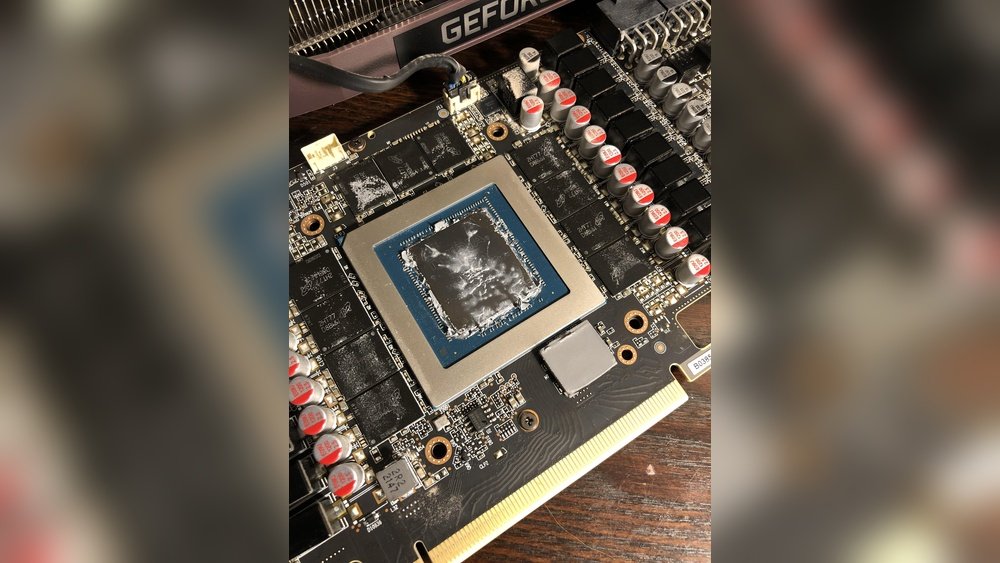
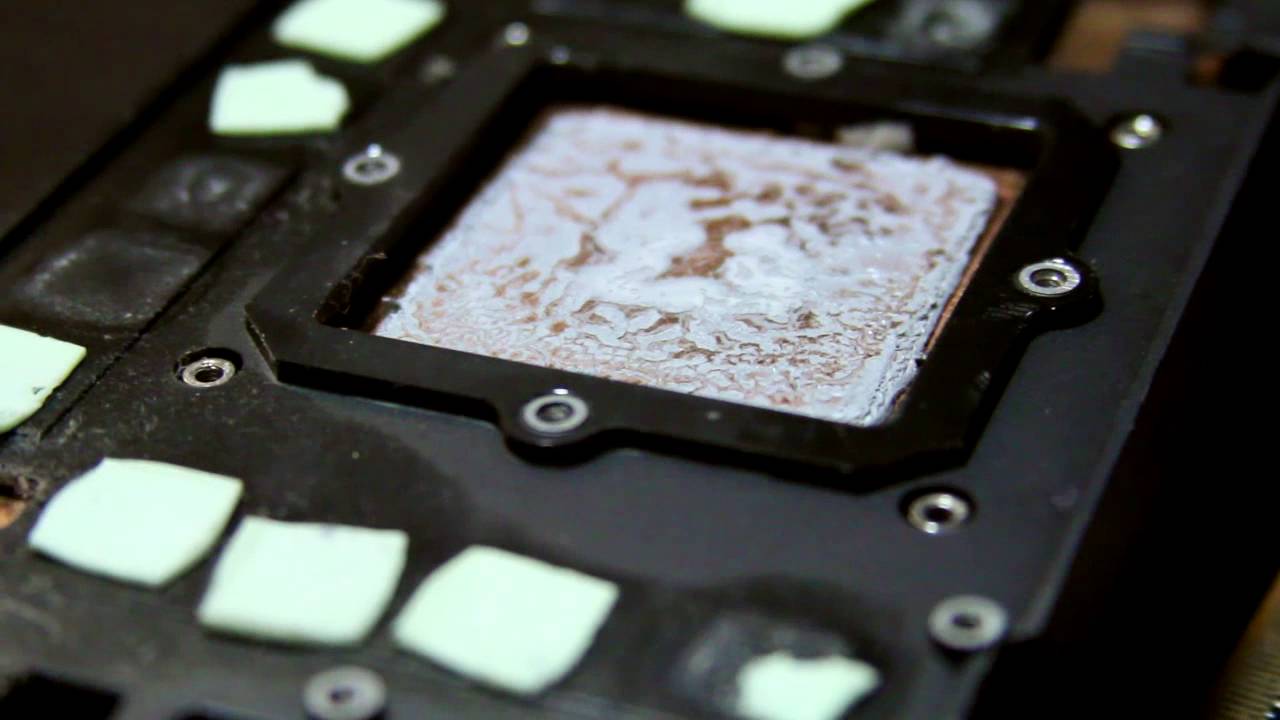
Thermal paste helps heat transfer from the GPU chip to the heatsink. Over time, it dries out and loses effect. Remove the GPU cooler carefully to check the paste. If it looks dry or cracked, clean it off with isopropyl alcohol. Apply a new, thin layer of thermal paste evenly. This improves heat flow and reduces GPU temperature.
Improving Case Airflow
Improving case airflow is key to fixing GPU overheating. Air moves heat out of your computer. Good airflow keeps your GPU cool and safe. Small changes inside your case can make a big difference. Let’s explore simple steps to improve airflow.
Optimizing Fan Placement
Place fans to create a smooth airflow path. Front fans should pull cool air into the case. Rear and top fans should push hot air out. Avoid placing fans that block each other’s airflow. Balanced intake and exhaust fans help maintain steady air movement. This setup cools your GPU more efficiently.
Managing Cables For Better Ventilation
Tidy up cables to stop airflow blockages. Use cable ties to bundle cables neatly along case edges. Avoid letting cables hang in front of fans or vents. Clear paths inside the case let air flow freely. Better ventilation lowers the GPU temperature significantly.
Adding Additional Case Fans
Add extra fans if your case has space. More fans increase airflow and reduce heat buildup. Choose fans that fit your case size and connect easily. Place extra fans at intake or exhaust points for best results. This upgrade helps keep your GPU cooler during heavy use.
Upgrading Cooling Solutions
Upgrading your GPU’s cooling system can greatly reduce overheating issues. Better cooling helps keep the GPU stable and extends its life. Several options exist to improve your current setup. Choose what fits your needs and budget.
Installing Aftermarket Gpu Coolers
Aftermarket GPU coolers replace the stock fan and heatsink. They often offer better airflow and lower temperatures. These coolers come in various sizes and designs. Make sure the cooler fits your GPU model. Installation usually requires removing the original cooler carefully. Follow the instructions to avoid damage. Aftermarket coolers can lower GPU temperatures by several degrees.
Using Liquid Cooling Systems
Liquid cooling uses water or coolant to draw heat away from the GPU. It is more efficient than air cooling. This system includes a pump, radiator, and water block. Liquid cooling reduces noise and keeps temperatures very low. Installation is more complex and may need extra space inside the case. It suits users who want the best cooling performance. Regular maintenance is necessary to prevent leaks and clogs.
Replacing Thermal Paste Properly
Thermal paste helps transfer heat from the GPU chip to the cooler. Old or dried-out paste can cause high temperatures. Clean the old paste off carefully with isopropyl alcohol. Apply a small, even layer of new thermal paste. Too much paste can reduce cooling efficiency. After applying, reattach the cooler firmly. Proper thermal paste replacement improves heat transfer and lowers GPU heat.
Adjusting Gpu Settings
Adjusting GPU settings helps control its temperature and performance. This step can reduce overheating without harming your graphics card. Changing these settings allows your GPU to run cooler and more efficiently. Let’s explore simple ways to adjust GPU settings for better cooling.
Reducing Clock Speeds
Lowering the clock speed makes your GPU work less hard. This reduces heat production during use. You can use software like MSI Afterburner to slow down the GPU clock. A small decrease in speed can cut down temperature noticeably. This method keeps your GPU cooler without big drops in performance.
Limiting Power Consumption
Reducing power limits helps control heat output. Your GPU uses less electricity and generates less heat this way. Power limit adjustments are available in most GPU tuning tools. Setting a lower power limit reduces strain on the graphics card. This keeps the GPU cooler during heavy tasks.
Customizing Fan Curves
Fan curves control how fast your GPU fans spin. You can set fans to run faster at lower temperatures. This helps cool the GPU before it gets too hot. Custom fan curves balance noise and cooling efficiently. Adjusting fan speeds keeps your GPU temperature in check.
Environmental Factors
Environmental factors play a big role in GPU overheating. The temperature and airflow around your PC affect how well your GPU stays cool. Making sure the room and the PC are set up correctly helps lower the GPU temperature. This can prevent damage and keep your system working well.
Keeping The Room Cool
Heat builds up fast in a warm room. A cooler room helps your GPU breathe. Use an air conditioner or a fan to lower the room temperature. Open windows if the weather is cool outside. Avoid placing your PC near heat sources like heaters or direct sunlight.
Positioning The Pc For Better Airflow
Good airflow around your PC clears heat quickly. Place your PC on a hard, flat surface, not on carpet or soft fabric. Keep it away from walls or tight spaces. Leave space around the case for air to move freely. This setup helps fans push out hot air and bring in cool air.
Credit: www.youtube.com
When To Seek Professional Help
Knowing when to get professional help is key to fixing GPU overheating. Some problems need expert tools and skills. Trying to fix serious issues alone can cause more damage.
Watch for clear signs that your GPU might be failing. Understanding repair and warranty options can save money and time. This guide helps you decide when to call a pro.
Signs Of Hardware Failure
Unexpected crashes or blue screens may show hardware issues. Your GPU may overheat even with proper cooling. Strange noises like buzzing or grinding can mean fan problems. Visual glitches or artifacts on the screen also warn of damage. If these signs appear, stop using the GPU to avoid more harm.
Warranty And Repair Options
Check if your GPU is still under warranty. Many manufacturers offer free repairs for hardware faults. Contact the seller or manufacturer for support details. Authorized repair centers use correct parts and tools. Using warranty services can prevent extra costs from DIY fixes.
Frequently Asked Questions
What Causes Gpu Overheating Issues?
GPU overheating often results from poor airflow, dust buildup, or faulty cooling systems. Overclocking and high ambient temperatures also increase heat. Regular maintenance and proper cooling help prevent these issues, ensuring stable GPU performance and longevity.
How Can I Check My Gpu Temperature Safely?
Use software tools like MSI Afterburner or HWMonitor to monitor GPU temperature. Keep temperatures below 85°C for optimal performance. Monitoring helps detect overheating early and avoids potential hardware damage.
Does Cleaning Gpu Fans Reduce Overheating?
Yes, cleaning dust and debris from GPU fans improves airflow and cooling efficiency. Regular cleaning prevents heat buildup and maintains proper fan function, reducing the risk of overheating during intensive tasks.
Can Updating Gpu Drivers Fix Overheating Problems?
Updating GPU drivers can optimize performance and fix bugs affecting temperature management. However, driver updates alone may not solve hardware-related overheating issues. Combine updates with hardware checks for best results.
Conclusion
Keeping your GPU cool is key to good performance and long life. Clean dust from fans and vents often. Use good thermal paste and ensure proper airflow in your PC case. Monitor temperatures regularly to catch issues early. Small steps make a big difference in preventing overheating.
Stay attentive to your GPU’s health for smooth, reliable use. Simple care helps your graphics card work better and last longer.
