
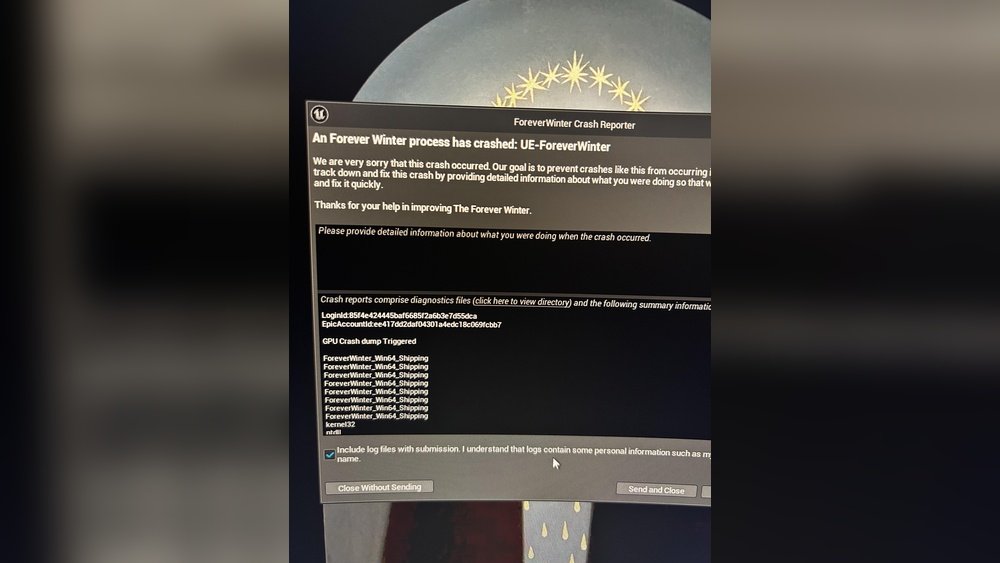
Is your computer freezing or crashing unexpectedly with a GPU crash dump error? It’s frustrating when your graphics card stops working, especially if you rely on it for gaming, video editing, or everyday tasks.
But don’t worry—you’re not alone, and there’s a way to fix it. You’ll discover simple, effective steps to get your GPU back on track quickly. Keep reading, because the solution might be easier than you think, and your smooth, crash-free experience is just ahead.

Credit: www.reddit.com
Causes Of Gpu Crash Dumps
GPU crash dumps happen when your graphics card stops working properly. These crashes create files that help find the root cause. Understanding the common causes can help fix the problem faster. This section covers the main reasons behind GPU crash dumps.
Hardware Issues
Physical damage to the GPU can cause crashes. Loose connections or faulty parts affect performance. Power supply problems may also harm the GPU. Bad memory chips on the card lead to errors. Checking hardware is the first step in troubleshooting.
Driver Conflicts
GPU drivers control how the card works with your system. Conflicts between old and new drivers cause crashes. Incorrect driver versions may not support your GPU. Sometimes, drivers from different sources clash. Keeping drivers updated and clean helps prevent problems.
Overheating Problems
Heat is a major enemy of GPUs. High temperatures force the card to shut down. Poor cooling or blocked fans cause overheating. Dust buildup inside the computer raises heat levels. Monitoring GPU temperature helps avoid crash dumps.
Software Bugs
Programs using the GPU can have bugs that cause crashes. Games or apps may not work well with certain GPUs. Operating system errors can also affect GPU stability. Updating software fixes many bugs and improves compatibility.
Checking Hardware Components
Checking your hardware is key to fixing GPU crash dump errors. Faulty parts cause many problems. Start by carefully looking at each component. This helps find hidden damage or issues. Simple checks can prevent bigger troubles later.
Inspecting The Gpu
Remove the GPU from the slot gently. Check for dust, dirt, or damage on the card. Look at the connectors for bent pins or corrosion. Clean the GPU with a soft brush or compressed air. Make sure it fits tightly in the slot. Loose connections can cause crashes.
Testing Power Supply
Power supply issues often cause GPU crashes. Use a power supply tester or a multimeter to check voltage levels. Ensure the PSU provides enough wattage for your GPU. Inspect cables for cuts, bends, or loose plugs. Replace weak or faulty power supplies immediately.
Verifying Cooling System
Overheating leads to GPU crash dumps. Check if fans spin smoothly without noise. Clean dust from fans and heat sinks. Replace thermal paste between GPU and cooler if it’s dry. Ensure your case has good airflow. Proper cooling keeps your GPU stable and safe.
Updating And Reinstalling Drivers
Updating and reinstalling your GPU drivers is a key step to fix GPU crash dump errors. Drivers control how your graphics card works with your computer. Outdated or corrupted drivers often cause crashes and errors. This section explains how to download, uninstall, and reinstall GPU drivers properly.
Downloading Latest Drivers
Start by finding the latest drivers for your GPU model. Visit the official website of your GPU manufacturer like NVIDIA, AMD, or Intel. Search for your specific graphics card model. Download the newest driver version available. This ensures your GPU has the latest fixes and improvements.
Uninstalling Old Drivers
Removing old drivers prevents conflicts with new ones. Open the Control Panel and go to “Programs and Features.” Find your current GPU driver in the list. Select it and click “Uninstall.” Follow the prompts to remove the driver completely. Restart your computer after uninstalling.
Performing Clean Driver Installation
Clean installation removes all leftover files from old drivers. Use tools like Display Driver Uninstaller (DDU) in safe mode. This tool deletes driver files and registry entries. After cleanup, install the new driver you downloaded earlier. This process reduces errors and improves GPU stability.

Credit: forums.unrealengine.com
Adjusting Gpu Settings
Adjusting GPU settings often solves GPU crash dump errors. These settings control how your graphics card works. Tweaking them can improve stability and prevent crashes.
Try small changes first. Test your system after each change. This way, you know what fixes the problem.
Resetting Overclocking
Overclocking pushes your GPU beyond factory speeds. It can cause crashes if not stable. Reset your GPU to default clock speeds. Use your GPU software or BIOS to do this. This step helps return your GPU to safe performance levels.
Modifying Power Management
Power settings affect GPU stability. Open your graphics control panel. Find power management or similar options. Set power mode to “Maximum Performance” or “Adaptive.” This change helps the GPU get enough power and avoid sudden shutdowns.
Changing Graphics Settings
High graphics settings can overload your GPU. Lower settings like resolution and texture quality. Disable features like V-Sync or anti-aliasing. These adjustments reduce GPU load and lower crash chances. Test your system after each change.
Monitoring Temperature And Performance
Monitoring your GPU’s temperature and performance is key to fixing crash dump issues. High temperatures can cause your GPU to fail or slow down. Tracking these factors helps you spot problems early. It also lets you take action before damage happens.
Keeping your GPU cool and running well extends its life. It improves your computer’s stability. Check your GPU often, especially during heavy tasks like gaming or video editing.
Using Monitoring Tools
Use software to watch your GPU temperature and usage. Programs like MSI Afterburner and HWMonitor show real-time data. They display temperature, clock speed, and fan speed. Set alerts to warn you if temperatures rise too high. These tools help you understand your GPU’s condition.
Setting Temperature Limits
Set a safe temperature limit for your GPU. Most GPUs work well below 85°C (185°F). Above this, performance may drop or crashes may occur. Use your monitoring tool to set alarms at this limit. If your GPU hits the limit, stop heavy tasks. This prevents damage and keeps your system stable.
Improving Airflow
Good airflow inside your PC case lowers GPU temperature. Clean dust from fans and vents often. Arrange cables to avoid blocking air paths. Add extra fans if needed. Position your case in a cool, open space. Better airflow means your GPU stays cooler and runs smoother.
Running Diagnostic Tests
Running diagnostic tests helps find the cause of GPU crash dumps. These tests check the hardware and software for errors. They give clear information to fix the problem. Using the right tools makes this process easier and faster.
Using Built-in Utilities
Most computers have built-in tools for GPU testing. Windows users can use the DirectX Diagnostic Tool. It checks the GPU’s basic functions and reports errors. Another option is Device Manager, which shows hardware status and driver issues. These tools are easy to access and free to use.
Third-party Diagnostic Tools
Third-party tools offer deeper GPU testing. Programs like GPU-Z and MSI Afterburner monitor GPU temperature and performance. FurMark is popular for stress testing, pushing the GPU to its limits. These tools can find hidden problems not caught by built-in utilities.
Interpreting Test Results
Test results show if the GPU has errors or overheating issues. Look for warnings or failures in the report. High temperatures or frequent errors indicate hardware problems. Driver errors suggest software needs updating or reinstalling. Clear results guide the next steps in fixing the crash dump.
Updating System Software
Updating system software is a key step to fix GPU crash dump errors. Outdated software can cause conflicts with your graphics card. Keeping your system updated ensures better stability and performance. It also helps your computer run smoothly with the latest fixes and improvements.
Installing Os Updates
Operating system updates often include important fixes for hardware issues. Check your OS settings to see if updates are available. Download and install all recommended updates. Restart your computer after installing to apply changes. This simple step can resolve many GPU-related crashes.
Checking For Firmware Updates
Firmware controls your computer’s hardware functions. Your GPU or motherboard may need firmware updates. Visit the manufacturer’s website to find the latest firmware. Follow instructions carefully to update. Firmware updates can improve hardware compatibility and reduce errors.
Updating Related Software
Other software like drivers and system utilities affect GPU performance. Update your graphics card drivers from the official site. Also, update system tools and security software. Fresh software versions fix bugs and enhance stability. Regular updates help prevent GPU crash dumps.

Credit: www.youtube.com
Preventing Future Gpu Crashes
Preventing future GPU crashes helps keep your computer stable and fast. Taking small steps can reduce crashes and improve your GPU’s lifespan. Simple habits protect your system and save time troubleshooting later.
Regular Maintenance
Clean your computer often to remove dust inside. Dust blocks airflow and causes overheating. Check fans and vents to ensure they work well. Overheating leads to GPU crashes and damage. Also, keep your computer in a cool place. Good air circulation is key to stable performance.
Safe Overclocking Practices
Overclocking can boost GPU speed but needs care. Increase settings slowly and test stability after each change. Use trusted software designed for overclocking. Watch temperature levels closely to avoid overheating. If your system crashes, lower the clock speed. Safe overclocking prevents stress on your GPU and avoids crashes.
Keeping Drivers Current
GPU drivers control hardware performance and fix bugs. Regularly update drivers to keep your GPU running smoothly. Visit the official GPU manufacturer’s website for updates. Use the latest version designed for your GPU model. Updated drivers improve compatibility and reduce crash risks. Avoid using third-party driver sites to prevent malware.
Frequently Asked Questions
What Causes Gpu Crash Dump Errors?
GPU crash dump errors usually stem from outdated drivers, overheating, hardware conflicts, or corrupted system files. Identifying the root cause helps in applying the correct fix efficiently and prevents recurring crashes.
How Do I Update Gpu Drivers To Fix Crashes?
Visit your GPU manufacturer’s website and download the latest drivers. Installing updated drivers often resolves compatibility and performance issues causing GPU crash dumps.
Can Overheating Cause Gpu Crash Dumps?
Yes, overheating can trigger GPU crash dumps by causing hardware instability. Ensure proper cooling and clean fans regularly to maintain optimal GPU temperature.
Is Gpu Crash Dump Related To Software Conflicts?
Software conflicts, such as incompatible applications or corrupted files, can cause GPU crash dumps. Updating software and removing conflicting programs often fixes the issue.
Conclusion
Fixing a GPU crash dump can feel tricky but is doable. Start by updating your graphics drivers and checking for software conflicts. Keep your system clean and cool to avoid hardware issues. Regular maintenance helps prevent future crashes. Stay patient and follow the steps carefully.
Your computer will run smoother and more stable. Don’t ignore warning signs. Small fixes now save big problems later. Keep learning and stay calm while troubleshooting.
