
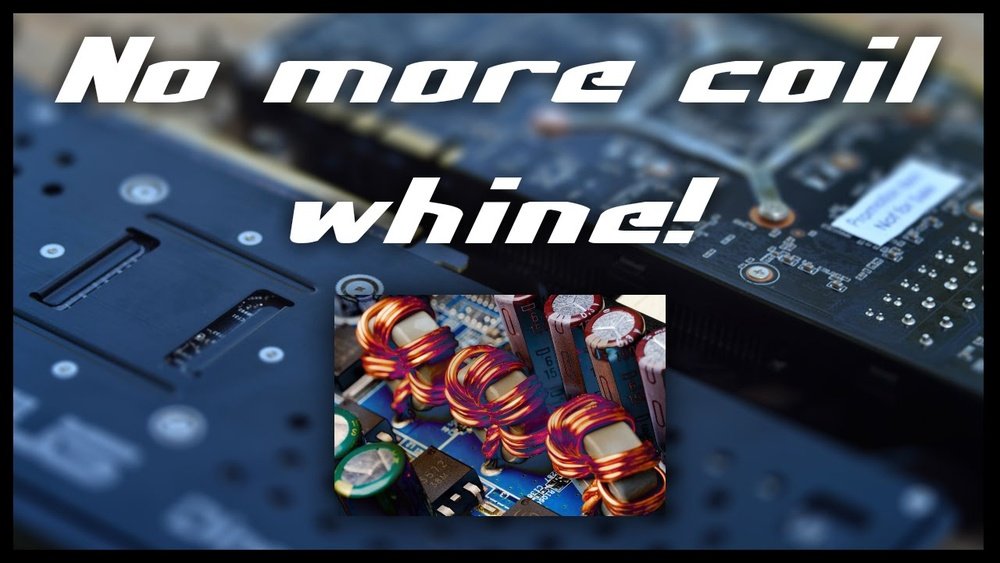
Is your GPU making an annoying high-pitched buzzing sound that won’t go away? That irritating noise, known as coil whine, can distract you from gaming, streaming, or working.
You might be wondering if there’s a way to stop it without buying a new graphics card. The good news is, you’re not stuck with that sound. You’ll discover simple and effective steps to fix GPU coil whine and bring peace back to your setup.
Keep reading—your ears will thank you.
Credit: clevercreations.org
What Causes Gpu Coil Whine
GPU coil whine is a high-pitched noise from your graphics card. This sound can be annoying and distracting. Understanding what causes it helps in finding ways to reduce or stop it. Several factors inside your PC can make coil whine happen.
Electrical Interference And Vibrations
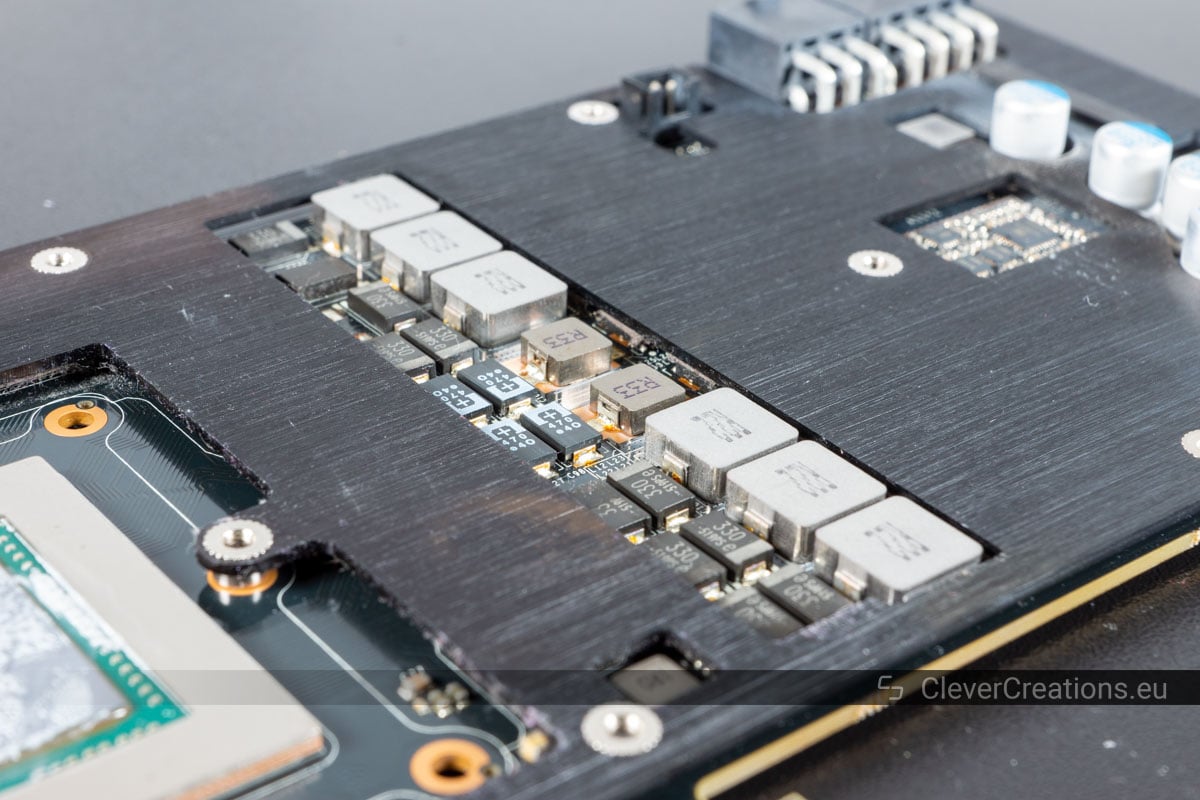
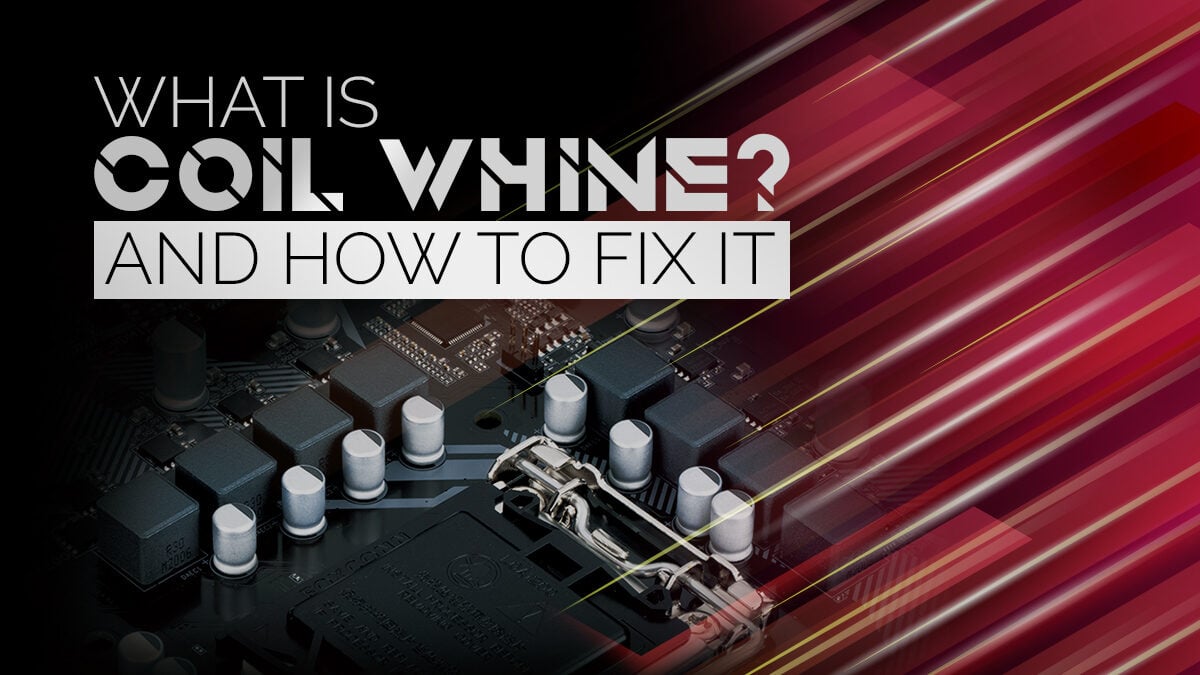
Coil whine comes from small components called coils. These coils vibrate when electricity passes through them. The vibrations create the high-pitched noise you hear. Changes in electrical signals cause the coils to move faster or slower. This movement makes the noise louder or softer.
Impact Of Power Supply Quality
The power supply gives electricity to your GPU. A low-quality power supply can cause unstable power flow. This instability makes the coils work harder and vibrate more. Using a good power supply can reduce coil whine. It provides clean and steady power to your GPU.
Role Of Gpu Load And Frequency
The GPU changes its speed and power use based on work. Higher loads make the GPU use more power. This causes the coils to vibrate more strongly. The frequency of the GPU also affects coil whine. Faster frequencies can increase the noise from the coils.
Credit: www.cgdirector.com
Identifying Coil Whine In Your Gpu
Coil whine is a high-pitched noise coming from your GPU. It can be annoying and distracting. Identifying this noise is the first step to fixing it. Understanding what coil whine sounds like helps you know if your GPU has this issue.
This section explains how to spot coil whine. It covers how to tell it apart from other sounds. It also shows when coil whine happens most. Finally, it shares tools to detect coil whine clearly.
Distinguishing Coil Whine From Other Noises
Coil whine sounds like a sharp, high-pitched buzzing. Other noises from your PC may be fans or hard drives. Fans create a soft whooshing noise. Hard drives make clicking or spinning sounds. Coil whine is different because it is steady and sharp. It often changes with GPU load.
When Does Coil Whine Occur Most
Coil whine usually happens when the GPU is under heavy load. This means while gaming or running graphic-heavy programs. It can also occur during frame rate changes. Sometimes, it starts at low loads but is louder at high loads. Coil whine often appears when the GPU power changes quickly.
Tools To Detect Coil Whine
Listening closely can help find coil whine. Use headphones to isolate the noise. Apps like GPU-Z show GPU load and clock speeds. These help link noise to GPU activity. Sound meters or recording devices can measure noise levels. Testing in a quiet room makes detection easier.
Basic Fixes To Reduce Coil Whine
Coil whine can be an annoying sound coming from your GPU. It happens when the GPU works hard and creates high-frequency noise. Some basic fixes can help reduce this noise. These methods are easy to try and do not need special tools or skills.
These fixes focus on controlling how your GPU works. By adjusting settings, you can lower the noise without affecting performance much. Here are some simple steps to reduce coil whine.
Adjusting Frame Rate Limits
Limiting the frame rate helps reduce GPU strain. When the GPU runs at very high frame rates, coil whine gets louder. Set a frame rate cap in your game or graphics software. This stops the GPU from pushing beyond a certain speed. The result is less noise and smoother gameplay.
Enabling V-sync Or Adaptive Sync
V-Sync and Adaptive Sync match the frame rate to your monitor’s refresh rate. This prevents the GPU from creating extra frames. Syncing frames helps lower coil whine by reducing GPU workload. Most games and graphics cards support these options. Turning them on can make a big difference in noise levels.
Changing Power Management Settings
Power settings control how the GPU uses electricity. Using a balanced or power-saving mode can reduce coil whine. You can change these settings in your graphics control panel. Lower power use means less stress on the GPU. This often leads to quieter operation without big performance drops.
Credit: www.reddit.com
Advanced Tweaks For Silence
Advanced tweaks can reduce or stop GPU coil whine effectively. These methods target the root causes of the noise. They require careful adjustments but bring quiet performance.
Some steps need software tools, others need physical changes. Each helps lower the electric noise from the GPU coils. Here are key advanced tips to try for silence.
Undervolting The Gpu
Undervolting means lowering the GPU’s power voltage. It reduces the electrical stress on coils. This change often cuts coil whine significantly.
You can use tools like MSI Afterburner to adjust voltage. Lower voltage keeps performance but lowers noise. Test small changes and check stability after each.
Custom Fan Curves And Cooling
Custom fan curves control how fast fans spin. Slower fans make less noise. Set fans to speed up only when the GPU is hot.
Better cooling also helps reduce coil whine. Keep the GPU temperature low with good airflow. Clean fans and heatsinks regularly to improve cooling.
Using Noise Dampening Materials
Noise dampening materials absorb or block coil whine sounds. Foam, acoustic mats, or rubber pads work well. Place these around the GPU area inside the case.
Make sure materials do not block airflow or cause overheating. These materials reduce noise reaching your ears. Combine this with other tweaks for best results.
Hardware Solutions
Hardware solutions can help reduce or stop GPU coil whine. These methods focus on fixing or changing the parts that cause the noise. Small changes to your hardware can make a big difference in sound levels.
Choosing the right hardware can improve your PC’s quietness and overall performance. Some fixes involve replacing parts, while others add components to reduce vibration.
Replacing Or Upgrading The Power Supply
The power supply unit (PSU) delivers electricity to the GPU. A low-quality or old PSU may cause coil whine. Replacing it with a better, higher-quality PSU can reduce noise. Look for PSUs with good reviews on noise levels. A stable power supply lowers electrical interference that causes coil whine.
Gpu Replacement And Warranty Options
Coil whine sometimes comes from the GPU itself. Check your GPU warranty to see if noise issues are covered. Manufacturers may replace noisy GPUs. If your GPU is new and very loud, contact support for options. A replacement GPU can solve the coil whine problem completely.
Adding Anti-vibration Mounts
Anti-vibration mounts absorb and reduce noise from hardware parts. These mounts fit between the GPU and the case. They stop vibrations from traveling to the PC frame. Adding mounts is easy and lowers the noise level. This method helps even if the coil whine comes from small movements inside the GPU.
Preventing Coil Whine In Future Builds
Preventing coil whine in future builds helps ensure a quieter and more enjoyable computer experience. Coil whine is a high-pitched noise from electronic components, especially GPUs. Taking steps during the build process can reduce or avoid this annoying sound.
Choosing Components With Low Noise Ratings
Choose parts known for low noise output. Look for GPUs and power supplies with quiet operation reviews. Some manufacturers test and rate their products for noise. Avoid cheap or unbranded components as they often have higher coil whine. Quality components often use better coils and capacitors that reduce noise.
Proper Case Ventilation And Setup
Good airflow lowers heat and stress on parts. Place fans to create smooth air paths inside the case. Use dust filters to keep the system clean longer. Avoid blocking vents with cables or other items. Cooler parts usually produce less coil whine.
Regular Maintenance And Cleaning
Dust buildup raises temperatures and causes more noise. Clean the inside of your PC every few months. Use compressed air to blow dust off fans and components. Check for loose screws or parts that can vibrate. Keeping your system clean helps keep coil whine at bay.
Frequently Asked Questions
What Causes Gpu Coil Whine Noise?
GPU coil whine is caused by vibrations in the power coils when electrical current passes through. High frame rates and power load often trigger it. It’s a common issue in many graphics cards but doesn’t usually affect performance or damage the GPU.
How Can I Reduce Gpu Coil Whine Effectively?
Reducing GPU coil whine can be done by limiting frame rates, enabling V-Sync, or using frame rate caps. You can also try adjusting power settings in your GPU control panel or adding sound dampening materials in your PC case.
Is Gpu Coil Whine Harmful To My Hardware?
No, GPU coil whine is not harmful to your hardware. It is mainly an annoying electrical noise caused by coil vibrations. Your GPU will continue to function normally even if coil whine occurs.
Can Updating Gpu Drivers Fix Coil Whine?
Updating GPU drivers rarely fixes coil whine since it’s a hardware-related noise. However, keeping drivers updated ensures optimal GPU performance and may help with power management settings that slightly reduce coil whine.
Conclusion
Fixing GPU coil whine can make your PC quieter and more pleasant. Small steps like adjusting settings or adding dampeners often help. Sometimes, replacing cables or repositioning your GPU reduces noise. Remember, coil whine does not harm your hardware. Patience and simple fixes often solve this issue.
Keep trying different methods to find what works best. Enjoy a quieter gaming or work experience with less distraction. Your GPU can run smoothly and quietly with the right care.
