
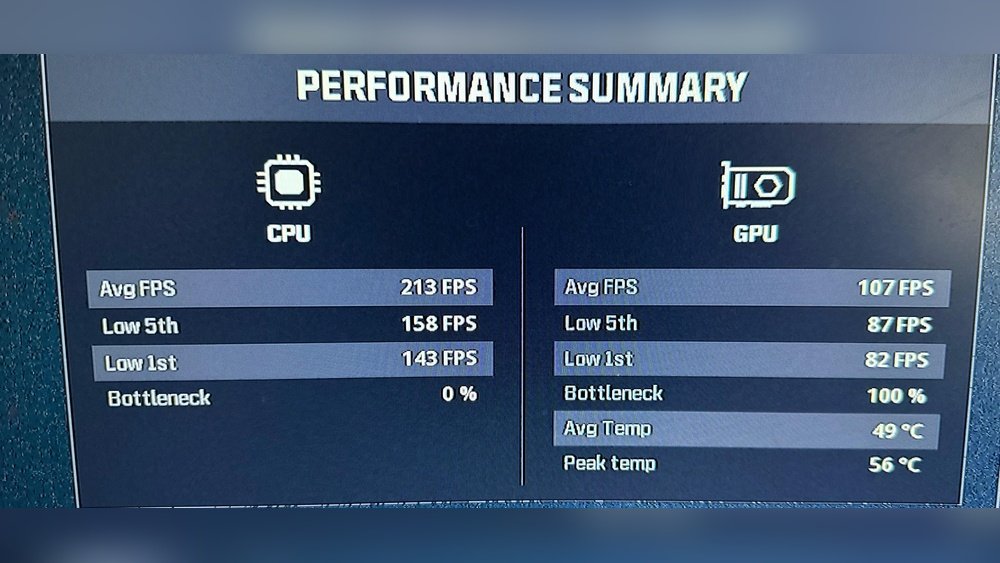
Is your gaming or design experience feeling slow and frustrating? You might be facing a GPU bottleneck.
When your graphics card can’t keep up with the rest of your system, your performance drops and your frustration rises. But don’t worry—fixing a GPU bottleneck is easier than you think. You’ll discover simple, effective ways to unlock your PC’s full potential.
Keep reading, and you’ll learn how to boost your system’s speed and enjoy smoother, faster performance right away.
Signs Of Gpu Bottleneck
GPU bottleneck happens when your graphics card limits your system’s performance. It stops your CPU from working at full power. Knowing the signs helps you fix this problem early. This saves time and improves gaming or work speed.
Identifying Performance Drops
Notice sudden slowdowns in games or apps? Your system might lag or stutter. Visual quality may drop even on medium settings. These drops can signal your GPU is struggling.
Frames may freeze or move unevenly. The system feels less smooth than before. Performance drops often happen during heavy graphics tasks.
Monitoring Frame Rates
Frame rate shows how many images your GPU creates per second. Low or unstable frame rates can mean a bottleneck. Use simple tools to check your FPS while playing games.
If FPS stays low despite a strong CPU, the GPU may be the cause. Watch for big differences between CPU and GPU usage percentages.
Using Diagnostic Tools
Software like MSI Afterburner or GPU-Z helps check GPU health. These tools show temperature, usage, and clock speeds. High GPU usage near 100% means it is maxed out.
Compare CPU and GPU loads. A big gap suggests a bottleneck. Diagnostic tools give clear data to understand your system’s limits.
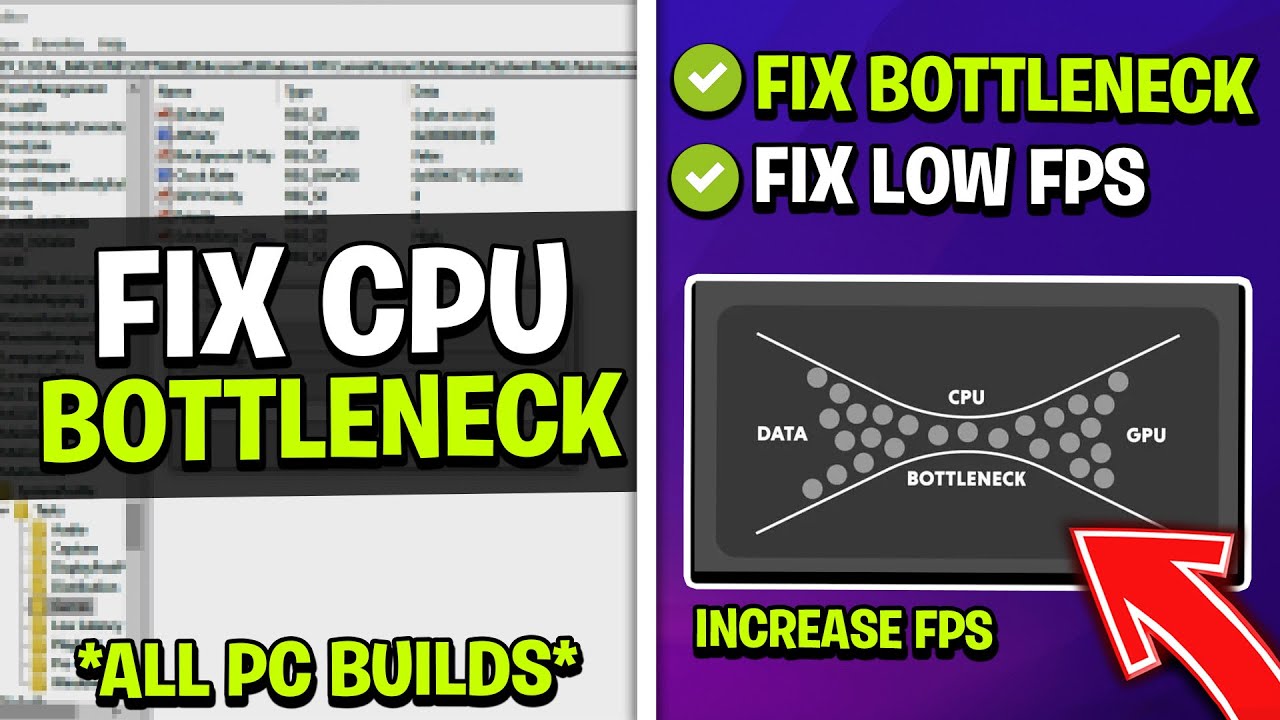
Credit: www.youtube.com
Causes Of Gpu Bottleneck
GPU bottleneck happens when your graphics card cannot keep up with other parts. This slows down your computer, especially in games or heavy tasks. Understanding the causes helps fix the problem faster.
Hardware Limitations
Old or weak GPUs struggle with new software demands. The graphics card may not handle high settings or resolutions well. This causes the GPU to lag behind the CPU or other components. Upgrading the GPU or lowering settings can help.
Driver Issues
Outdated or faulty drivers can cause GPU problems. Drivers act as a bridge between hardware and software. If drivers are not up to date, the GPU may not work properly. Regularly updating drivers keeps the GPU running smoothly.
Thermal Throttling
GPUs get hot during heavy use. If temperatures get too high, the GPU slows down to cool off. This is called thermal throttling. Poor cooling or dust buildup can increase temperatures. Cleaning fans or improving cooling prevents this slowdown.
Optimizing Game Settings
Optimizing game settings helps reduce GPU bottleneck and improves performance. It adjusts how your game uses the hardware. This step is important for smoother gameplay and better frame rates.
Adjusting Resolution And Details
Lower the game resolution to ease GPU work. A smaller resolution means fewer pixels to process. Also, reduce detail levels like textures and shadows. These changes cut down GPU load and boost speed.
Disabling Unnecessary Effects
Turn off effects that do not add much to gameplay. Effects like motion blur, depth of field, and ambient occlusion can strain the GPU. Disabling these effects frees up resources for better performance.
Balancing Cpu And Gpu Load
Check both CPU and GPU usage during gameplay. Avoid settings that make the CPU wait for the GPU or vice versa. Aim for a balance where both parts work efficiently. This reduces bottlenecks and enhances overall speed.
Updating And Tweaking Drivers
Updating and tweaking your GPU drivers plays a big role in fixing GPU bottlenecks. Drivers connect your GPU with your computer. Old or wrong drivers can slow down your system and cause lag.
Keeping your drivers current helps your GPU run smoothly. Tweaking settings inside the drivers can improve performance. You can also use safe overclocking to get more power from your card.
Installing Latest Gpu Drivers
Start by visiting your GPU maker’s official website. Download the newest driver version for your model. Use the clean install option to avoid conflicts with old files. Restart your computer after installation. This step ensures your GPU uses the latest software improvements.
Configuring Driver Settings
Open the GPU control panel on your computer. Adjust settings like power management to prioritize performance. Turn off unnecessary effects that slow down your GPU. Set texture quality to balance visuals and speed. Customizing these options can reduce bottlenecks and boost frame rates.
Using Overclocking Tools Safely
Overclocking increases GPU speed beyond factory settings. Use trusted software like MSI Afterburner or EVGA Precision X1. Increase clock speeds slowly in small steps. Monitor temperature and system stability during the process. Stop if your PC crashes or overheats. Safe overclocking can give your GPU a useful boost without damage.
Upgrading Hardware Components
Upgrading hardware components is a key step to fix a GPU bottleneck. It helps your computer run games and programs smoothly. Simple changes to your hardware can improve speed and performance. Focus on the graphics card, cooling system, RAM, and CPU. Each part plays a role in reducing bottlenecks.
Choosing A Better Gpu
A better GPU can process graphics faster. It lowers the load on your system. Choose a graphics card that matches your CPU power. Avoid very high-end GPUs with older CPUs. This causes more bottlenecks. Check the GPU’s memory size and clock speed. These affect how well it handles games and apps.
Improving Cooling Solutions
Good cooling keeps your GPU and CPU running at top speed. Overheating slows down components to avoid damage. Use quality fans or liquid cooling systems. Clean dust from vents and fans often. Cooler hardware works better and lasts longer. Proper cooling reduces the chance of a bottleneck caused by heat.
Enhancing System Ram And Cpu
Faster RAM helps your GPU get data quickly. Upgrade to higher speed or larger memory modules. Your CPU must be strong enough to support the GPU. A weak CPU limits performance and creates a bottleneck. Consider upgrading to a newer, faster processor. Balance between CPU, RAM, and GPU for smooth performance.
Managing Background Processes
Managing background processes helps improve your GPU performance. Many apps run quietly in the background. They use memory and processing power. This can slow down your graphics card during gaming or work. Controlling these processes frees resources for your GPU.
Reducing background activity lowers the chance of bottlenecks. It also makes your computer run smoother. Focus on closing or optimizing these tasks. This simple step can boost your system’s speed.
Closing Unnecessary Applications
Check which apps run in the background. Close any that you do not need right now. Programs like web browsers, chat apps, and music players use CPU and GPU power. Exiting them frees up resources for your games or software.
Use the Task Manager on Windows or Activity Monitor on Mac. Find apps with high CPU or memory use. Right-click and select “End Task” to close them quickly. Keep only essential programs open.
Optimizing Startup Programs
Many apps start automatically when you turn on your computer. This slows down boot time and uses resources continuously. Disable unnecessary startup programs to improve performance.
Open the Task Manager and go to the Startup tab. Review the list and disable programs you don’t need at startup. This reduces background load and helps your GPU work better.
Using Performance Mode
Most operating systems have a performance mode setting. Enabling this mode prioritizes speed and power for your GPU and CPU. It reduces background tasks and limits power-saving features.
On Windows, find Power & Sleep settings and select High Performance. This setting helps your GPU run at full capacity. Performance mode keeps your system focused on demanding tasks.
Advanced Performance Tweaks
Advanced performance tweaks help reduce GPU bottleneck effectively. They go beyond basic settings and dig deeper into your system. These tweaks allow better control over how your GPU works. They improve performance without needing new hardware. The following methods can help optimize your GPU for smoother gameplay and faster processing.
Using Gpu Scaling Options
GPU scaling adjusts how your graphics card handles different screen resolutions. It can improve the image quality and reduce input lag. Enable scaling in your GPU control panel, usually under display settings. Choose a scaling mode like “Aspect ratio” or “Full panel” based on your display. This tweak helps balance GPU load and can lower bottlenecks.
Customizing Power Settings
Power settings affect how much energy your GPU uses. Set your GPU to “Maximum Performance” in its control panel. This prevents the GPU from slowing down during intense tasks. Also, adjust Windows power settings to “High Performance.” These changes keep your GPU running at full speed. It reduces lag caused by power-saving modes.
Applying Registry Tweaks
Registry tweaks can optimize GPU behavior on a system level. Editing the Windows registry allows fine control over graphics settings. For example, increase the GPU priority for games or apps. Always back up the registry before making changes to avoid errors. These tweaks can free up GPU resources and reduce bottlenecks. Use trusted guides to apply safe registry edits.
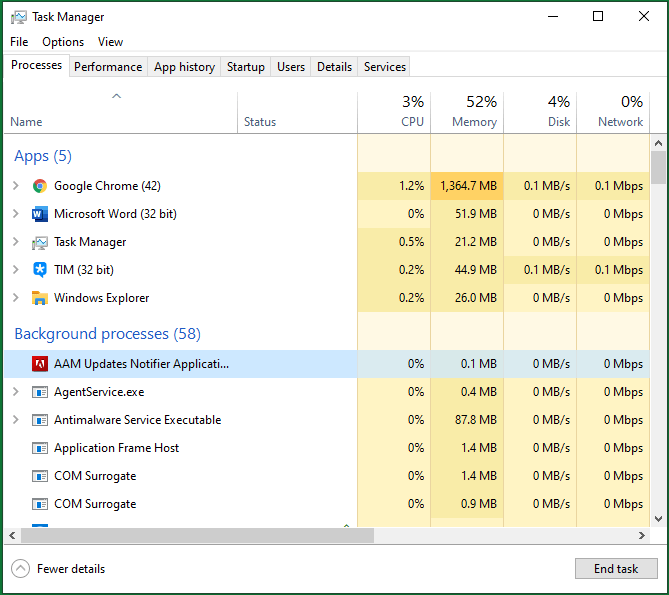
Credit: www.partitionwizard.com
Testing And Benchmarking
Testing and benchmarking help find if your GPU bottleneck is fixed. They show how well your system runs before and after changes. These tests give clear numbers to compare performance. Regular checks keep your PC running smooth and fast.
Running Synthetic Benchmarks
Synthetic benchmarks test your GPU with standard tasks. They stress your graphics card hard to measure power. Popular tools include 3DMark and Unigine Heaven. These tests give scores that show GPU strength. Run them to see if your GPU handles tasks better.
Comparing Before And After Results
Save benchmark scores before fixing the bottleneck. After making changes, run the tests again. Compare old and new scores side by side. Look for higher frame rates and better scores. This shows if your tweaks helped your GPU work better.
Tracking Long-term Performance
Keep testing your GPU over time. Regular benchmarks catch new problems early. They help track if performance drops after updates or new software. Save test results in a file or app. This way, you know your PC stays fast and stable.
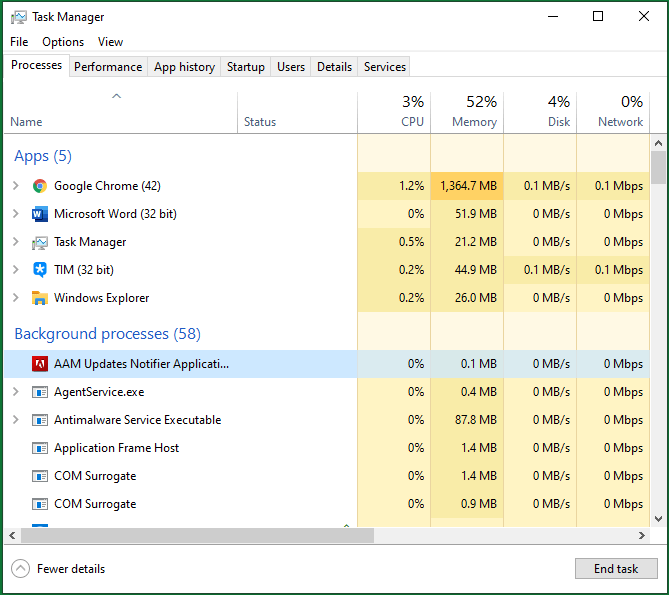
Credit: www.partitionwizard.com
Frequently Asked Questions
What Causes A Gpu Bottleneck In Gaming Pcs?
A GPU bottleneck occurs when the graphics card limits system performance. It happens if the GPU is weaker than the CPU or can’t handle high-resolution settings. This slows down frame rates and causes stuttering during gameplay.
How Can I Identify If My Gpu Is Bottlenecked?
Use performance monitoring tools like MSI Afterburner or Task Manager. Check GPU and CPU usage; if the GPU is at 100% while CPU usage is low, a bottleneck likely exists.
What Are Quick Fixes To Reduce Gpu Bottleneck?
Lower in-game graphics settings, reduce resolution, or update GPU drivers. These steps ease GPU load, improving frame rates and overall performance without hardware changes.
Does Upgrading The Cpu Help Fix Gpu Bottleneck?
No, upgrading the CPU usually won’t fix a GPU bottleneck. The issue arises from the GPU being the limiting factor, so upgrading the graphics card is more effective.
Conclusion
Fixing a GPU bottleneck improves your computer’s performance. Start by checking your system’s balance between CPU and GPU. Upgrade parts that slow down your graphics card. Adjust game settings to lower demands on your GPU. Keep drivers and software up to date for smooth operation.
Small changes can boost your gaming or work experience. Stay patient and test each fix carefully. Your system will run better with the right tweaks. Simple steps lead to better speed and visuals.
