
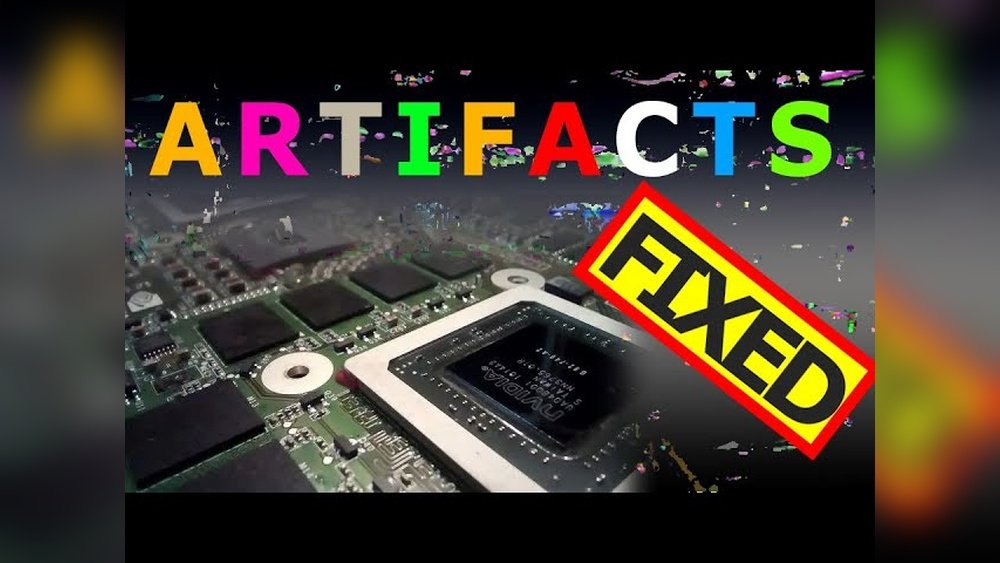
Are you seeing strange lines, colors, or shapes on your screen when using your GPU? These visual glitches, known as GPU artifacts, can be frustrating and may signal a serious problem with your graphics card.
But don’t worry—you don’t have to be a tech expert to fix them. You’ll discover simple, effective steps to identify and solve GPU artifact issues. Keep reading to protect your hardware and get your graphics back to perfect clarity.
Credit: support.nzxt.com
Common Causes Of Gpu Artifacts
GPU artifacts appear as strange lines, colors, or shapes on your screen. They often signal a problem with the graphics card. Knowing common causes helps fix these issues faster. Here are the main reasons behind GPU artifacts.
Overheating Issues
High temperatures can damage GPU chips and memory. Dust buildup blocks fans and vents. Poor airflow inside the case raises heat levels. Overheating causes the GPU to malfunction and create artifacts. Cooling problems should be checked first.
Driver Problems
Outdated or corrupted drivers lead to display errors. Drivers control how the GPU works with the system. Wrong drivers may cause visual glitches and crashes. Keeping drivers updated prevents many artifact issues. Sometimes, reinstalling the driver solves the problem.
Hardware Failures
Physical damage can cause GPU artifacts. Faulty memory chips or solder joints break connections. Aging or defective GPUs struggle to render images correctly. Hardware faults often need professional repair or replacement. Testing the GPU in another system helps identify hardware issues.
Power Supply Concerns
Insufficient or unstable power affects GPU performance. A weak power supply may cause voltage drops. This leads to GPU errors and visual artifacts. Checking the power supply’s wattage and cables is important. Using a reliable power source keeps the GPU stable.
Identifying Artifact Symptoms
Identifying artifact symptoms is the first step to fixing GPU problems. Artifacts show that your graphics card has issues. Noticing these signs early helps prevent bigger damage. Below are common symptoms to watch for.
Visual Glitches And Distortions
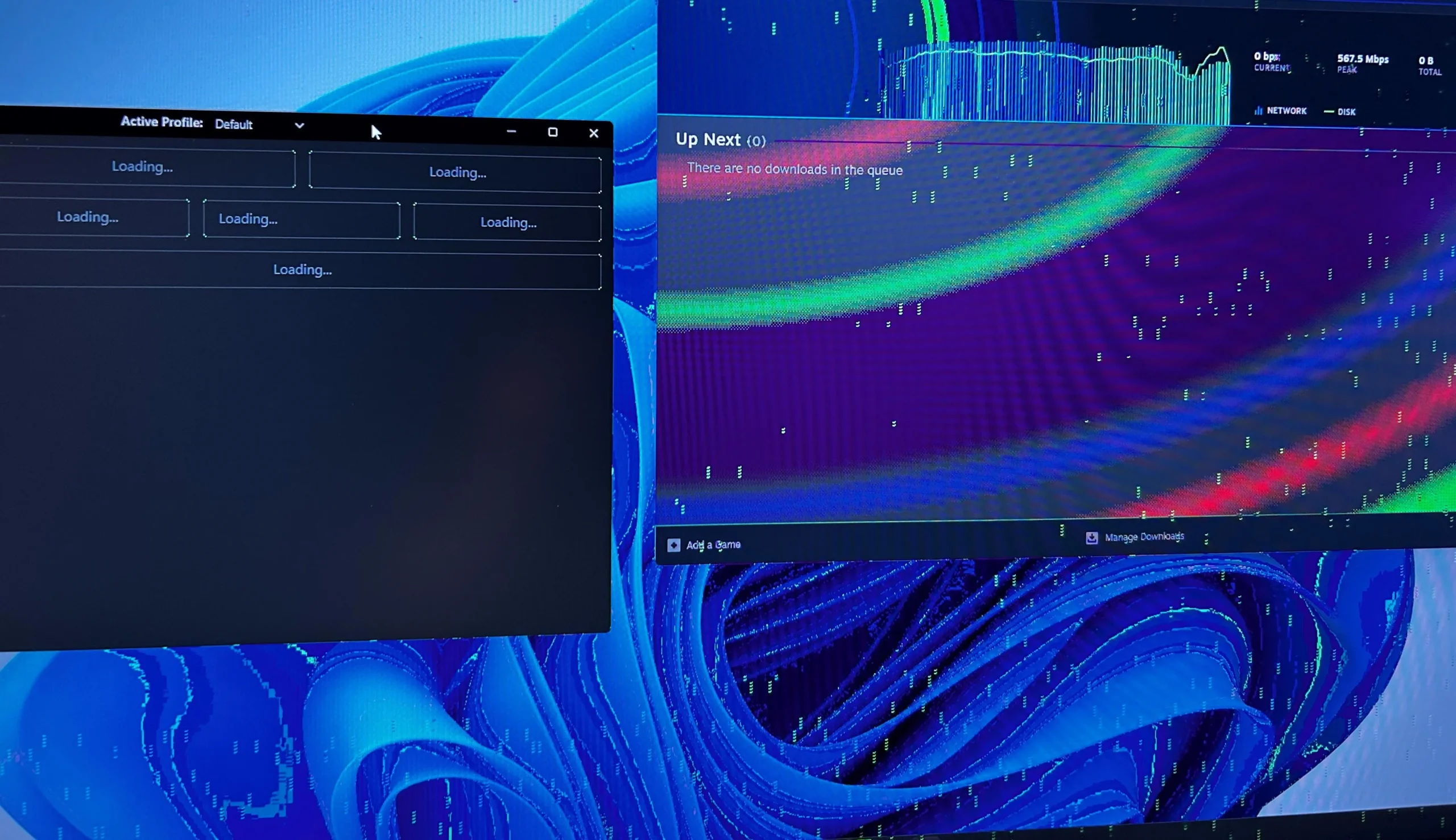
Visual glitches appear as strange colors or shapes on the screen. You might see lines, blocks, or flickering pixels. These distortions often happen during games or heavy graphics use. They mean the GPU is not rendering images correctly.
Screen Flickering
Screen flickering happens when the display rapidly turns on and off. This can be subtle or very noticeable. Flickering often signals a problem with the GPU or its connection. It can also cause eye strain and headaches.
System Crashes During Gaming
Crashes during gaming are a strong sign of GPU troubles. The computer may freeze or restart unexpectedly. These crashes usually occur when the GPU is under stress. They show the card cannot handle the workload properly.
Basic Troubleshooting Steps
GPU artifacts can cause strange lines, colors, or shapes on your screen. These problems might be due to simple issues. Basic troubleshooting steps help find and fix common causes fast. Start here before trying advanced solutions.
Restarting Your System
Turn off your computer completely. Wait a few seconds, then turn it on again. Restarting clears temporary bugs and refreshes hardware connections. This step often solves minor GPU glitches without extra work.
Checking Cable Connections
Inspect all cables linking your GPU to the monitor. Make sure they are tight and not damaged. Loose or broken cables can cause display problems. Swap cables if you suspect any issue to test if artifacts disappear.
Updating Graphics Drivers
Old or corrupted drivers cause GPU artifacts often. Visit your GPU maker’s website to download the latest driver. Install it carefully by following on-screen instructions. Updated drivers improve performance and fix many display errors.
Managing Gpu Temperature
Managing your GPU temperature is key to stopping artifacts and improving performance. High heat can cause your graphics card to work poorly or even fail. Keeping the GPU cool helps it run smoothly and last longer.
Several simple steps can lower the temperature. Cleaning dust, improving airflow, and applying new thermal paste all help your GPU stay cool. These fixes are easy and effective.
Cleaning Dust From Fans And Heatsinks
Dust blocks airflow and traps heat in your GPU. Fans and heatsinks get dirty over time. Use a soft brush or compressed air to remove dust carefully. Clean fans spin better and cool the GPU more efficiently. Regular cleaning keeps your GPU cooler and prevents overheating.
Improving Case Airflow
Good airflow moves hot air out and brings cool air in. Check your PC case for blocked vents or cables. Arrange cables neatly to avoid blocking airflow. Add case fans if needed to increase air movement. Better airflow lowers GPU temperature and reduces artifact problems.
Applying New Thermal Paste
Thermal paste helps transfer heat from the GPU chip to the heatsink. Over time, paste dries and loses effectiveness. Removing old paste and adding fresh thermal paste improves heat transfer. This step requires care but can lower GPU temperature significantly. Use a small amount and spread it evenly for best results.
Advanced Fixes
Advanced fixes for GPU artifacts involve deeper technical steps. These methods require patience and care. They can help if basic fixes fail to solve the problem.
Underclocking The Gpu
Underclocking means lowering the GPU’s clock speed. This reduces heat and power use. It can stop artifacts caused by overclocking or hardware stress. Use software tools like MSI Afterburner to reduce the clock speed slowly. Test your GPU after each change to check if artifacts disappear.
Testing With Different Power Supplies
Power supply issues can cause GPU artifacts. A weak or faulty power supply may not deliver enough power. Swap your current power supply with a known good one. Check if the artifacts remain during heavy GPU use. This step helps find if power delivery causes the problem.
Reflashing Gpu Bios
Reflashing the GPU BIOS updates or restores its firmware. Corrupt or outdated BIOS can cause visual glitches. Find the correct BIOS version for your GPU model on the manufacturer’s website. Use tools like NVFlash carefully to reflash the BIOS. Follow instructions exactly to avoid damaging your GPU.
Credit: www.cyberpowerpc.com
When To Replace Your Graphics Card
Knowing when to replace your graphics card is key to solving GPU artifact issues. Not all problems mean a new card is needed. Some issues can be fixed with repairs or adjustments. But some signs show that your GPU has permanent damage. We will explore these signs, cost factors, and tips for choosing a new GPU.
Signs Of Permanent Damage
Artifacts that do not go away after cleaning or driver updates may show damage. Cracks or burns on the card are clear signs. Strange noises or a card that overheats quickly also indicate serious issues. Frequent crashes during gaming or graphic work suggest hardware failure. If your GPU fails stress tests or monitoring software shows errors, replacement is likely.
Evaluating Repair Costs Vs Replacement
Repairs can be expensive and may not last long. Sometimes, fixing one issue uncovers another. Compare repair costs with the price of a new card. Consider the age of your GPU. Older models may not support new games or software. Spending on repairs might not be worth it if the card is outdated. A new GPU often offers better performance and reliability.
Choosing A New Gpu
Decide your budget before shopping for a new card. Check compatibility with your computer’s motherboard and power supply. Look for a GPU that fits your needs, like gaming or video editing. Read reviews and compare features like memory size and clock speed. Buying from a trusted brand ensures quality and support. Remember to balance price and performance to get the best value.
Preventing Future Gpu Issues
Preventing future GPU issues helps keep your graphics card working well. Regular care and checks can stop problems before they start. Simple steps protect your GPU and improve its life. Follow easy habits to avoid common GPU troubles.
Regular Maintenance Tips
Clean your GPU and computer case often. Dust blocks airflow and causes overheating. Use a soft brush or compressed air for cleaning. Check fans and heatsinks for dust buildup. Keep cables tidy to avoid blocking vents. A clean GPU stays cooler and works better.
Keeping Drivers Updated
Update your GPU drivers regularly. New drivers fix bugs and improve performance. Visit the official GPU website for updates. Use automatic update tools if available. Old drivers can cause artifacts and crashes. Fresh drivers help your GPU run smoothly.
Monitoring Temperatures
Check your GPU temperature during use. High heat can damage the card over time. Use software tools to track temperature levels. Keep GPU temperature below 85°C for safety. Adjust fan speeds or improve case ventilation if hot. Cool GPUs last longer and avoid artifacts.

Credit: www.wikihow.com
Frequently Asked Questions
What Causes Gpu Artifacts During Gaming Or Rendering?
GPU artifacts often result from overheating, outdated drivers, or hardware faults. These issues disrupt the graphics card’s ability to render images correctly, causing visual glitches or distortions on screen.
How Can I Check If My Gpu Is Overheating?
Use monitoring software like MSI Afterburner or GPU-Z to track temperatures. If your GPU frequently exceeds 85°C, overheating might be causing the artifacts.
What Are The First Steps To Fix Gpu Artifacts?
Start by updating your GPU drivers and cleaning dust from the card. Also, ensure proper airflow in your PC case to prevent overheating.
Can Gpu Artifacts Be Fixed By Lowering Graphics Settings?
Yes, reducing graphics settings lowers GPU load and heat. This can minimize artifacts caused by thermal stress or hardware strain.
Conclusion
Fixing GPU artifacts can improve your computer’s performance and visuals. Start by cleaning your hardware and updating drivers. Check temperatures and reduce GPU stress when needed. Simple steps often solve the problem. Regular maintenance helps avoid future issues. Keep monitoring your system for any signs of trouble.
Small actions make a big difference in the long run. Stay patient and follow these tips to enjoy smoother graphics. Your GPU will thank you.
