
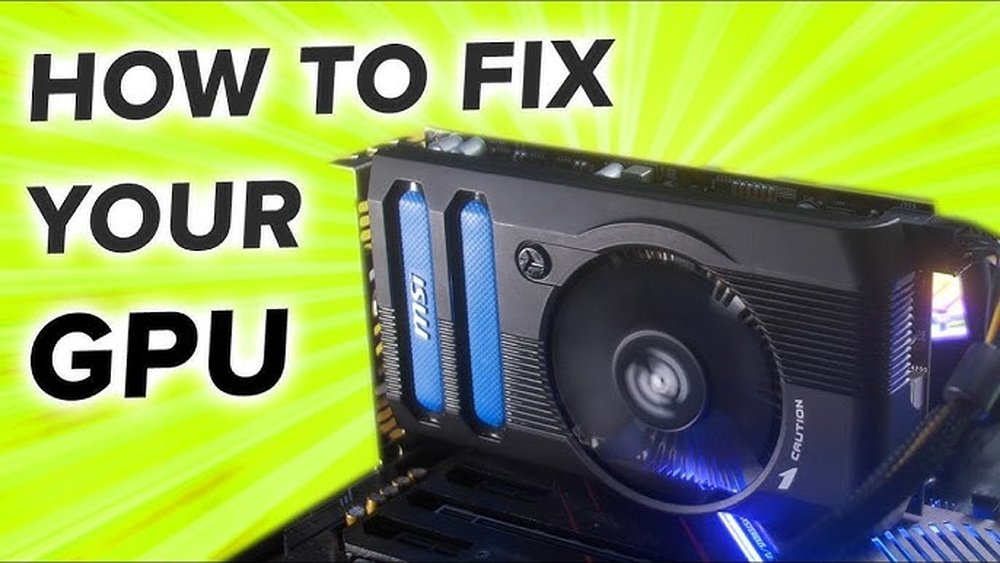
Is your GPU giving you trouble right when you need it most? Whether your screen is flickering, games are lagging, or your computer just won’t recognize the graphics card, these problems can be frustrating.
But don’t worry—you don’t have to be a tech expert to fix it. In this guide, you’ll discover simple, clear steps to identify and solve common GPU issues quickly. Keep reading, and you’ll get your graphics running smoothly again in no time.
Common Gpu Issues
GPUs can face several common problems that affect their performance and lifespan. These issues can cause your computer to crash, show errors, or run slower than usual. Understanding these problems helps in fixing them quickly.
Overheating Problems
Overheating is a frequent GPU issue. It happens when the cooling system fails or dust blocks the vents. High temperatures can cause the GPU to shut down or work poorly. Cleaning the fans and improving airflow can reduce heat. Using software to monitor temperature helps prevent damage.
Driver Conflicts
Driver conflicts cause many GPU troubles. Outdated or wrong drivers can lead to crashes or poor graphics. Installing the correct and latest drivers fixes these issues. Sometimes, uninstalling old drivers before updating is necessary. Keep drivers updated for smooth GPU operation.
Display Errors
Display errors appear as flickering, lines, or blank screens. These problems may come from loose cables or bad connections. Faulty drivers or hardware defects also cause display errors. Checking cables and updating drivers often solves the problem. Testing the GPU on another system can identify hardware faults.
Performance Drops
Performance drops reduce game and app quality. This issue can result from overheating, driver problems, or background tasks. Closing unnecessary programs frees up GPU power. Lowering graphics settings can improve performance. Regular maintenance and updates keep the GPU running well.

Credit: www.wikihow.com
Basic Troubleshooting Steps
Basic troubleshooting steps help fix many common GPU problems fast. These steps check simple issues that block your GPU from working right. Start with easy fixes before trying complex solutions. This saves time and avoids extra trouble.
Restarting The System
Restart your computer first. This closes all programs and resets the GPU. Many issues clear after a quick reboot. A fresh start often fixes small errors in the system.
Checking Physical Connections
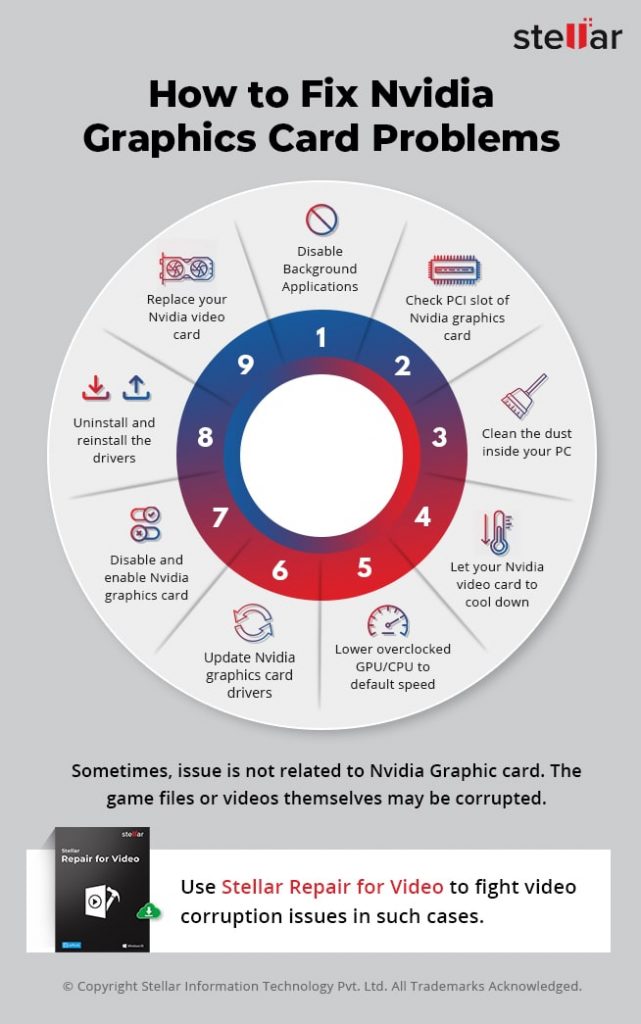
Turn off your PC and open the case. Check if the GPU is seated tightly in its slot. Look for loose or dusty cables. Clean any dust gently. Secure all power connectors to the GPU. Loose connections cause many hardware problems.
Updating Drivers
Drivers control how the GPU works with your system. Old drivers cause crashes and poor performance. Visit the GPU maker’s website for the latest drivers. Download and install updates carefully. Restart your computer after updating. Updated drivers improve stability and speed.
Fixing Overheating
Overheating is a common problem in GPUs. It causes slow performance and can damage the card. Fixing overheating helps your GPU run cooler and last longer. Simple steps can reduce heat and improve your PC’s health.
Cleaning Dust And Debris
Dust blocks air vents and fans on your GPU. It stops cool air from flowing. Turn off your PC and open the case carefully. Use a soft brush or compressed air to clean dust. Focus on fan blades and heat sinks. Clean regularly to keep your GPU cool.
Improving Airflow
Good airflow moves heat away from the GPU. Make sure cables inside your PC do not block air paths. Place your PC in a spot with open space around it. Add extra fans to push hot air out. Cooler air helps your GPU work better and last longer.
Replacing Thermal Paste
Thermal paste helps transfer heat from the GPU chip to the cooler. Over time, it dries out and loses its power. Remove the GPU cooler carefully to access the chip. Clean old paste with alcohol and a soft cloth. Apply a small amount of new thermal paste. This step lowers temperatures and improves cooling.
Credit: www.stellarinfo.com
Resolving Driver Issues
GPU problems often come from driver issues. Drivers connect your GPU to the computer. Old or faulty drivers cause crashes, poor performance, or display errors. Fixing driver problems can restore your GPU’s function quickly and safely.
Uninstalling Old Drivers
First, remove old GPU drivers fully. Use the device manager or a special tool like Display Driver Uninstaller (DDU). This tool cleans all driver files and registry entries. Removing old drivers prevents conflicts with new ones. Restart your computer after uninstalling to clear the system.
Installing Latest Drivers
Download the latest drivers from the official GPU maker’s website. Choose the correct model and operating system. New drivers have bug fixes and better support. Install the drivers carefully, following on-screen instructions. Restart the PC again to apply changes properly.
Using Driver Repair Tools
Driver repair tools scan your system for issues automatically. These tools find missing or corrupted drivers. They download and install fixes without much effort. Some popular tools include Driver Booster and Snappy Driver Installer. Use them for quick checks and easy repairs.
Addressing Display Problems
Display problems can make your GPU seem broken. Many times, the issue is simple and easy to fix. Start by checking basic parts connected to your display. This saves time and avoids unnecessary repairs.
Checking Monitor And Cables
Look at the monitor screen for cracks or damage. Make sure the power is on and the brightness is up. Check the cables connecting the GPU to the monitor. Loose or damaged cables cause no display or flickering. Try unplugging and plugging the cables again. Replace cables if you see visible wear or damage.
Adjusting Resolution Settings
Wrong resolution settings can cause blurry or no images. Open your computer’s display settings. Choose the recommended resolution for your monitor. If the screen looks strange, lower the resolution and check again. Correct settings help your GPU work well with your display.
Testing With Another Display
Connect your GPU to a different monitor or TV. This test tells if the problem is with your GPU or the original display. If the new screen works fine, the first monitor may be faulty. If the problem stays, the GPU or cables need more checks.
Boosting Gpu Performance
Boosting GPU performance can improve your computer’s speed and visuals. It helps games run smoother and software work faster. Small changes can make a big difference in how your GPU performs. Let’s explore easy ways to get more from your GPU.
Optimizing Game Settings
Adjust game settings to match your GPU’s power. Lowering resolution or turning off shadows can increase frame rates. Use presets like “medium” or “low” if you have an older GPU. Avoid running games at the highest settings if your GPU struggles. This reduces lag and keeps gameplay steady.
Overclocking Safely
Overclocking means making your GPU run faster than usual. It can boost performance but also raises heat and power use. Use reliable software designed for your GPU brand. Increase speed slowly and test stability each time. Watch temperatures closely to avoid damage. Stop if your system crashes or freezes.
Monitoring Gpu Usage
Keep track of how your GPU is working. Use tools like Task Manager or GPU-Z to see usage and temperature. High GPU usage means your card is busy. Low usage during games might signal a problem. Monitoring helps you spot issues early and keep performance steady.
When To Seek Professional Help
Knowing when to seek professional help for your GPU can save time and money. Some problems need expert tools and skills to fix. Trying to repair serious issues alone may cause more damage. Professionals can diagnose and solve hardware problems safely. They also know how to handle delicate parts and complex issues.
Signs Of Hardware Failure
Look out for unusual noises from the GPU fan. Random crashes or screen flickering can indicate trouble. Overheating despite clean fans is another warning sign. Artifacts or strange colors on the screen show possible hardware damage. If your PC does not recognize the GPU, the card might be faulty. These signs often mean the GPU needs professional repair or replacement.
Warranty And Repair Options
Check if your GPU is still under warranty before opening it. Manufacturers often offer free repairs within the warranty period. Authorized service centers can fix your GPU without voiding the warranty. Repair costs outside warranty can be high but are sometimes cheaper than replacement. Professionals can help you understand your warranty terms and repair choices. Always keep your purchase receipt and warranty documents safe.

Credit: www.youtube.com
Frequently Asked Questions
How Do I Know If My Gpu Is Faulty?
Check for graphical glitches, crashes, or slow performance. Use diagnostic tools to test GPU health and temperature. Faulty GPUs often cause screen artifacts or driver errors.
What Are Common Gpu Overheating Causes?
Dust buildup, poor ventilation, or failing fans cause overheating. Overheating can reduce GPU performance and lifespan. Regular cleaning and proper airflow help prevent this.
Can I Fix A Gpu Driver Issue Myself?
Yes, update or reinstall GPU drivers from the official website. Use device manager or dedicated software for clean installation. Driver fixes often resolve performance and compatibility problems.
How To Troubleshoot A Gpu Not Detected By Pc?
Ensure the GPU is properly seated in the PCIe slot. Check power connections and BIOS settings. Updating motherboard BIOS and reinstalling drivers may also help.
Conclusion
Fixing your GPU can save money and extend its life. Start with simple checks like cleaning dust and updating drivers. Test the card in another computer to find problems. Remember to handle parts carefully to avoid damage. If problems persist, seeking professional help is a smart choice.
Small steps make big differences. Keep your GPU cool and clean for best results. Taking care of it helps your computer run smoothly. Simple fixes often solve common GPU issues quickly. Don’t ignore warning signs; act early for better results.
