
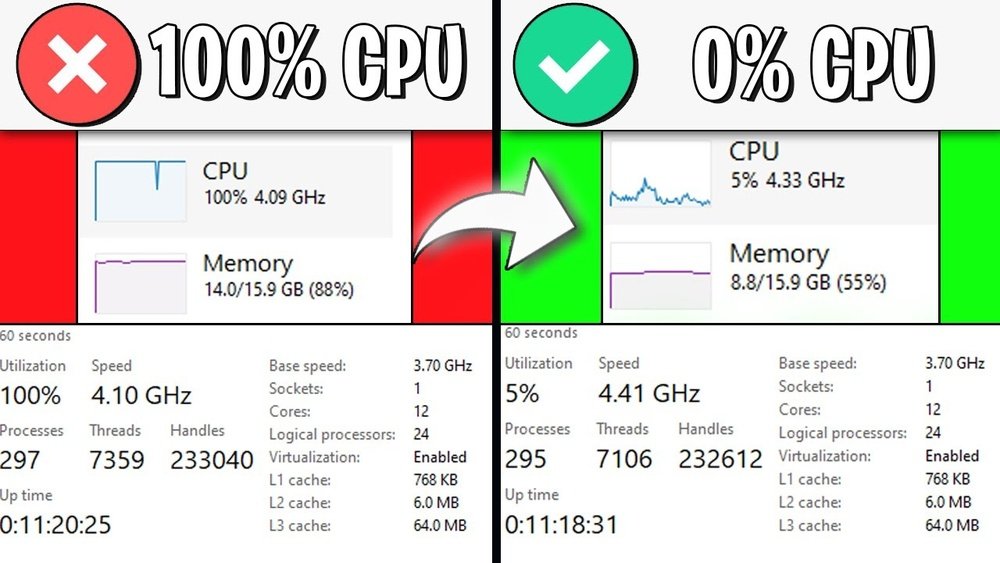
Is your computer slowing down, freezing, or overheating because your CPU usage is stuck at 100%? You’re not alone, and more importantly, you don’t have to live with it.
High CPU usage can make even simple tasks frustrating and affect your productivity. But here’s the good news: fixing this issue is easier than you think. You’ll discover clear, step-by-step solutions to bring your CPU back to normal and speed up your system.
Keep reading—your computer’s smooth performance is just around the corner.
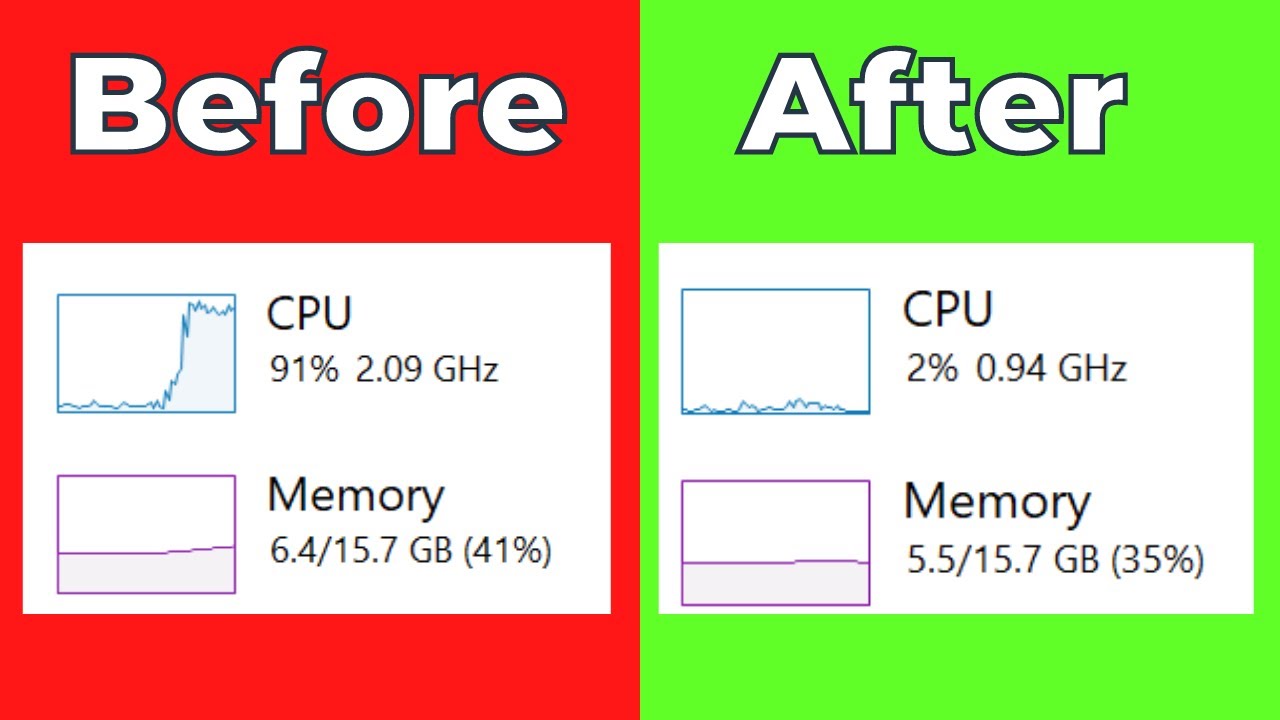
Credit: www.youtube.com
Causes Of High Cpu Usage
High CPU usage can slow down your computer. It makes tasks take longer and can cause freezing. Understanding why CPU usage hits 100% helps fix the problem. Several common causes lead to this issue. Identifying these can restore your system’s speed and efficiency.
Background Processes
Background processes run without your direct input. Many apps start tasks automatically. Some use a lot of CPU power silently. Too many of these processes can overload your CPU. Checking and managing these can reduce CPU load.
Malware And Viruses
Malware and viruses often cause high CPU usage. They run harmful tasks in the background. These tasks consume resources and slow down your device. Running a reliable antivirus scan is crucial. Removing threats helps bring CPU usage back to normal.
Software Bugs
Software bugs can cause programs to use too much CPU. Faulty code may create endless loops or errors. These bugs make the CPU work harder than needed. Updating or reinstalling software often fixes these problems.
Outdated Drivers
Drivers control how your hardware works with software. Outdated or corrupt drivers can cause CPU spikes. They may not handle tasks efficiently. Keeping drivers updated helps maintain smooth performance.
Startup Programs
Many programs start automatically when your computer boots. Some of these use high CPU resources. Too many startup programs slow down your system. Disabling unnecessary startup apps frees up CPU power.
Monitoring Cpu Usage
Monitoring CPU usage helps find causes of high CPU problems. It shows which programs use most of your processor power. Watching CPU activity helps stop 100% usage issues fast. It also improves your computer’s speed and performance.
Using Task Manager
Task Manager is built into Windows. Press Ctrl + Shift + Esc to open it. The Processes tab shows apps and background tasks. It lists CPU use for each process in real time. You can spot which program uses too much CPU. Ending or restarting that program can reduce CPU load.
Resource Monitor Tools
Resource Monitor provides detailed CPU data. Open it by typing “Resource Monitor” in the Start menu. The CPU tab shows active processes and services. It tracks CPU usage by each thread inside a program. This helps find hidden CPU problems. You can see which processes cause spikes or constant high usage.
Third-party Applications
Third-party apps offer advanced CPU monitoring features. Programs like HWMonitor or Process Explorer give more info. They show CPU temperature, core usage, and history charts. These tools help detect overheating or hardware issues. Use them if Task Manager or Resource Monitor is not enough.
Basic Fixes For High Cpu
High CPU usage can slow down your computer and make tasks frustrating. Basic fixes often resolve this issue quickly. These simple steps can help your PC run smoother and faster. Start with easy methods before trying complex solutions.
Restarting Your Pc
Restarting your computer clears temporary files and stops background tasks. This refreshes system resources and reduces CPU strain. A quick reboot can fix many performance problems fast. It is the first step to try for high CPU usage.
Closing Unnecessary Programs
Open Task Manager to see which programs use the most CPU. Close apps that are not needed at the moment. Running many programs at once causes high CPU load. Shutting down extra software frees up processing power.
Updating Software And Drivers
Outdated software or drivers can cause CPU issues. Check for updates for your operating system and programs. Updated drivers improve hardware performance and stability. Keeping everything current reduces the chance of high CPU use.
Managing Startup Programs
Managing startup programs is a key step to fix 100% CPU usage. Many applications start automatically when Windows boots. These programs run in the background and use CPU power. Reducing the number of startup programs helps lower CPU load. This makes your computer faster and more responsive.
Not all startup programs are necessary. Some are useful, like antivirus software. Others are not needed all the time. Disabling unwanted startup items frees up CPU resources. You can also optimize the startup impact of programs. This means setting them to use less CPU during startup.
Disabling Unwanted Startup Items
Open Task Manager by pressing Ctrl + Shift + Esc. Click the Startup tab to see all startup programs. Look for programs you do not need at startup. Right-click on the unwanted program and select Disable. This stops the program from running automatically. Your CPU will have less work during boot.
Be careful not to disable important programs. Keep security software and drivers enabled. Disable only those you recognize and do not need immediately. This simple step can reduce CPU spikes at startup.
Optimizing Startup Impact
Some programs use more CPU than others during startup. Task Manager shows the startup impact for each program. Look for programs with High startup impact. Consider disabling or delaying these programs. Delaying means starting them after the system boots.
Windows does not have a built-in delay option. Use third-party tools like Startup Delayer to set delays. This spreads CPU usage over time, avoiding 100% spikes. Optimizing startup impact improves boot speed. It also lowers CPU usage during the first minutes of using your PC.
Scanning For Malware
High CPU usage can be caused by malware running in the background. Malware uses your computer’s resources, making it slow and unresponsive. Scanning for malware helps find and remove harmful software. This can lower CPU usage and improve your PC’s performance.
Using Windows Defender
Windows Defender is built into Windows 10 and 11. It protects your PC from viruses and malware for free. To scan your computer, open Windows Security from the Start menu. Click on “Virus & threat protection.”
Select “Quick scan” to check common areas for malware. For a deeper scan, choose “Full scan.” The full scan takes longer but checks all files. After the scan, Windows Defender shows any threats found. Follow the prompts to remove or quarantine malware.
Third-party Antivirus Options
Many third-party antivirus programs offer strong malware protection. Some popular options include Avast, Bitdefender, and Kaspersky. Download and install the antivirus from its official website.
Open the antivirus program and run a full system scan. These scans check every file and program for threats. Follow the instructions to remove any malware detected. Regular scans keep your computer safe and CPU usage low.

Credit: www.avg.com
Adjusting System Settings
Adjusting system settings can help reduce high CPU usage. Simple changes improve performance and lower CPU load. These tweaks make your computer run smoother. Let’s explore key settings that matter.
Power Plan Optimization
Choose the right power plan for your PC. Balanced or High Performance plans keep the CPU active. Select these in Control Panel under Power Options. Avoid Power Saver mode as it slows the CPU. Optimized plans help the system manage power smartly. This reduces unnecessary CPU stress and usage.
Disabling Superfetch And Windows Search
Superfetch and Windows Search can cause high CPU use. These services run in the background to speed up tasks. Sometimes, they use too much CPU power. Disable them using the Services app. Find “Superfetch” and “Windows Search” in the list. Right-click, then choose Stop. Set their startup type to Disabled. This frees up CPU resources for other tasks.
Managing Background Apps
Background apps drain CPU without you knowing. Many apps run automatically after startup. Stop unnecessary apps from running in the background. Open Settings, go to Privacy, then Background Apps. Turn off apps you don’t need running all the time. This lowers CPU load and speeds up your PC. Keep only essential apps active.
Advanced Troubleshooting
Advanced troubleshooting helps fix high CPU usage beyond basic steps. It dives deeper into system settings and software interactions. This approach targets hidden issues that cause the CPU to work too hard. These methods need careful attention but can greatly improve performance.
Checking For Software Conflicts
Some programs may clash and use too much CPU. Identifying these conflicts can reduce the load. Use Task Manager to spot apps consuming high CPU. Close them one by one to see if usage drops. Also, check recently installed software as a cause. Disabling or uninstalling problematic apps helps restore normal CPU use.
Performing Clean Boot
Clean boot starts Windows with minimal programs and drivers. This process isolates software causing CPU spikes. To do this, open System Configuration and disable startup items. Restart your PC and watch CPU usage. If usage drops, enable items one at a time. This finds the exact software causing the problem.
Updating Bios And Firmware
Outdated BIOS or firmware can create CPU issues. Check your motherboard or laptop manufacturer’s website for updates. Follow instructions carefully to update the BIOS. Updated firmware improves hardware compatibility and system stability. This often fixes high CPU usage caused by hardware conflicts.
Hardware Considerations
Hardware plays a big role in how your CPU works. Sometimes high CPU usage means your hardware struggles to keep up. Checking hardware can help find the real problem. This way, you can fix the issue more easily.
Checking Cpu Cooling
Heat affects CPU performance a lot. If your CPU gets too hot, it slows down or uses more power. Check the cooling system first. Make sure fans run well and air flows freely.
Clean dust from fans and vents often. Dust blocks airflow and traps heat. Replace old thermal paste on the CPU if it dried out. This paste helps move heat from the CPU to the cooler.
Good cooling keeps your CPU working smoothly. It stops overheating and high usage problems.
Upgrading Hardware Components
Old or weak hardware can cause CPU spikes. Upgrading parts can reduce CPU load. Start with the RAM. More RAM means the CPU does not work hard on memory tasks.
Consider upgrading the CPU if it is outdated. New CPUs handle tasks faster and use energy better. A better motherboard can also help support newer parts.
Fast storage like SSDs reduces CPU wait times. This upgrade lets your system run faster and smoother.
Maintaining Long-term Performance
Maintaining long-term performance is key to preventing high CPU usage problems. A well-maintained system runs smoothly and avoids frequent slowdowns. Simple habits can keep your CPU healthy for years. Regular care helps your computer handle tasks efficiently without overheating or lagging.
Regular System Maintenance
Clean your computer regularly. Remove dust from fans and vents. Dust blocks airflow and causes overheating. Overheating makes the CPU work harder and slow down. Restart your computer often to clear temporary files. Delete unused programs to free up resources. Check for disk errors and fix them. These actions keep your system stable and fast.
Keeping Software Updated
Update your operating system and applications regularly. Updates fix bugs that can cause high CPU use. They improve compatibility and security. Use automatic updates if possible. Outdated software can make your CPU work overtime. New versions often use less CPU power. Keep drivers updated for better hardware performance.
Routine Malware Scans
Run malware scans regularly with trusted antivirus software. Malware can cause 100% CPU usage by running hidden processes. Scans detect and remove harmful software quickly. Schedule scans weekly or monthly depending on your use. Avoid downloading files from untrusted sources. Clean systems have better CPU performance and stability.
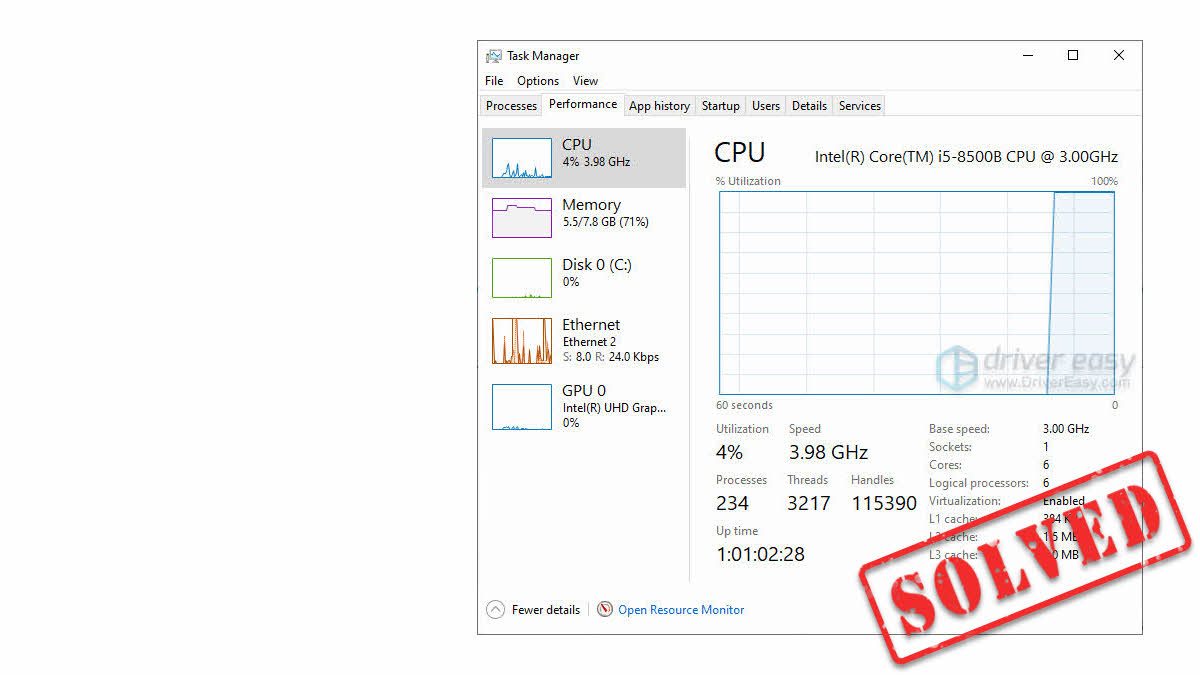
Credit: www.drivereasy.com
Frequently Asked Questions
Why Is My Cpu Usage At 100% All The Time?
High CPU usage often happens due to background programs, malware, or system processes. It can slow your PC and cause overheating. Identifying and closing unnecessary apps or scanning for malware helps reduce CPU load and improve system performance.
How Can I Check Which Process Uses Cpu Most?
Open Task Manager by pressing Ctrl + Shift + Esc. Click the “Processes” tab and sort by CPU usage. This shows which apps or processes consume the most CPU, helping you identify resource-heavy programs to close or troubleshoot.
Will Updating Drivers Reduce Cpu Usage?
Yes, outdated drivers can cause high CPU usage. Updating your device drivers ensures better compatibility and performance. It can fix bugs, reduce system errors, and optimize CPU efficiency, lowering overall usage and preventing overheating.
Can Malware Cause 100% Cpu Usage?
Absolutely. Malware often runs hidden processes that consume CPU resources. Running a full system scan with trusted antivirus software can detect and remove malware, which helps reduce CPU usage and protects your system’s health and security.
Conclusion
Fixing 100% CPU usage is possible with simple steps. Check your programs and close those using too much power. Keep your system updated to avoid bugs. Scan for viruses that slow your PC. Clean startup items to speed up boot time.
Monitor CPU usage regularly to catch issues early. Stay patient and try each fix one by one. Your computer will run smoother and faster soon. Small changes can make a big difference in performance. Keep your PC healthy for better work and play.
