
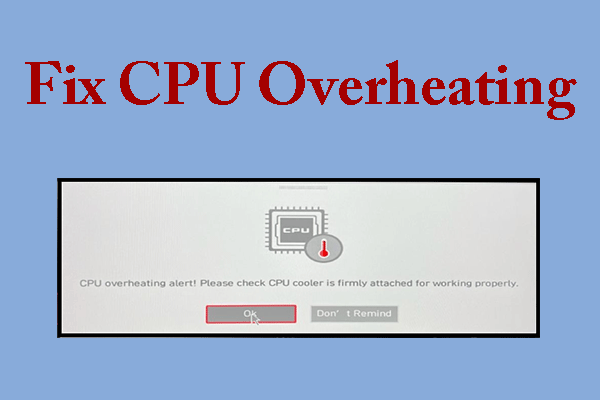
Is your computer suddenly running hot and slowing down? CPU overheating can cause serious problems if not fixed quickly.
You might feel frustrated, but don’t worry—this guide will help you cool things down fast. By the end, you’ll know simple and effective ways to stop your CPU from getting too hot. Keep reading, and take control of your computer’s health today.
Credit: nabcooling.com
Causes Of Cpu Overheating
CPU overheating happens when the processor gets too hot. This heat can slow down your computer or even damage it. Understanding the causes of CPU overheating helps prevent these problems. Several common reasons can make your CPU temperature rise quickly.
Poor Airflow
Airflow inside the computer case moves hot air away from the CPU. Poor airflow traps heat near the processor. This can happen if fans are not working well or if cables block the air. Good airflow keeps the CPU cool and running smoothly.
Dust Buildup
Dust collects inside the computer over time. It covers fans and vents, reducing their ability to cool. Dust also acts like a blanket, trapping heat inside. Cleaning dust regularly helps maintain proper cooling for the CPU.
Faulty Cooling System
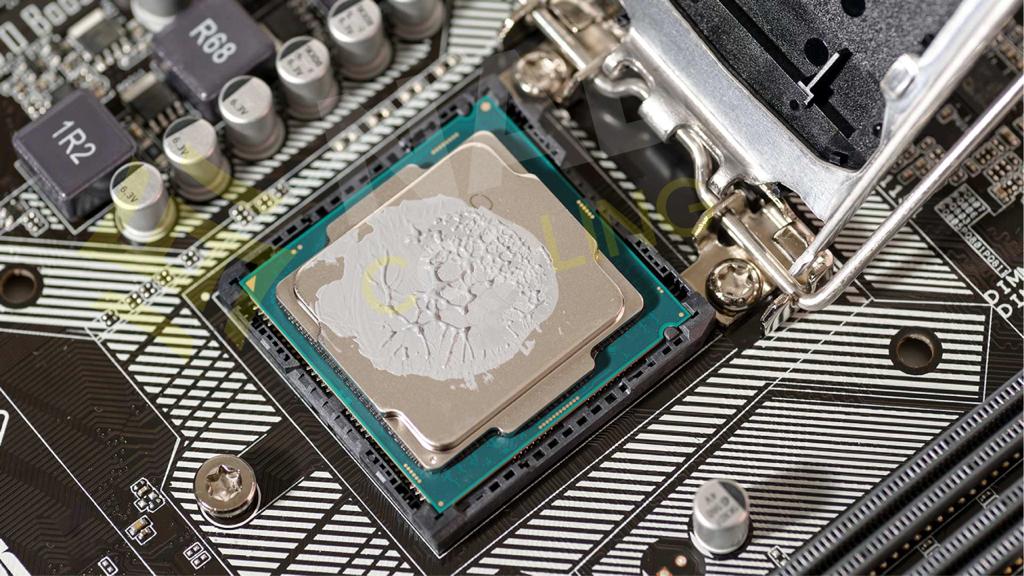
The cooling system includes fans, heat sinks, and sometimes liquid cooling. If any part stops working, the CPU can overheat fast. Broken fans or dried-up thermal paste cause poor heat transfer. Checking the cooling system ensures the CPU stays cool.
High Ambient Temperature
Hot rooms or places with poor ventilation raise the computer’s temperature. The CPU has to work harder to cool down in warm surroundings. Keeping the computer in a cool, well-ventilated area reduces overheating risk.
Overclocking Risks
Overclocking pushes the CPU to run faster than designed. This creates more heat than normal. Without proper cooling, overclocking can cause serious overheating. It is important to balance performance with safe temperatures.
Signs Of An Overheating Cpu
Recognizing the signs of an overheating CPU helps protect your computer. Overheating can harm your hardware and slow down performance. Early detection keeps your system running smoothly. Watch for these common symptoms.
Unexpected Shutdowns
Your computer may turn off without warning. This happens to stop damage from heat. Sudden shutdowns often mean the CPU is too hot. Pay attention to this sign to avoid data loss.
System Slowdowns
Programs and files open slower than usual. The CPU reduces speed to cool down. This drop in performance is a clear warning. Slow responses often point to heat problems inside.
High Fan Noise
The computer’s fans spin loudly and constantly. Fans work harder to cool the CPU. Loud fan noise signals that the system is too hot. Listen carefully to notice changes in sound.
Thermal Throttling
The CPU lowers its clock speed automatically. This protects the processor from overheating damage. Thermal throttling causes lag and poor performance. It is a direct result of high temperatures.
Basic Cooling Solutions
Basic cooling solutions help stop CPU overheating fast. These steps improve airflow and heat transfer. They keep your computer running cool and safe. Simple fixes often solve the problem without extra cost or tools.
Cleaning Dust And Debris
Dust blocks air vents and fan blades. It traps heat inside the computer case. Use a soft brush or compressed air to clean dust. Focus on fans, vents, and heatsinks. Regular cleaning keeps airflow strong and steady.
Reapplying Thermal Paste
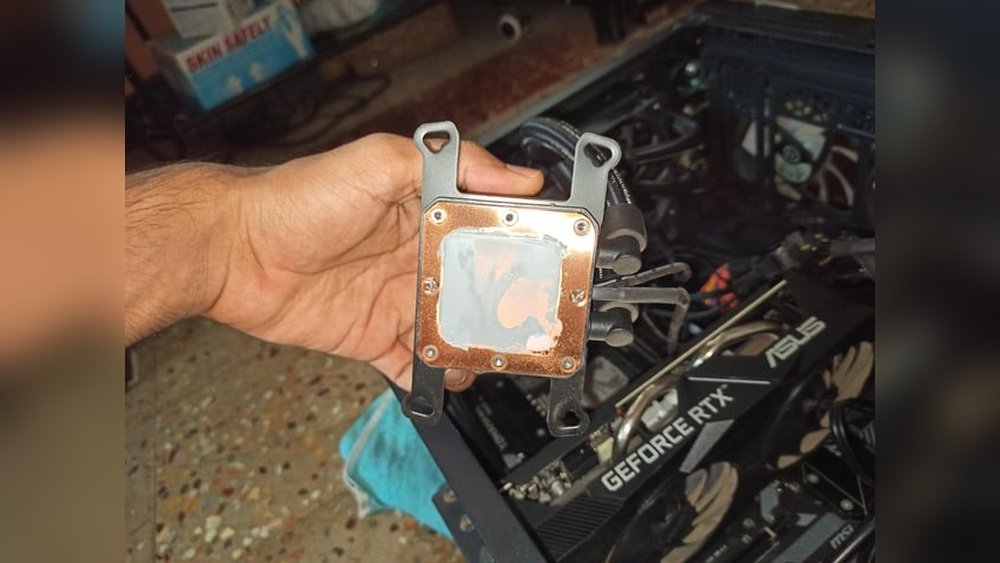
Thermal paste helps heat move from the CPU to the cooler. Old paste dries out and loses effectiveness. Remove the old paste with alcohol and a soft cloth. Apply a thin, even layer of new thermal paste. This improves heat transfer and lowers CPU temperature.
Improving Case Ventilation
Good airflow inside the computer case cools the CPU better. Add extra fans or reposition existing ones to create a clear air path. Keep cables neat to avoid blocking airflow. Choose a case with good ventilation for better cooling.
Credit: www.partitionwizard.com
Upgrading Cooling Components
Upgrading cooling components is a key step to stop CPU overheating. Better cooling parts help your computer stay cool and run smoothly. Simple upgrades can lower temperatures and improve performance.
Installing Better Cpu Coolers
Stock CPU coolers may not cool well enough. A better CPU cooler moves heat away faster. Look for coolers with larger heat sinks and stronger fans. They keep the CPU temperature lower under load. This change helps your CPU last longer.
Adding Case Fans
Case fans push hot air out and pull cool air in. Adding more fans improves airflow inside the case. Place fans at the front to bring air in. Put fans at the back or top to push air out. Good airflow lowers overall system temperature.
Using Liquid Cooling Systems
Liquid cooling uses water to carry heat away from the CPU. It is often quieter and more effective than air cooling. Liquid cooling suits computers that run very hot or do heavy tasks. It requires more care but keeps CPUs cool for longer.
Software And Bios Tweaks
Software and BIOS tweaks can help reduce CPU overheating. These changes control how your CPU runs and cools down. They do not cost money and are easy to try.
Adjusting settings inside your computer can lower CPU temperature. It helps your computer run cooler and last longer. You can check your CPU heat, control fans, and reset settings to fix overheating.
Monitoring Cpu Temperature
Use software to watch CPU temperature in real-time. Programs like HWMonitor or Core Temp are simple and free. They show your CPU heat levels and alert you if it gets too hot. Regular checks help you act before damage happens.
Adjusting Fan Speeds
Fans cool your CPU by moving air inside your case. Software or BIOS lets you change fan speeds. Increasing fan speed lowers temperature quickly. Find fan control in BIOS or use apps like SpeedFan. Keep fans clean for best airflow.
Resetting Bios Settings
Sometimes, wrong BIOS settings cause overheating. Reset BIOS to default to fix this. Enter BIOS during startup and choose “Load Defaults” or “Reset to Default.” This clears bad settings and restores safe CPU operation. After reset, monitor temperature to see improvement.
Credit: www.cgdirector.com
Preventive Measures For Long-term Cooling
Keeping your CPU cool for a long time needs regular care and smart habits. Preventive measures stop overheating before it starts. They help your computer run well and last longer.
Small steps taken every day can protect your CPU from heat damage. Focus on cleaning, correct placement, and safe settings. These actions keep your PC safe and cool.
Regular Maintenance Schedule
Clean dust from fans and vents often. Dust blocks airflow and traps heat inside. Use a soft brush or compressed air to clear dirt. Check thermal paste on the CPU every year. Old paste dries out and loses its cooling power. Replace it to keep heat moving away from the chip.
Optimizing Pc Placement
Place your computer in a cool, open area. Avoid tight spaces like closed cabinets or near heat sources. Good airflow around the PC helps heat escape. Keep it away from direct sunlight or heaters. Elevate the case slightly to improve bottom airflow. These small changes reduce the temperature inside the computer.
Avoiding Overclocking
Overclocking makes the CPU run faster but hotter. It pushes your processor beyond safe limits. This increases heat and can cause damage over time. Stick to the manufacturer’s recommended CPU speed. This keeps the system stable and cool. Save overclocking for experts with good cooling setups.
Frequently Asked Questions
What Causes Cpu Overheating In Computers?
CPU overheating often results from poor ventilation, dust buildup, or failing cooling systems. High workload or overclocking also raises temperatures. Ensuring clean fans and proper thermal paste helps prevent overheating and maintains system stability.
How Can I Check If My Cpu Is Overheating?
Use software like HWMonitor or Core Temp to monitor CPU temperatures. Check readings during idle and heavy tasks. Temperatures consistently above 80°C indicate overheating, signaling the need for cooling improvements or hardware inspection.
What Are The Best Ways To Cool An Overheating Cpu?
Improve airflow by cleaning dust from fans and vents. Apply fresh thermal paste between the CPU and heatsink. Use high-quality cooling solutions like aftermarket air coolers or liquid cooling systems for better heat dissipation.
Can Overheating Damage My Cpu Permanently?
Yes, prolonged overheating can damage the CPU and reduce its lifespan. It may cause system crashes, slow performance, or permanent hardware failure. Address overheating issues promptly to protect your computer and maintain optimal function.
Conclusion
Keeping your CPU cool helps your computer run better and last longer. Clean dust from fans and vents often. Use good thermal paste for better heat transfer. Make sure your computer sits in a cool, open space. Check your fan speeds and replace broken fans quickly.
These simple steps stop overheating and protect your device. Stay alert to any signs of heat issues. A cool CPU means a happy, fast computer.
