
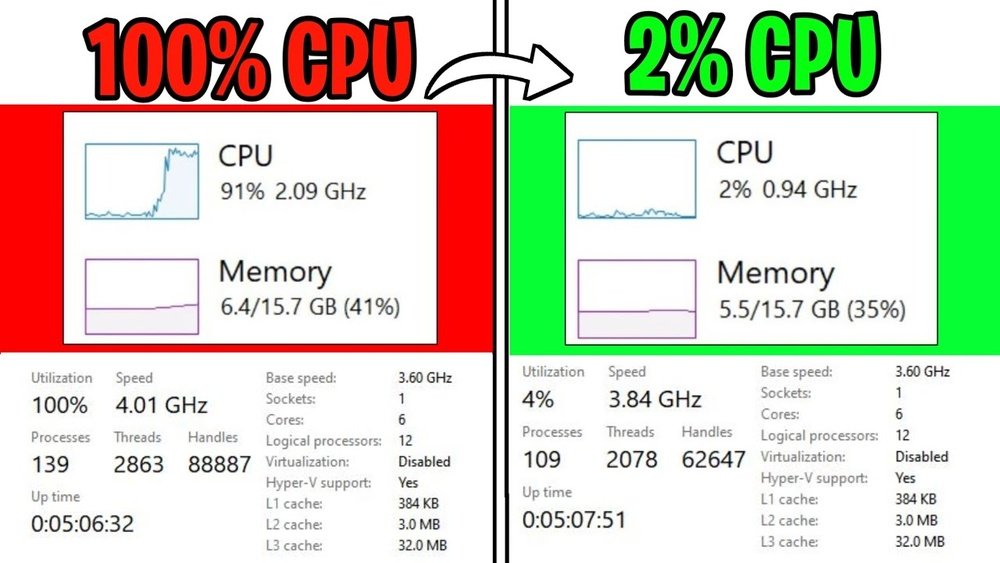
Is your computer feeling slow, even when you’ve upgraded other parts? You might be dealing with a CPU bottleneck.
This hidden issue can hold back your entire system, making your games lag or your programs crawl. But don’t worry—you’re about to discover simple, effective ways to fix it. Keep reading, and you’ll learn how to unlock your PC’s true power and get the smooth performance you deserve.
Credit: www.partitionwizard.com
Identifying Cpu Bottleneck
Identifying a CPU bottleneck is the first step to improving your computer’s performance. It means your processor is working harder than it should. This slows down your whole system. Recognizing the signs helps you decide what needs fixing. Simple checks can reveal if the CPU limits your PC’s speed.
Signs Of Cpu Bottleneck
One common sign is low frame rates in games. The graphics card may be strong, but the CPU holds it back. Another sign is high CPU usage during tasks, but low GPU usage. Your system might freeze or stutter when running multiple programs. Slow loading times and delayed responses also hint at CPU limits.
Using Performance Monitoring Tools
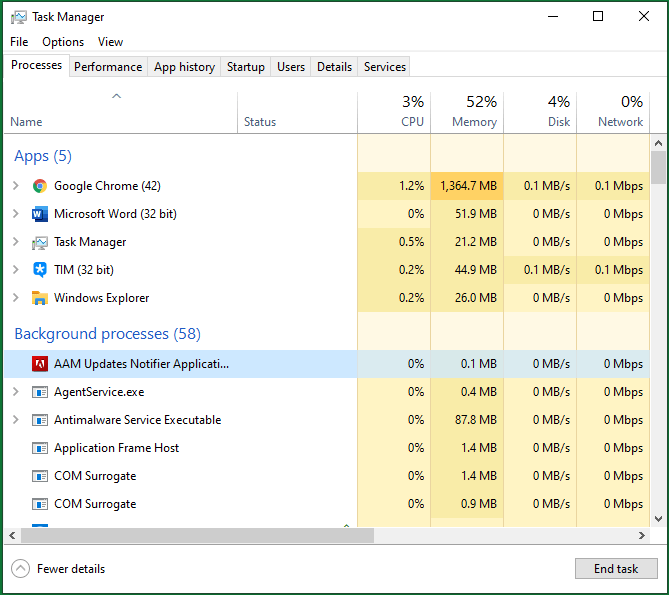
Tools like Task Manager or Resource Monitor show CPU load in real time. They help you see if the CPU is at 100% while other parts are idle. Programs such as MSI Afterburner or HWMonitor give detailed reports. These tools track CPU temperature and usage. Monitoring helps pinpoint if the CPU is a bottleneck.
Comparing Cpu And Gpu Usage
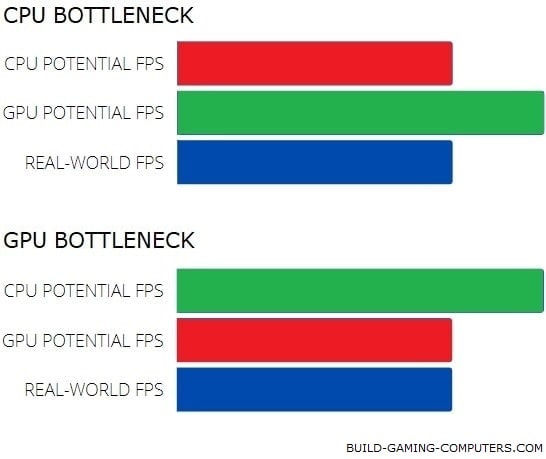
Check CPU and GPU usage during heavy tasks. If CPU usage is near 100% and GPU usage is low, the CPU is the bottleneck. Balanced usage means no bottleneck exists. Using both tools together gives a clear picture. This comparison shows if the processor or graphics card limits performance.
Common Causes Of Bottlenecks
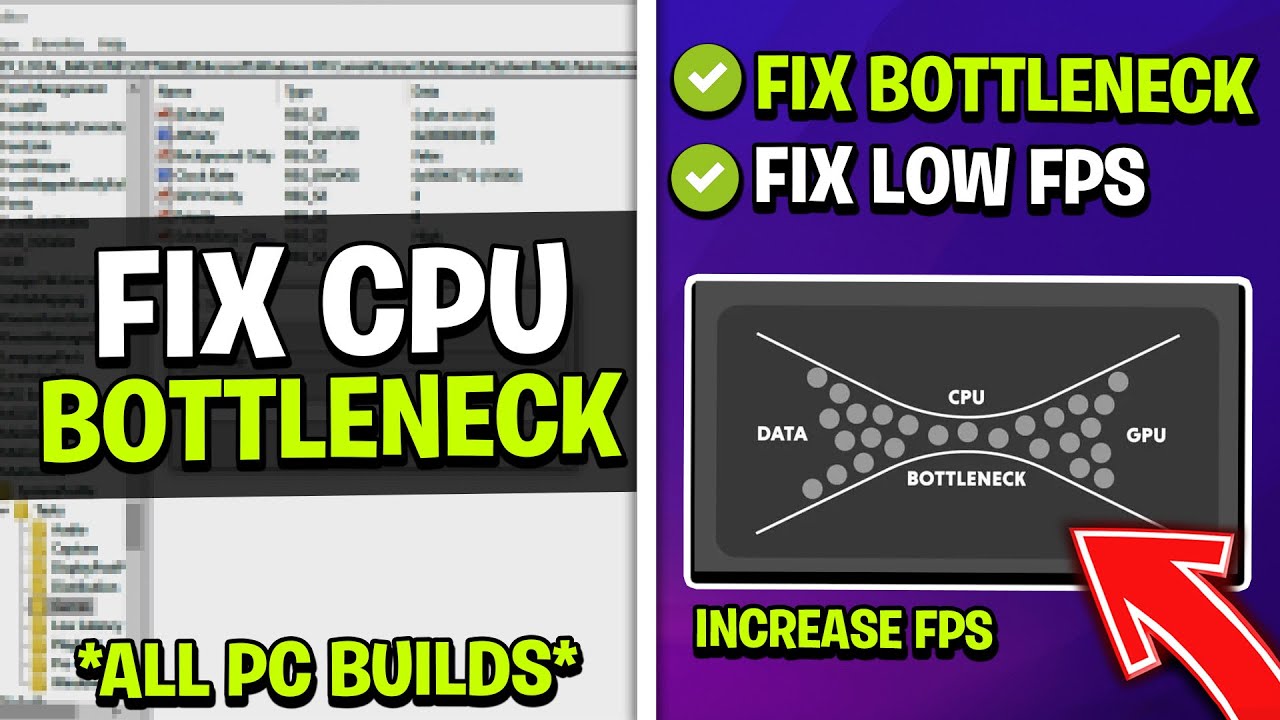
CPU bottlenecks happen when the processor limits the performance of your computer. Many factors cause these slowdowns. Understanding these causes helps fix the problem faster.
Outdated Cpu Architecture
Older CPUs use older designs. These designs do not handle new software well. They process tasks slower than modern CPUs. This mismatch slows down your system.
New software asks for more power and speed. An outdated CPU cannot keep up with these demands. It creates a bottleneck by delaying tasks.
Insufficient Core Count
Modern programs use many cores to run smoothly. A CPU with fewer cores struggles with heavy tasks. It queues jobs, causing delays.
More cores mean better multitasking. Without enough cores, the CPU becomes a traffic jam for data.
Thermal Throttling Issues
When a CPU gets too hot, it slows down. This is thermal throttling. It protects the CPU from damage.
Poor cooling or dust buildup causes overheating. The CPU reduces speed to cool down. This drop in speed causes bottlenecks.
Optimizing Software Settings
Optimizing software settings can ease CPU bottlenecks and improve your system’s performance. Small changes in settings help your CPU handle tasks better. This can make games and apps run smoother. It also lowers the chance of your CPU slowing down due to too much work. Focus on adjusting settings, managing processes, and keeping software updated.
Adjusting Game And Application Settings
Lowering game graphics can reduce CPU load. Turn off extra effects like shadows or reflections. Set resolution to a level your CPU can handle. Close in-game features that use more CPU power. Adjusting these settings helps balance work between CPU and GPU. It makes your system faster and more stable.
Managing Background Processes
Background apps use CPU without you knowing. Close programs running in the background that you don’t need. Use Task Manager to see what uses CPU most. Disable startup apps that slow your system. This frees CPU power for your main tasks. It stops unnecessary slowdowns and improves speed.
Updating Drivers And Software
Old drivers can cause CPU bottlenecks. Update your CPU, GPU, and motherboard drivers regularly. Software updates fix bugs that affect performance. Check for updates from official websites or tools. Updated drivers make hardware work better with software. This keeps your system running smoothly and fast.
Hardware Upgrades To Consider
Hardware upgrades play a key role in fixing a CPU bottleneck. Choosing the right parts helps your system run smoother and faster. Focus on components that balance your setup and reduce lag.
Choosing A Better Cpu
A stronger CPU can process tasks faster and reduce delays. Look for a model with more cores and higher clock speed. Make sure the new CPU fits your motherboard socket. Also, check for compatibility with your current RAM and GPU.
Upgrading Ram And Storage
More RAM helps your system handle multiple tasks without slowing down. Increase the amount and speed of your memory for better performance. Switching to a solid-state drive (SSD) speeds up data access. SSDs load programs and files quicker than traditional hard drives.
Improving Cooling Solutions
Good cooling keeps your CPU from overheating and slowing down. Install better fans or a liquid cooling system to lower temperatures. Clean dust from vents and heatsinks regularly. Cooler hardware runs more efficiently and lasts longer.
Overclocking For Extra Performance
Overclocking can boost your CPU speed beyond its default settings. It helps reduce CPU bottleneck by increasing processing power. This process pushes your CPU to work faster, improving overall performance.
Overclocking requires careful steps to avoid damage. Knowing the basics and using the right tools keeps your system safe. Here is what you need to understand about overclocking for extra performance.
Basics Of Overclocking
Overclocking means increasing the CPU’s clock speed. The clock speed tells how fast the CPU processes data. Higher clock speeds make the CPU handle tasks faster.
You can change settings in the BIOS or use software programs. Start with small speed increases. Test the system for stability after each change.
Risks And Precautions
Overclocking can cause your CPU to run hotter. Heat may damage the CPU if not controlled. It can also reduce the CPU’s lifespan.
Use good cooling systems like fans or liquid coolers. Monitor temperatures closely during overclocking. Stop if the system crashes or shows errors.
Tools For Safe Overclocking
Several tools help manage overclocking safely. CPU-Z shows your CPU details and current speed. HWMonitor tracks temperature and voltage levels.
Prime95 tests system stability under heavy load. MSI Afterburner helps adjust clock speeds and monitor changes. These tools keep your overclocking process safe and effective.
Credit: www.youtube.com
Balancing System Components
Balancing system components is key to fixing a CPU bottleneck. The CPU works best when paired with the right parts. Poor balance causes slowdowns and limits performance.
Choosing compatible parts helps the system run smoothly. Each component should match the CPU’s speed and power. This balance reduces lag and improves overall speed.
Ensuring Compatibility
Check that the motherboard supports your CPU model. Use RAM that fits the motherboard and runs at the right speed. Avoid mixing old and new parts that may cause conflicts. A compatible system prevents bottlenecks and boosts efficiency.
Avoiding Gpu Bottlenecks
Pick a graphics card that matches your CPU power. Too weak a GPU limits graphics performance. Too strong a GPU can overwork the CPU. Balance both to keep games and apps running well.
Optimizing Power Supply
Use a power supply with enough wattage for all parts. Insufficient power can reduce CPU speed and cause crashes. Choose reliable brands to protect your system. Proper power keeps components stable and prevents bottlenecks.
Regular Maintenance Tips
Keeping your CPU running smoothly requires regular maintenance. Small tasks can prevent big problems like CPU bottlenecks. These simple steps help your system perform better and last longer.
Cleaning Dust And Debris
Dust blocks airflow and causes the CPU to overheat. Overheating slows down your processor and leads to bottlenecks. Use a soft brush or compressed air to remove dust from fans and vents. Clean your computer every few months for the best results. Always turn off your PC before cleaning to avoid damage.
Monitoring System Temperatures
High temperatures harm your CPU speed. Use free software to check your CPU’s temperature. Keep the temperature below 80 degrees Celsius for safe operation. If your CPU gets too hot, it will slow down to cool itself. Monitoring helps catch problems before they affect performance.
Performing System Updates
Software updates fix bugs and improve system efficiency. Update your operating system and drivers regularly. New updates often include better CPU management. Ignoring updates can cause slowdowns and bottlenecks. Set your system to update automatically for convenience.
Credit: www.build-gaming-computers.com
Frequently Asked Questions
What Causes A Cpu Bottleneck In Gaming Pcs?
A CPU bottleneck happens when the processor is slower than the GPU. It limits overall system performance. This causes frame drops and lag in games. Upgrading the CPU or optimizing settings can fix it.
How Can I Identify A Cpu Bottleneck?
Use monitoring tools like MSI Afterburner to check CPU and GPU usage. If CPU usage is constantly at 100% while GPU is low, a bottleneck exists. This helps decide if you need hardware or software fixes.
Does Upgrading My Cpu Always Fix Bottlenecks?
Upgrading the CPU often helps but depends on your system balance. Ensure your new CPU matches your GPU’s capability. Sometimes, optimizing software or lowering settings can also reduce bottlenecks effectively.
Can Adjusting Game Settings Reduce Cpu Bottlenecks?
Yes, lowering CPU-intensive settings like draw distance or shadows can ease the bottleneck. This reduces the CPU load, improving game smoothness. It’s a quick fix before hardware upgrades.
Conclusion
Fixing a CPU bottleneck improves your computer’s speed and performance. Start by checking your CPU usage during tasks. Upgrade your CPU or adjust settings to balance the load. Sometimes, lowering graphics settings helps reduce strain. Keep your system drivers and software updated for best results.
Small changes can make a big difference in how smoothly your PC runs. Stay patient and test after each fix to find what works best. Your computer will feel faster and more responsive with these steps.
