
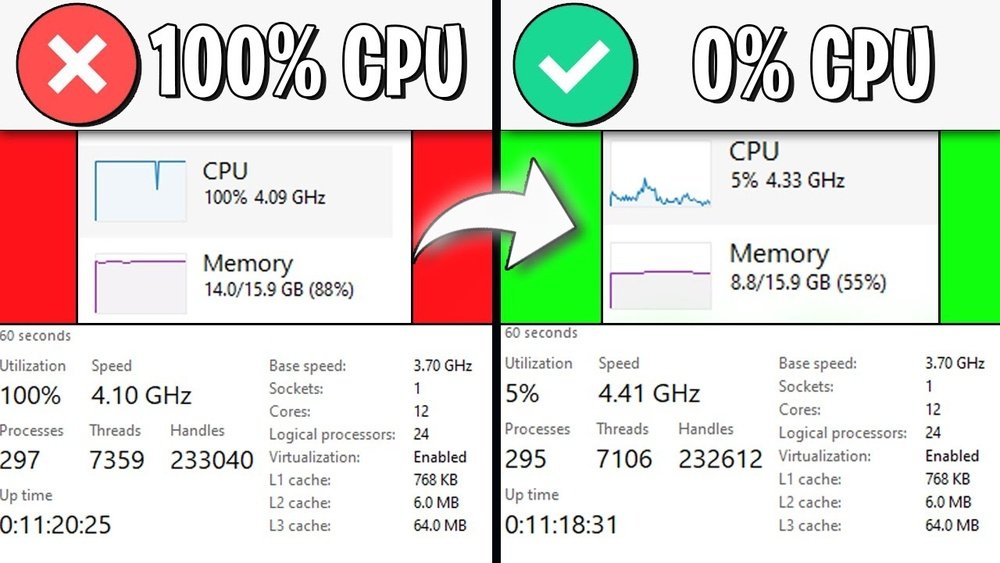
Is your computer suddenly running slow or freezing? You might be facing the dreaded 100% CPU usage problem.
When your CPU is maxed out, everything feels sluggish, and getting work done becomes frustrating. But don’t worry—you can fix this. You’ll discover simple and effective steps to identify what’s causing your CPU to overwork and how to bring it back to normal.
Stick with me, and you’ll have your computer running smoothly again in no time.
Credit: www.youtube.com
Causes Of High Cpu Usage
High CPU usage can slow down your computer and cause it to freeze. Knowing what causes this issue helps you fix it quickly. Many things can push your CPU to work at full capacity. Some are easy to spot, others need a closer look.
Background Processes
Background processes run without your direct control. They use CPU power quietly while you work. Sometimes, many apps run in the background. This overloads the CPU and makes your system slow. Checking and stopping unnecessary background tasks can help.
Malware And Viruses
Malware and viruses harm your computer in many ways. They often use your CPU to spread or steal data. This increases CPU usage without your knowledge. Running a virus scan regularly can catch these threats early.
Software Bugs
Software bugs are errors in programs. They can cause apps to use too much CPU. Some bugs create endless loops, making the CPU work nonstop. Updating or reinstalling software often fixes these bugs.
Hardware Limitations
Old or weak hardware struggles with new software. Limited CPU power can lead to constant high usage. Upgrading your hardware or adjusting settings can reduce the load. This keeps your computer running smoothly.
Credit: www.drivereasy.com
Monitoring Cpu Usage
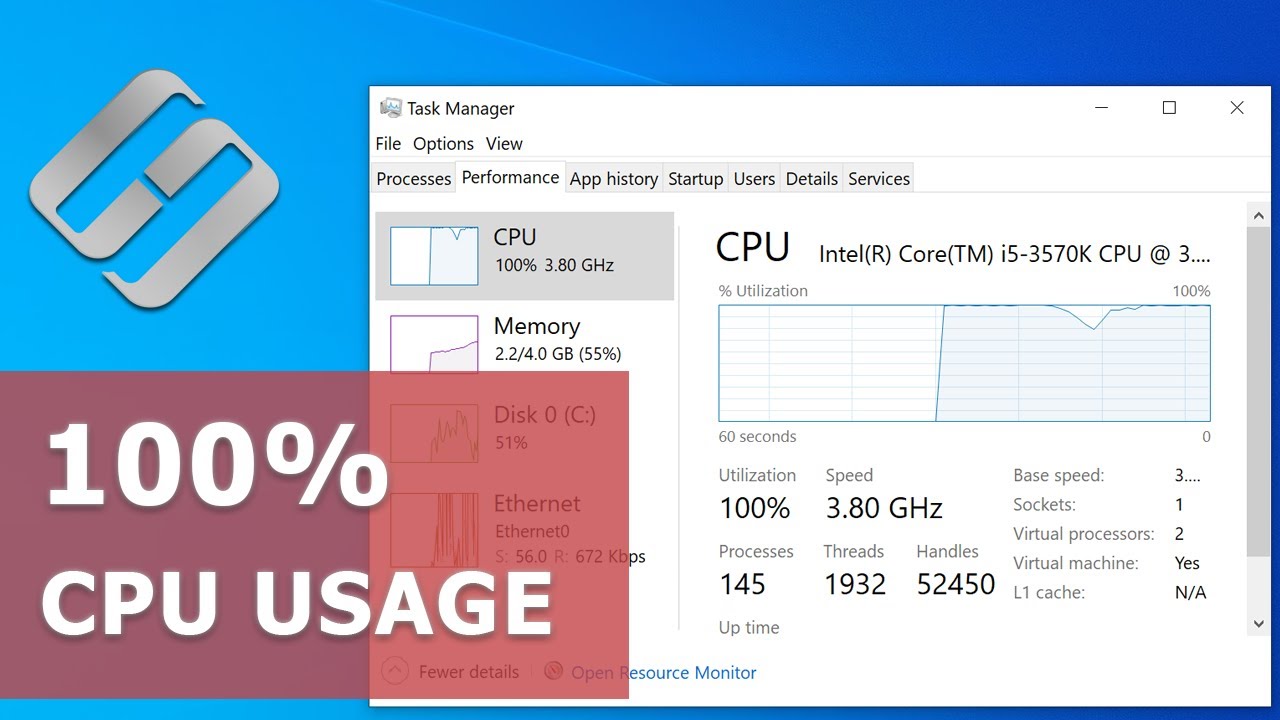
Monitoring CPU usage helps find why your computer slows down. High CPU use means your processor works too hard. It can cause your system to freeze or run slowly. Watching CPU activity lets you spot problems fast. You can then fix issues before they get worse.
Using Task Manager
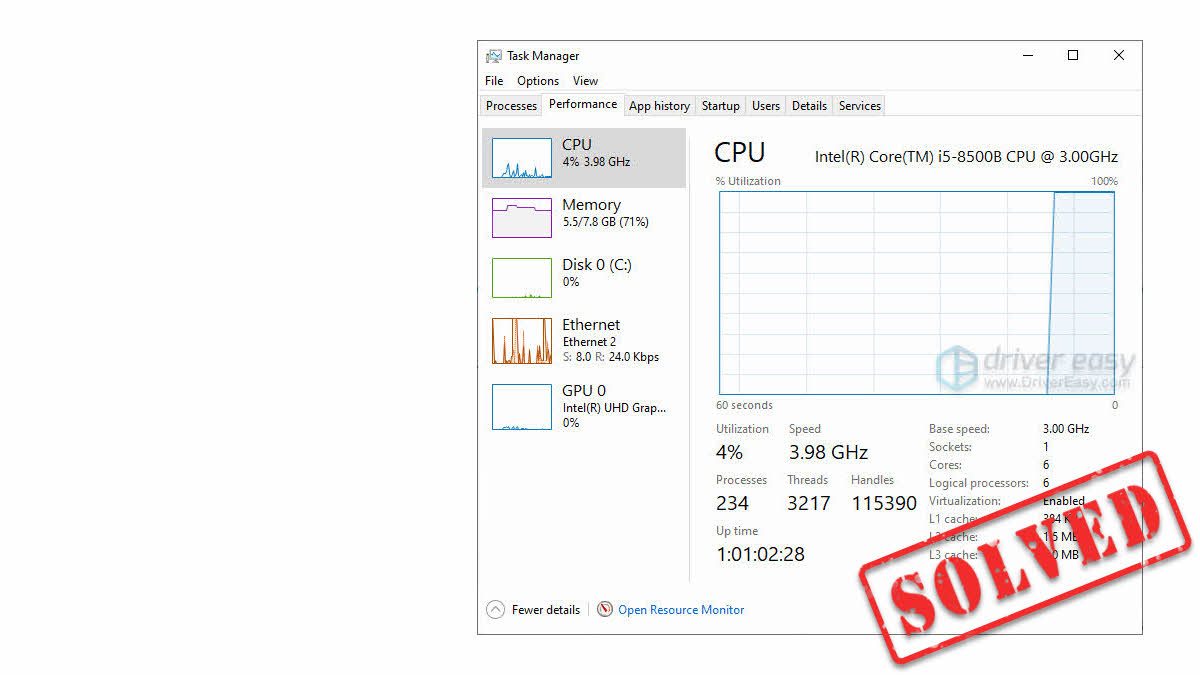
Task Manager is a built-in tool in Windows. Press Ctrl + Shift + Esc to open it quickly. Click the “Performance” tab to see CPU use in real time. The “Processes” tab shows which apps use the most CPU. You can end tasks that consume too much power here. This tool helps spot apps causing 100% CPU use.
Third-party Tools
Third-party tools offer detailed CPU monitoring features. Apps like HWMonitor or Process Explorer give more data. They show CPU temperature, core usage, and more. Some tools log CPU use over time for review. These programs help find hidden issues affecting CPU load.
Interpreting Cpu Spikes
CPU spikes are short bursts of high usage. They often happen when running heavy apps or updates. Spikes are normal but should not last long. Constant spikes mean a problem with software or hardware. Track when spikes occur to find the cause. This helps decide the next fix step.
Quick Fixes For High Cpu
High CPU usage can slow down your computer and cause frustration. Quick fixes can help reduce CPU load fast. These simple steps often solve the problem without technical skills. Try them before deeper troubleshooting.
Restarting Your Computer
Restarting your computer clears temporary files and stops stuck processes. It refreshes system resources and can lower CPU usage. Save your work and turn off your PC. Wait a few seconds, then turn it back on. This simple action can fix many CPU issues.
Closing Unnecessary Applications
Too many open apps use more CPU power. Check your taskbar and close programs you don’t need. Use Task Manager to see which apps use the most CPU. Select and end tasks that slow your computer. This frees up resources and lowers CPU load quickly.
Updating Software And Drivers
Outdated software and drivers can cause high CPU usage. Updates often fix bugs and improve performance. Check for updates in your operating system and installed programs. Visit your device manufacturer’s website for driver updates. Keeping software current helps your CPU run smoothly.
Optimizing System Settings
Optimizing system settings can reduce high CPU usage effectively. Small changes in settings can improve your computer’s speed and response. Many background tasks run without your knowledge and consume CPU power. Adjusting these settings helps your system run smoother and cooler.
Adjusting Startup Programs
Too many programs start with Windows. They use CPU resources even if you don’t need them. Open Task Manager and go to the Startup tab. Disable programs you rarely use. This lowers CPU load when your computer boots up. Fewer startup programs mean faster startup and better performance.
Changing Power Settings
Power plans affect how your CPU works. The High Performance plan uses more CPU power constantly. Switch to Balanced or Power Saver mode to reduce CPU use. Go to Control Panel, then Power Options. Select a plan that saves energy and lowers CPU strain. This helps your computer run cooler and quieter.
Managing Background Services
Many services run in the background without your control. Some are unnecessary and use CPU power. Press Win + R, type “services.msc,” and press Enter. Find services you do not need and set them to Manual or Disabled. Be careful not to stop essential services. This frees up CPU resources for important tasks.
Removing Malware And Viruses
Malware and viruses can cause your CPU to run at 100% usage. These harmful programs use system resources without permission. Removing them helps your computer run smoothly. It also protects your data and privacy. Follow these steps to clean your PC and reduce CPU load.
Running Antivirus Scans
Start by running a full antivirus scan. Use trusted antivirus software installed on your PC. This scan finds and removes many types of malware and viruses. Make sure to scan all files and folders. The process may take time but is very important. After the scan, review the results and follow the software’s instructions.
Using Malware Removal Tools
Some malware hides from antivirus programs. Use specialized malware removal tools for deeper cleaning. These tools target spyware, adware, and other threats. Download them from official websites only. Run a thorough scan and delete detected malware. These tools help fix problems that regular antivirus misses.
Keeping Security Software Updated
Security software needs regular updates. Updates improve malware detection and removal. Set your antivirus and malware tools to update automatically. Check for updates often if automatic updates are off. Updated software keeps your PC safe from new threats. This lowers the risk of high CPU usage caused by malware.
Advanced Troubleshooting
Advanced troubleshooting helps solve high CPU usage when basic steps fail. It digs deeper into system problems that cause the CPU to run at full capacity. This section shows methods to find hidden issues and fix them efficiently.
Checking For Software Conflicts
Sometimes, two or more programs fight for system resources. This conflict causes the CPU to spike to 100% usage. Use Task Manager to identify which apps use the most CPU. Close unnecessary programs one by one. Watch if the CPU usage drops. Disable startup programs that you do not need. This reduces background processes that may cause conflicts.
Reinstalling Problematic Applications
Some apps may be corrupt or poorly optimized. These can cause the CPU to work harder than it should. Uninstall the app completely from your system. Restart your computer to clear any lingering files. Download the latest version from the official source. Install the app again and check CPU usage. This often fixes hidden bugs and improves performance.
Updating Bios And Firmware
BIOS and firmware control how hardware and software interact. Outdated versions can cause performance issues, including high CPU usage. Visit your motherboard or laptop manufacturer’s website. Find the latest BIOS and firmware updates for your model. Follow their instructions carefully to update. This can improve system stability and reduce CPU load.
Hardware Upgrades To Boost Performance
Hardware upgrades can help reduce CPU 100% usage. They improve your computer’s speed and efficiency. Better hardware gives your system more power to handle tasks. This reduces the chances of your CPU running at full capacity all the time.
Upgrading parts like RAM, CPU, and cooling systems can make a big difference. These changes help your computer work smoother and cooler. Let’s explore how each upgrade can boost your computer’s performance.
Adding More Ram
RAM helps your computer run many programs at once. Low RAM forces the CPU to work harder. Adding more RAM gives your system space to store temporary data. This reduces the load on the CPU and speeds up tasks.
More RAM also allows better multitasking. Your computer stops swapping data with slow storage. This lowers CPU usage and improves overall performance. Check your system’s maximum RAM capacity before upgrading.
Upgrading The Cpu
The CPU is the brain of your computer. An older or weaker CPU struggles with modern software. Upgrading to a faster CPU handles more instructions per second. This reduces the CPU’s workload and prevents 100% usage.
Choose a CPU compatible with your motherboard. A better CPU improves speed for all programs. It also helps with heavy tasks like video editing or gaming. A strong CPU keeps your system responsive and efficient.
Improving Cooling Solutions
Heat slows down your CPU and causes high usage. Good cooling keeps the CPU at safe temperatures. Install better fans or a liquid cooling system for effective heat removal.
Clean dust from vents and fans regularly. Proper airflow inside the case lowers temperature. Cooler CPUs maintain performance without throttling or overheating. This helps keep CPU usage normal during intense tasks.

Credit: www.avg.com
Frequently Asked Questions
What Causes Cpu 100% Usage On My Computer?
CPU 100% usage occurs due to heavy software, background processes, or malware. It signals that your CPU is overloaded and struggling to manage tasks efficiently.
How Can I Reduce Cpu Usage Quickly?
Close unnecessary apps, update software, and scan for malware. Also, disable startup programs and check for system updates to optimize CPU performance.
Does High Cpu Usage Affect My Pc’s Lifespan?
Consistently high CPU usage can cause overheating, leading to hardware damage. Proper cooling and managing CPU load help protect your PC’s longevity.
Can A Virus Cause Cpu 100% Usage?
Yes, malware can consume CPU resources by running hidden processes. Running a full antivirus scan helps detect and remove such threats.
Conclusion
Fixing 100% CPU usage helps your computer run smooth and fast. Check running programs and close those you don’t need. Scan for viruses to keep your system safe. Update software and drivers regularly. Restart your PC if it feels slow.
Simple steps can stop your CPU from working too hard. A calm CPU means better performance and less frustration. Try these tips and enjoy a faster computer today.
