
Is your GPU making an annoying high-pitched noise every time you play games or work on graphics? That irritating sound is called coil whine, and it can drive anyone crazy.
But don’t worry—you’re not stuck with it. You’ll learn simple and effective ways to fix coil whine on your GPU. Imagine enjoying your favorite games or videos in peace, without that distracting buzz. Keep reading to find out how you can silence your GPU and get back to a better experience.
Credit: www.cgdirector.com
Causes Of Gpu Coil Whine
Coil whine in GPUs can be annoying and distracting. Understanding its causes helps in reducing or fixing it. The noise comes from inside the graphics card. It is linked to the electrical components working under load.
What Is Coil Whine
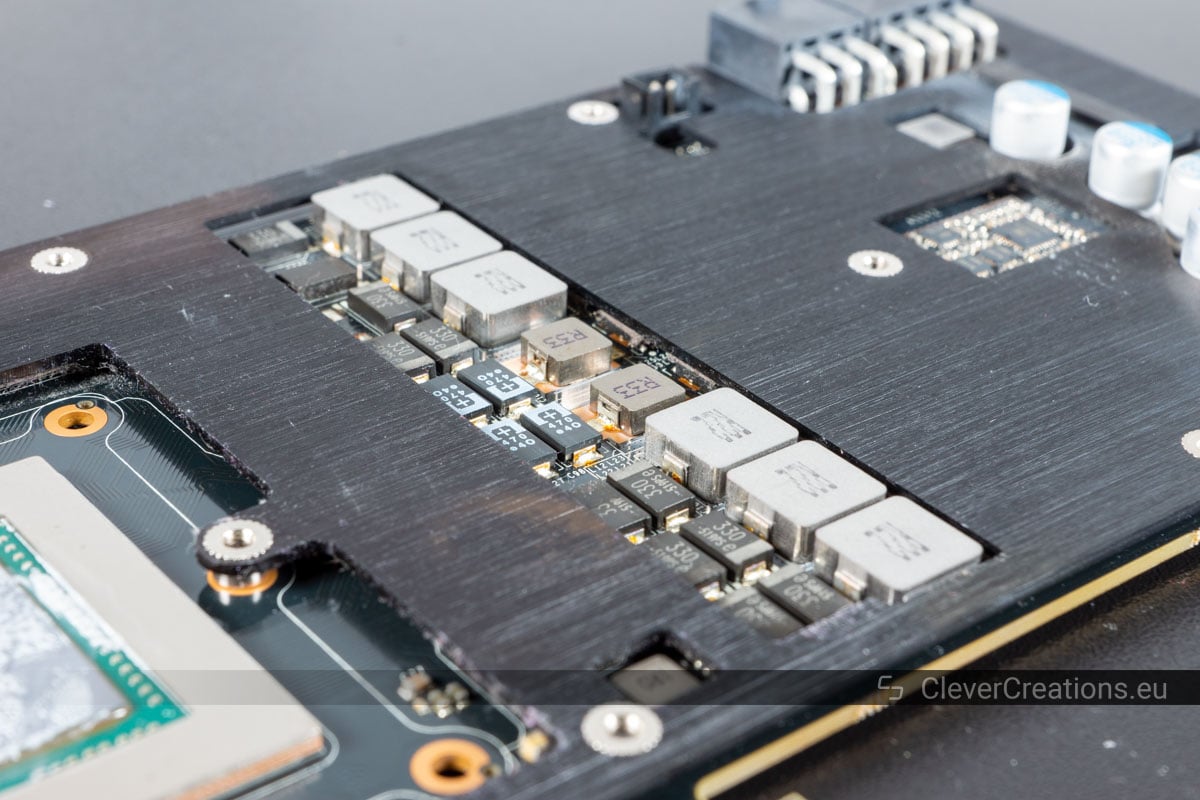
Coil whine is a high-pitched noise from the GPU. It happens when electrical coils vibrate. These coils are part of the power delivery system. The noise is caused by tiny vibrations in the coils. It is not a sign of damage but can be bothersome.
Common Triggers
Coil whine occurs during heavy GPU use. High frame rates in games often cause it. Overclocking the GPU may increase coil whine. Power fluctuations or unstable power supply can trigger it too. Different games and settings can make the noise louder or quieter.
Impact On Performance
Coil whine does not affect GPU performance. The noise is only an annoyance for users. It does not reduce frame rates or cause crashes. The GPU will still work normally despite the sound. Fixing coil whine improves user comfort, not speed.
Diagnosing Coil Whine
Diagnosing coil whine is the first step to fixing it. You need to know if the noise comes from your GPU or another part. This process helps you understand the problem clearly. It guides you on what to do next.
Follow these simple steps to find the source of coil whine and confirm its presence.
Identifying The Noise Source
Listen carefully to your computer while it runs. Coil whine sounds like a high-pitched buzzing or whining noise. It often comes from the GPU area. Try to isolate the sound by turning off other fans and devices. This makes it easier to find the exact source.
Testing Under Load
Run a game or a benchmark to stress your GPU. Coil whine usually appears or gets louder during heavy use. Watch for changes in noise as the GPU workload increases. This confirms the noise comes from your graphics card.
Software Tools For Diagnosis
Use monitoring software to check your GPU’s performance. Programs like MSI Afterburner or GPU-Z show GPU load and temperature. These tools help link noise to GPU activity. They make diagnosing coil whine easier and more accurate.
Quick Fixes For Coil Whine
Coil whine from a GPU can be very annoying. The high-pitched sound may interrupt your gaming or work. Quick fixes can reduce or stop this noise. These simple steps do not need special tools or skills. Try them before considering hardware replacement.
Adjusting Frame Rates
High frame rates can cause coil whine in your GPU. Lowering the frame rate often reduces the noise. Use your game or software settings to limit frames per second (FPS). Setting a cap at 60 or 75 FPS is a good start. This helps your GPU work less hard and stay quieter.
Enabling V-sync
V-Sync matches your GPU’s frame rate to your monitor’s refresh rate. This stops your GPU from producing extra frames that cause coil whine. Turn on V-Sync in your game’s graphics options. This method reduces screen tearing and noise at the same time. It is an easy fix to try first.
Changing Power Settings
Power settings control how much energy your GPU uses. Lower power use can reduce coil whine. Access your GPU control panel or system power options. Choose a balanced or power-saving mode instead of maximum performance. This limits energy spikes that cause coil whine. It also keeps your GPU cooler and quieter.
Credit: www.reddit.com
Hardware Solutions
Hardware solutions can help reduce or fix coil whine in your GPU. These methods focus on physical changes to your computer or GPU. They can often lower the noise without affecting performance.
Try these steps carefully to avoid damage.
Using Coil Whine Dampeners
Coil whine dampeners are small tools that reduce vibration in GPU coils. They attach directly to the coils. This helps lower the high-pitched noise. These dampeners are easy to install and cost little. They do not affect GPU cooling or power.
Reseating The Gpu
Removing and then reinstalling the GPU can fix coil whine. It ensures the GPU sits properly in the slot. This can improve electrical contact and reduce noise. Turn off your PC, unplug it, then carefully remove the GPU. Clean the slot gently before putting the GPU back.
Improving Case Ventilation
Good airflow inside the computer case helps cool the GPU. Cooler parts often produce less coil whine. Add extra fans or rearrange cables to improve airflow. Keep the case clean from dust. Better ventilation keeps components stable and quiet.
When To Seek Professional Help
Coil whine in a GPU can be annoying and sometimes hard to fix. Many users try DIY methods to reduce or stop the noise. But some situations need expert help. Knowing when to seek professional assistance can save time and prevent damage to your GPU.
Warranty And Rma Options
Check your GPU warranty before opening the case. Most manufacturers cover coil whine issues under warranty. Using the RMA (Return Merchandise Authorization) process can get you a replacement or repair. This is often the safest and easiest solution.
Contact the seller or manufacturer support. Explain the coil whine problem clearly. Follow their instructions carefully to avoid voiding your warranty.
Avoiding Damage Risks
Trying to fix coil whine without experience can cause harm. Opening the GPU or changing parts risks static damage. Incorrect repairs may worsen the problem or break the card.
Professional technicians know how to handle delicate GPU parts. They use proper tools and safety methods. Avoiding damage saves money and stress in the long run.
Choosing Repair Services
Look for certified repair centers with good reviews. They often have experience with coil whine and GPU issues. Ask about their repair process and guarantees.
Compare costs and services before deciding. Some repairs may cost more than replacement. Prioritize trusted services to get reliable results.
Preventing Future Coil Whine
Preventing future coil whine is key to keeping your GPU quiet and efficient. Coil whine can be annoying and distract from your experience. Taking steps to avoid it helps your system last longer and run smoother. Focus on quality parts, proper settings, and regular care.
Selecting Quality Components
Choose GPUs from brands known for quality. High-quality components reduce coil whine risks. Look for products with good reviews and solid warranties. Power supplies with low noise ratings also help. Avoid cheap parts that may cause electrical noise.
Maintaining Optimal Settings
Keep your GPU settings balanced. Avoid pushing your card to full power all the time. Lowering frame rates can reduce stress and noise. Use V-Sync or frame limiters to keep performance steady. Stable settings lessen the chance of coil whine.
Regular Hardware Maintenance
Clean your PC regularly to prevent dust buildup. Dust can increase heat and cause hardware stress. Check and tighten cables and screws often. Loose parts can add to coil noise. Proper airflow helps keep your GPU cool and quiet.
Credit: clevercreations.org
Frequently Asked Questions
What Causes Coil Whine In Gpus?
Coil whine is caused by vibrations in GPU inductors under high power. It produces high-pitched noise during heavy load or high frame rates. This is a normal electrical phenomenon but can be annoying for users sensitive to sound.
How Can I Reduce Coil Whine On My Gpu?
To reduce coil whine, limit your frame rate using V-Sync or frame rate caps. Lowering GPU load or undervolting can also help. Using sound dampening cases or pads may minimize noise from vibrations.
Does Coil Whine Damage My Gpu?
No, coil whine does not harm your GPU. It is only a noise issue caused by electrical components vibrating. Your GPU will function normally despite the coil whine.
Is Coil Whine Covered Under Gpu Warranty?
Most manufacturers consider coil whine a normal behavior, so it’s usually not covered by warranty. However, check your GPU’s warranty terms or contact support to confirm.
Conclusion
Coil whine in GPUs can be annoying but fixable. Start by adjusting your power settings to reduce noise. Using a different power supply might help as well. Some users find that adding sound dampening materials lowers the noise. Keep your GPU drivers updated for better performance.
Testing different game settings can also reduce coil whine. Remember, small changes often make a big difference. Stay patient and try these steps one by one. Enjoy a quieter gaming or work experience soon.
