
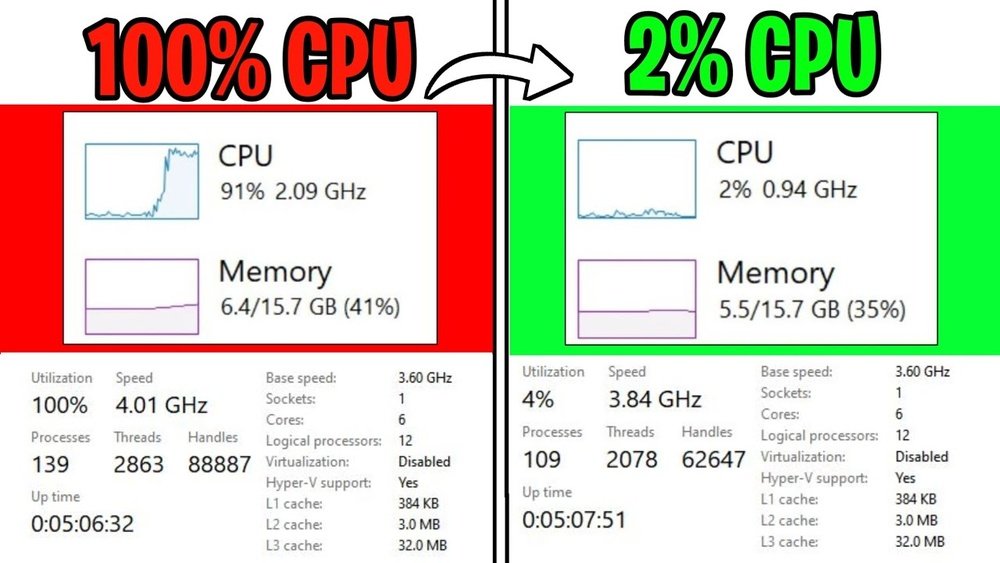
Is your computer feeling slow, even when it should be running smoothly? You might be dealing with a bottlenecking CPU.
This hidden problem can stop your system from reaching its full potential, making games lag and apps freeze. But don’t worry—fixing it is easier than you think. You’ll discover simple steps that can unlock your CPU’s power and get your computer running faster.
Keep reading, and you’ll learn exactly how to spot the issue and solve it for good.
Credit: www.partitionwizard.com
Identifying Cpu Bottlenecks
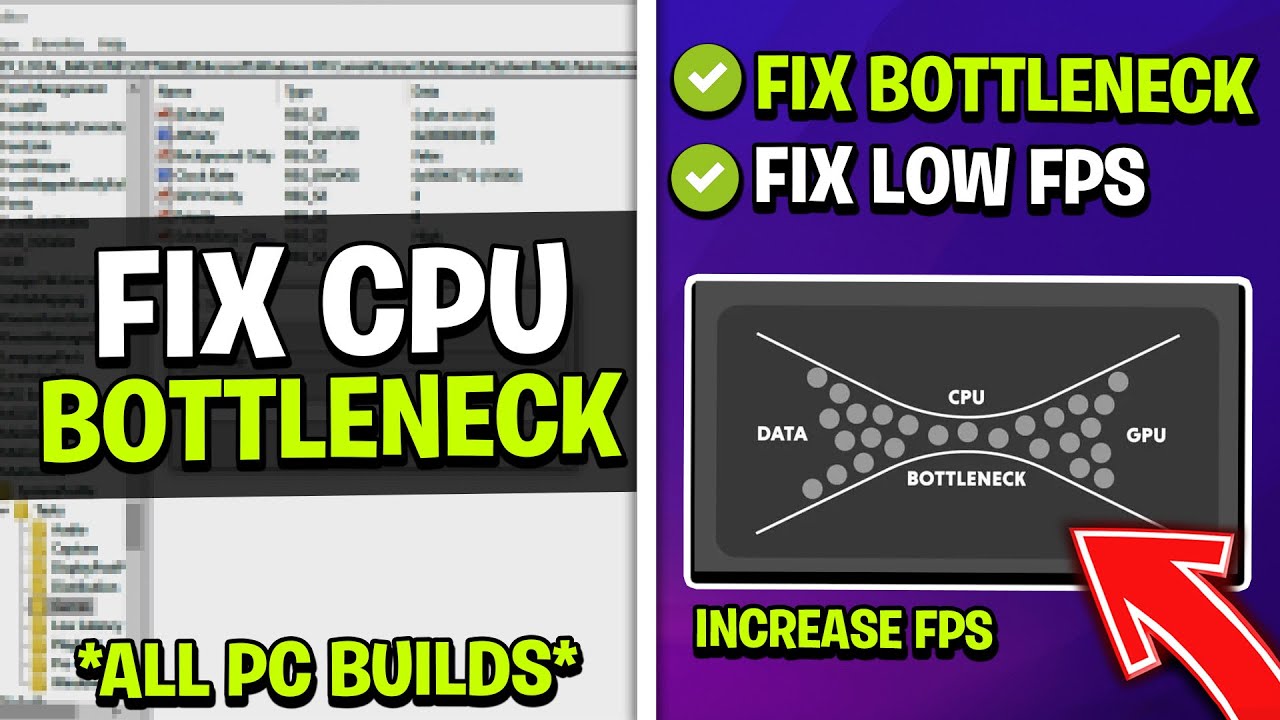
Identifying CPU bottlenecks is the first step to fix performance issues. A CPU bottleneck happens when your processor slows down the entire system. This can cause lag, stutter, and poor game or app performance. Knowing how to spot these bottlenecks helps you find the right fix fast.
Signs Of Cpu Bottlenecking
Notice slow loading times or frame drops during games. Your system may freeze or respond late to commands. High CPU usage over 90% while GPU usage stays low is another clear sign. The computer fans might run louder due to extra CPU stress. These symptoms suggest your CPU limits overall speed.
Tools To Detect Bottlenecks
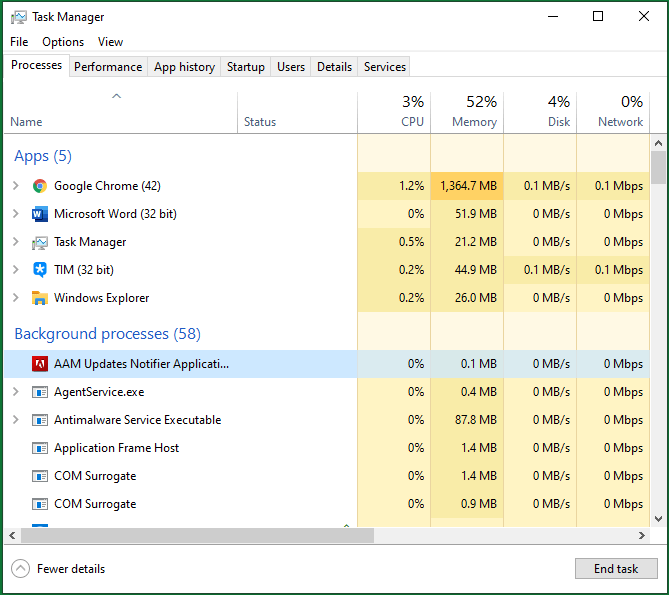
Use software like Task Manager or Resource Monitor on Windows. These tools show CPU and GPU usage in real time. Programs like MSI Afterburner provide detailed performance data. CPU-Z helps check your processor’s specs and speeds. These tools help you see if the CPU is maxed out.
Comparing Cpu And Gpu Performance
Check the usage rates of both CPU and GPU during tasks. If the CPU runs at 100% but the GPU is below 50%, the CPU is the bottleneck. Balanced usage means both parts work well together. Comparing these numbers helps decide if you need a CPU upgrade or other fixes.
Optimizing System Settings
Optimizing your system settings can help fix a bottlenecking CPU. Small changes in settings can improve performance and reduce slowdowns. It makes your CPU work more efficiently with other parts of your computer. This section covers key steps to adjust your system for better CPU performance.
Adjusting Power Options
Power settings affect how your CPU runs. By default, many systems save energy over speed. Change your power plan to prioritize performance. Open the Control Panel and go to Power Options. Select the High Performance plan to give your CPU more power. This change helps your CPU run at its full speed during tasks.
Updating Drivers And Bios
Outdated drivers and BIOS can cause CPU bottlenecks. Drivers control how hardware communicates with your system. BIOS is the firmware that starts your computer. Check your motherboard or PC maker’s website for updates. Install the latest versions carefully. Updated drivers and BIOS improve compatibility and fix bugs that slow down your CPU.
Managing Background Processes
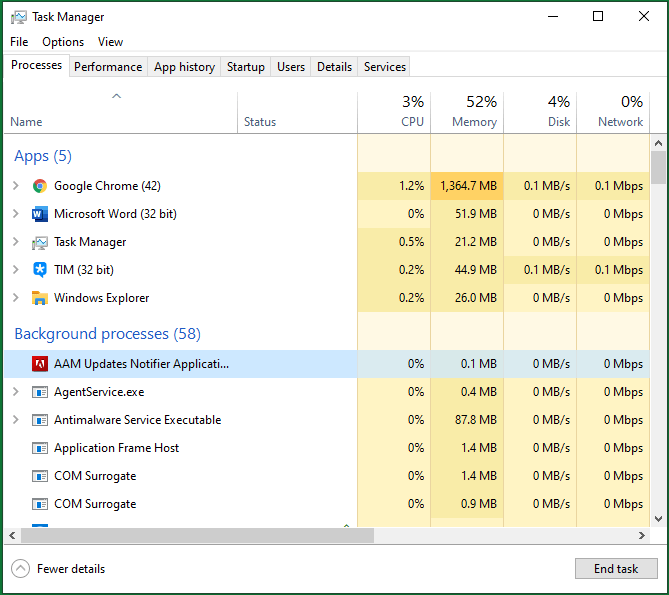
Background programs use CPU resources even when you do not see them. Too many active processes slow your computer. Open Task Manager and review running applications. End tasks that are unnecessary or use high CPU. Disable startup programs that you do not need. This frees up CPU power for important tasks and reduces bottlenecks.
Upgrading Hardware Components
Upgrading hardware components can solve CPU bottleneck problems effectively. It improves your computer’s speed and lets it handle tasks smoothly. Small changes in hardware can make a big difference.
Start by focusing on the CPU itself. A stronger processor can handle more tasks at once and reduce delays. Cooling plays a key role too. A better cooling system keeps the CPU running fast without overheating. Adding more RAM helps your system manage programs better. These upgrades work together to fix bottlenecks and boost performance.
Choosing A Better Cpu
Select a CPU with more cores and higher clock speeds. This lets your system process more information quickly. Check compatibility with your motherboard before buying. Newer CPUs often support faster data transfer and modern features. A good CPU reduces waiting times and speeds up your computer.
Improving Cooling Solutions
Cooler CPUs perform better and last longer. Replace stock coolers with aftermarket options like air or liquid coolers. These keep temperatures low during heavy use. Clean dust from fans and heatsinks regularly. Good airflow inside the case also helps prevent overheating.
Adding More Ram
More RAM lets your computer handle multiple programs smoothly. It reduces the need to use slow hard drive space as memory. Aim for at least 8GB or more depending on your tasks. Match the RAM type and speed to your motherboard. This upgrade helps your system run without slowdowns.
Tweaking Software For Performance
Tweaking software can improve your CPU performance and reduce bottlenecks. Small changes in settings help your CPU work better with other parts. It also helps your computer run games and programs more smoothly. Use software tools and settings to balance the load on your CPU.
These tweaks do not need new hardware. They save money and make your current system faster. Focus on optimizing game settings, using the right software, and safe overclocking.
Optimizing Game Settings
Lower game graphics settings to reduce CPU load. Turn off features like shadows and reflections. Set resolution to medium or low to ease CPU work. Close background apps before playing to free CPU power. Many games have built-in options to balance visuals and performance.
Using Performance-enhancing Software
Install software that manages CPU tasks better. Task managers can prioritize important programs. Some tools clear temporary files and free RAM. Use software updates to keep drivers current. Updated drivers help CPU communicate well with other parts.
Overclocking Safely
Overclocking makes your CPU run faster than usual. Do it carefully to avoid damage and crashes. Increase speed in small steps and test stability. Use software that monitors temperature and voltage. Keep your PC cool with good fans or cooling systems. Stop if the CPU gets too hot or unstable.
Balancing Cpu And Gpu Workloads
Balancing CPU and GPU workloads is key to fixing bottlenecking issues. Both parts must work well together to get the best performance. If one part is too busy, the other waits. This causes slowdowns and lower frame rates. Understanding how to balance tasks helps your system run smoothly.
Adjusting Graphics Settings
Lowering graphics settings reduces GPU load. It helps the CPU keep up with the GPU. Start by lowering shadows and texture quality. Turn off extra effects like motion blur or anti-aliasing. This change lets the CPU handle game logic faster. It also prevents the GPU from working too hard.
Distributing Tasks Efficiently
Some tasks need more CPU power. Others rely on the GPU. Assign tasks based on each part’s strength. Use software that supports multi-threading for better CPU use. Let the GPU handle graphics rendering. Keep physics and AI calculations on the CPU. This balance reduces waiting times and speeds up processing.
Monitoring Performance In Real-time
Use tools to watch CPU and GPU use during games. Check which part is at 100% most often. If the CPU is maxed out, reduce CPU-heavy tasks. If the GPU is maxed, lower graphics settings. Real-time monitoring helps find the right balance quickly. It keeps your system running at its best.
Credit: www.youtube.com
Preventing Future Bottlenecks
Preventing future CPU bottlenecks helps keep your computer fast and smooth. It saves time and money on repairs and upgrades. Taking simple steps can avoid slowdowns and improve overall performance. Planning ahead ensures your PC handles tasks well for years.
Regular Maintenance Tips
Clean dust from your computer often. Dust blocks airflow and causes overheating. Overheating slows down your CPU. Check fans and vents for dust buildup. Restart your PC regularly to clear memory. Remove unused programs to free up resources. Run antivirus scans to avoid malware. These small actions keep your CPU working well.
Keeping Software Updated
Update your operating system and drivers often. Updates fix bugs and improve speed. Use the latest version of your software. Older software can cause conflicts with the CPU. Enable automatic updates to stay current. Updated software helps your CPU run tasks efficiently.
Planning For Future Upgrades
Think about your computer needs before buying parts. Choose a CPU that matches your tasks. Add more RAM to help multitasking. Consider upgrading to a faster storage drive. Check motherboard compatibility for new components. Plan upgrades gradually to avoid large costs. Future-proof your PC to reduce bottlenecks later.
Credit: www.partitionwizard.com
Frequently Asked Questions
What Causes Cpu Bottlenecking In Computers?
CPU bottlenecking occurs when the processor limits system performance. It happens if the CPU is slower than other components like GPU or RAM. This imbalance causes delays and reduces overall speed. Identifying bottlenecks helps optimize hardware for smoother operation and better multitasking.
How Can I Check If My Cpu Is Bottlenecking?
You can monitor CPU usage during tasks using tools like Task Manager or third-party apps. If CPU usage stays at 100% while GPU usage is low, bottlenecking is likely. Benchmark tests also reveal performance gaps between CPU and other components.
What Are Effective Ways To Fix Cpu Bottlenecks?
Fix bottlenecks by upgrading your CPU or optimizing system settings. Lower graphics settings to reduce CPU load. Close unnecessary background programs to free up processing power. Overclocking can help but requires caution to avoid overheating.
Does Upgrading Ram Reduce Cpu Bottlenecking?
Upgrading RAM can improve system speed but doesn’t directly fix CPU bottlenecks. Insufficient RAM causes slowdowns, but CPU bottleneck occurs due to processor limitations. Both components should be balanced for optimal performance.
Conclusion
Fixing a bottlenecking CPU can improve your computer’s speed. Start by checking which parts slow your system down. Upgrading your CPU or balancing other components helps a lot. Keep your software updated for better performance. Simple changes can make a big difference in how your PC runs.
Remember, small steps lead to smoother and faster computing. Stay patient and test your system after each change. This way, you know what works best for your setup.
