
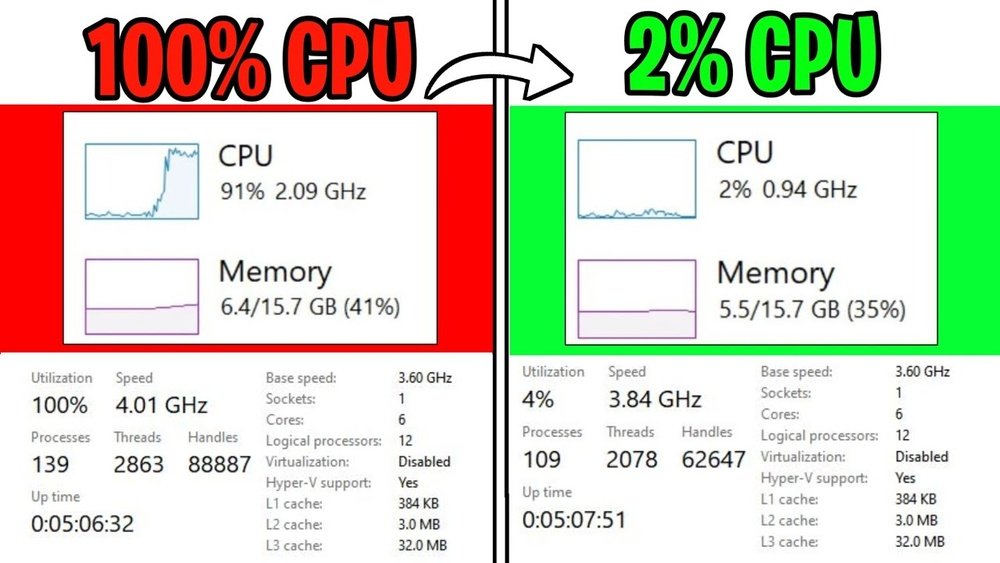
Is your computer feeling slow, even when you expect it to run fast? You might be facing a CPU bottleneck.
This happens when your processor can’t keep up with other parts of your system, holding everything back. But don’t worry—fixing a CPU bottleneck is easier than you think. You’ll discover simple, practical steps to boost your PC’s performance. By the end, you’ll know exactly how to get your system running smoothly again.
Ready to unlock your computer’s full potential? Keep reading!
Identifying Cpu Bottlenecks
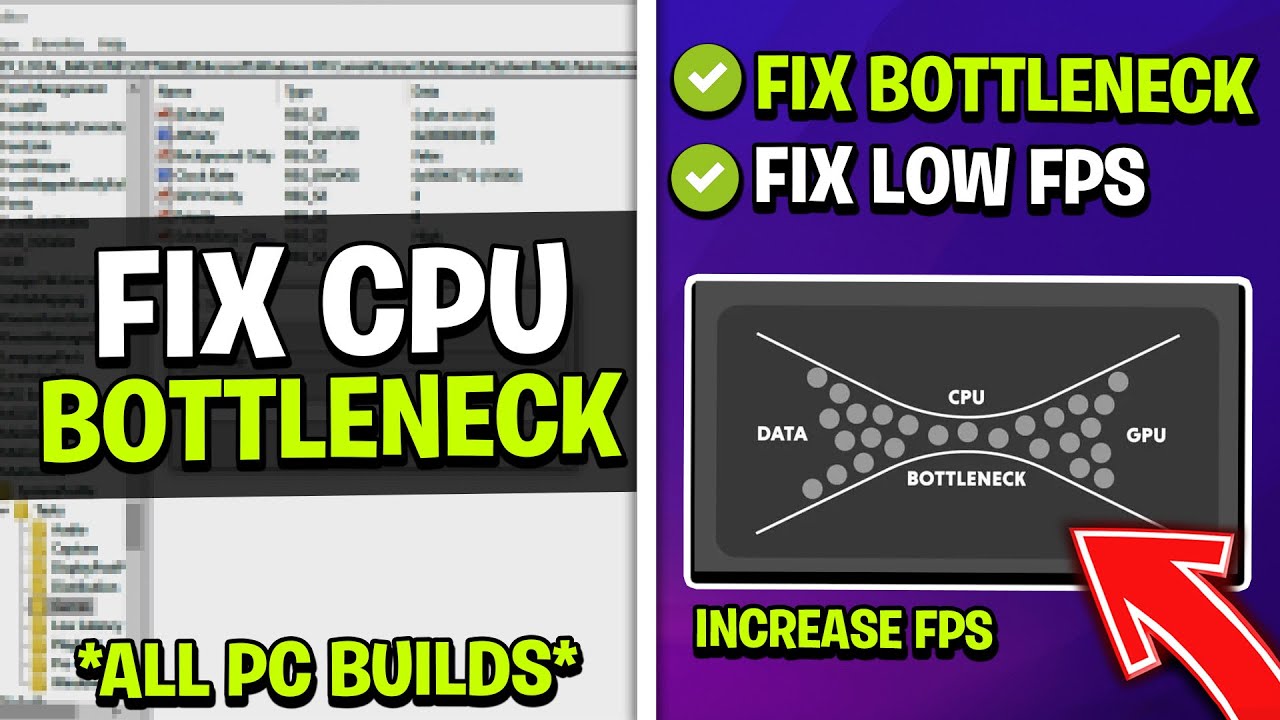
Identifying CPU bottlenecks is the first step to improving your computer’s performance. A bottleneck happens when the CPU limits the speed of other components. This causes slow response times and low frame rates in games or apps. Knowing how to spot a CPU bottleneck helps you fix issues faster.
Symptoms Of Cpu Bottlenecks
Your computer may show signs of a CPU bottleneck during heavy tasks. The system can freeze or lag while the CPU runs at 100%. Games might have low frame rates even with a good graphics card. You could notice long loading times or stuttering in videos. These symptoms suggest the CPU struggles to keep up.
Tools To Detect Bottlenecks
Several tools can help detect CPU bottlenecks easily. Task Manager in Windows shows CPU usage and processes. MSI Afterburner offers real-time monitoring of CPU and GPU loads. CPU-Z provides detailed CPU info and performance metrics. These tools give clear data to find performance limits.
Comparing Cpu And Gpu Usage
Check CPU and GPU usage during tasks to spot bottlenecks. High CPU usage with low GPU usage means the CPU is the bottleneck. Balanced usage suggests no major bottleneck. Monitoring these stats shows which part slows down your system. It guides you on whether to upgrade the CPU or GPU.
Causes Of Cpu Bottlenecks
CPU bottlenecks happen when the processor cannot keep up with the tasks it needs to handle. This slows down the whole computer system and affects performance. Understanding the causes helps fix the problem effectively.
Several factors can lead to a CPU bottleneck. These include the power of the CPU, background tasks running on your computer, and outdated software or drivers. Each factor limits how fast the CPU works.
Insufficient Cpu Power
A CPU with low power struggles to process heavy tasks quickly. Older or low-end processors often cause bottlenecks. Modern software and games require faster CPUs with more cores and higher speeds. If the CPU is weak, it delays the entire system.
Background Processes
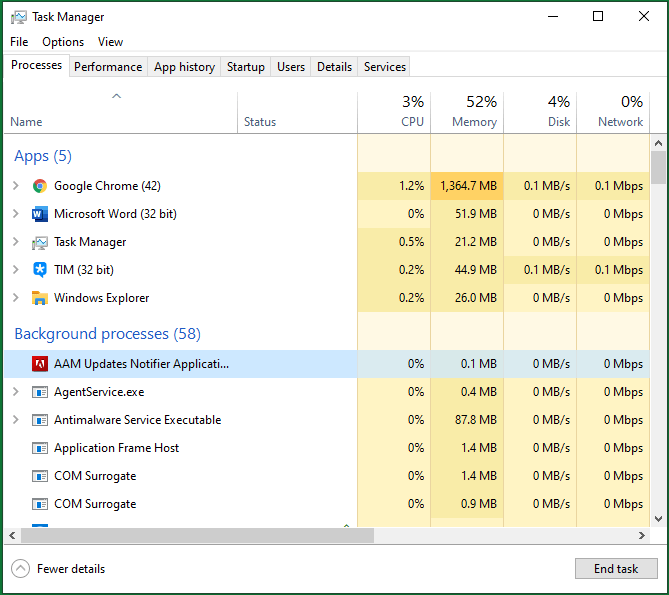
Many programs running in the background use CPU resources without your notice. These tasks reduce the CPU power available for important applications. Too many background processes slow down the system and create bottlenecks. Regularly checking and closing unnecessary tasks helps improve CPU performance.
Outdated Drivers And Software
Old drivers and software do not work well with new hardware or programs. This mismatch causes the CPU to take longer to process instructions. Updating drivers and software ensures smooth communication between hardware and applications. Keeping everything up to date reduces CPU bottlenecks and improves speed.
Optimizing Software Settings
Optimizing software settings can help reduce a CPU bottleneck. Adjusting how programs run allows the CPU to work more efficiently. This section covers easy changes to improve performance.
Adjusting Game And Application Settings
Lowering game graphics can reduce CPU load. Turn off background effects and shadows. Close extra features not needed for play. Use settings that balance quality and speed.
For other applications, reduce the number of active processes. Set programs to use fewer CPU cores if possible. This frees CPU power for important tasks.
Managing Startup Programs
Many programs start automatically with Windows. These use CPU resources even if you don’t need them. Disable unnecessary startup programs to save CPU power.
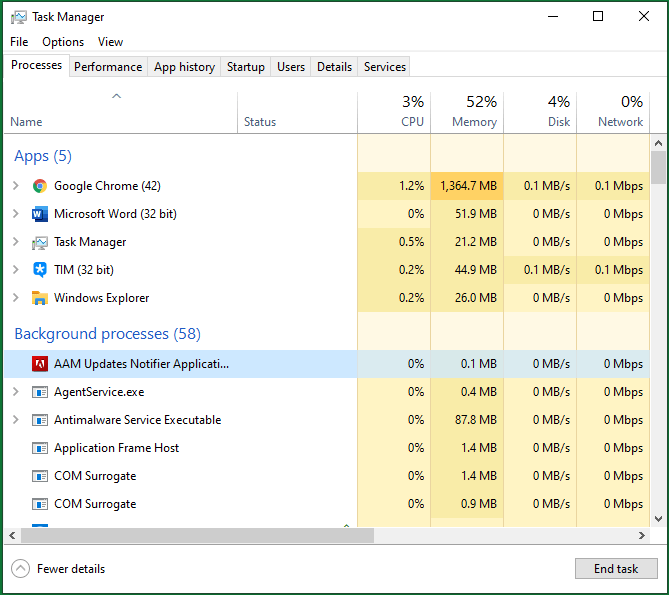
Open Task Manager to find startup apps. Right-click and select “Disable” for apps not needed at boot. This helps the CPU focus on active tasks.
Updating Drivers And Firmware
Outdated drivers can cause CPU inefficiency. Check for the latest drivers for your CPU and motherboard. Updated drivers improve communication between hardware and software.
Firmware updates also fix bugs and improve performance. Visit the manufacturer’s website to download updates. Always follow instructions carefully during installation.
Credit: www.partitionwizard.com
Hardware Upgrades To Reduce Bottlenecks
Hardware upgrades can significantly reduce CPU bottlenecks. They help your computer run faster and smoother. Upgrading parts ensures the CPU is not slowed down by other components. This section covers key hardware changes to improve performance.
Choosing A Better Cpu
Pick a CPU that matches your tasks. Faster clock speeds improve processing time. More cores help with multitasking and heavy software. Check compatibility with your motherboard before buying. A better CPU reduces delays and speeds up your system.
Upgrading Ram
More RAM allows your CPU to access data quickly. Low memory can cause slowdowns and bottlenecks. Choose RAM with higher speed and capacity. This supports smoother performance during multitasking. Proper RAM upgrade balances the load on your CPU.
Improving Cooling Solutions
Heat slows down your CPU’s performance. Good cooling keeps the processor at safe temperatures. Use quality fans or liquid cooling systems. Cooler CPUs maintain higher speeds without throttling. Better cooling extends hardware life and boosts stability.
Tweaking System Configurations
Tweaking system configurations helps reduce CPU bottlenecks. Small changes to settings can improve CPU performance. These adjustments make the CPU work more efficiently with other parts. This step is important before upgrading hardware.
Try different settings carefully. Each change can impact your system in many ways. Monitor your system after each tweak. This helps find the best setup for your CPU.
Overclocking The Cpu
Overclocking increases the CPU speed beyond its default rate. This can boost performance in tasks and games. Use software or BIOS tools to overclock safely. Watch CPU temperature and stability. Overheating can cause crashes or damage.
Start with small speed increases. Test your system for errors after each step. Stop if the system becomes unstable. Proper cooling is essential for overclocking success.
Adjusting Power Settings
Power settings affect how the CPU runs under load. Set the power plan to “High Performance” in your operating system. This keeps the CPU running at full speed. Avoid “Power Saver” modes as they limit CPU power.
Check advanced power options for CPU minimum and maximum states. Set both to 100% for consistent speed. This prevents the CPU from slowing down unnecessarily.
Optimizing Bios Settings
The BIOS controls hardware behavior before the OS loads. Enter BIOS during startup to access settings. Enable features like XMP profiles for faster RAM speed. Faster RAM helps the CPU work better.
Turn off unused devices to free system resources. Update BIOS to the latest version for improved performance. Be cautious; wrong BIOS changes can cause boot problems.
Credit: www.partitionwizard.com
Balancing Cpu And Gpu Performance
Balancing CPU and GPU performance is key to avoiding bottlenecks in your system. Both parts must work well together for smooth gaming and fast processing. A strong GPU alone cannot fix a slow CPU, and vice versa. Proper balance helps you get the best from your hardware. This section explains how to match components, check performance, and use software tools.
Matching Components For Optimal Performance
Choose a CPU and GPU that complement each other. A powerful GPU needs a CPU that can keep up. Otherwise, the CPU limits the GPU’s potential. Look at benchmarks to see how different parts pair. Avoid using a very old CPU with a new GPU. Keep your budget balanced. This ensures both parts perform well together.
Monitoring Performance During Gaming
Use tools like MSI Afterburner or Task Manager to track CPU and GPU use. Watch for one part running at 100% while the other is low. This shows a bottleneck. Note frame rates and game smoothness. Adjust game settings if the CPU is struggling. Lower CPU-heavy settings or raise GPU settings to balance load.
Using Performance Boosting Software
Some software can help improve CPU and GPU efficiency. Update drivers for both components regularly. Use game mode features in Windows or third-party apps. These tools optimize resources and reduce background tasks. They can increase frame rates and reduce lag. Keep software updated for best results.
Preventing Future Bottlenecks
Preventing future CPU bottlenecks helps keep your computer running smoothly. It saves time and avoids frustration. Regular care and smart planning play key roles in stopping bottlenecks before they start.
Regular Maintenance Tips
Clean your computer often to remove dust and debris. Dust can block airflow and cause overheating. Overheating slows down your CPU. Check fan performance and replace broken fans. Monitor CPU temperature with simple software tools. Restart your computer regularly to clear temporary files. Delete unused programs to free up system resources.
Keeping Software Updated
Keep your operating system up to date. Updates fix bugs and improve performance. Update drivers for your CPU and graphics card. Outdated drivers can cause slowdowns. Use the latest versions of software and games. New updates often include performance improvements. Avoid running too many programs at once. This reduces CPU strain and keeps your system fast.
Planning For Future Upgrades
Choose a CPU that fits your needs and budget. Match your CPU with enough RAM and a good graphics card. Upgrade your hardware step by step. Start with the most important parts. Watch for new technology trends. Upgrade before your current system becomes too slow. Keep an eye on software demands. Plan upgrades that support future software needs.
Credit: www.youtube.com
Frequently Asked Questions
What Causes A Cpu Bottleneck In Gaming Pcs?
A CPU bottleneck occurs when the processor limits overall system speed. It happens if the CPU is slower than the GPU or other components. This imbalance reduces gaming performance and causes lag or low frame rates.
How Can I Identify A Cpu Bottleneck?
Use monitoring software to check CPU and GPU usage during tasks. If CPU usage hits 100% while GPU usage stays low, a bottleneck exists. This shows the CPU is struggling to keep up with the GPU.
Does Upgrading The Cpu Fix Bottleneck Issues?
Upgrading to a faster CPU often resolves bottlenecks. A better processor can handle more data and instructions per second. This improves system balance and boosts overall performance in demanding applications.
Can Adjusting Game Settings Reduce Cpu Bottlenecks?
Lowering CPU-intensive settings like draw distance and shadows helps reduce bottlenecks. These settings demand more processor power, so reducing them eases CPU load. This can improve frame rates and smooth gameplay.
Conclusion
Fixing a CPU bottleneck improves your computer’s speed and performance. Start by checking your CPU usage during tasks. Upgrading hardware or adjusting settings can help reduce delays. Balancing your system components creates smoother operation. Small changes often lead to big improvements.
Keep your drivers and software updated for best results. Patience and testing make a difference. Your computer will run better and feel faster. Simple steps can solve many common issues. Try these tips and enjoy a more responsive PC.
