
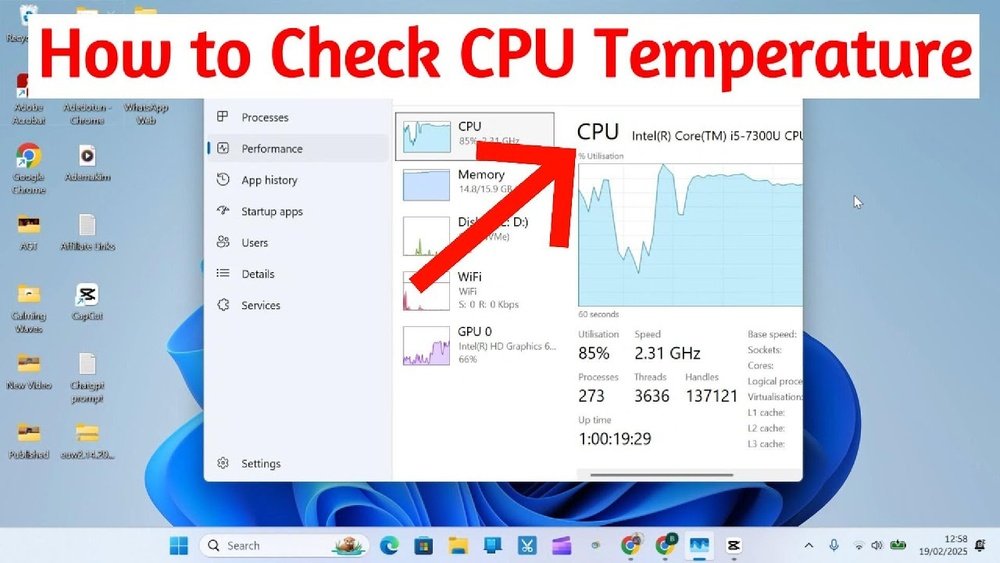
Are you worried that your computer might be overheating? Knowing your CPU temperature is one of the easiest ways to keep your system running smoothly and avoid costly damage.
But how do you check it? You might think it’s complicated or requires special tools, but it’s simpler than you expect. You’ll discover quick and easy methods to find your CPU temperature right now. By the end, you’ll have the confidence to monitor your PC’s health like a pro—so keep reading!
Credit: www.youtube.com
Why Cpu Temperature Matters
Knowing your CPU temperature is important for many reasons. It helps you keep your computer running smoothly. It also protects your hardware from damage. Understanding the temperature can save you time and money.
Impact On Performance
High CPU temperature slows down your computer. The CPU reduces its speed to cool down. This causes programs to run slower. Keeping the CPU cool keeps your computer fast.
Risks Of Overheating
Too much heat can cause serious problems. Overheating may cause your computer to shut down suddenly. It can also cause permanent damage to the CPU. Avoiding high temperatures prevents these risks.
Lifespan Of Components
Heat wears out computer parts faster. Constant high temperatures shorten the life of the CPU. Keeping your CPU cool helps parts last longer. This saves money on repairs and replacements.
Common Signs Of High Cpu Temperature
High CPU temperature can cause many problems for your computer. It affects how well your system runs and its overall health. Knowing the common signs helps you catch overheating early. This prevents damage and keeps your PC working smoothly.
System Slowdowns
Your computer may start running slower than usual. Programs take longer to open. Web pages load slowly. This happens because the CPU reduces speed to cool down. It tries to protect itself from heat damage.
Unexpected Shutdowns
The system may turn off without warning. This protects the CPU from overheating. Sudden shutdowns can cause data loss. It is a clear sign your CPU is too hot.
Loud Fan Noise
Fans inside your computer work harder to cool the CPU. You may hear loud or constant fan noise. It means the CPU temperature is high. The fan tries to lower the heat quickly.
Tools To Check Cpu Temperature
Knowing your CPU temperature helps keep your computer safe. Overheating can cause slowdowns or damage. Several tools can check the CPU temperature easily. These tools range from built-in options to external devices. Choose one based on your comfort and needs.
Built-in Bios Options
The BIOS or UEFI firmware shows basic CPU temperature info. Restart your PC and press the setup key during boot. The key varies, often Delete, F2, or Esc. Inside BIOS menus, find the hardware or PC health section. Temperature readings here update in real time. This method needs no extra software. It is simple but offers limited info.
Free Software Utilities
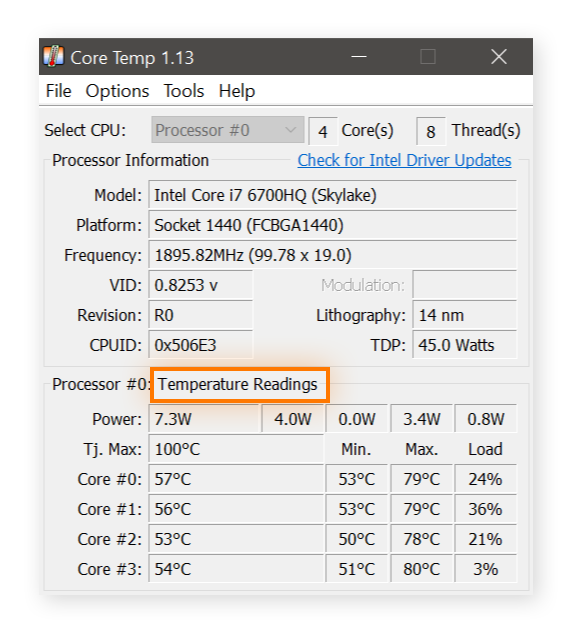
Many free programs provide detailed CPU temperature data. Examples include HWMonitor, Core Temp, and SpeedFan. Download and install these from their official sites only. They show temperature in Celsius or Fahrenheit. Some also track fan speed and voltage. These tools run in Windows and update live. Great for daily monitoring and troubleshooting.
Hardware Monitoring Devices
External sensors attach inside your PC case. These devices display temperature on a small screen. They often include probes for CPU and case temps. No software needed for readings. Useful for constant temperature checks without opening software. Ideal for users who want quick, visible info during work or gaming.
Step-by-step Cpu Temperature Check
Checking your CPU temperature helps keep your computer safe. High temperatures can cause damage or slow down your system. Knowing how to find your CPU temperature is important. This guide shows easy steps to check it.
Accessing Bios
Restart your computer to enter the BIOS. Press the key shown on the screen, like F2 or Delete. Look for a section called “Hardware Monitor” or “PC Health.” Here, you can see the CPU temperature. Note the temperature before exiting BIOS. Restart your computer to go back to normal use.
Using Software Programs
Download a trusted CPU temperature program. Popular choices include HWMonitor, Core Temp, or SpeedFan. Install the software and open it. The program shows real-time CPU temperature on your screen. Some programs also show fan speed and voltage. Check the readings while your computer is idle and under load.
Interpreting Temperature Readings
Normal CPU temperature is usually between 30°C and 50°C. Temperatures above 70°C can cause issues. If your CPU hits 90°C or more, it is too hot. High temperatures can cause crashes or shutdowns. Use cooling solutions like fans or thermal paste to reduce heat. Regular checks help keep your CPU healthy.
Tips To Keep Cpu Cool
Keeping your CPU cool is key for better performance and longer computer life. High temperatures can slow down your system and cause damage. Following simple tips helps maintain a safe temperature and avoid overheating.
Improving Airflow
Good airflow inside your computer case moves hot air out and pulls cool air in. Arrange cables neatly to avoid blocking vents. Leave space around your PC for air to circulate freely. Use case fans to push hot air out and bring fresh air in. Proper airflow keeps your CPU cooler during heavy use.
Cleaning Dust Buildup
Dust blocks air vents and covers cooling parts, raising CPU temperature. Open your computer case and gently remove dust with a soft brush or compressed air. Clean fans, vents, and heat sinks regularly. Dust-free parts work better and keep your CPU cooler. Regular cleaning prevents overheating and improves airflow.
Upgrading Cooling Systems
Stock coolers may not always keep your CPU cool enough. Consider upgrading to a better air cooler with larger fans or heat pipes. Liquid cooling systems offer efficient heat removal for high-performance CPUs. Choose a cooling system that fits your case and matches your needs. Better cooling lowers CPU temperature and boosts stability.
Credit: www.avast.com
When To Seek Professional Help
Knowing your CPU temperature is useful, but some problems need expert care. Some issues are not easy to fix alone. Professional help can protect your computer from damage. It saves time and avoids mistakes. Here are signs to get help from a technician.
Persistent Overheating Issues
Sometimes, the CPU keeps getting too hot. Cleaning fans and reapplying paste may not help. Overheating might cause shutdowns or slow performance. A professional can check for hidden problems. They use special tools to find the cause.
Hardware Replacement Needs
Old or broken parts can cause heat problems. Fans, heatsinks, or thermal paste may need replacing. A technician knows the right parts and how to install them. Replacing hardware yourself can be risky. Experts ensure proper fitting and function.
Advanced Cooling Solutions
Simple cooling might not be enough for some CPUs. Custom water cooling or advanced fans may help. These solutions need skill and experience to install. Professionals design cooling systems that match your needs. They keep your CPU cool and safe.

Credit: www.pcworld.com
Frequently Asked Questions
How Can I Check My Cpu Temperature On Windows?
You can check CPU temperature on Windows using software like HWMonitor or Core Temp. These tools display real-time temperature data. Alternatively, some BIOS setups show CPU temperature during startup. Monitoring helps prevent overheating and maintain system performance.
What Is A Safe Cpu Temperature Range?
A safe CPU temperature typically ranges between 30°C to 70°C under normal use. Temperatures above 80°C can cause thermal throttling or damage. Keeping your CPU cool ensures stability and longevity of your computer components.
Why Is My Cpu Temperature Suddenly High?
Sudden CPU temperature spikes can result from heavy tasks, poor ventilation, or dust buildup. Faulty fans or old thermal paste also cause overheating. Regular cleaning and monitoring help maintain optimal CPU temperatures.
Can High Cpu Temperature Damage My Computer?
Yes, sustained high CPU temperatures can damage hardware components. Overheating may cause crashes, slowdowns, or permanent CPU failure. Proper cooling and monitoring prevent heat-related issues and ensure system reliability.
Conclusion
Knowing your CPU temperature helps keep your computer safe. Check the temperature often to avoid overheating. Use simple tools to find your CPU’s heat level. Watch for high numbers that can cause damage. Cooling your CPU can make your computer run longer.
Stay aware and take action if it gets too hot. This small step protects your device and improves performance. Keep your computer cool and working well every day.
