
Are you wondering how to find your CPU quickly and easily? Whether you’re upgrading your computer, troubleshooting issues, or just curious about your system, knowing exactly what CPU you have is essential.
You’ll discover simple steps to identify your CPU without any confusion. By the end, you’ll feel confident checking your CPU anytime you need. Keep reading, and unlock the key to understanding your computer’s heart.
Check System Information
Checking your system information is a quick way to find details about your CPU. It shows the exact model and speed of the processor inside your device. You can easily access this data on Windows, Mac, or Linux systems. Knowing your CPU helps you understand your computer’s power and what tasks it can handle.
Use Windows Settings
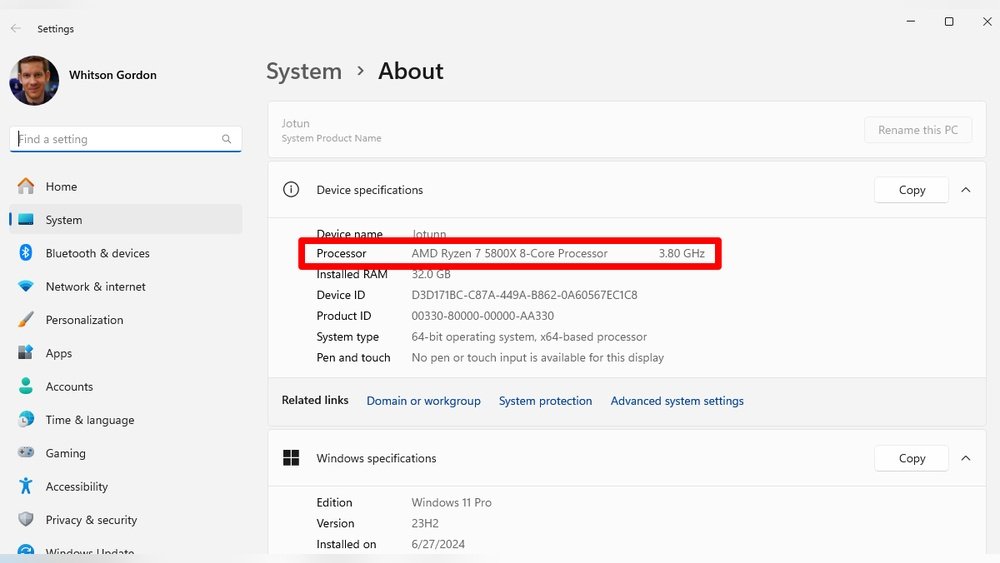
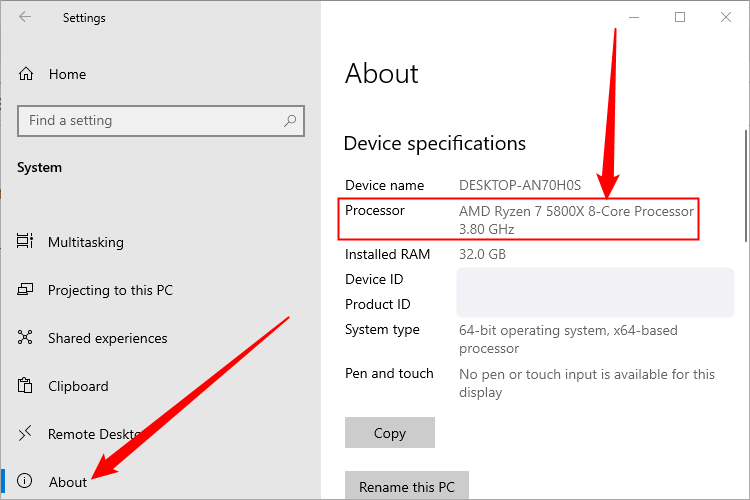
Open the Start menu and click the gear icon to open Settings. Select “System” then choose “About” from the left menu. Look under “Device specifications” to find your processor details. It lists the CPU model and speed clearly. This method works on Windows 10 and 11.
Access Mac About This Mac
Click the Apple logo at the top left of your screen. Select “About This Mac” from the dropdown menu. A window appears with an overview of your Mac. It shows the processor type and speed near the top. This is the simplest way to see your CPU on a Mac.
Explore Linux Terminal Commands
Open the terminal on your Linux system. Type lscpu and press Enter. This command displays detailed CPU information in the terminal window. Another option is cat /proc/cpuinfo, which shows even more technical data. Both commands help you check your processor quickly.
Credit: www.howtogeek.com
Use Device Manager
Using Device Manager is a simple way to find your CPU details on a Windows computer. Device Manager shows a list of all hardware connected to your system. It helps you see the exact model and specifications of your processor without extra tools.
Open Device Manager On Windows
Press the Windows key and the letter R at the same time. This opens the Run dialog box. Type devmgmt.msc and press Enter. The Device Manager window appears. You can also right-click the Start button and select Device Manager from the menu.
Locate Processor Details
In Device Manager, find the category called “Processors.” Click the arrow next to it to expand the list. You will see the name and model of your CPU. This information includes the brand and number of cores. Use this data to understand your computer’s speed and power.
Try Third-party Software
Finding your CPU details can be simple with third-party software. These tools quickly identify your processor without complex steps. They provide clear, easy-to-read information about your CPU.
Popular Cpu Identification Tools
Many software options exist to find CPU details. CPU-Z is a popular choice for its simple interface. Speccy offers a full view of system hardware. HWMonitor tracks CPU temperature and performance. These tools work on most Windows systems.
Benefits Of Using Software
Software shows accurate CPU model and speed instantly. It displays extra details like cache size and core count. No need to open your computer or use command lines. It helps beginners understand their system better. These tools are usually free and easy to download.
Credit: www.howtogeek.com
Physical Inspection
Physical inspection helps you identify your CPU by direct observation. It gives clear details about the processor model and brand. This method works well if you want accurate and quick information. You need to open your computer safely and check the CPU itself. Follow simple steps to avoid damage.
Opening Your Computer Case
First, turn off your computer and unplug all cables. Place the PC on a clean, flat surface. Use a screwdriver to remove the screws on the side panel. Slide the panel off gently to expose the inside parts. Avoid touching other components to prevent static damage. Now, you can see the CPU area on the motherboard.
Reading Cpu Labels
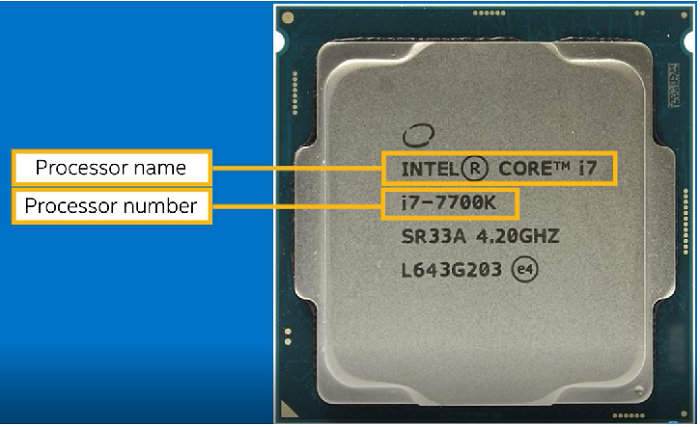
The CPU usually sits under a fan or heat sink. Carefully remove the fan if needed, but do not force it. Look for a small square chip with a label on top. The label shows the CPU brand, model number, and speed. Write down these details or take a clear photo. This info helps you learn about your processor’s power and capabilities.
Verify Cpu Specs Online
Verifying your CPU specs online ensures you get accurate details about your processor. This step helps confirm the exact model and features. It avoids confusion from incorrect or outdated information. Use trusted sources to check your CPU specifications quickly and safely.
Use Manufacturer’s Website
Start by visiting the CPU maker’s official website. Brands like Intel and AMD list all their processors with detailed specs. Enter your CPU model number in the search box. The site shows core count, speed, cache size, and more. This method guarantees data directly from the source.
Cross-check Model Numbers
Compare your CPU model number across multiple sites for accuracy. Use tech forums, review sites, or hardware databases. Match the specs shown with those on the manufacturer’s page. This helps avoid errors from fake or outdated info. Confirming model numbers ensures you trust the specs you find.
Credit: www.intel.com
Frequently Asked Questions
What Is The Easiest Way To Find My Cpu Model?
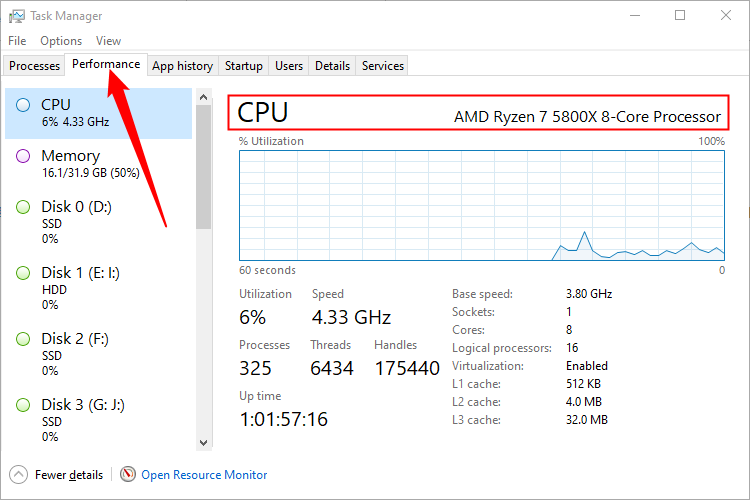
You can find your CPU model via system settings or system information tools. On Windows, open “System Information” or “Task Manager” under the Performance tab. On Mac, go to “About This Mac. ” This provides detailed CPU specs quickly and accurately.
How Do I Check Cpu Details On Windows?
Press Ctrl + Shift + Esc to open Task Manager. Click the Performance tab and select CPU. Here, you see the CPU name, speed, and usage. Alternatively, use the System Information app for more detailed specs.
Can I Identify My Cpu Without Opening My Pc?
Yes, you can check CPU details using software tools like CPU-Z or system info apps. These programs display all CPU information without needing to physically open your computer case.
Why Is Knowing My Cpu Model Important?
Knowing your CPU model helps in software compatibility, performance upgrades, and troubleshooting. It guides you in choosing compatible hardware and optimizing system performance effectively.
Conclusion
Finding your CPU is easier than it seems. Just follow simple steps on your device. Knowing your CPU helps with upgrades and troubleshooting. It also improves your understanding of your computer. Keep these tips handy for quick reference. Exploring your system can be fun and useful.
Stay curious and confident while checking your CPU. This knowledge makes tech tasks less confusing. Keep learning to get the most from your device.
