
Are you worried about your GPU running too hot? Knowing how to find your GPU temperature is crucial to keep your computer safe and running smoothly.
If your graphics card overheats, it can slow down your games, cause crashes, or even damage your hardware. But don’t worry—checking your GPU temp is easier than you think. You’ll discover simple methods to monitor your GPU temperature quickly and accurately.
By the end, you’ll feel confident managing your system’s health and getting the best performance out of your machine. Keep reading to learn how to protect your GPU and boost your computer’s lifespan.
Why Monitor Gpu Temperature
Monitoring your GPU temperature is important for keeping your computer safe and running well. The GPU, or graphics processing unit, works hard to show images and videos on your screen. When it gets too hot, it can slow down or stop working properly. Knowing the temperature helps you avoid problems and keep your GPU in good shape.
Effects Of Overheating
Overheating can cause your GPU to slow down. It may reduce the performance of games and software. The GPU might shut down to stop damage. Long-term heat damage can shorten the life of the GPU. It can also cause crashes and data loss.
Optimal Temperature Ranges
Most GPUs work best between 30°C and 70°C. Temperatures above 80°C can be risky. Some models can handle heat better than others. Always check the recommended range for your GPU model. Keeping the GPU cool helps it run smoothly and last longer.
Signs Of Gpu Heat Issues
Your computer may freeze or crash often. Fans might run loudly for a long time. Graphics may show glitches or flicker. The system might shut down without warning. These signs often mean the GPU is too hot.
Credit: www.breezeresidency.com
Built-in Tools To Check Gpu Temp
Checking your GPU temperature is important to keep your computer safe. Many computers have built-in tools that show the GPU temperature. These tools are easy to use and do not need extra downloads. You can quickly see how hot your GPU is running. This helps avoid overheating and keeps your system healthy.
Windows Task Manager
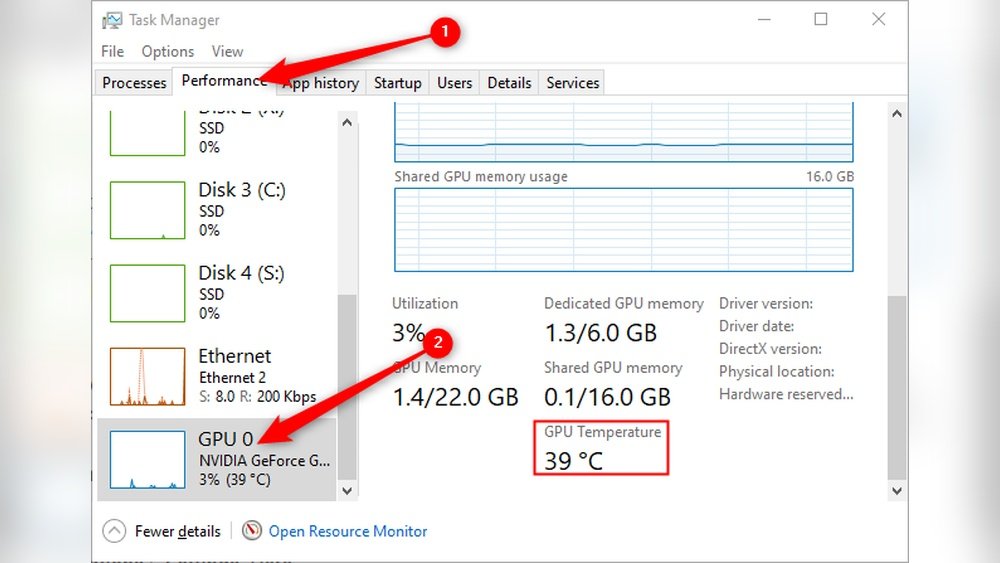
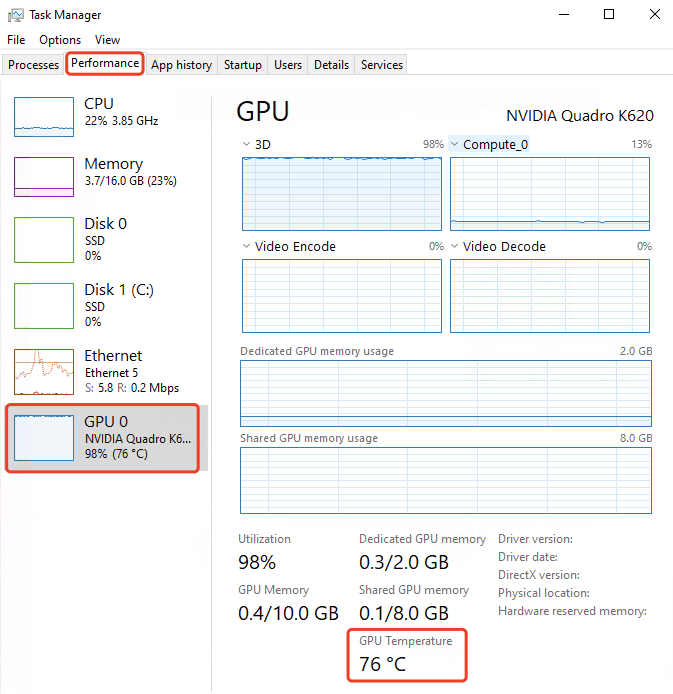
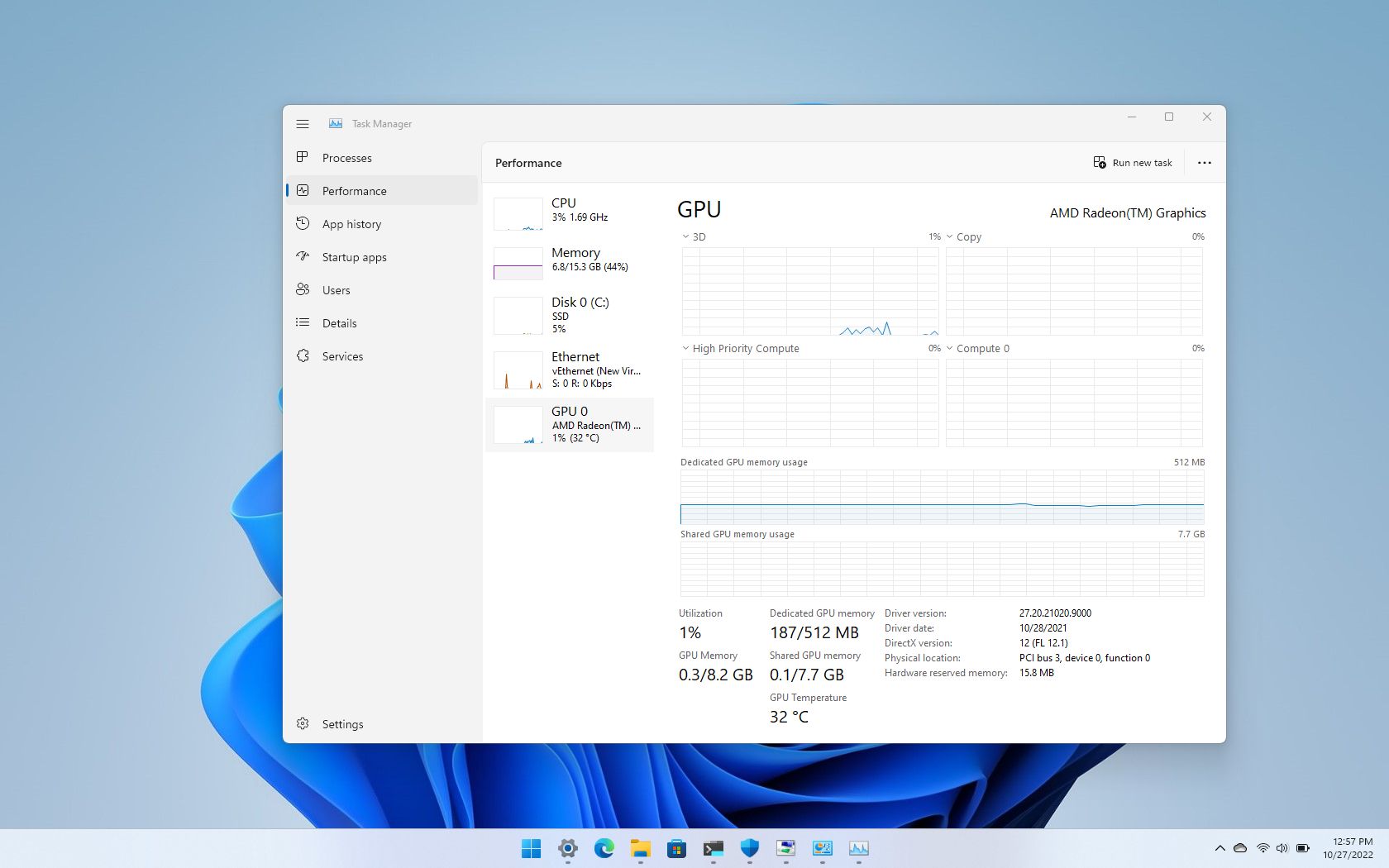
Windows Task Manager shows GPU temperature on newer Windows versions. Open Task Manager by pressing Ctrl + Shift + Esc. Click the “Performance” tab. Select “GPU” from the list on the left. The temperature appears near the bottom. This tool gives a quick look at your GPU health.
Nvidia Control Panel
NVIDIA Control Panel lets you check your GPU temperature if you have an NVIDIA card. Open the Control Panel from your desktop or Start menu. Go to “Performance” or “System Information.” The temperature is shown with other details. It helps NVIDIA users monitor their graphics card easily.
Amd Radeon Software
AMD Radeon Software provides GPU temperature for AMD cards. Open the Radeon Software by right-clicking the desktop. Choose “Performance” or “Hardware” tab. The GPU temperature is shown clearly. This software also gives other useful information about your AMD GPU.
Using Third-party Software
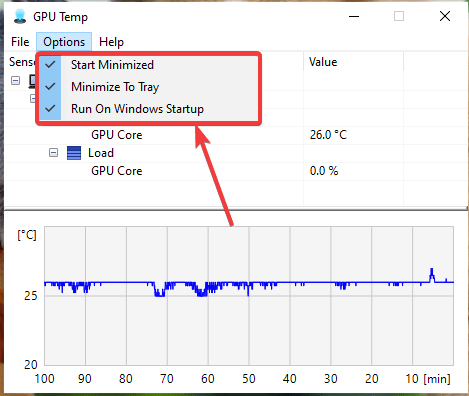
Using third-party software is a simple way to check your GPU temperature. These apps show real-time data and help keep your graphics card safe. They often offer extra features, like fan speed control and performance monitoring. You can use them on most computers without much effort.
Popular Gpu Monitoring Apps
Several apps are trusted for GPU temperature monitoring. MSI Afterburner is a favorite among gamers and PC builders. HWMonitor offers a clear view of many hardware sensors. GPU-Z focuses specifically on graphics card details. Each app has a clean interface and works well for beginners.
Installation And Setup
Start by downloading the app from the official website. Run the installer and follow simple steps on the screen. Most apps ask for basic permissions only. After installation, open the program to access settings. Enable GPU temperature monitoring if it is not active by default.
Reading Temperature Data
Look for the temperature section or tab in the app. It usually shows current, minimum, and maximum values. Temperatures appear in Celsius or Fahrenheit. Safe GPU temperatures vary but usually stay below 85°C. High temperatures might cause slowdowns or crashes. Check the data often to prevent overheating.
Monitoring Gpu Temp In Real-time
Monitoring your GPU temperature in real-time helps protect your computer from overheating. It shows how hot your graphics card gets during use. Watching this data lets you act fast to prevent damage. You can keep your system running smoothly and avoid crashes or slowdowns.
Many tools provide real-time GPU temperature tracking. These tools show data on your screen while gaming or working. They also let you set warnings and save temperature history. Real-time monitoring is easy and useful for all PC users.
On-screen Display Options
On-screen displays (OSD) show your GPU temperature directly on your screen. This lets you see the heat level without switching apps. Many software programs offer OSD features. They show numbers or graphs in a small corner of your display. OSD tools often work during games or full-screen apps. This way, you can keep an eye on temperatures without interruptions.
Custom Alerts And Notifications
Custom alerts warn you when your GPU gets too hot. You can set a temperature limit based on your GPU’s safe range. When the GPU crosses this limit, the software sends a notification. Alerts can appear as pop-ups, sounds, or messages. This helps you cool down your PC before damage occurs. Custom alerts keep your hardware safe and stable.
Logging Temperature Over Time
Logging tracks your GPU temperature over hours or days. This data helps spot patterns or sudden spikes in heat. You can review logs to see if cooling needs improvement. Temperature logs also help diagnose hardware problems. Many monitoring tools save this information automatically. Logs provide a clear picture of your GPU’s health and performance.
Tips To Reduce Gpu Temperature
Keeping your GPU cool is important for better performance and longer life. High temperatures can cause your computer to slow down or even shut off. Use these tips to lower your GPU temperature and keep your system running smoothly.
Improving Airflow
Good airflow inside your computer case helps move heat away from the GPU. Make sure cables are tidy and do not block air paths. Use extra case fans to push hot air out and bring cool air in. Position your computer where air can flow freely around it.
Cleaning Dust And Debris
Dust blocks air and traps heat around your GPU. Regularly clean your computer with compressed air or a soft brush. Pay attention to GPU fans and heatsinks. Keep your workspace dust-free to reduce buildup inside your PC.
Adjusting Fan Speeds
Increase GPU fan speeds to improve cooling. Many graphics cards come with software to control fan settings. Set fan curves to start fans earlier or run faster during heavy use. This helps lower temperatures without much noise.
Undervolting And Underclocking
Lower GPU voltage and clock speed to reduce heat output. Use tools like MSI Afterburner to change these settings safely. This reduces power consumption and temperature. It may slightly reduce performance but keeps your GPU cooler.
Credit: www.sietesetenta.com.ar
Credit: blizanovy.cz
Frequently Asked Questions
How Can I Check My Gpu Temperature On Windows?
You can check GPU temperature using software like MSI Afterburner or HWMonitor. These tools display real-time GPU temperatures. Windows itself doesn’t show GPU temp by default. Installing dedicated monitoring software helps you keep track and avoid overheating.
What Is A Safe Gpu Temperature Range?
A safe GPU temperature typically ranges from 30°C to 85°C. Under heavy load, temperatures can reach up to 85°C without issues. Consistently above 90°C may cause thermal throttling or damage. Always keep your GPU cool for optimal performance.
Why Is Monitoring Gpu Temperature Important?
Monitoring GPU temperature prevents overheating and potential hardware damage. It helps maintain system stability during gaming or intensive tasks. Knowing the temp helps you adjust cooling or fan speeds. This extends your GPU’s lifespan and ensures smooth performance.
Which Tools Are Best For Gpu Temperature Monitoring?
Popular GPU monitoring tools include MSI Afterburner, HWMonitor, and GPU-Z. They provide accurate temperature readings and additional info like clock speeds. These tools are easy to use and support most GPU models. Choose one based on your preference and OS compatibility.
Conclusion
Monitoring your GPU temperature helps protect your computer from damage. Simple tools can show your GPU’s heat in real time. Checking temps often keeps your system running smoothly. Avoid overheating by cleaning fans and improving airflow. Staying aware of your GPU temp saves you time and money.
Keep your device cool to enjoy better performance and longer life. Small steps make a big difference in computer care. Stay safe and watch your GPU temperature closely.
