
Are you curious about the GPU inside your laptop but don’t know where to look? Knowing your laptop’s GPU can help you understand its performance, especially if you love gaming, video editing, or graphic design.
But finding this information isn’t always obvious. In this guide, you’ll learn simple and quick ways to discover your laptop’s GPU without any confusion. By the end, you’ll have the confidence to check your laptop’s graphics power anytime you want.
Let’s get started!
Credit: www.microsoft.com
Check System Settings
Checking your system settings is a quick way to find out which GPU your laptop has. Both Windows and Mac offer simple tools to see this information. You do not need to install extra software. Just follow a few easy steps.
Windows Display Settings
Right-click on the desktop and select “Display settings”. Scroll down and click on “Advanced display settings”. Here, you will see the name of your GPU next to “Display adapter properties”. This shows the exact graphics card your laptop uses. It helps you check if your GPU matches your needs for games or work.
Mac About This Mac
Click the Apple icon in the top-left corner of your screen. Select “About This Mac” from the menu. A window will appear showing your Mac’s details. Look for the “Graphics” section. It lists the GPU installed on your laptop. This is the easiest way to confirm your Mac’s graphics hardware.

Credit: www.hp.com
Use Device Manager
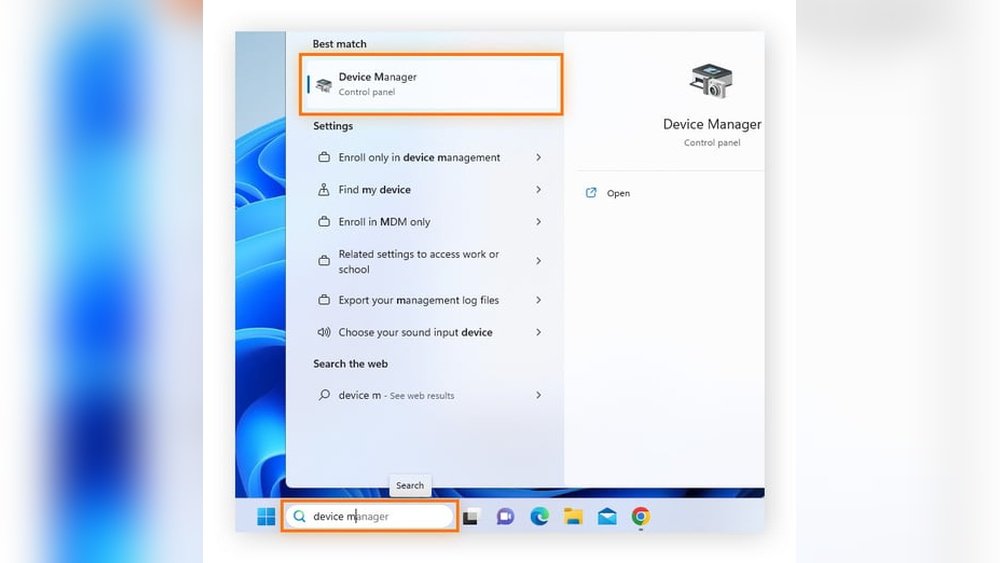
Device Manager is a built-in tool in Windows laptops. It shows all hardware components installed. You can use it to find the GPU quickly. This method works on most Windows versions. It helps to check the exact GPU model your laptop uses.
Accessing Device Manager
First, press the Windows key and the letter R together. A small box will appear. Type “devmgmt.msc” in the box and press Enter. This opens Device Manager directly. You can also right-click the Start button. Then, select “Device Manager” from the menu.
Locating Display Adapters
Inside Device Manager, look for “Display adapters.” Click the arrow next to it. You will see the GPU name listed here. It shows the main graphics processor used by your laptop. Note the GPU name for further reference or troubleshooting. This section may list more than one GPU on some laptops.
Try Directx Diagnostic Tool
The DirectX Diagnostic Tool is a simple way to check your laptop’s GPU. It shows detailed information about your graphics hardware. This tool comes built into Windows, so no need to install anything extra. Using it takes just a few steps and gives clear results.
Running Dxdiag
To start the DirectX Diagnostic Tool, press the Windows key and R together. Type dxdiag in the box and hit Enter. A new window will open. It might take a few seconds to load all information. This window shows system details and hardware info.
Finding Gpu Information
Click the Display tab inside the dxdiag window. Here, you see your GPU name and manufacturer. The tool also shows the amount of memory your GPU has. It lists the driver version and other important details. This info helps you understand your laptop’s graphics power.
Use Third-party Apps
Third-party apps offer a simple way to find the GPU on a laptop. These tools show detailed information about your hardware in a clear format. They work fast and do not need technical skills.
Many apps are free and easy to install. They provide more details than basic system settings. This helps you understand your laptop’s graphics capability better.
Gpu-z
GPU-Z is a popular app for checking GPU details. It shows the exact model, memory size, and clock speed. The interface is simple and easy to read. It also provides temperature and usage stats in real-time. This app is lightweight and runs smoothly on most laptops.
Speccy And Others
Speccy is another trusted tool to find GPU info quickly. It gives a full summary of your system’s hardware. You can see GPU name, manufacturer, and driver version easily. Other apps like HWMonitor and AIDA64 also display GPU data. These apps help monitor your laptop’s health and performance.
Check Laptop Manufacturer Tools
Checking your laptop’s manufacturer tools can help you find the GPU details quickly. Laptop makers often provide built-in software or settings to show hardware information. These tools are easy to use and reliable for identifying your GPU.
Brand-specific Software
Many laptop brands include special software to manage system settings. For example, Dell has Dell SupportAssist, and HP offers HP Support Assistant. These programs show detailed hardware info, including the GPU model. Open the software and look for system or device information sections. You can find your GPU listed there clearly.
Bios And Uefi
BIOS or UEFI firmware also stores hardware details. Restart your laptop and enter BIOS/UEFI setup by pressing keys like F2, Del, or Esc during boot. In BIOS menus, check for system information or advanced settings. The GPU name or type may be displayed there. This method works even without an operating system installed.

Credit: www.esseg.eu
Identify Discrete Vs Integrated Gpu
Knowing the type of GPU in your laptop helps understand its performance. Identifying whether your laptop has a discrete or integrated GPU can guide you in choosing software or games. It also shows how well your laptop handles graphics tasks.
Differences Between Gpu Types
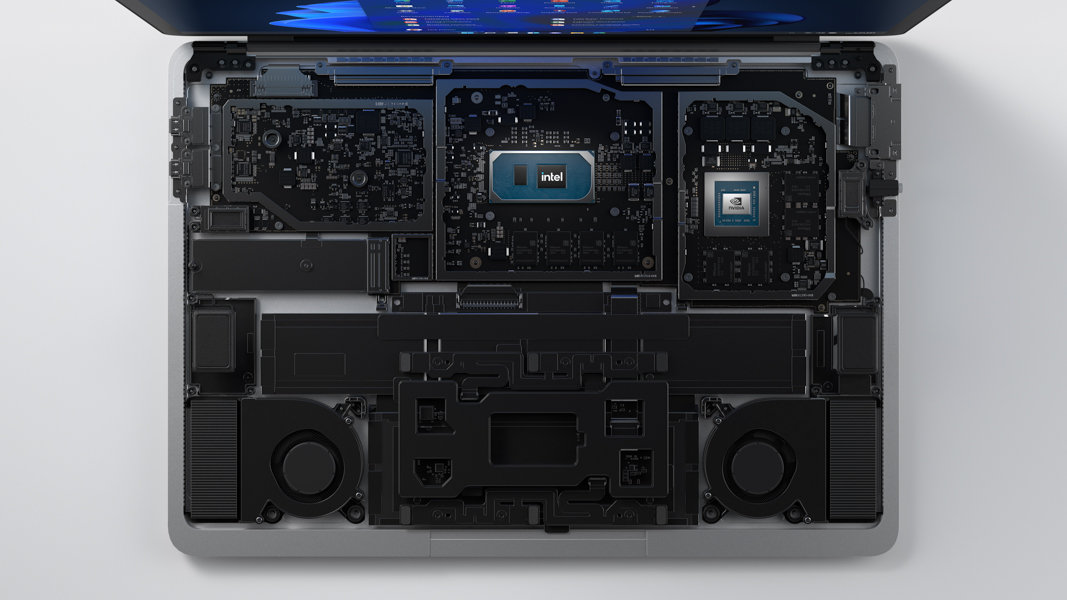
An integrated GPU shares memory with the laptop’s CPU. It uses less power and is common in basic laptops. Discrete GPUs have their own memory and power. They offer better graphics performance for games and design work.
Integrated GPUs are smaller and produce less heat. Discrete GPUs are larger and need more cooling. This makes discrete GPUs ideal for tasks needing strong graphics power.
How To Spot Each On Your Laptop
Check your laptop’s system settings or device manager. Integrated GPUs usually show as part of the CPU brand, like Intel HD Graphics. Discrete GPUs appear as separate devices, such as NVIDIA or AMD Radeon.
You can also find GPU info in the BIOS or UEFI menu. Some laptops have stickers showing the discrete GPU model. Look for names and brands on the laptop’s body or manual.
Frequently Asked Questions
How Do I Check My Laptop’s Gpu Model?
You can check your GPU by opening Device Manager. Expand “Display adapters” to see the GPU name. Alternatively, use system information tools like DirectX Diagnostic Tool (dxdiag) or third-party apps like GPU-Z.
Can I Find Gpu Details Without Software?
Yes, you can find GPU info via system settings. On Windows, go to Display Settings > Advanced Display Settings. The GPU name appears under Display Adapter Properties. This method requires no extra software installation.
Why Is Knowing My Laptop’s Gpu Important?
Knowing your GPU helps determine graphics performance. It guides gaming, video editing, or software compatibility decisions. This ensures your laptop meets your visual and processing needs effectively.
How To Identify Integrated Vs Dedicated Gpu?
Integrated GPUs share memory with the CPU and are less powerful. Dedicated GPUs have their own memory and provide better performance. You can check this in Device Manager under “Display adapters. “
Conclusion
Finding your laptop’s GPU is simple and quick. Check system settings or device manager first. You can also use software tools for detailed info. Knowing your GPU helps with gaming, work, and updates. Keep this guide handy whenever you need to check.
Understanding your laptop’s parts makes tech less confusing. Now, you can easily find your GPU anytime.
