
Are you wondering why your computer feels slow or overheated? Knowing how to find CPU usage on Windows 10 can give you a clear picture of what’s happening inside your machine.
When your CPU is running at high capacity, it can affect your system’s speed and performance. You’ll learn simple and quick steps to check your CPU usage, helping you spot problems before they get worse. Keep reading to take control of your PC’s health and boost your computer’s efficiency.

Credit: softwareg.com.au
Check Cpu Usage With Task Manager
Checking CPU usage in Windows 10 helps you understand how your computer works. It shows the power your processor uses. This information helps find slow programs or issues.
Windows Task Manager is the best tool for this. It is easy to open and gives real-time data. Learn how to check CPU usage with Task Manager below.
Open Task Manager Quickly
Press Ctrl + Shift + Esc to open Task Manager fast. This shortcut skips extra steps. You see the Task Manager window immediately.
You can also right-click the taskbar and select Task Manager. Either method works well.
Navigate To Performance Tab
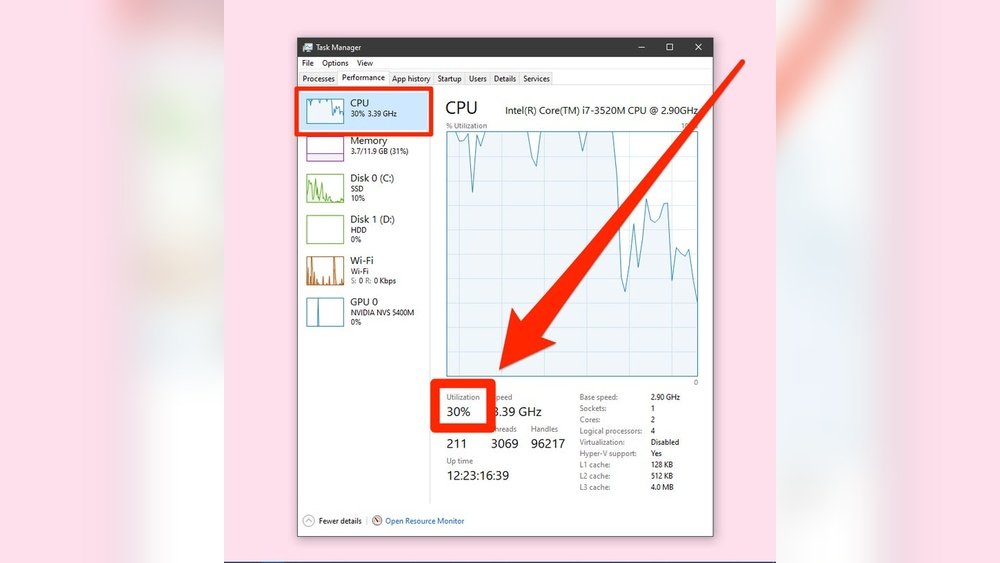
Inside Task Manager, click the Performance tab at the top. This tab shows computer resource use.
On the left side, find and click CPU. This view shows detailed CPU info and usage.
Interpret Cpu Usage Graph
The CPU section shows a graph of your processor’s activity. The graph moves from left to right. It updates every second.
The percentage below the graph tells CPU usage now. A high number means heavy use. Low means your CPU is free.
Watch the graph to spot spikes or constant high usage. This helps find programs causing slowdowns.

Credit: superuser.com
Use Resource Monitor For Detailed Stats
Resource Monitor is a built-in tool in Windows 10. It shows detailed CPU usage information. This helps you see how your computer uses its processing power. You can find which programs use the most CPU. It also helps in spotting any problems that slow down your PC.
Launch Resource Monitor
Press Windows key + R to open the Run dialog. Type resmon and press Enter. The Resource Monitor window will open. You can also find it by typing “Resource Monitor” in the Start menu search box.
Analyze Cpu Activity
Click the CPU tab inside Resource Monitor. Here, you see a graph of CPU usage over time. The graph shows total CPU load and usage by each core. Below the graph, find detailed stats about CPU performance. This view helps track how busy your CPU is.
Identify Processes Using Cpu
Look at the list of processes under the CPU tab. Each process shows its CPU usage percentage. This shows which apps or services use the most CPU power. You can spot any unusual or heavy CPU users. This helps in managing and fixing slowdowns.
Monitor Cpu Usage Via Command Prompt
Monitoring CPU usage is important to check your computer’s performance. The Command Prompt tool on Windows 10 helps you do this quickly. It shows real-time CPU data without needing extra software. This guide explains how to monitor CPU usage using Command Prompt with easy steps.
Open Command Prompt
Press the Windows key on your keyboard. Type “cmd” in the search bar. Click on the “Command Prompt” app to open it. You can also press “Enter” after typing “cmd.” The black Command Prompt window will appear.
Use Wmic Command
In the Command Prompt window, type the command: wmic cpu get loadpercentage. Press “Enter” to run it. This command asks the system for the current CPU load percentage. It works fast and gives you clear results.
Read Cpu Usage Output
After running the command, you will see a number. This number shows the CPU usage in percentage. For example, “15” means the CPU is using 15% of its capacity. Check this number to know if your CPU is busy or idle. Run the command again to update the data.

Credit: softwareg.com.au
Third-party Tools To Track Cpu Usage
Third-party tools offer detailed views of your CPU usage on Windows 10. These tools provide more information than the built-in Task Manager. They help track CPU performance over time and catch hidden issues.
Many third-party apps show real-time CPU data with easy-to-read graphs. They also offer alerts for high CPU usage. Some include extra features like temperature monitoring and system diagnostics.
Popular Cpu Monitoring Software
Several reliable apps can track CPU usage. CPU-Z gives detailed CPU specs and usage data. HWMonitor shows temperature, voltage, and CPU load. Core Temp focuses on CPU temperature and usage per core. Open Hardware Monitor is open-source and covers many sensors. These tools suit different needs and skill levels.
Features To Look For
Choose tools with simple interfaces and clear data. Real-time tracking is important to see CPU changes immediately. Alerts help notify when CPU usage is too high. Compatibility with Windows 10 ensures the tool works well. Extra features like temperature monitoring add value. Custom reports or logs can help analyze usage over time.
Installing And Using Tools
Download software from official or trusted sites only. Follow installation steps carefully to avoid unwanted software. Most tools start monitoring right after installation. Explore settings to customize alerts and display options. Keep software updated for best performance and security. Run the tool in the background to track CPU usage constantly.
Tips To Reduce High Cpu Usage
High CPU usage slows down your computer and causes frustration. Reducing it helps your system run smoothly. Small steps can make a big difference in performance. Focus on simple actions anyone can take.
Close Unnecessary Programs
Many programs running at once use up CPU power. Close apps you are not using. Check the taskbar and system tray for hidden programs. Use Task Manager to see which apps use the most CPU. End the tasks that are not important.
Update Drivers And Software
Outdated drivers and software can cause high CPU usage. Update your device drivers regularly. Check for Windows updates and install them. New updates fix bugs and improve system efficiency. This keeps your CPU from working too hard.
Scan For Malware
Malware can cause high CPU use without your knowledge. Run a full system scan with trusted antivirus software. Remove any detected threats immediately. Keep your antivirus updated for better protection. A clean system uses CPU power more efficiently.
Frequently Asked Questions
How Do I Check Cpu Usage On Windows 10?
Open Task Manager by pressing Ctrl + Shift + Esc. Go to the Performance tab and select CPU. Here, you can see real-time CPU usage and detailed performance metrics.
What Causes High Cpu Usage In Windows 10?
High CPU usage can result from background apps, malware, outdated drivers, or system processes. Identifying the task in Task Manager helps troubleshoot effectively.
Can I Monitor Cpu Usage Without Task Manager?
Yes, use Resource Monitor or third-party tools like HWMonitor. These provide detailed CPU stats and can track usage trends over time.
How Often Should I Check My Cpu Usage?
Regular checks during heavy tasks or system slowdowns help. Monitoring ensures your CPU runs efficiently and avoids performance issues.
Conclusion
Checking CPU usage in Windows 10 helps keep your computer healthy. It shows how much work your processor does. You can find this info easily using built-in tools like Task Manager. Regularly watching CPU use helps spot problems early. It also improves your computer’s speed and performance.
Remember to close programs that use too much CPU. This keeps your system running smoothly. Practice these steps often for better control over your PC. Simple actions make a big difference in computer care.
