
Are you curious about what powers your PC? Knowing how to find the CPU on your computer is easier than you think—and it can help you understand your device better.
Whether you’re troubleshooting, upgrading, or just want to learn more about your system, this guide will show you simple steps to locate and identify your CPU quickly. Keep reading, and you’ll gain the confidence to check your PC’s heart in no time.
Credit: www.howtogeek.com
Check System Information
Checking system information is a simple way to find your PC’s CPU details. It shows the processor name, speed, and more. This method works on most Windows computers and helps you learn about your hardware quickly.
Accessing System Properties
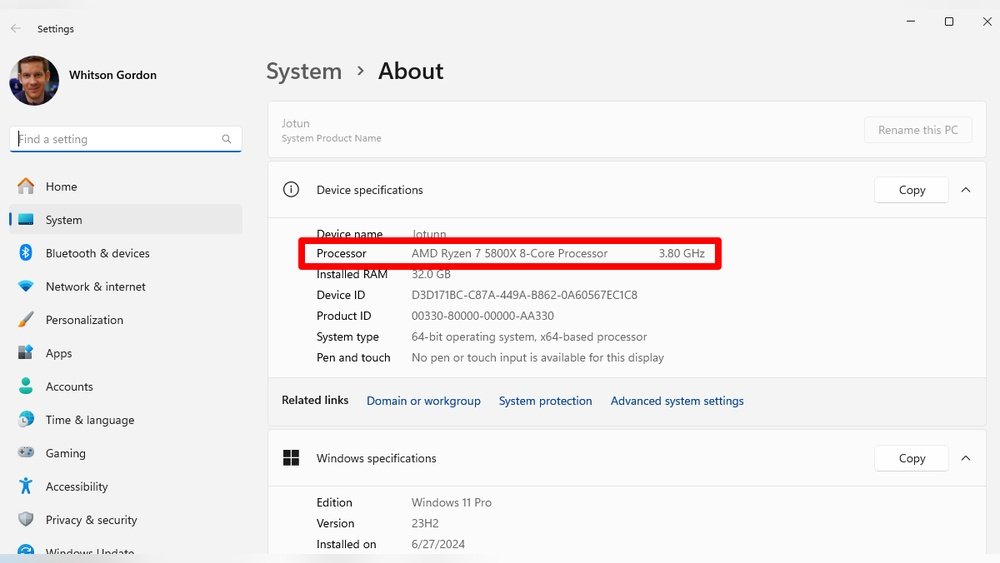
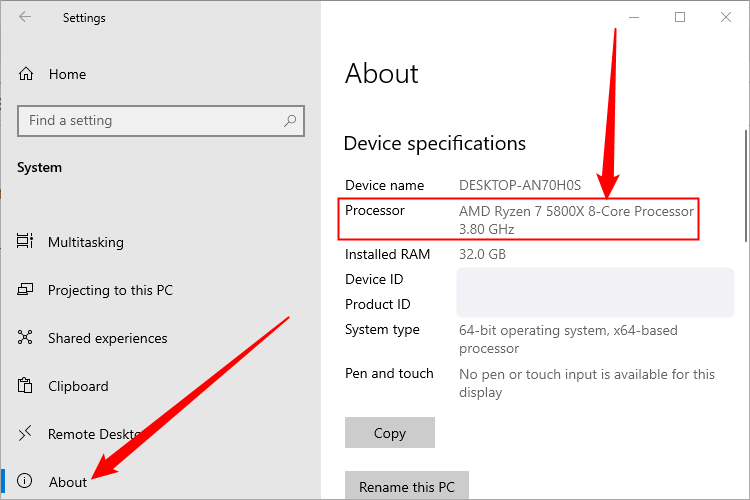
Start by right-clicking the “This PC” or “My Computer” icon on your desktop. Select “Properties” from the menu. A window will open showing basic system details.
Look for the section labeled “Processor.” It displays the CPU model and speed. This gives a quick overview of your computer’s processor.
Using System Information Tool
Press the Windows key and type “System Information.” Open the app that appears. This tool offers detailed data about your PC’s hardware.
In the System Summary, find the “Processor” entry. It shows the CPU name, speed, and number of cores. This method provides a deeper look at your processor specs.
Use Task Manager
Task Manager is a simple tool to find your CPU details fast. It shows the current CPU usage and basic information about your processor. Using Task Manager helps you check your CPU without extra software. This section explains how to open Task Manager and locate your CPU details.
Opening Task Manager
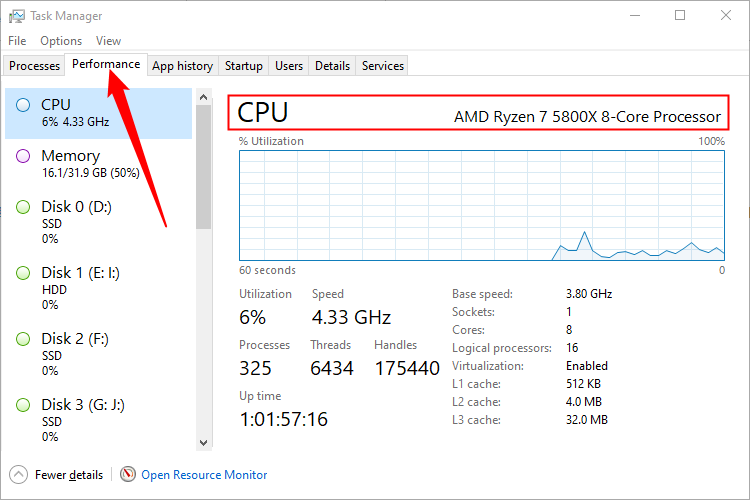
Press Ctrl + Shift + Esc keys on your keyboard. This shortcut opens Task Manager directly. You can also right-click the taskbar at the bottom of your screen. Select Task Manager from the menu that appears. The Task Manager window will open quickly.
Locating Cpu Details
Click the Performance tab at the top of Task Manager. On the left side, choose CPU. You will see real-time CPU usage graphs. Below the graph, find your CPU name and speed. This section shows your processor model and how many cores it has. This helps you understand your PC’s power and performance.
Run Command Prompt Commands
Running commands in the Command Prompt is a quick way to find your PC’s CPU details. This method does not need any extra software. Just a few simple commands provide the CPU name and other useful info. It works on most Windows versions and gives clear results.
Below are two easy methods using Command Prompt and PowerShell commands. Both show detailed CPU information fast.
Using Wmic Command
Open Command Prompt by typing cmd in the search bar and pressing Enter. In the Command Prompt window, type wmic cpu get name and press Enter. This command displays the name of your CPU.
You can also type wmic cpu get caption, deviceid, name, numberofcores, maxclockspeed for more details. It shows CPU model, core count, and speed.
Using Powershell
Open PowerShell by typing powershell in the search bar and pressing Enter. Then, type Get-WmiObject Win32_Processor | Select-Object Name, NumberOfCores, MaxClockSpeed and press Enter.
This command lists the CPU name, how many cores it has, and its maximum clock speed. PowerShell gives a clean and easy-to-read output.
Credit: www.howtogeek.com
Check Bios Or Uefi
Checking the BIOS or UEFI is a reliable way to find your PC’s CPU information. This system software holds important details about your hardware. It works before your operating system starts. Accessing it can show you the CPU model, speed, and other specs clearly.
Many users prefer this method because it does not require any software. It is useful if your PC is slow or you cannot open system settings. The process is simple and quick once you know the steps.
Accessing Bios/uefi
Turn off your PC completely. Press the power button and immediately press a key to enter BIOS or UEFI. Common keys are F2, Delete, Esc, or F10. The exact key depends on your computer brand. Watch the screen for instructions during startup. If you miss the key, restart and try again.
Finding Cpu Info In Bios
Inside BIOS or UEFI, navigate using arrow keys or mouse. Look for a tab named “System Information,” “Main,” or “CPU.” Here you will find your CPU’s name, speed, and core count. Some BIOS versions also show temperature and cache size. Write down the details or take a photo for reference.
Third-party Software Options
Third-party software offers a simple way to find detailed CPU information on your PC. These tools show clear data about your processor without complex steps. They help users who want quick, easy answers about their computer’s hardware.
Two popular programs stand out for their reliability and ease of use. Both provide thorough CPU details and more system information. Let’s explore these options to help you check your CPU quickly.
Cpu-z
CPU-Z is a free tool designed to display all key CPU details. It shows the processor name, number of cores, threads, and clock speed. The interface is clean and easy to navigate for any user. It also provides information about your motherboard and memory. CPU-Z does not require installation, making it convenient for quick checks. Many users trust it for accurate and clear CPU data.
Speccy
Speccy offers a full overview of your computer’s hardware. It lists CPU details along with RAM, storage, and graphics card info. The program uses simple language and has a friendly design. It also shows temperatures for your CPU and other parts. This helps monitor your PC’s health while checking the CPU. Speccy is a great choice for people who want a complete system report in one place.
Physical Inspection Of Cpu
Physically inspecting the CPU inside your PC helps you know its exact model. This method gives a clear view of the chip on the motherboard. It also helps when software tools don’t work or you want to check details directly.
Before touching any parts, you must open the PC case carefully. The CPU is usually under a heat sink or fan, so be gentle. Handling the CPU directly requires care to avoid damage.
Opening Pc Case Safely
First, turn off your PC and unplug it from the power. Wait a few minutes to let the system cool down. Find a clean, flat surface to place your computer. Remove screws or clips holding the case side panel. Slide the panel off slowly to avoid damaging wires inside. Avoid touching other components to prevent static damage. Use an anti-static wrist strap if you have one.
Identifying Cpu Model On Chip
Look for the CPU under the fan or heat sink. You may need to remove the heat sink carefully by loosening screws or clips. The CPU has a label with its model name and number printed on top. The text may be small, so use a flashlight or magnifier if needed. Write down the model for future reference or research. Do not touch the gold pins on the bottom of the CPU. Reattach the heat sink and case panel securely after checking.

Credit: www.corsair.com
Frequently Asked Questions
How To Check Cpu Model On Windows Pc?
To find your CPU model, open “Task Manager” by pressing Ctrl + Shift + Esc. Go to the “Performance” tab. Select “CPU” on the left side. Your CPU model will appear on the top right corner of the window.
Where To Find Cpu Information In System Settings?
Open “Settings” from the Start menu. Navigate to “System” and then “About. ” Under “Device specifications,” you’ll see the processor name, which is your CPU information.
Can I Find Cpu Details Using Command Prompt?
Yes, open Command Prompt and type wmic cpu get name. Press Enter, and your CPU model will be displayed instantly.
How To Identify Cpu Using System Information Tool?
Press Windows + R, type msinfo32, and hit Enter. In the System Information window, look for “Processor” in the summary section to see CPU details.
Conclusion
Finding your PC’s CPU is easier than it seems. Just follow simple steps to check it. Knowing your CPU helps with upgrades and troubleshooting. Use built-in tools like Task Manager or System Information. These methods give clear, quick results. Now, you can confidently find your CPU anytime.
Understanding your computer better makes tech less confusing. Keep these tips handy for future use.
