
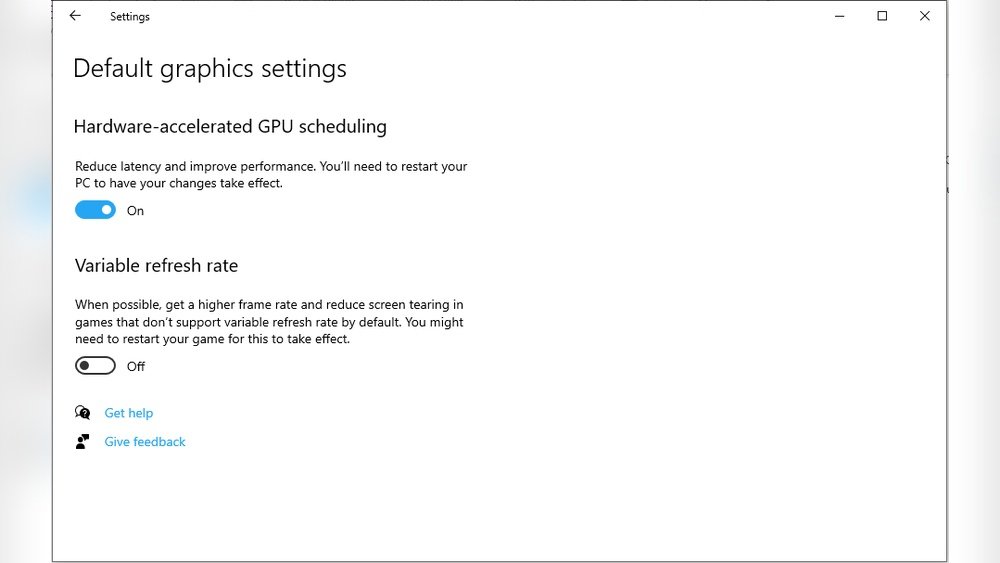
Are you looking to boost your computer’s performance and get smoother graphics? Enabling Hardware Accelerated GPU Scheduling could be the simple change you need.
This feature helps your system manage graphics tasks more efficiently, making games, videos, and apps run faster and with less lag. In this guide, you’ll learn exactly how to turn it on step-by-step—no tech jargon, just clear instructions you can follow right now.
Keep reading to unlock better speed and smoother visuals on your PC.
What Is Hardware Accelerated Gpu Scheduling
Hardware Accelerated GPU Scheduling is a feature in Windows that changes how your computer manages graphics tasks. It allows the GPU to handle its own scheduling, reducing the work of the CPU. This can lead to smoother graphics performance and lower latency in games and apps.
The idea is simple. Instead of the CPU controlling all the graphics commands, the GPU takes over some of this work. This helps the system run more efficiently and can improve overall responsiveness.
What Does Hardware Accelerated Gpu Scheduling Do?
This feature lets the graphics card manage its memory and task scheduling. It reduces delays caused by the CPU passing commands to the GPU. The GPU can prioritize important tasks faster, which helps improve visuals and speed.
How Does It Work?
The GPU gets a dedicated scheduler that handles graphics tasks independently. This scheduler works directly with the GPU’s memory and processing units. It cuts down the time needed to process graphics commands.
Benefits Of Hardware Accelerated Gpu Scheduling
Users may notice smoother gameplay and less lag in video playback. It can also lower power use, which helps with device cooling. This feature makes graphics processing more efficient and responsive.
Credit: www.windowslatest.com
Benefits Of Enabling Gpu Scheduling
Enabling hardware accelerated GPU scheduling can improve your computer’s graphics handling. It allows the GPU to manage its own memory and tasks more efficiently. This leads to better performance and smoother visuals.
Many users notice faster response times and less lag in games and apps. It also helps reduce the load on the CPU, freeing it for other tasks. These benefits make GPU scheduling a useful feature for everyday use.
Improved Frame Rates
GPU scheduling helps increase frame rates in games and videos. Higher frame rates mean smoother motion and better visual quality. This makes gameplay and video watching more enjoyable and less choppy.
Lower Latency
Latency is the delay between your input and the action on screen. GPU scheduling cuts down this delay by letting the GPU handle tasks directly. This results in quicker reactions, which is important for gaming and creative work.
Reduced Cpu Load
With GPU scheduling, the CPU spends less time managing graphics tasks. This frees up CPU power for other programs and processes. Your computer runs more smoothly and can multitask better.
Better Power Efficiency
Hardware accelerated GPU scheduling helps your system use power more wisely. It reduces unnecessary work for the CPU and GPU. This can lead to longer battery life on laptops and less heat generation.
System Requirements For Gpu Scheduling
Hardware Accelerated GPU Scheduling can improve your computer’s graphics performance. It helps the GPU manage its workload better. But not all systems support this feature. Knowing the system requirements is important before enabling it.
These requirements ensure that your system can use GPU scheduling safely and effectively. Missing any of these might cause problems or no improvement at all. Check your system carefully to avoid errors.
Operating System
Your PC must run Windows 10 version 2004 or later. Older versions do not support GPU scheduling. Make sure Windows is updated to meet this need.
Graphics Card Compatibility
Only certain GPUs support hardware accelerated scheduling. Most modern NVIDIA and AMD cards do. Check your GPU model on the manufacturer’s website.
Updated Graphics Drivers
Drivers must be the latest version. Outdated drivers may block the feature. Visit your GPU maker’s site for the newest drivers.
System Bios And Firmware
The motherboard’s BIOS should be updated. Firmware updates can fix bugs affecting GPU scheduling. Check your PC or motherboard manufacturer for updates.
Credit: m.majorgeeks.com
Step-by-step Guide To Enable Gpu Scheduling
Enabling Hardware Accelerated GPU Scheduling can improve your PC’s graphics performance. This guide shows the simple steps to turn it on. Follow each part carefully to activate this feature on your Windows computer.
Accessing Graphics Settings
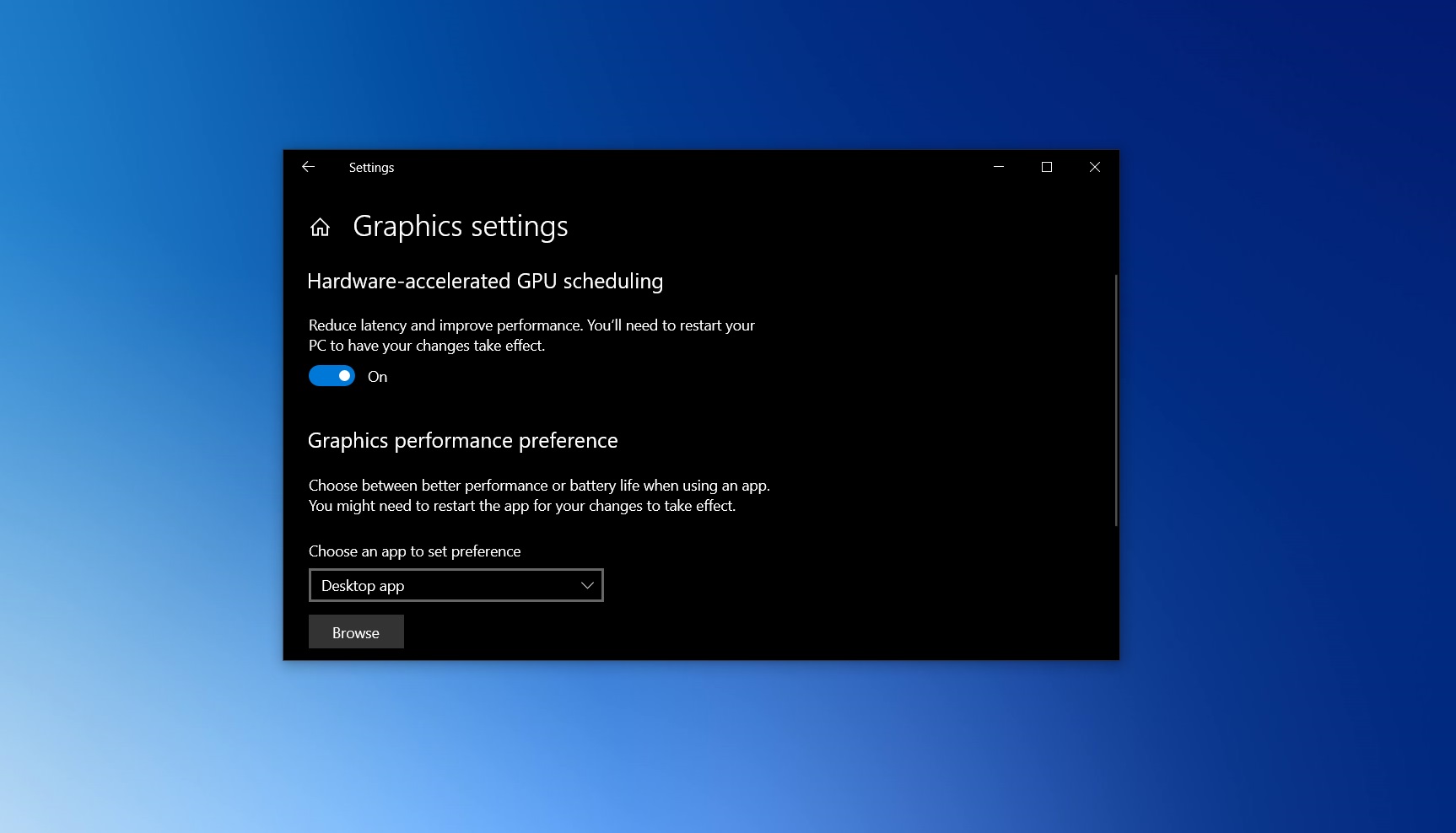
First, open the Start menu. Click on the Settings icon. Select the System option. Next, choose Display from the left menu. Scroll down and click on Graphics settings. This area controls your GPU options.
Turning On Hardware-accelerated Gpu Scheduling
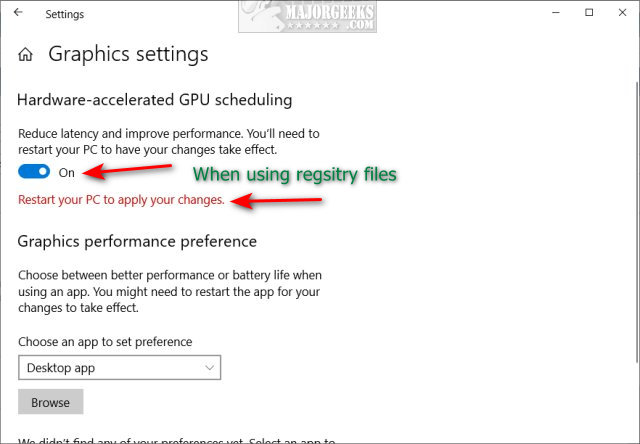
In Graphics settings, find the Hardware-accelerated GPU scheduling toggle. Click to switch it on. This setting helps your GPU manage tasks better. Make sure your PC supports this feature before enabling it.
Restarting Your Pc
After enabling GPU scheduling, restart your computer. A reboot activates the changes. Once your PC restarts, the new setting will be active. Check your system’s performance to see the difference.
Troubleshooting Common Issues
Hardware Accelerated GPU Scheduling can improve your computer’s performance. Yet, issues may arise during setup or use. This section helps you fix common problems fast. Clear steps make troubleshooting easy and effective.
Driver Compatibility
Check your graphics driver version first. Outdated drivers often cause errors with GPU scheduling. Visit your GPU maker’s website for the latest updates. Install the newest driver and restart your PC. This step solves many compatibility problems.
Performance Problems
Sometimes, GPU scheduling may slow your system. Monitor your computer’s behavior after enabling it. Disable unnecessary background apps to free resources. Adjust graphics settings for balance between speed and quality. These actions help fix lag or stutter.
Reverting Changes
Not happy with the new settings? You can easily turn off hardware accelerated GPU scheduling. Go back to the same menu where you enabled it. Uncheck the option and reboot your device. This restores your previous setup without issues.

Credit: www.youtube.com
Tips To Maximize Gpu Performance
Maximizing GPU performance ensures smoother graphics and faster processing. It helps your computer run games and apps better. Simple steps can improve your GPU’s power and efficiency. Follow these tips to get the best results from your hardware.
Updating Graphics Drivers
Keep your graphics drivers up to date. New driver versions fix bugs and boost performance. Visit your GPU maker’s website regularly for updates. Use automatic update tools if available. Updated drivers improve compatibility with new software and games.
Optimizing Game Settings
Adjust game settings for better GPU performance. Lower resolution or reduce shadow quality to ease GPU load. Turn off unnecessary effects like motion blur or depth of field. Balance visuals and speed to fit your hardware. These tweaks help maintain smooth gameplay.
Regular System Maintenance
Clean your PC to avoid overheating. Dust can block fans and slow down your GPU. Use compressed air to clear vents and fans. Close unused programs to free up GPU resources. Check for malware that can drain system performance. Regular care keeps your GPU running well.
Frequently Asked Questions
What Is Hardware Accelerated Gpu Scheduling?
Hardware Accelerated GPU Scheduling is a feature that reduces latency by allowing the GPU to manage its own memory. It improves performance and responsiveness in gaming and graphic-intensive tasks.
How Do I Enable Hardware Accelerated Gpu Scheduling?
Go to Settings > System > Display > Graphics Settings. Toggle on Hardware Accelerated GPU Scheduling. Restart your PC to apply changes.
Does Hardware Accelerated Gpu Scheduling Improve Gaming Performance?
Yes, it can reduce input lag and improve frame rates in some games. Results vary based on hardware and drivers.
Which Windows Versions Support Gpu Scheduling?
Hardware Accelerated GPU Scheduling is supported on Windows 10 (version 2004) and later, including Windows 11.
Conclusion
Enabling Hardware Accelerated GPU Scheduling can improve your PC’s performance. It helps reduce lag and makes graphics smoother. The process is simple and quick to follow. Just check your system compatibility and update your drivers first. Then, adjust the settings in Windows for better results.
Small changes can make a big difference in how your computer runs. Try it today to see if it works well for you. This feature helps your computer use its graphics power more efficiently. Give it a chance and enjoy a smoother experience.
