
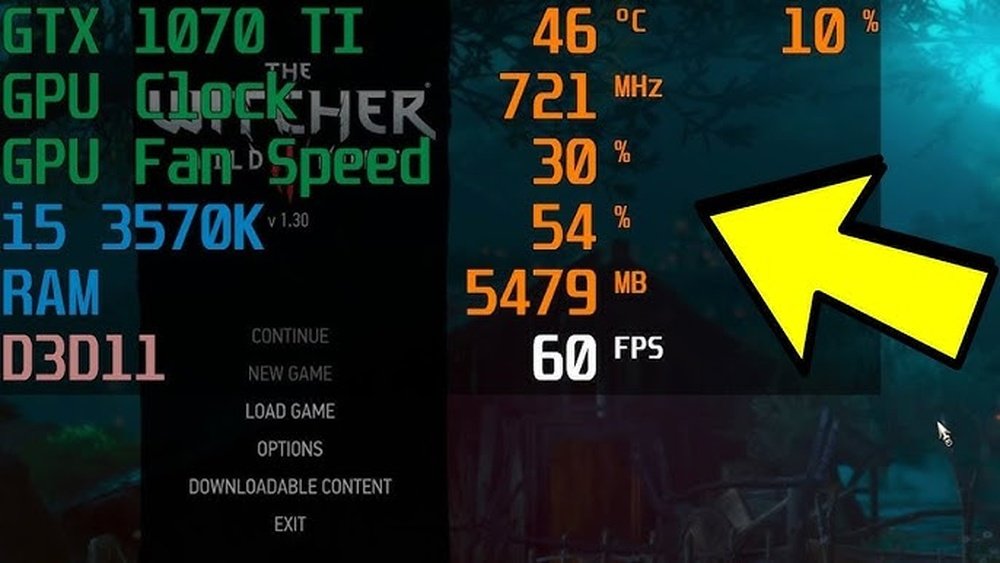
Want to know exactly how your computer is performing while you play games or run heavy programs? Seeing your FPS, GPU, and CPU usage in real time can give you the edge to optimize your system and fix lag before it ruins your experience.
But if you’re not sure how to display these stats clearly and easily, don’t worry—you’re in the right place. You’ll learn simple, step-by-step methods to track your FPS, GPU, and CPU usage so you can get the smooth, responsive performance you deserve.
Keep reading to unlock the power of monitoring your system like a pro.
Choosing The Right Tools
Choosing the right tools to display FPS, GPU, and CPU usage is key for clear and accurate data. The tools should be easy to use and reliable. They help you understand your system’s performance during gaming or heavy tasks. Some tools come built into your operating system. Others are third-party applications with extra features.
Popular Monitoring Software
Popular software often offers real-time tracking of FPS, GPU, and CPU. Many gamers and professionals trust these tools for their accuracy. They show detailed graphs and stats. Some popular options include MSI Afterburner and RivaTuner. These tools are free and support many games and hardware types.
Built-in Os Utilities
Operating systems like Windows and macOS have built-in utilities. These tools monitor system performance without extra downloads. Windows Task Manager and macOS Activity Monitor display CPU and GPU usage. They are simple but lack detailed FPS tracking. Built-in tools are good for basic monitoring and quick checks.
Third-party Applications
Third-party apps offer more features than built-in utilities. They provide customizable overlays and alerts for FPS and hardware usage. Examples include HWMonitor and Open Hardware Monitor. These apps support multiple devices and show temperature, voltage, and clock speeds. They suit users needing in-depth system analysis.

Credit: www.youtube.com
Setting Up Fps Monitoring
Setting up FPS monitoring helps you check your computer’s performance. It shows how fast your game runs and how much power your CPU and GPU use. This information helps you fix slowdowns and enjoy smoother gameplay.
There are different ways to display FPS and hardware usage. Choose the method that fits your needs and device.
Enabling In-game Overlays
Many games and software have built-in overlays for FPS and hardware stats. These overlays show data directly on your screen while playing. To turn them on, go to the game or app settings. Look for options like “performance,” “HUD,” or “overlay.” Enable the FPS or usage display. This method is simple and does not need extra tools.
Using Dedicated Fps Counters
Special apps can track FPS, CPU, and GPU usage in detail. Examples include MSI Afterburner, Fraps, and RivaTuner. Download and install one of these tools. Open the app and find the option to show FPS or hardware stats. These counters work with many games and offer more features than in-game overlays.
Customizing Display Options
Most monitoring tools let you change how the info appears. Adjust the size, color, and position of the FPS and usage numbers. Choose what data to show, such as frame rate, GPU temperature, or CPU load. Custom settings help keep the screen clear and the info easy to read.
Tracking Gpu Usage
Tracking GPU usage helps you see how hard your graphics card works. It shows how much power your GPU uses during games or other tasks. Knowing this helps keep your computer cool and running fast. Let’s explore how to track GPU usage clearly and easily.
Installing Gpu Monitoring Tools
First, you need software to watch your GPU. Popular tools include MSI Afterburner and GPU-Z. These apps are free and simple to install. Download from official sites to avoid viruses. After installation, open the tool to start monitoring your GPU.
Configuring Real-time Metrics
Next, set up the tool to show live GPU data. Enable options like GPU usage, temperature, and clock speed. Some tools let you display this info on your screen during games. Adjust settings for clear, easy-to-read numbers. This real-time data helps you track performance instantly.
Interpreting Gpu Data
Look at the numbers carefully. High GPU usage means your card is working hard. High temperatures could cause overheating and slowdowns. Watch clock speeds to see if the GPU runs at full power. Use this data to avoid problems and keep your PC running well.
Monitoring Cpu Usage
Monitoring CPU usage helps you understand how your computer works. It shows how much power your processor uses. This information can help you keep your system fast and avoid problems. You can check CPU use during gaming or heavy tasks. It also helps in fixing slow computer issues.
Accessing Cpu Performance Stats
To see CPU stats, open your computer settings. Most systems have built-in tools for this. These tools show CPU speed, usage, and temperature. You can watch how your CPU performs in real-time. This helps you spot if your CPU is overloaded.
Using Task Manager And Alternatives
Task Manager is an easy way to view CPU use on Windows. Press Ctrl + Shift + Esc to open it. Look under the Performance tab to find CPU details. Some users prefer tools like HWMonitor or MSI Afterburner. These programs show more detailed CPU info. Choose the one that fits your needs.
Optimizing Cpu Monitoring
Keep your CPU monitoring tool open during heavy tasks. Check for sudden spikes in CPU use. Close programs that use too much CPU to improve performance. Set alerts in some tools to warn about high CPU use. Regularly monitoring helps keep your PC running smooth.
Combining Metrics For Better Insight
Combining FPS, CPU, and GPU metrics helps you understand your computer’s performance better. Seeing these numbers together shows how your system handles games or tasks. It reveals if your CPU or GPU limits the performance. This insight helps improve your setup and fix issues faster.
Overlaying Fps With Cpu And Gpu Stats
Overlay tools put FPS, CPU, and GPU data on your screen during games. This view helps track performance without switching apps. You can see if a drop in FPS matches high CPU or GPU use. Overlays keep you informed in real-time while you play or work.
Setting Alerts For High Usage
Alerts notify you when CPU or GPU usage passes a set limit. This stops overheating or system slowdowns. Set alerts to warn at 80% or 90% usage for safety. Getting a warning early allows you to close programs or cool the system.
Using Dashboards For Comprehensive View
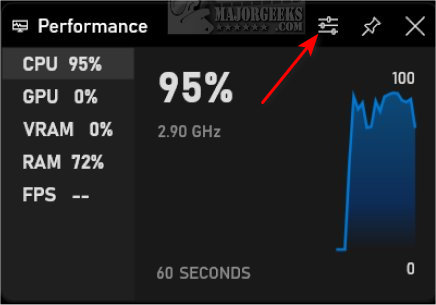
Dashboards gather all performance data in one place. They show FPS, CPU, GPU stats, and temperatures. This full view helps spot trends and problems easily. You can compare data over time to improve performance and stability.
Credit: www.shoshitamam.com
Troubleshooting Common Issues
Troubleshooting common issues helps you get accurate FPS, GPU, and CPU data. Problems can cause wrong readings or slow performance. Fixing these issues improves your monitoring experience. Here are simple steps to solve common problems.
Fixing Inaccurate Readings
Check that your monitoring tool supports your hardware. Outdated software may show wrong numbers. Update your drivers and software regularly. Restart your computer to refresh system data. Avoid running multiple monitoring apps at once. They can conflict and cause errors.
Resolving Software Conflicts
Close background programs that use many resources. Some apps may block monitoring tools from working. Disable overlays from other software like game clients. Set your monitoring app to run as administrator. This ensures it can access all system data.
Improving Monitoring Performance
Lower the update frequency in your monitoring settings. High update rates can slow your system. Use lightweight monitoring tools to reduce CPU load. Keep your system clean from unnecessary files. Regular maintenance helps your PC run smoothly and reports data correctly.

Credit: softwareg.com.au
Frequently Asked Questions
How To Show Fps On Windows Pc?
You can display FPS using built-in tools like Xbox Game Bar. Press Win + G, then enable FPS overlay in performance settings. Alternatively, use third-party apps like MSI Afterburner for detailed FPS monitoring.
How To Monitor Gpu Usage During Gameplay?
Use software like MSI Afterburner or GPU-Z to track GPU usage in real-time. These tools display GPU load, temperature, and clock speeds while gaming for performance insights.
Can Cpu Usage Be Displayed With Fps Overlay?
Yes, many performance monitoring tools show CPU usage alongside FPS. Xbox Game Bar and MSI Afterburner provide CPU load stats in the same overlay for convenience.
What Software Shows Fps, Gpu, And Cpu Usage Together?
MSI Afterburner and RivaTuner Statistics Server offer combined FPS, GPU, and CPU usage overlays. They are popular for gaming performance monitoring and customization.
Conclusion
Tracking FPS, GPU, and CPU usage helps you understand your computer’s performance. You can spot issues before they become big problems. Many tools make it easy to show this data on your screen. This helps you play games or run programs smoothly.
Knowing how to display these stats keeps your system healthy and fast. Start using these tips today to get better control over your device’s speed and power. Simple steps can make a big difference in your experience.
